---
title: "NSI video intro"
slug: "nsi-video-intro"
tags: ["Non-service Invoice"]
updated: 2024-05-23T18:05:33Z
published: 2024-05-23T18:05:33Z
canonical: "help.cenpoint.com/nsi-video-intro"
---
> ## Documentation Index
> Fetch the complete documentation index at: https://help.cenpoint.com/llms.txt
> Use this file to discover all available pages before exploring further.
# NSI video intro
Older VideoYou will notice that a few screens have been changed since this video, but the information on NSI invoices is still accurate.
[Embedded content](https://www.youtube.com/embed/zp6gI-hYmz8?&feature=youtu.be&wmode=opaque)
### What is NSI?
Non-service invoices are those where you are not billing for any work done for a customer. Instead, these invoices are generated when you are attempting to sell them a product that is not associated with a particular job or project. This could be inventory or any other item you are trying to sell to the customer.
### Manage/Create NSI
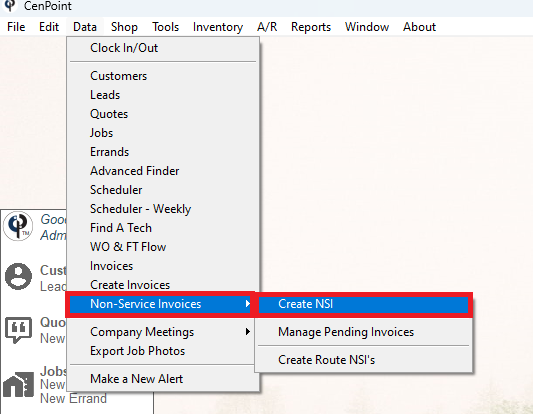
go to Data->Non-Service Invoice
#### Select Customer
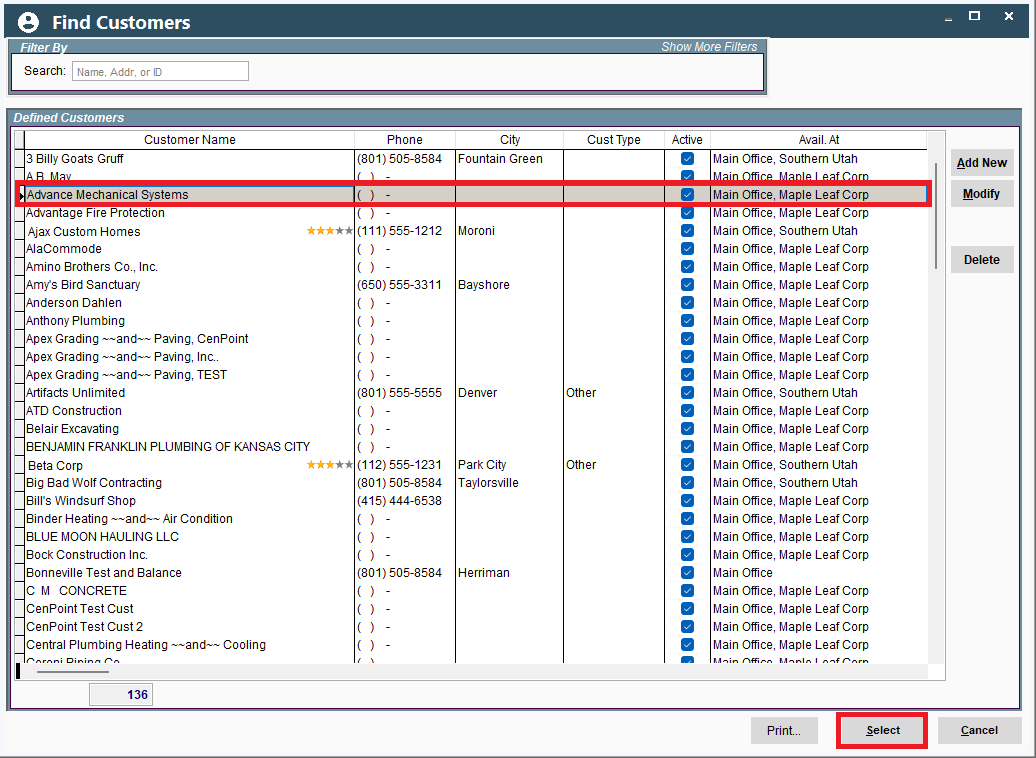
Choose a customer that you want to create Non-Service Invoice.
#### Non-Service Invoice Screen
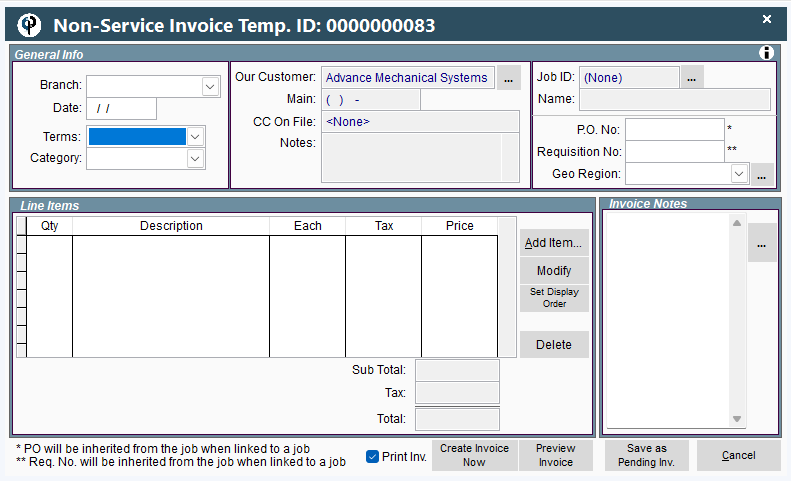
Choose a Branch Name, Date, and other details for NSI.
#### Choosing A Different Customer
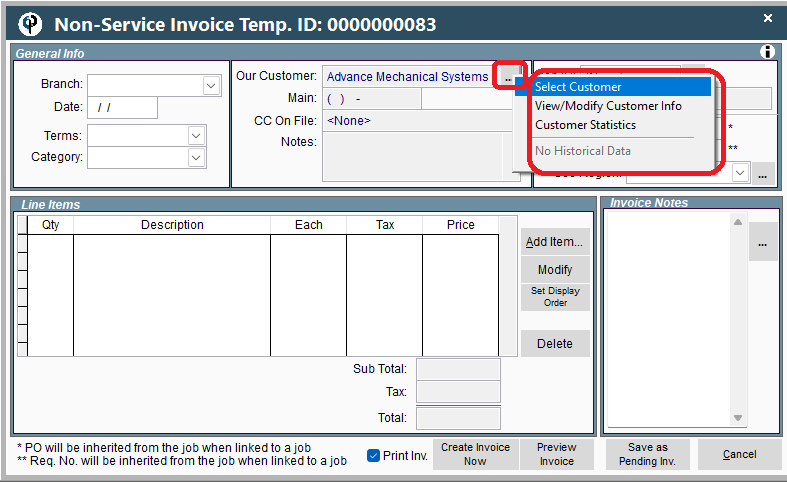
If you decide to change the customer, you can select a different customer in here.
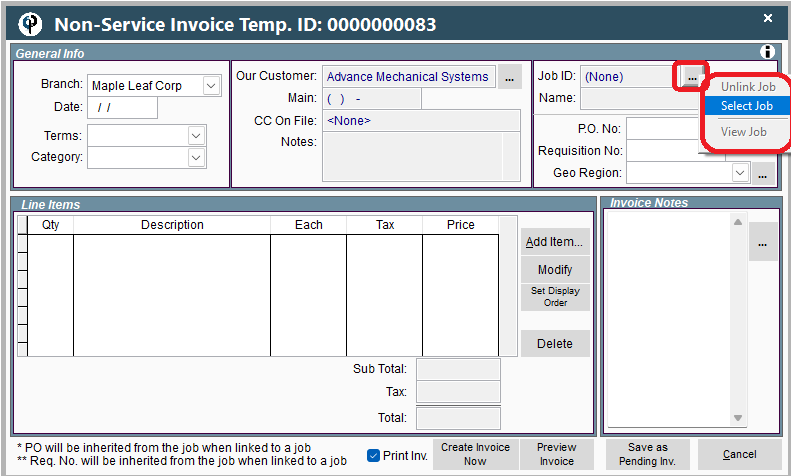
#### Linking NSI to a Particular Job
If you want to link the NSI to a specific job, you can do it by clicking on ellipses button to the right of the "Job ID".
#### Adding Items to the NSI
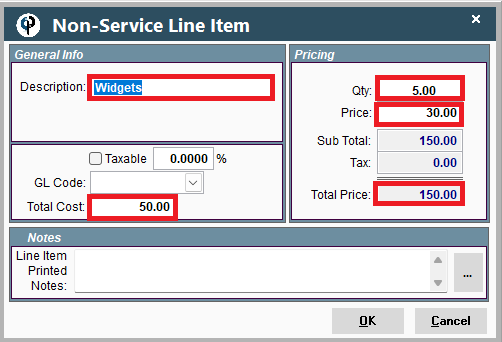
In here we can add items we want. Let's select the Line Item and add it to the NSI.
.png)
Provide the information on what was the cost, selling price, and any other relevant details pertaining to the item.
This will add Line item to the NSI.
#### Including Other Details on NSI.
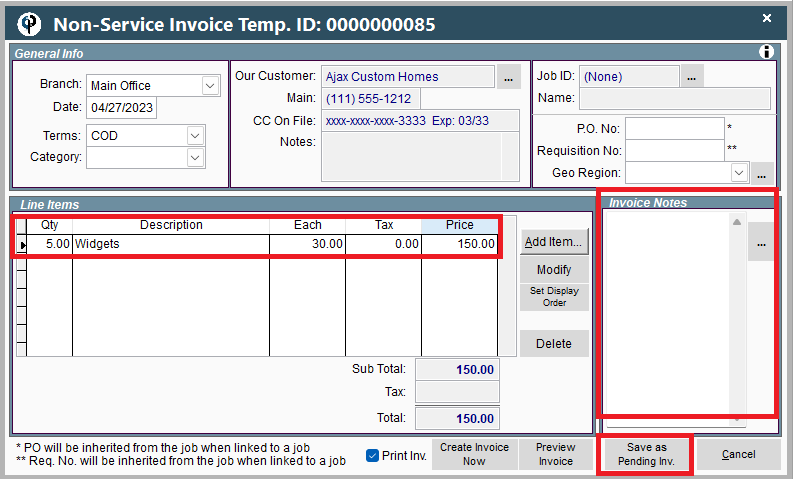
We have the option to add more items and general notes. After we finish adding the information we want,
then we can finish up creating the NSI. Below, there are three choices for creating the NSI:
If we select the 'Create Invoice' option, it will create an invoice while 'Preview Invoice' gives the draft invoice.
If we select 'Save as Pending Inv', it creates the pending invoice.
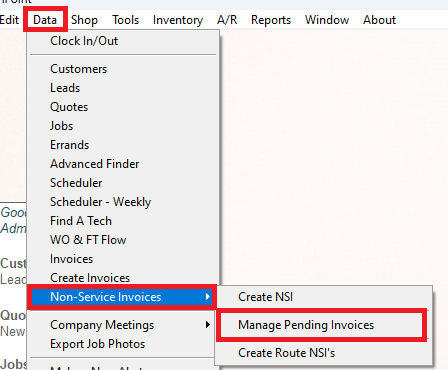
#### Find Pending NSI Invoices.
Data->Non-Service Invoices->Manage Pending Invoices
If we choose ->"Create Invoices": We will have an invoice.
#### FAQ's for NSI Invoices
#### Delete Non-Service Invoices
NSI’s, don’t pull from FT so when you delete them, they are really gone.
Unless the following two scenarios apply
1. If there are payments against the original NSI - delete the payment first then delete the invoice
2. It has been pushed to your accounting system-delete the payment, then delete the data push, and any adjustment that must be made in the accounting system.
#### Change from a NSI to a Regular Invoice
Click on invoices from the home screen in CenPoint. Find the invoice you want to change, click to highlight, click delete.
Go back to the Field Ticket, price as normal and create a regular invoice from there.
That will be all you need to do unless one of the following two scenarios apply:
1. There is a payment against the original NSI invoice
In this scenario the payment must be deleted first then the invoice can be deleted.
2. There is a payment made against the invoice and it has been Pushed to your accounting software
In this scenario the data push must be deleted then payment must be deleted then the invoice can be deleted.
*Make sure to keep track of the payments made so you can apply them to the new invoice.
#### Change NSI to a Different Customer
NSI tied to a Job: change NSI to a different customer by going to File->Data Utilities->Move Job to different Customer
NSI not tied to a Job: there’s a not a way to move NSI’s not tied to a job.
NSI's are usually 1 off type of transactions the best bet will be to delete the NSI and create a new one with the correct customer.