This article shows how to add missing time for an employee in a previous pay week.
CP Payroll → Review Time / Process Payroll

Adding Missing Time Via a Field Ticket
If you need to add time to a field ticket that was paid in a previous pay cycle, click More → New Quick FT.
Choose one of the three options depending on your use-case.
If you paid a tech at the wrong rate, but all of their hours were entered, choose ‘Add Missed Time (No Billing)’.
If you paid a tech, but did not enter hours, choose ‘Add Missed Time (No Billing)’.
If you did not enter hours or pay a tech, choose ‘Add Missed Time & Billing’.
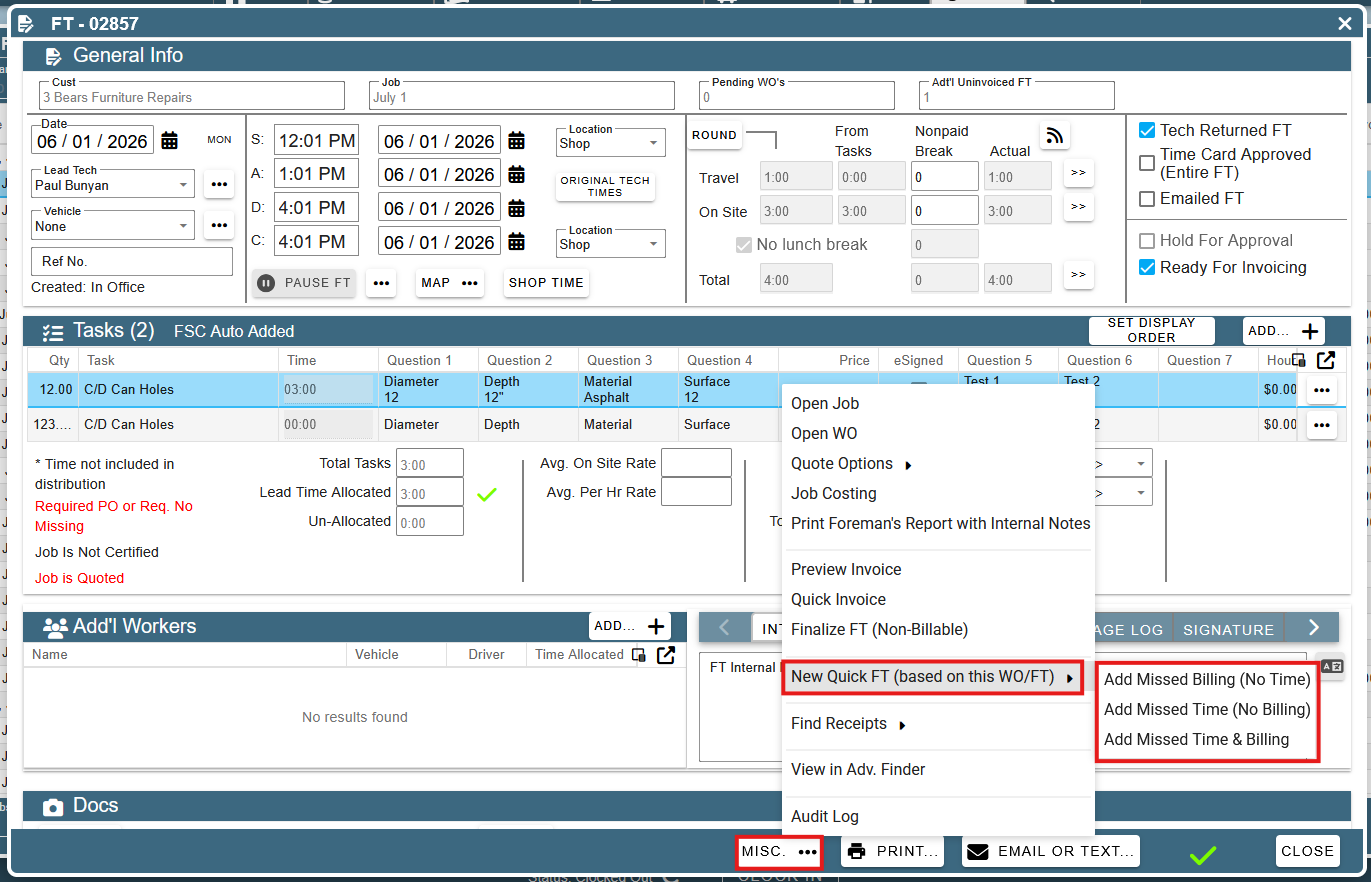
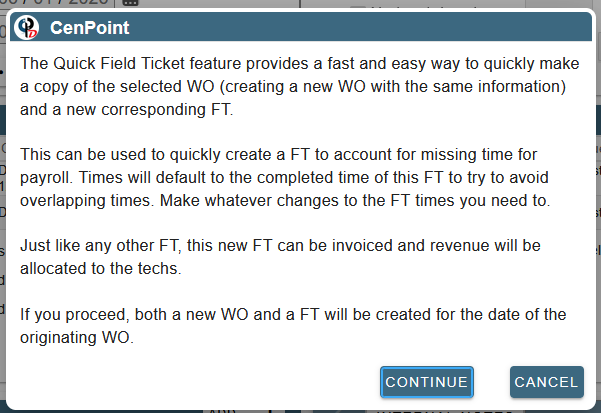
Clicking any of these three options will copy the field ticket and its associated work order. The following warnings will be shown before doing so.
When clicking ‘Add Missed Billing (No Time)’, the following popup is shown.
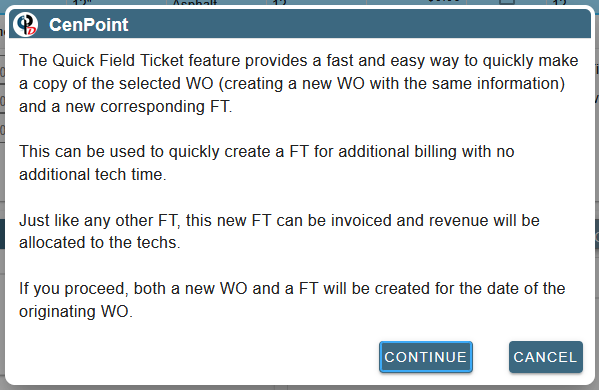
When clicking ‘Add Missed Time (No Billing)’, the following popup is shown.
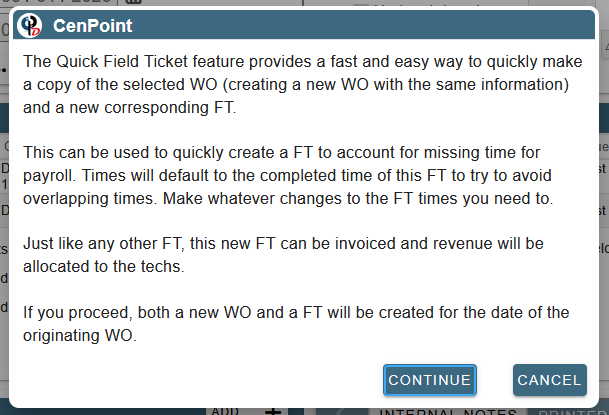
When clicking ‘Add Missed Time & Billing’, the following popup is shown.
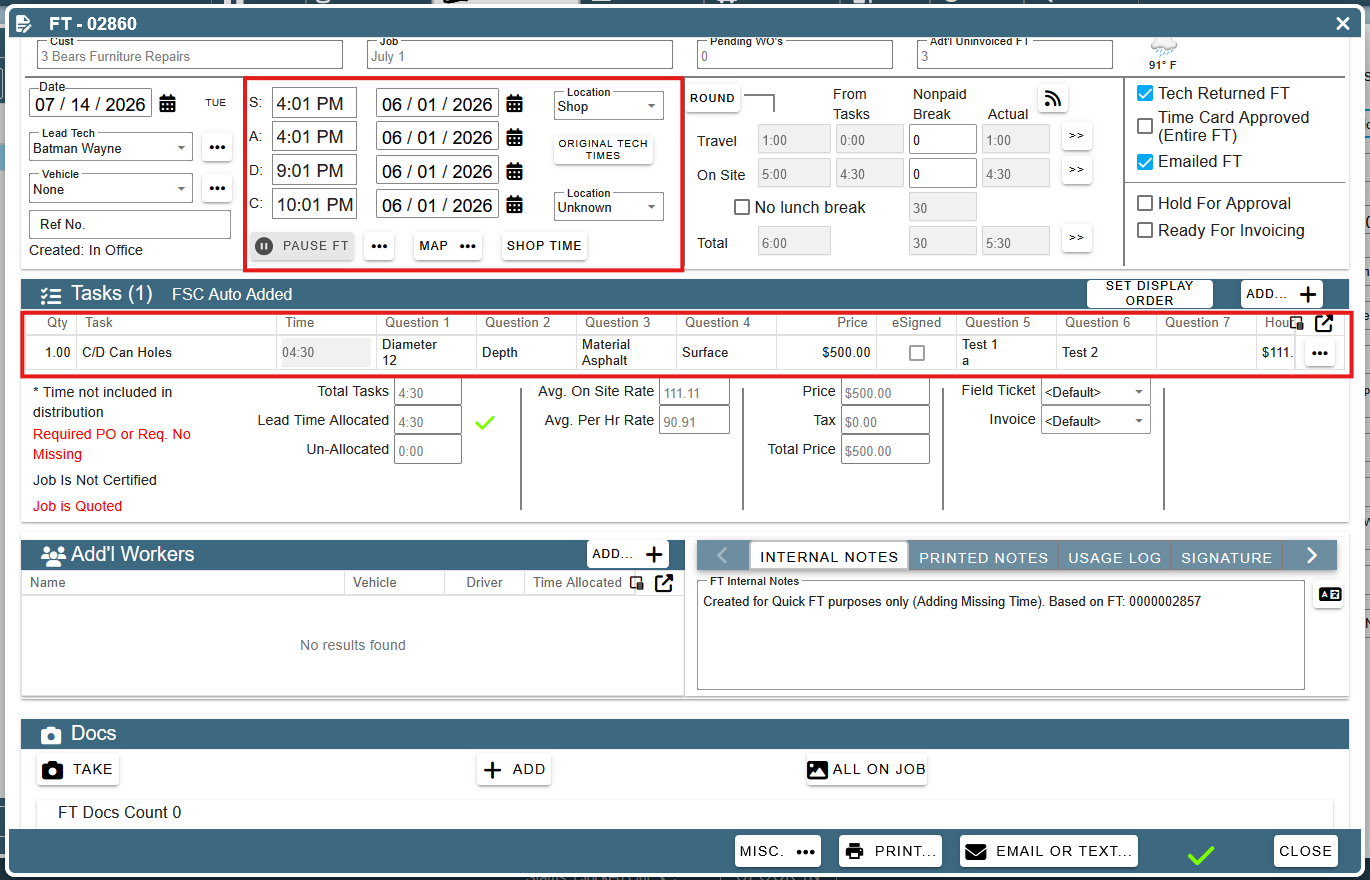
When you click continue, a new Field Ticket will open up. It will be marked as unpaid. The Start, Arrive, Depart, and Complete times will all be set to the completion time on the field ticket we copied. Here, we can add on-site time or travel time by setting the departure and completion times to be later. To allocate those times to a tech, we add a task and allocate the unallocated time.
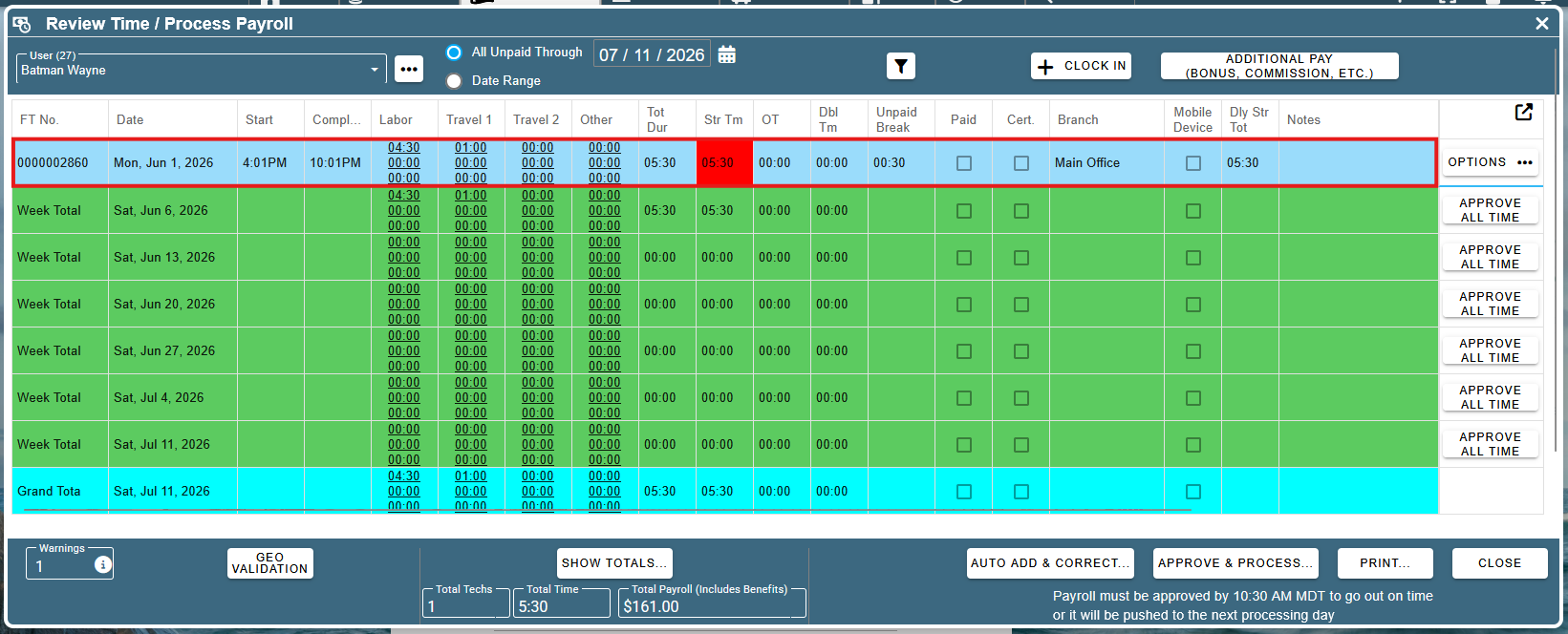
The new back-dated field ticket now appears on the ‘Review Time / Process Payroll Screen. You can follow the directions in the ‘Processing Payroll’.
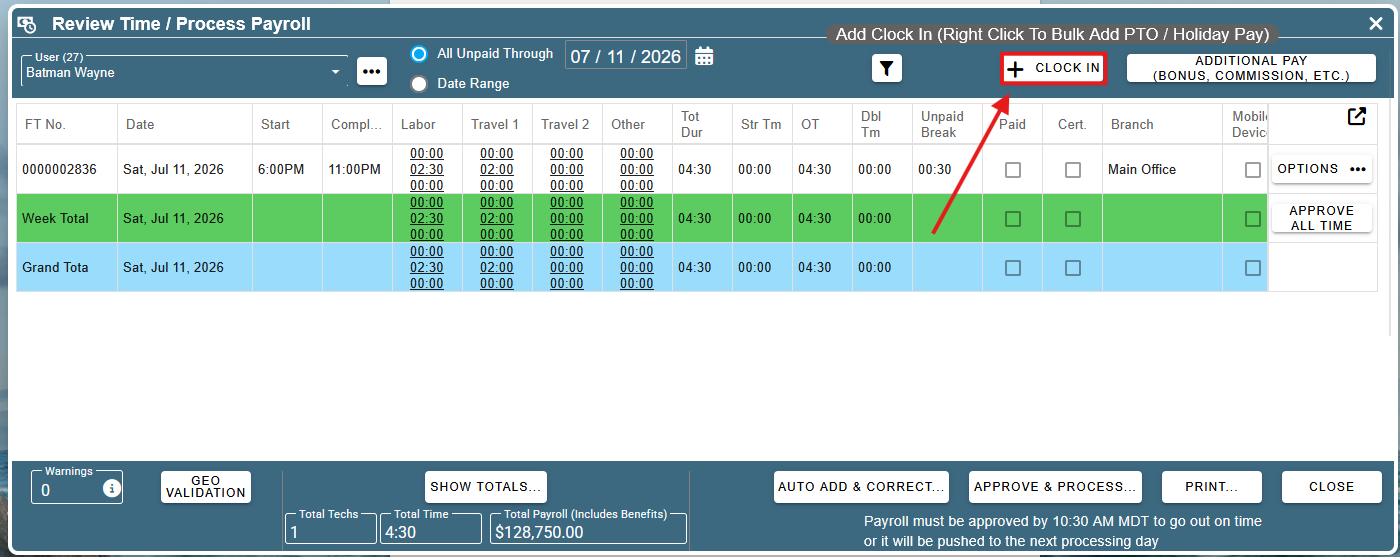
Adding Missing Time Via a Clock-in Record
To add missing time with a back-dated clock-in record, click the ‘+ Clock In’ button.
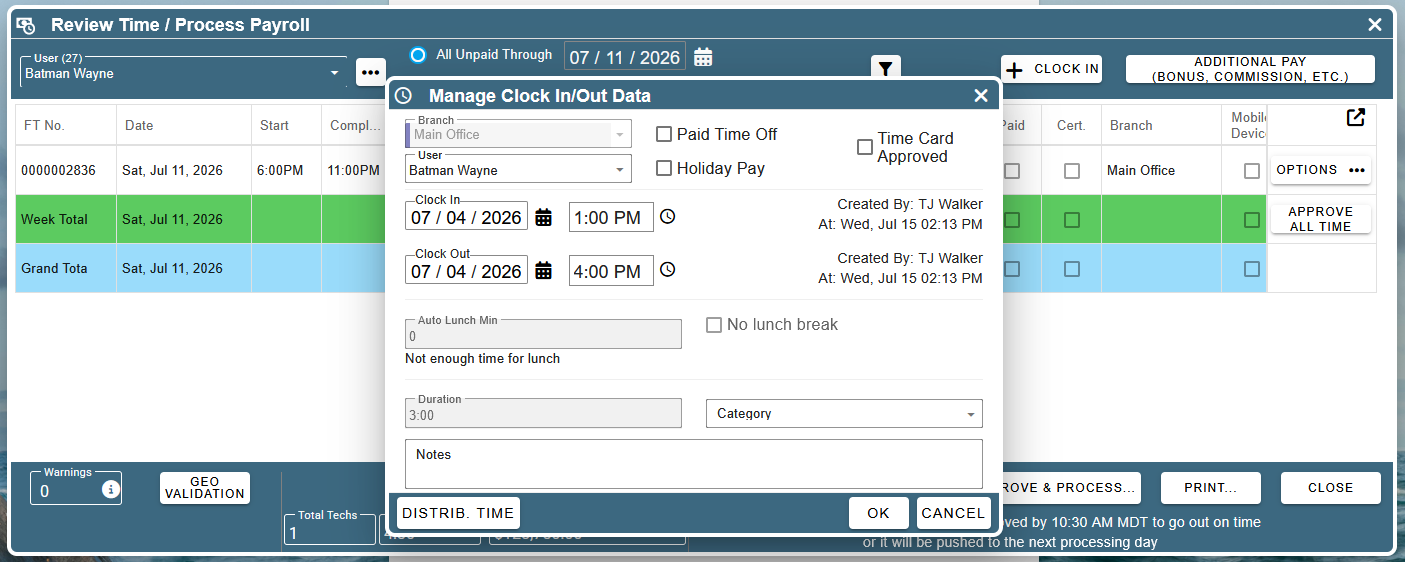
This will open up the ‘Manage Clock In/Out Data’ screen.
From the ‘Manage Clock In/Out Data’ screen, enter the ‘Clock In’ time, Clock Out’ time, and ‘Category’.
Check the ‘Time Card Approved’ box and click ‘OK’ when you’re finished.
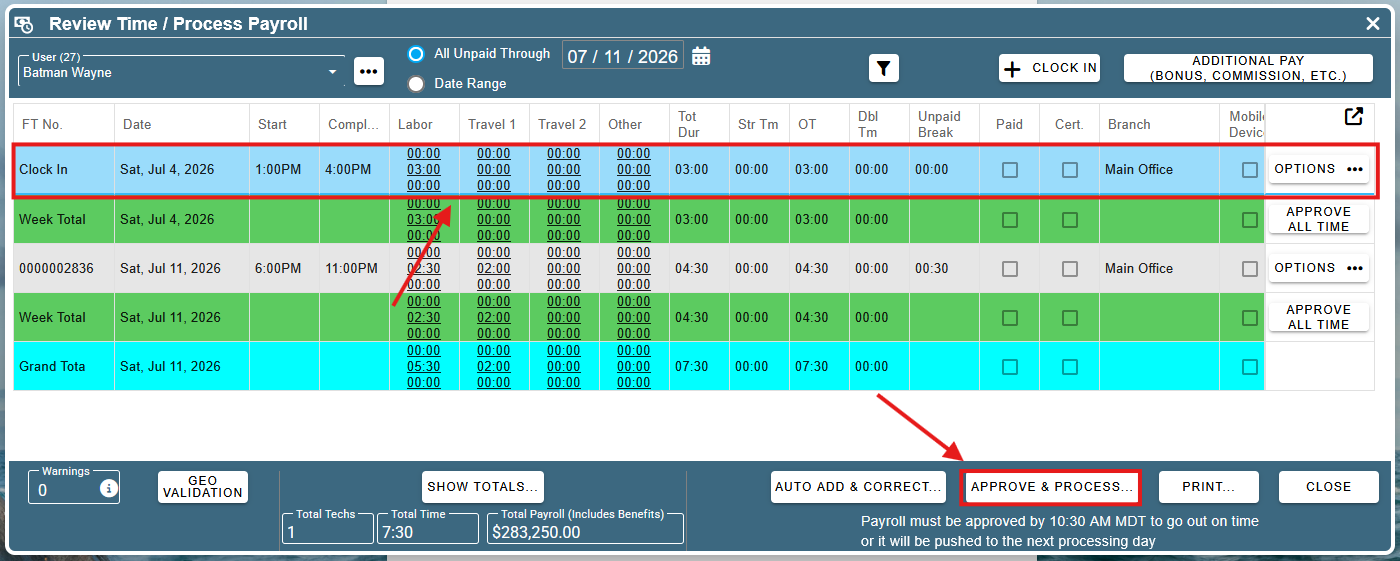
Now, the ‘Review Time / Process Payroll’ screen shows the back-dated clock-in record.
You can now click ‘Approve & Process’.
Processing Payroll
To process payroll for an employee in a previous pay period, follow the instructions in the ‘Paying an Employee for Hours in a Previous Pay Period Immediately’ help doc.
Adding Missed Pay (But Not Hours)
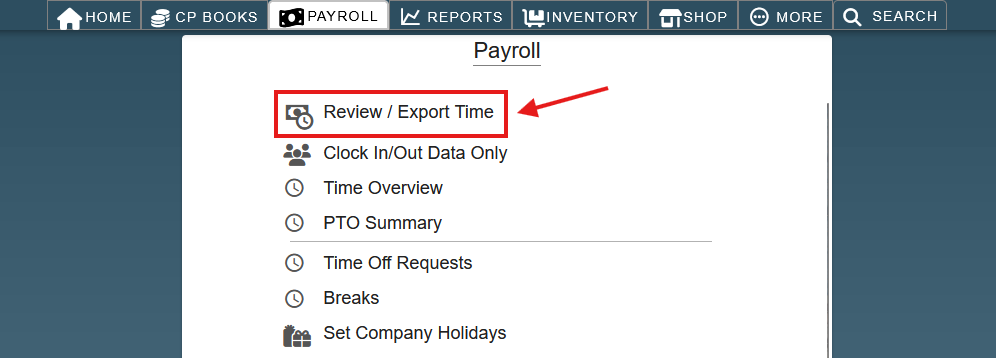
If you paid an employee at a rate that was too low, but all of their hours were correctly entered, you can compensate the employee with a one-time bonus. To do this, go to the ‘Review / Export Time’ screen.
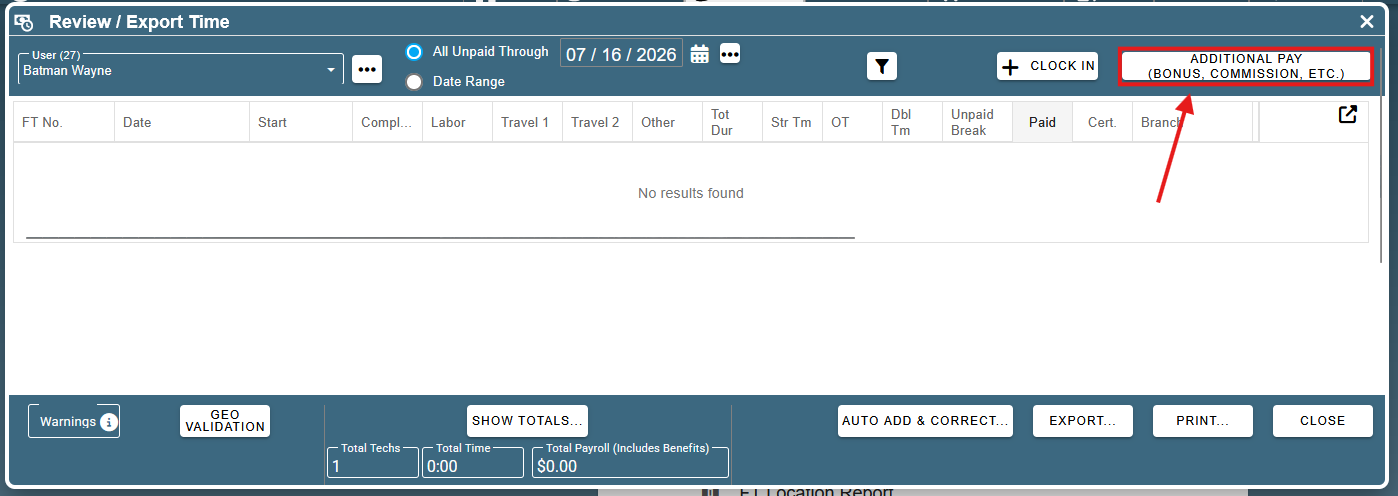
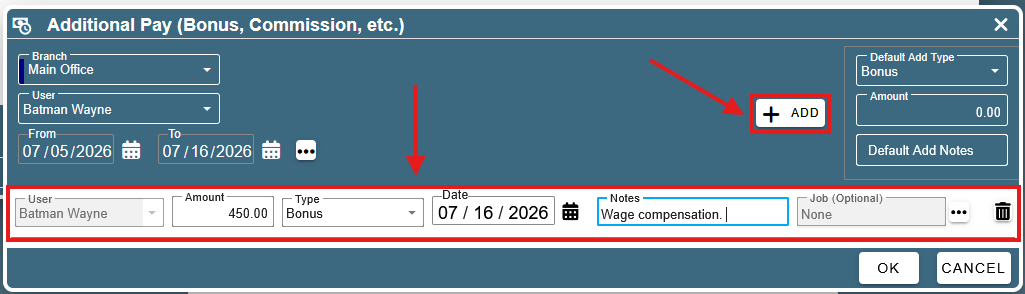
Click on the ‘Additional Pay (Bonus, Commission, Etc.)’ button.
On the ‘Additional Pay (Bonus, Commission, Etc.)’ scree, click ‘Add’. This will create a new entry. Fill in the Amount and any needed notes, and click ‘OK’.
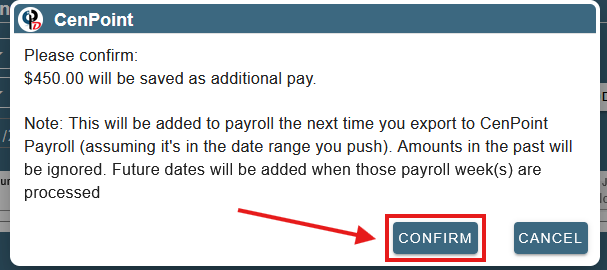
Clicking OK will open a popup to make sure you acknowledge that the one-time bonus will be added to the next payroll run or export.
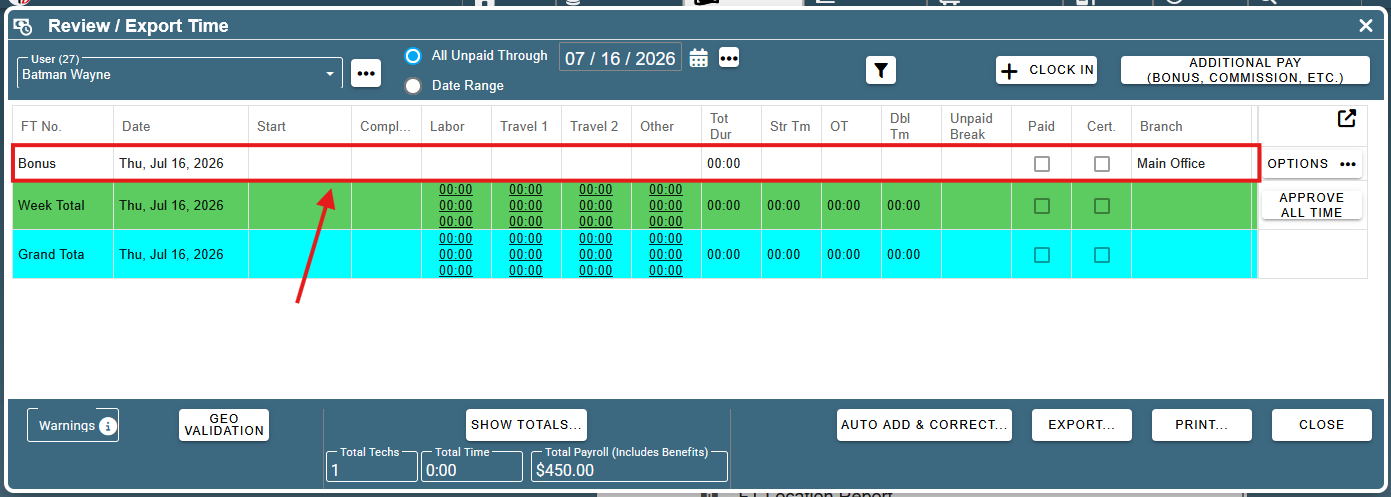
The bonus now shows up as an entry on the ‘Review / Export Time’ screen.