
This article covers how to set up Authorization to Proceed (ATP)
Set Up ATP/Predefined Notes
Require ATP on a Job or Field Ticket
ATP Print with the Field Ticket
Define Default Terms
Require ATP on a Task(s)
Send ATP in Advance
ATP Report
Set Up Authorization to Proceed on the Company Branch and Tasks
Set Up Authorization to Proceed
Set up Authorization to proceed by going to More→ List Management→ Quotes, Jobs, & Invoices → Auth. To Proceed
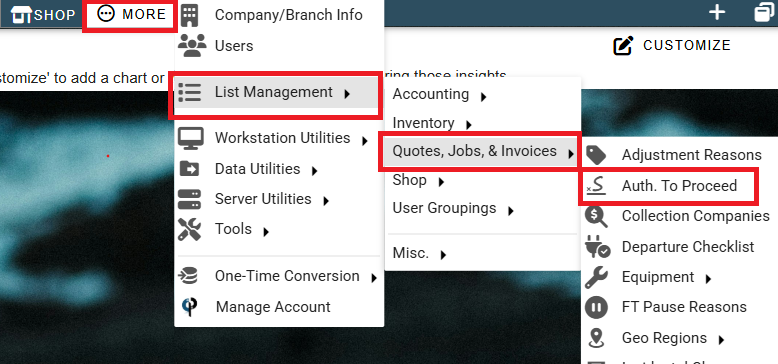
Click Add to create a new note. Click the Ellipsis→ Modify to alter an existing note.
.png)
Add a Description and make sure the ‘Type’ is Auth to Proceed, the “Active” box is checked, and then click OK to save and close.
.png)
Require Authorization to Proceed on Job or Field Ticket
Go to More → Company/Branch Info
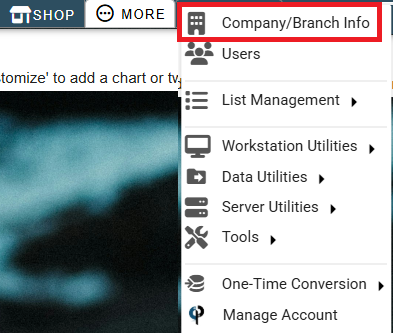
Then double click on your branch or select the Ellipsis→ Modify
.png)
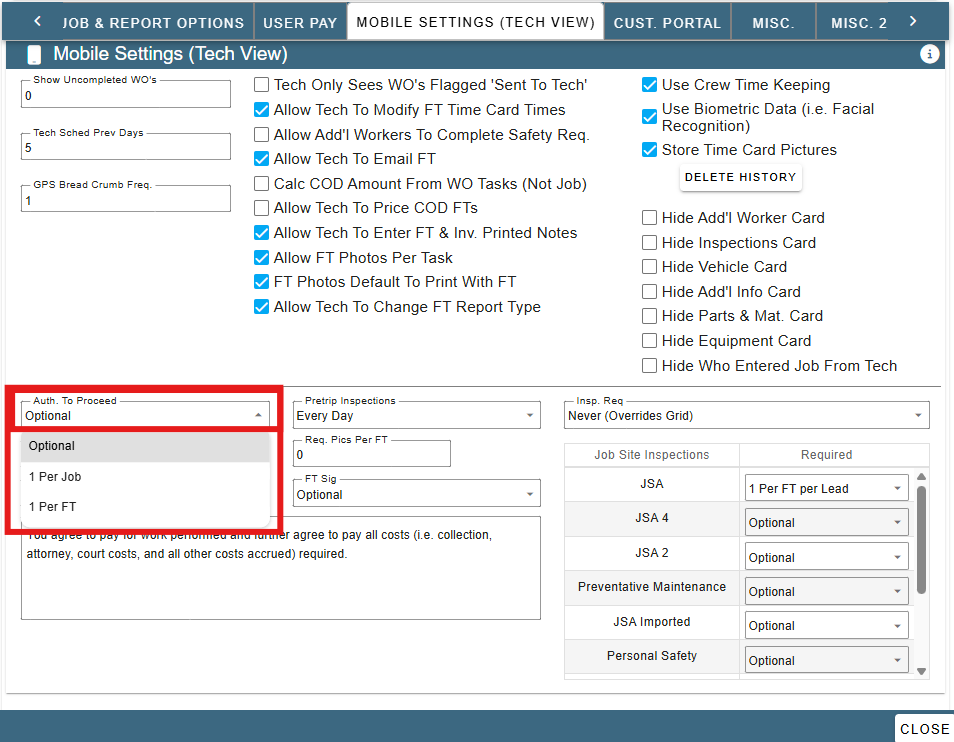
Go to the Mobile Settings (Tech View) Tab.
Select an option from the drop-down list next to Authorization to Proceed.
Optional: Gives techs the option to get an “Auth to Proceed” signature but is not required.
1 Per Job: A signature for “Auth to Proceed” is required on each Job before you can start working.
1 Per FT: A signature for “Auth to Proceed” is required on every Field Ticket before starting work.
Authorization to Proceed to print with Field Ticket
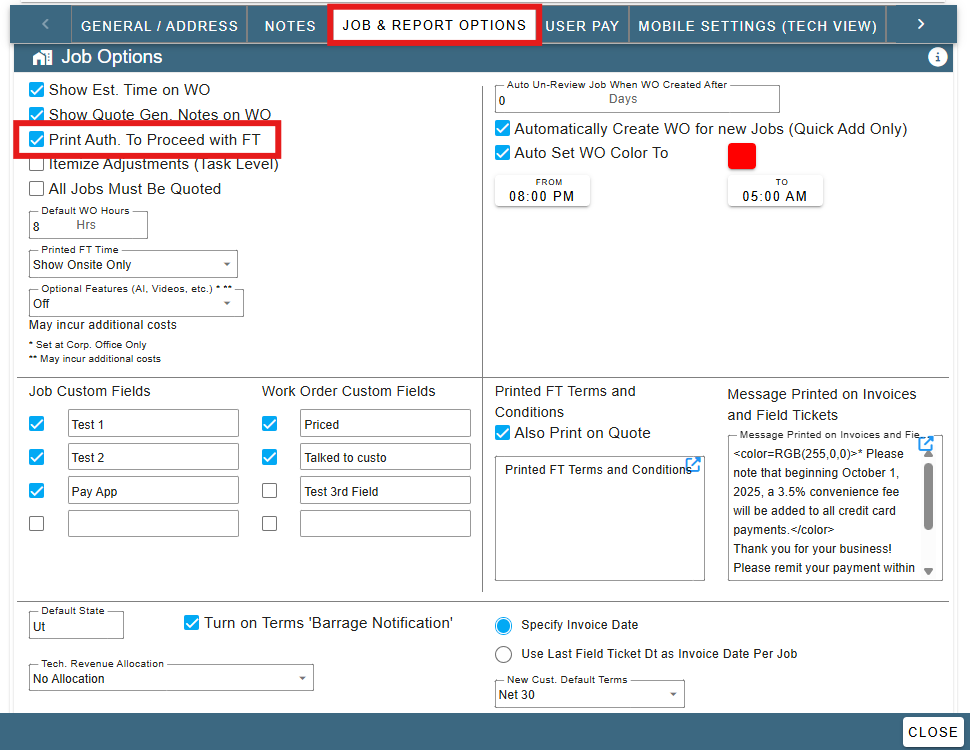
If you want the Authorization to Proceed to print with the Field Ticket,
Go to the “Job & Report Options” Tab while in the branch settings.
Check the box if you would like the Authorization to Proceed to print with the Field Ticket.
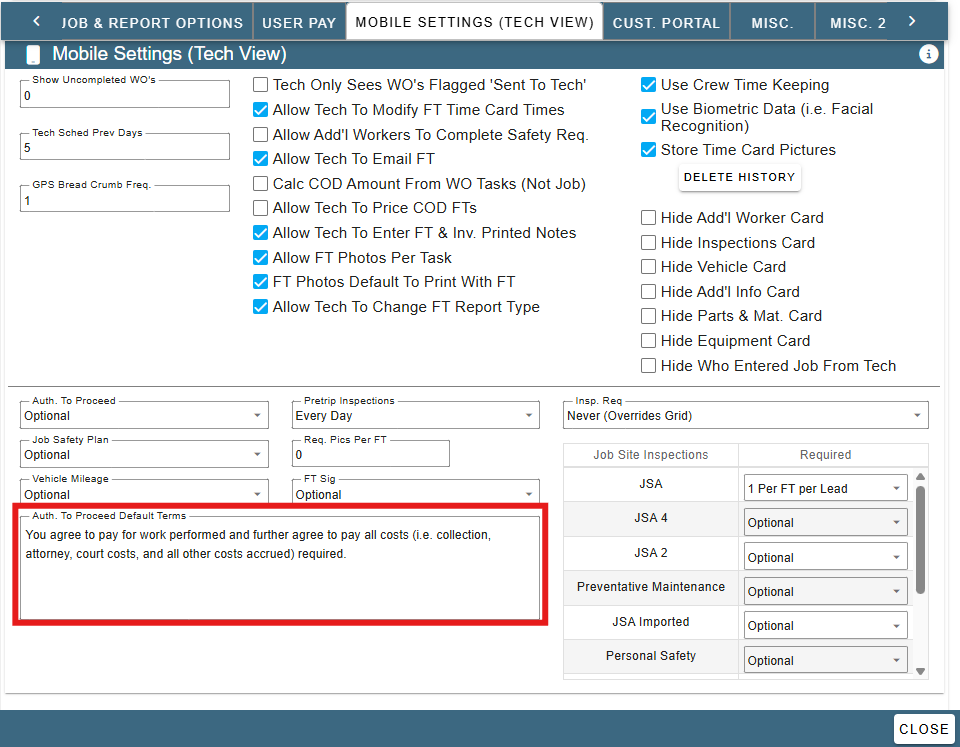
Default Terms
There are Default Terms that fill in on every Authorization to Proceed.
This is found under More->Company Branch-> Select your Branch → Mobile Settings (Tech View) Tab.
*Predefined notes are added on at the time you are creating the Authorization to Proceed
and will appear under the ATP Default Terms
Send an Authorization to Proceed to Customer in Advance
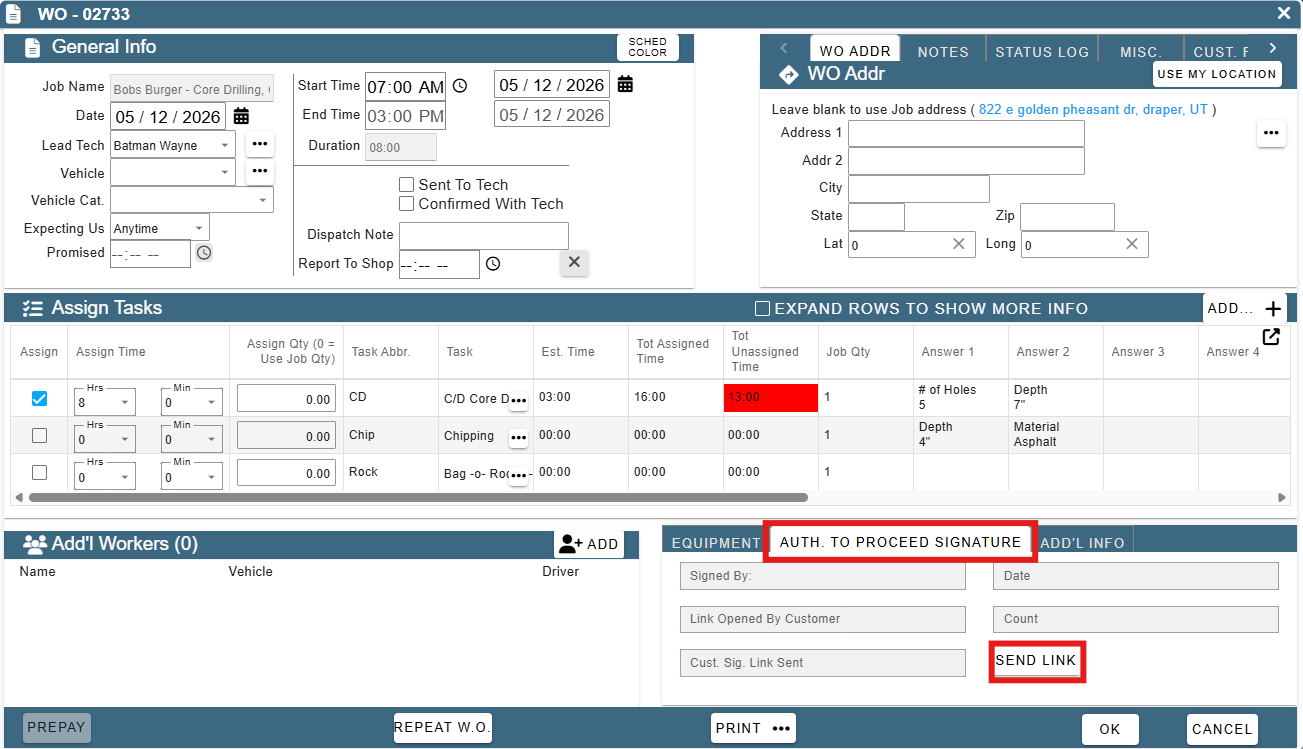
To send ATP in advance go to the Work Order → Click “Send eSig Link”
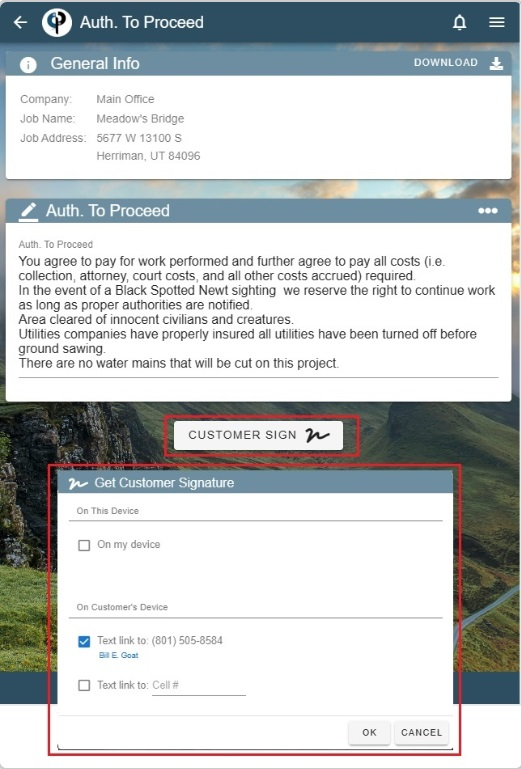
A new window opens and allows you to fill out/text an ATP link to your customer before you even get there!
Techs can also send an Authorization to Proceed on the mobile app from the Field Ticket.
To see more information on how tasks work with Authorizations to Proceed follow this link:
https://help.cenpoint.com/v1/docs/en/authorization-to-proceed-and-safety-plan-on-a-task