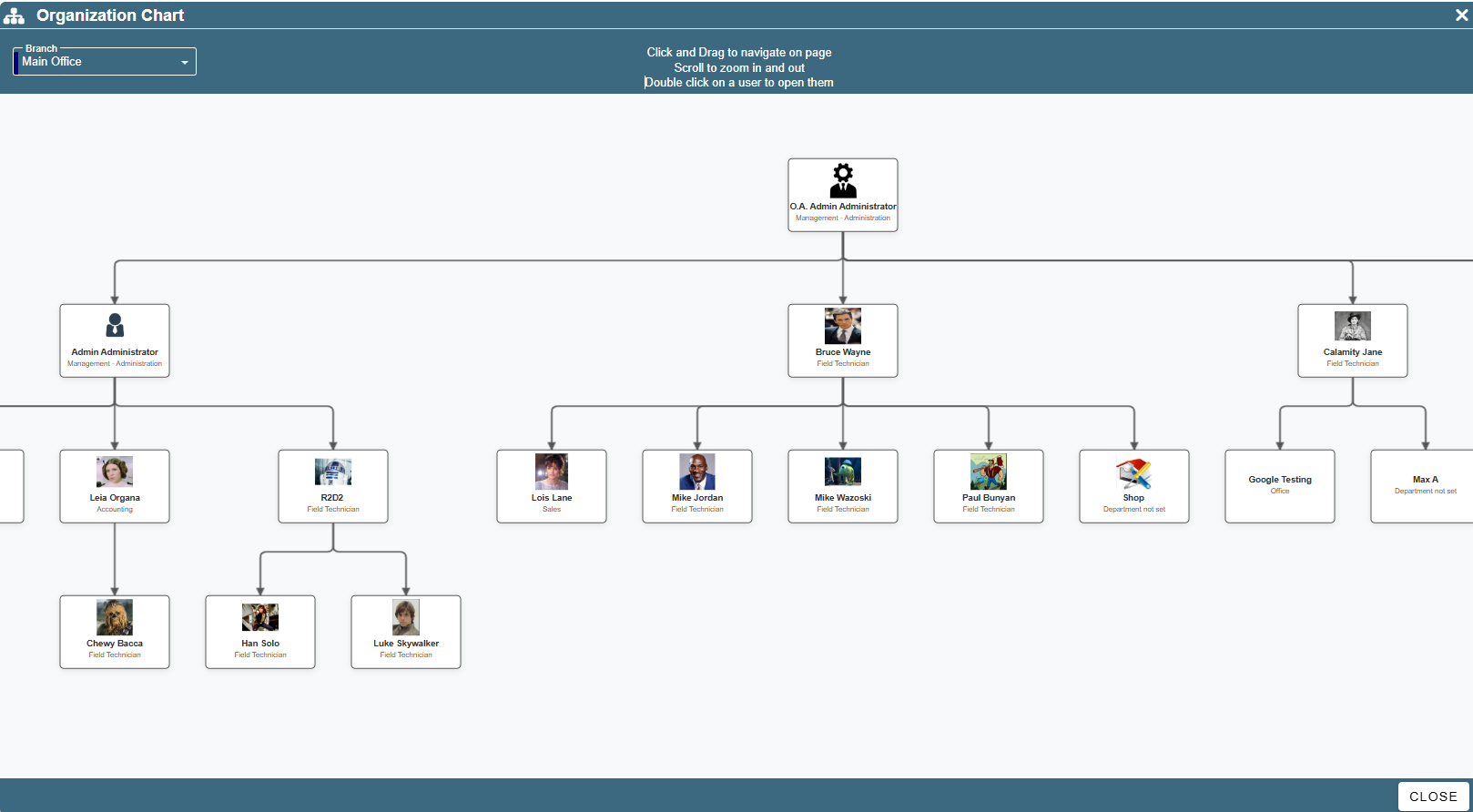
You can view a diagram of your company’s hierarchy. You can view this on a user’s level and on a branch/company level.
This page will demonstrate how to set up that hierarchy.
In this document I use the words “USER NAME” as a placeholder for the name of the user that you are editing.
USEFUL TIPS:
Double click on a user in the diagram to open them.
Click and Drag in the diagram to navigate.
Scroll to zoom in and out when viewing the chain of command.
Click the button in the bottom left of the window to toggle between a full view and a user’s view of the diagram.
.png)
Assign a single User
Open up the user and go to the General Tab.
Click on the ellipsis next to “User Reports To” and select the option that says “Select who ‘USER NAME’ reports to”
.png)
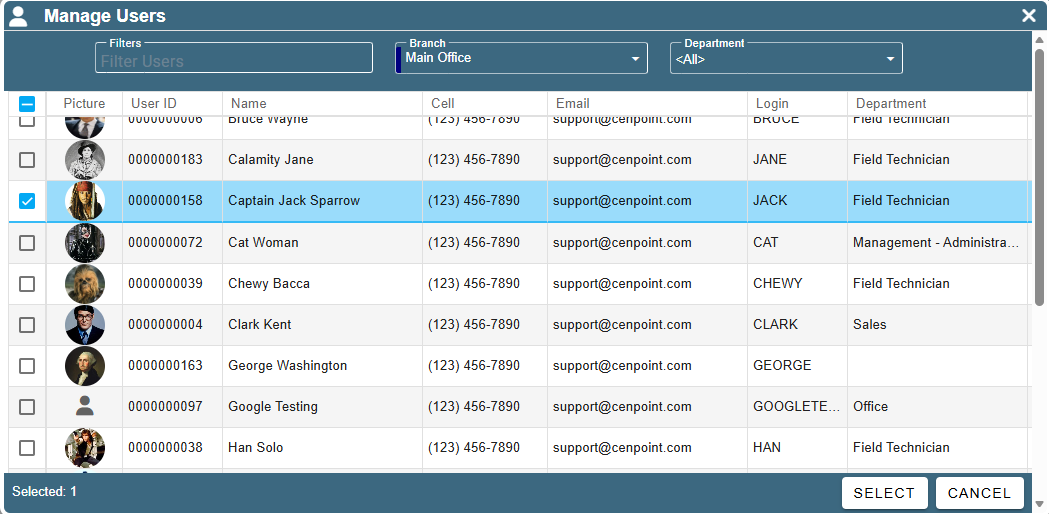
The Select User screen will appear. Please find the desired user you would like your person to report to and either double click on them or click the checkbox and then click “Select”
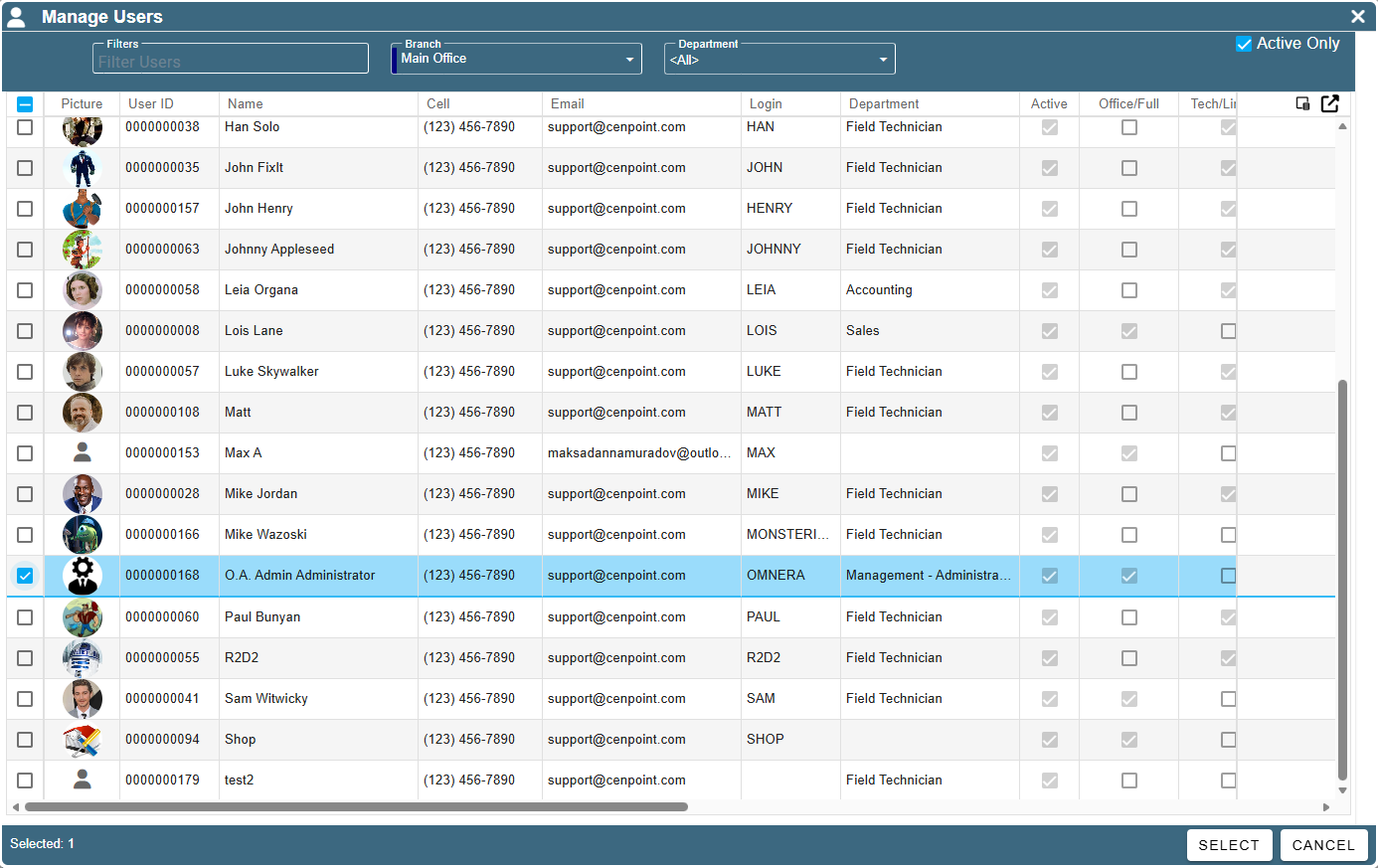
The name of that person will now appear in the box that says “User Reports To”
.png)
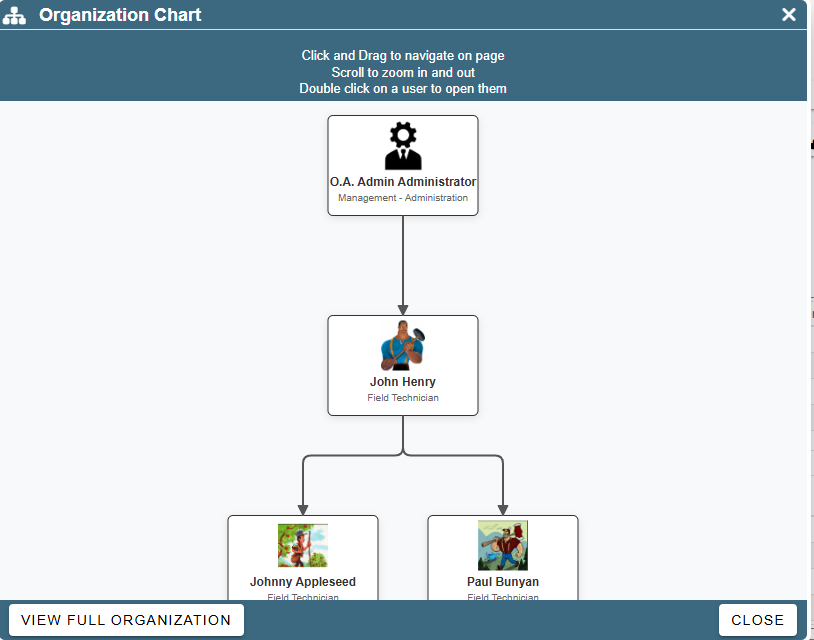
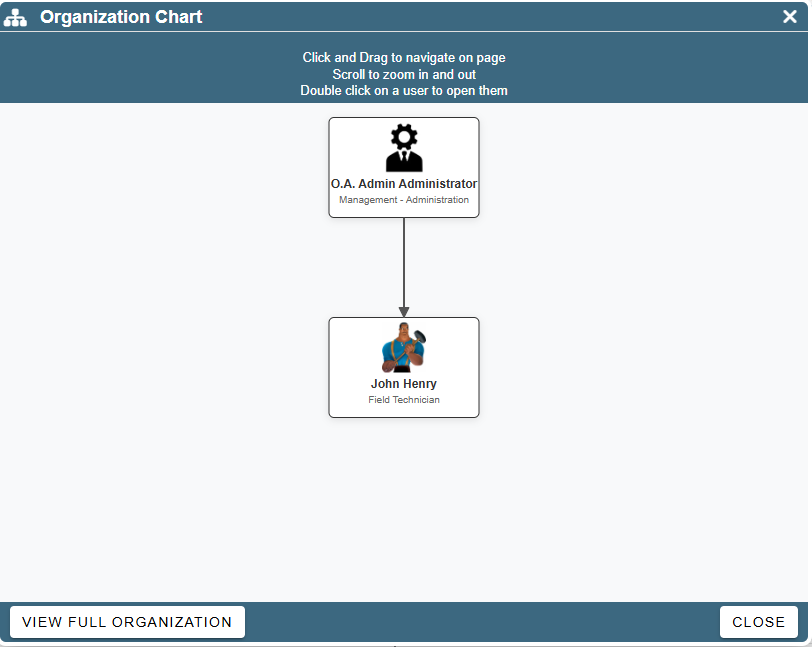
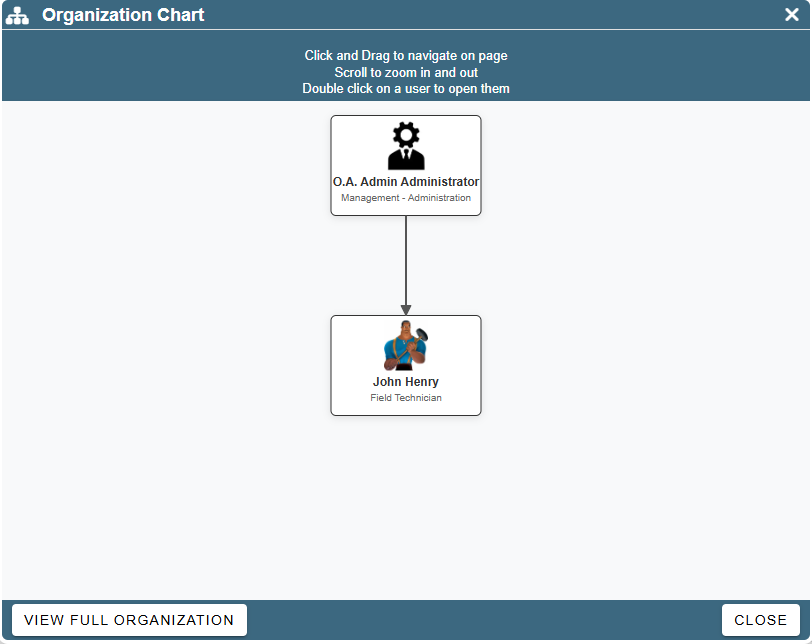
On the organizational chart in this example, you can see that John Henry now reports to O. A. Admin Administrator.
Unassign a single User
To unassign a user so that they don’t report to anybody simply click on the Ellipsis → Clear who “USER NAME” reports to.
.png)
The “User Reports To” field will now be blank.
.png)
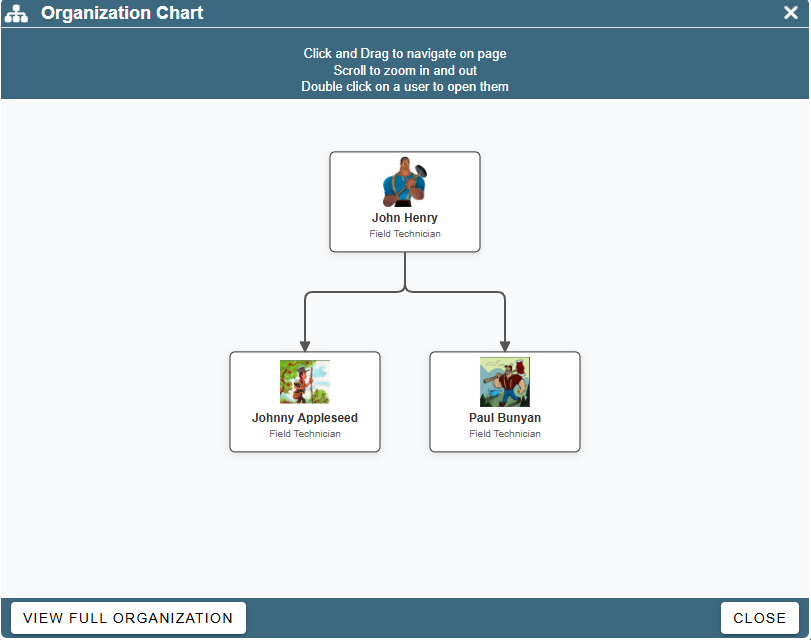
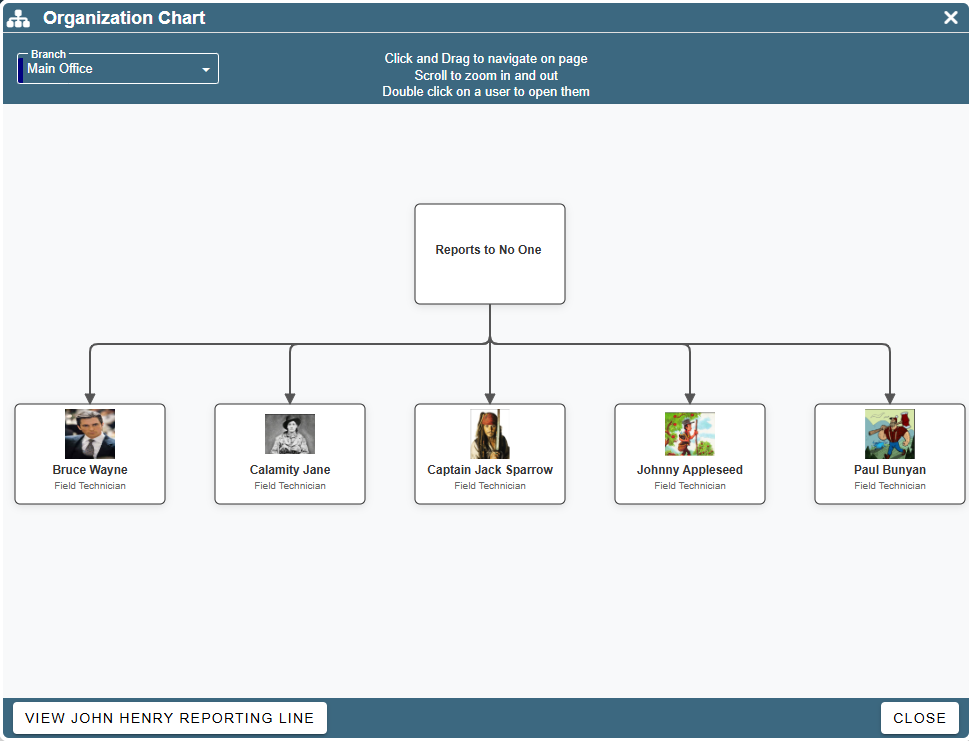
On the organizational chart it will show that this user doesn’t report to anyone.
Bulk Assign Reports To
To bulk assign people to report to a single user, click on the ellipsis → Assign Users who should report to “USER NAME”
.png)
A window will open allowing you to select all people who should report to this user.
A person is selected if the blue checkbox is lit up.
Once you’ve selected all desired people, click the “Select” button on the bottom right of the screen to save your choices.
.png)
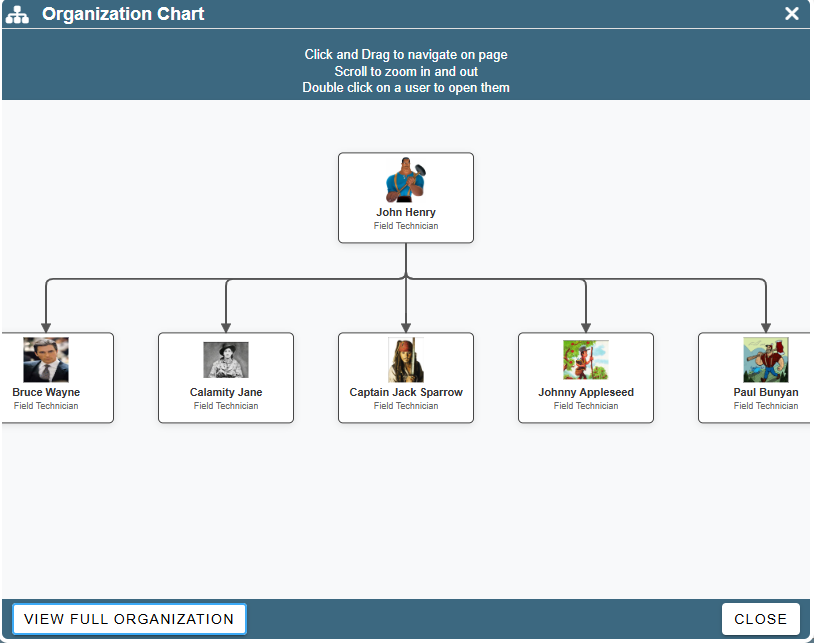
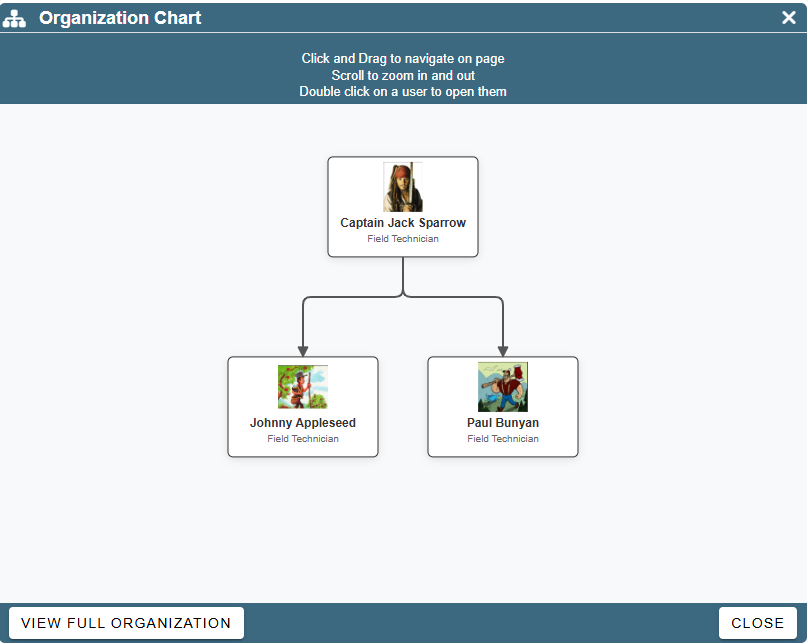
You can now see these people reporting to your user along with anyone else who is assigned to report to them.
Bulk Unassign Reports To
To unassign people who report to a given user and make them report to no one please click the Ellipsis → Clear all users who report to “USER NAME”
.png)
Those users will no longer appear as reporting to this person and instead will appear under a “Reports to No One” category
Replacing a Manager or Team Lead
To replace a person so that his team reports to someone else click on the Ellipsis → Reassign all Users who report to “USER NAME”
.png)
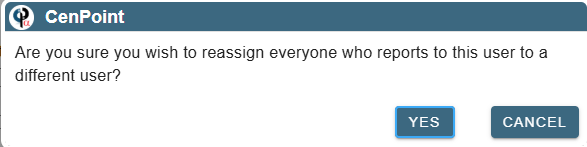
A popup will appear asking you to confirm your choice. Please click Yes to continue
A window will appear allowing you to select who you would like everyone to report to instead.
Click on your desired user and click “Select”
No one will report to the old user anymore.
They will all report to the new user that you selected.
View a User’s Chain of Command
View a user’s hierarchy diagram by going to that user going to the General Tab.
Click on the tree diagram next to their photo and the organizational chart will appear.
.png)
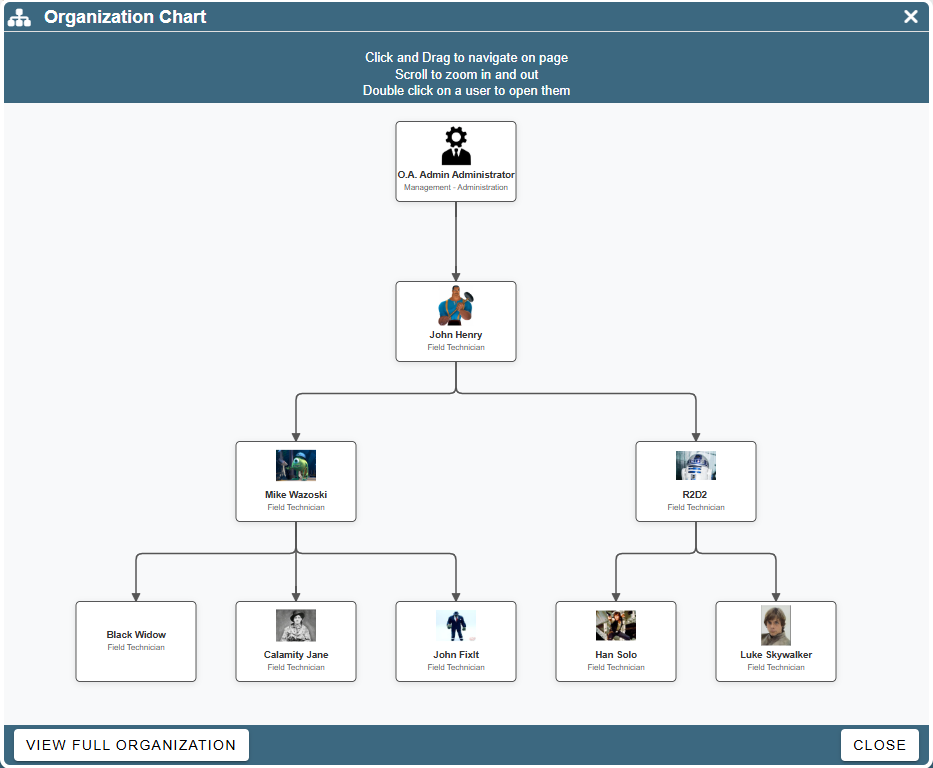
You will see the direct line of who that user reports to going up to the top and you will see all users who report to this person going down to the end of the tree diagram.
Click the “View Full Organization” button to view the branch’s hierarchy diagram for a more comprehensive chart of how the users are organized.
If you view the full organization, there will be a button in the bottom left allowing you to toggle back to the one user’s reporting line.
Alternately, you can go to the “User Reports To” box and click on the ellipsis → View Chain of Command to open the diagram as well.
.png)
View a Branch’s Chain of Command
View your company hierarchy diagram by going to Reports → Chain of Command
.png)
Clicking on this will open a diagram of your company’s tree structure showing your company’s hierarchy.
Click and drag to navigate the tree diagram.
Double click on a user to open them (and thus edit who they report to)
Scroll to zoom in and out on the tree diagram.
Use the branch dropdown to view each branch’s hierarchy diagrams.