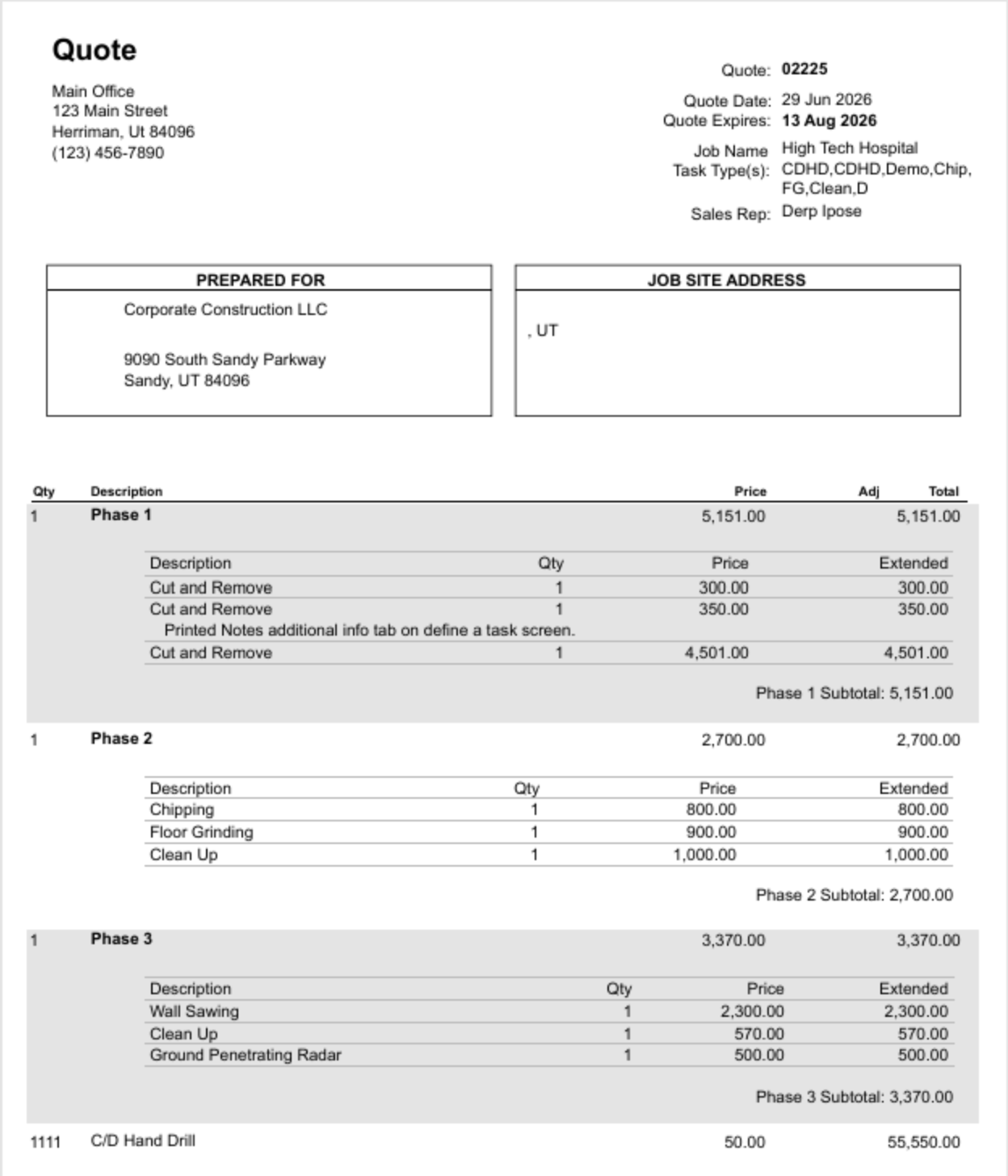
Group in things like location, phases, and optional Add-ons
Prints out inside of the group for easy viewing by your customer
* Requires the new quote format / engine. Please contact support to have your quote converted to the new format if it hasn't been yet
Task group can be added to either a Quote or Job, we will be using Quote as the example, but the concept is the same on a Job.
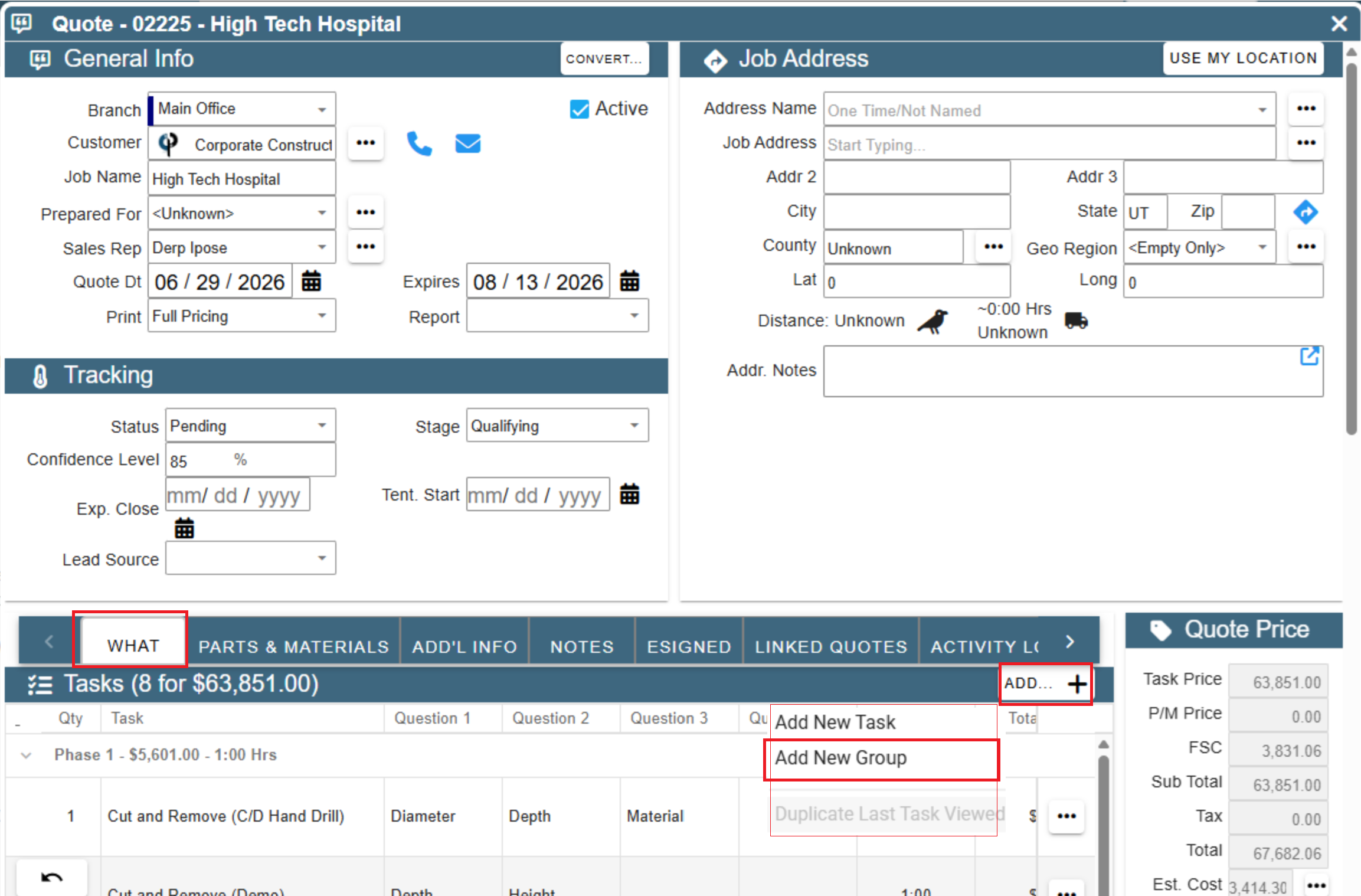
Add a Task Group on a Quote by going to the What tab and clicking Add and selecting 'Add New Group'
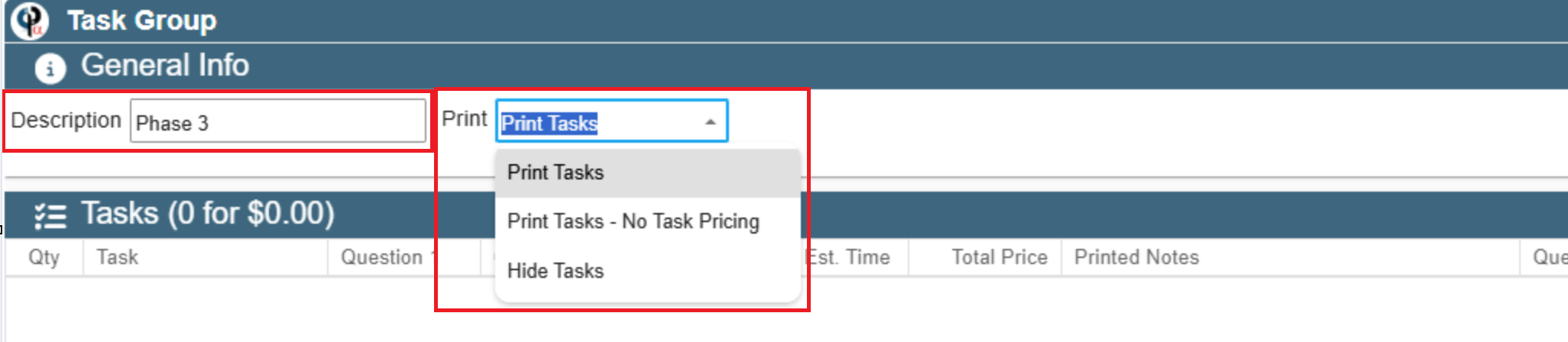
On the Task Group page add a Description for the group and decide how you want it to print on the Quote from the following 3 options:
Print Tasks (includes price)
Print Tasks-No Task Pricing
Hide Tasks
In our example we are using a description as Phase 3 but this could be relevant for a location, or optional add ons as a group.
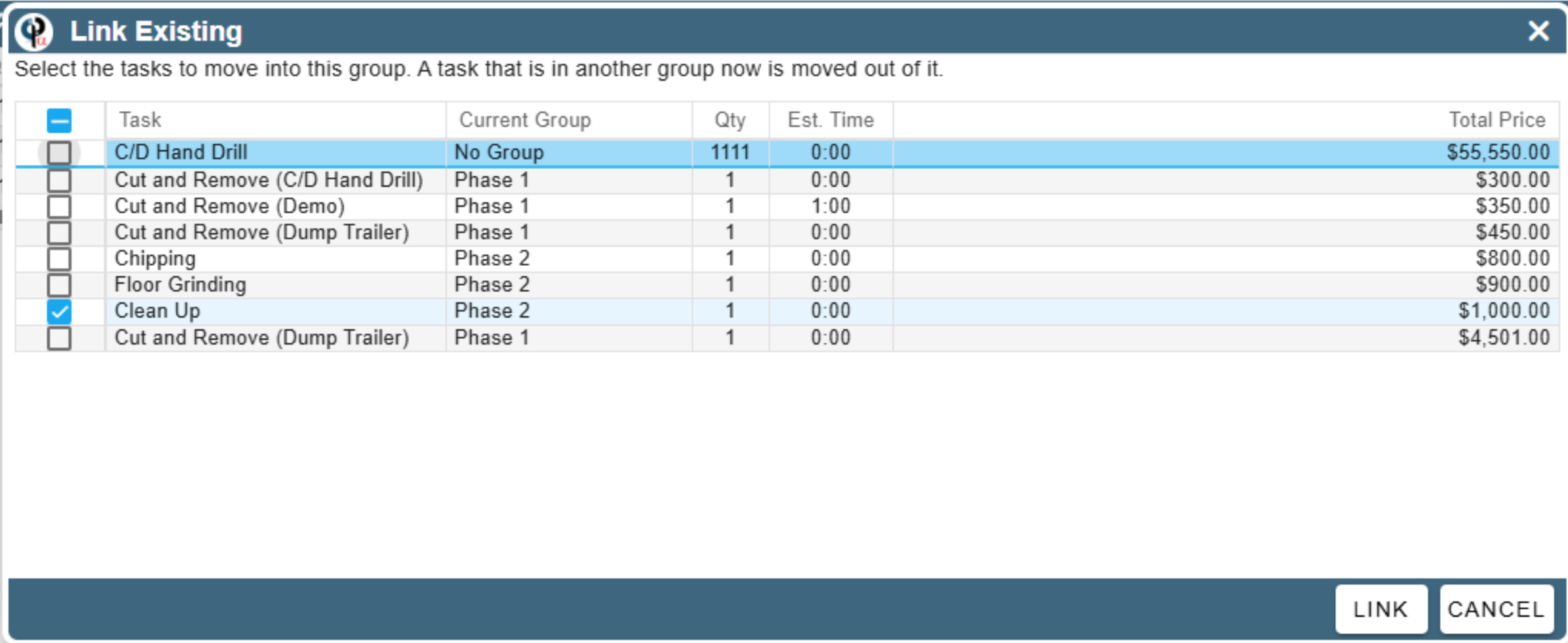
Next Add the tasks that will belong to this group by clicking 'Add' or you can also Link an existing task.
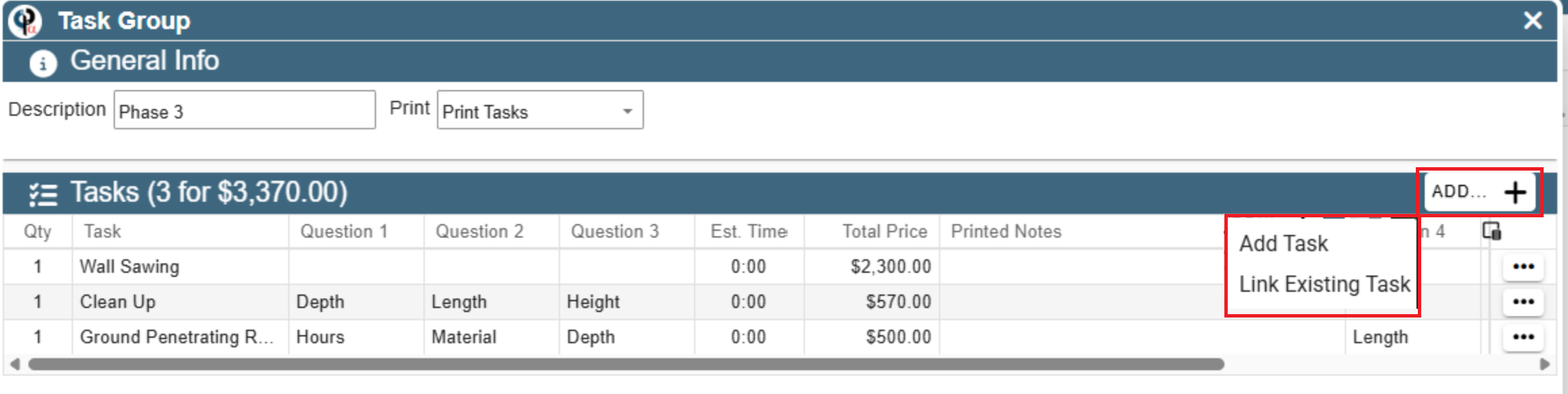 If you select “Link to existing task,” the selected task is moved into the group you’re creating. If that task already belongs to another group, it is removed from that group and added to the new one.
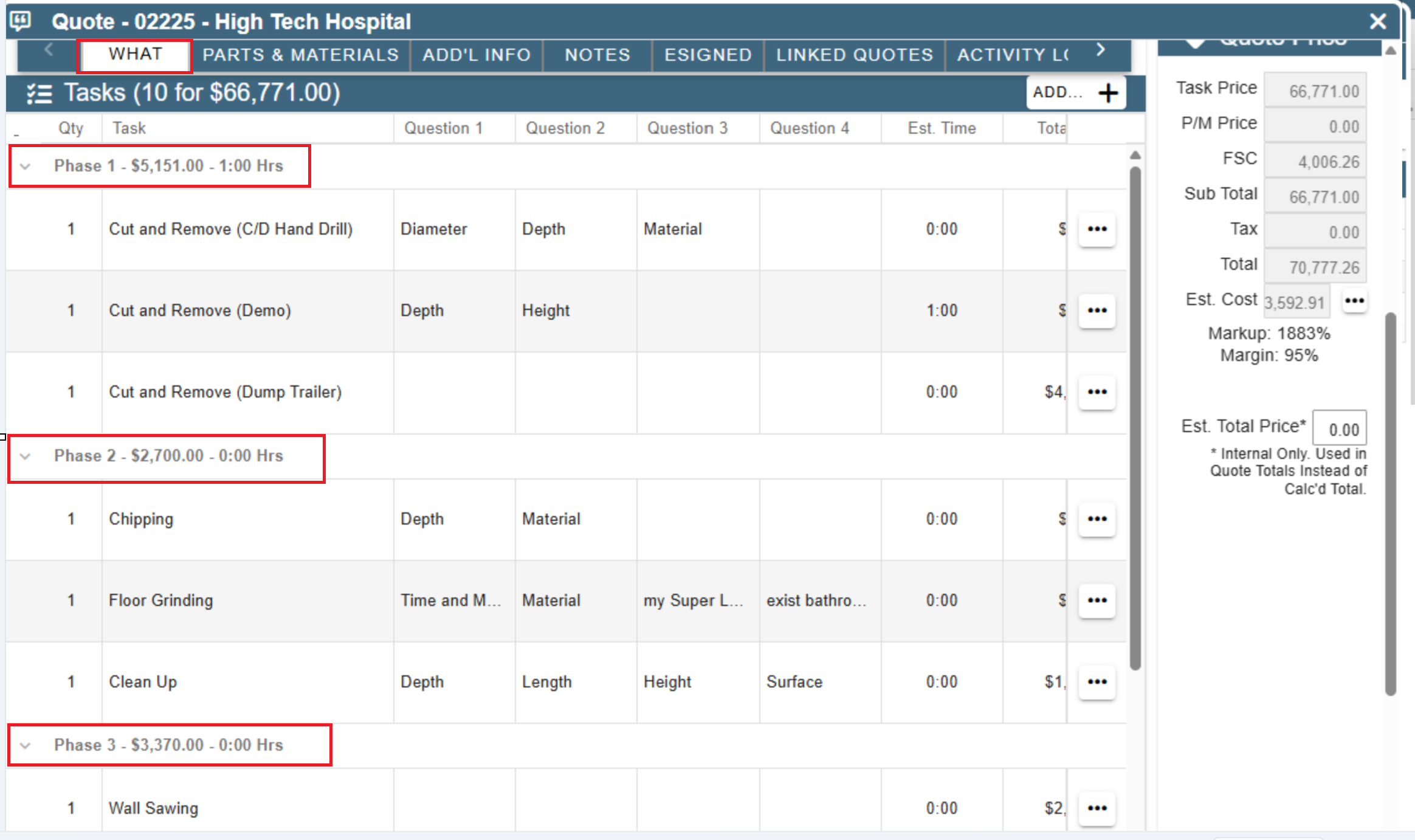
Once you have created a group it will be displayed well as a group of course:)
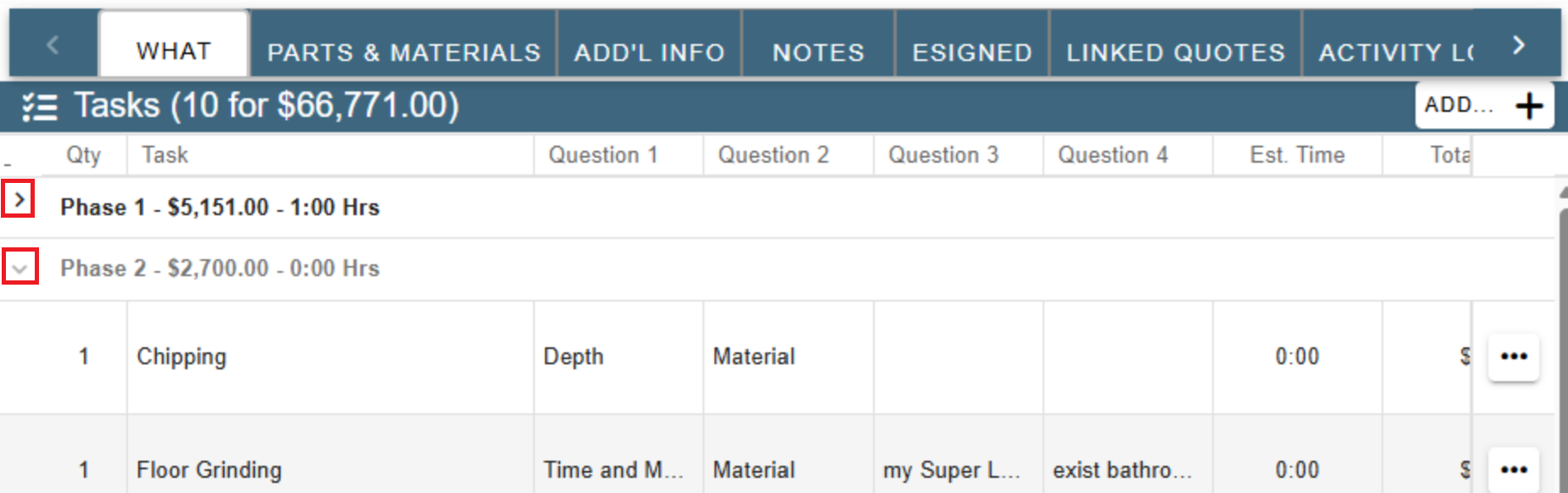
Task Groups can be collapsed or expanded using the arrows
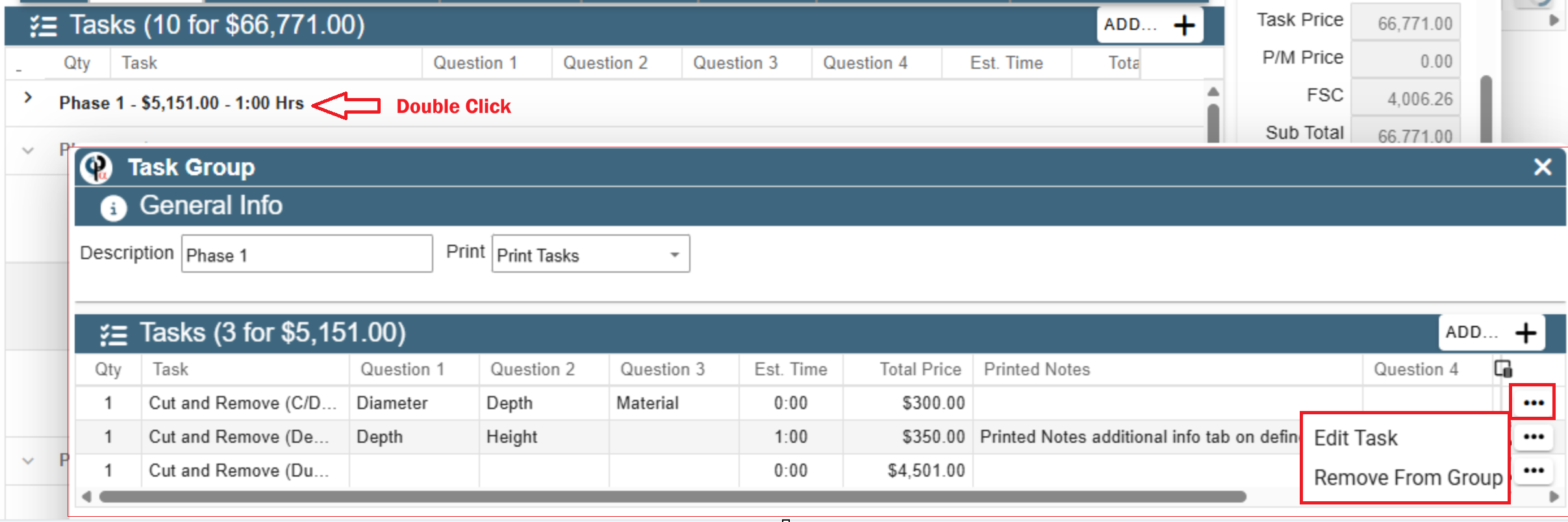
Add or Delete tasks from a already created Task Group by clicking the Group Header.
The Task Group will open and from there you can edit the task or remove from the group by clicking the ellipsis next to the task.
Prints out inside of the group for easy viewing by your customer
When you print out the quote the tasks are now grouped and priced( if showing pricing) under the Task Group description.