
Set up email subject and email message for Quote Reminder
The first step is to configure the email subject and email message for the Quote Reminder message
Go to More->Company/Branch Info-> Select Branch and Modify
.png)
.png)
Then go to the Customer Portal tab and find the Quote Email Subject and Invoice Email Message.
Use the codes to auto populate information from CenPoint. Hint you can click the codes to copy and paste then into your messages
.png)
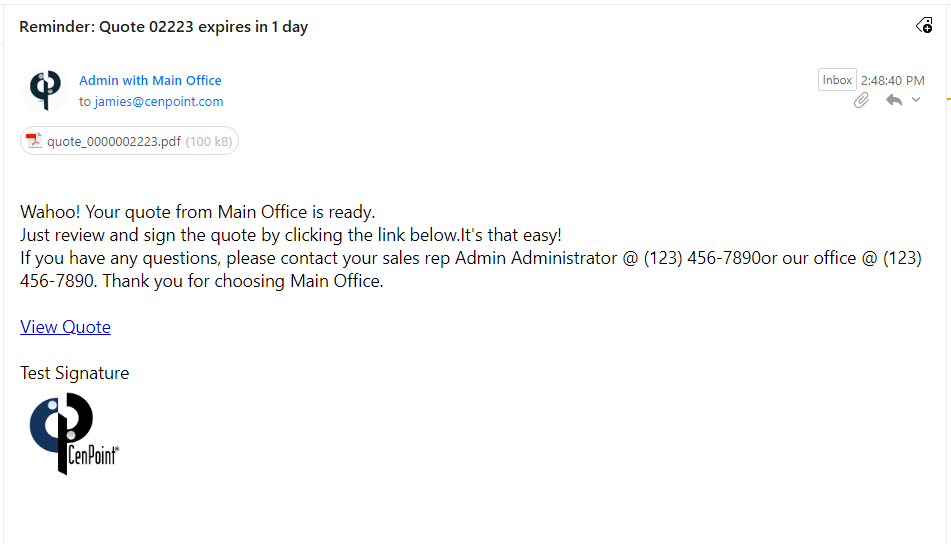
This is what your email would look like with the above example
CenPoint will conveniently add how many days until the quote expirers
How is the quote expires in date being calculated?
Most quotes expire in 30 days by default. It is calculating from the expires date on the quote.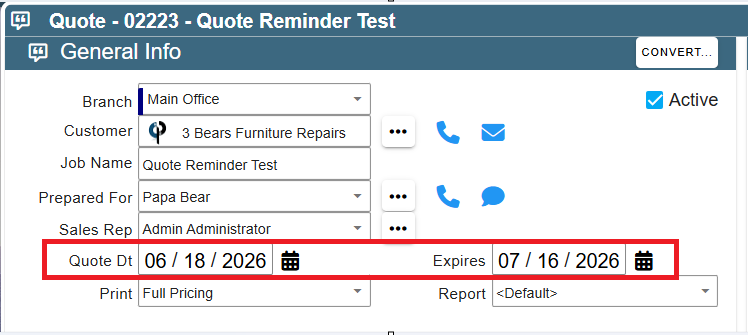
It is possible to change the quote expire length for something other than the 30 day default.
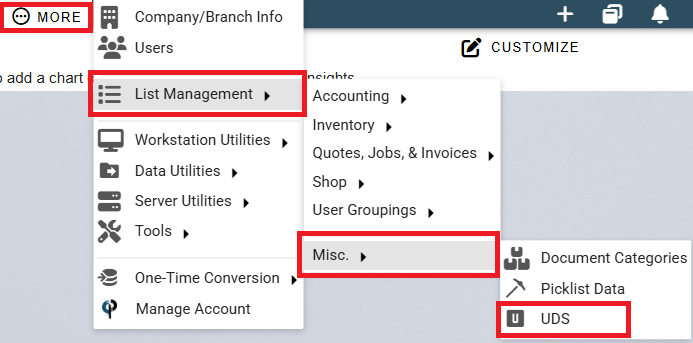
To do this go to More->List Management->Misc->UDS
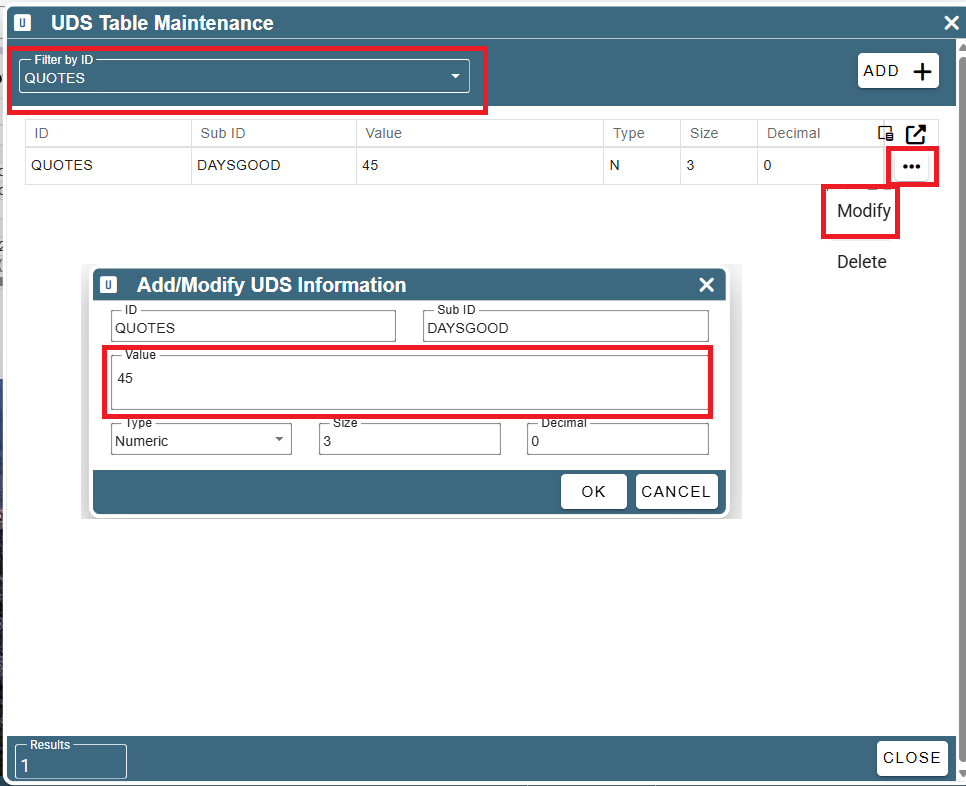
In the filter type the word 'quotes' on the record click the ellipsis->modify
In the 'value' type in how many days you want the quote to be valid for, in this example the quote would be good for 45 days.
Sending Quote Email Reminders
To send a Quote Email Reminder go to the Find Quote Screen
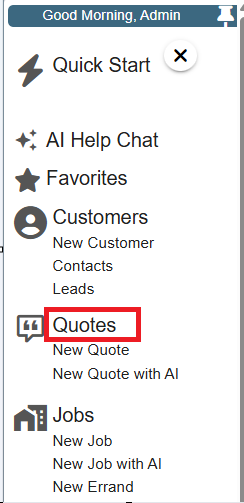
Once on the find quote screen go to 'Options' ->Send Email Reminders-> Select from Email PDF, Email Link, and Email Link and PDF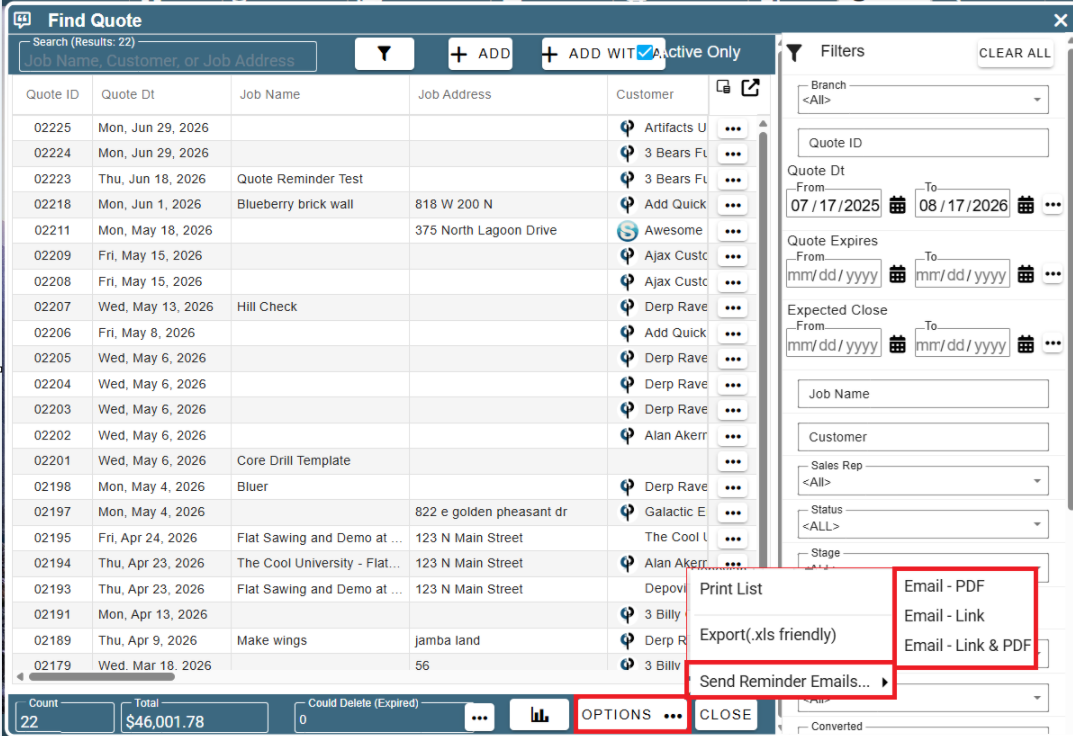
You will then see an information window telling you how many quotes CenPoint will attempt to send and some other tips 😉
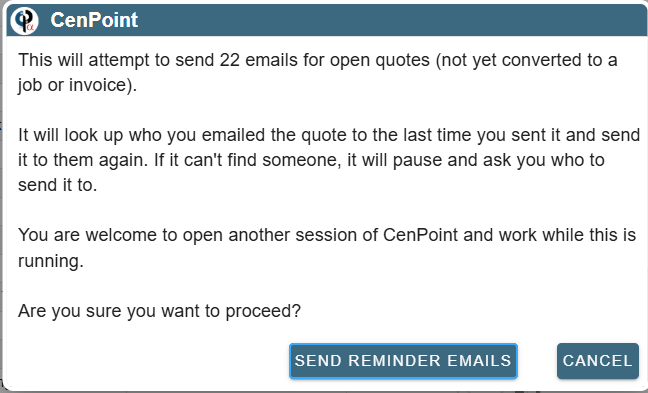
* When you click Send Reminder Email, they will all auto send. If you sent a link the eSig Link Sent column will be populated to track the link.
What if you don't want to send all 22 emails as it shows in our example?
Click the filter option at the top of the page to open the filters. Use the filter options to narrow down the results. In this example we only want to send 'Quotes that expire in a specific date range, and now only 3 Quote Email Reminders will be sent.
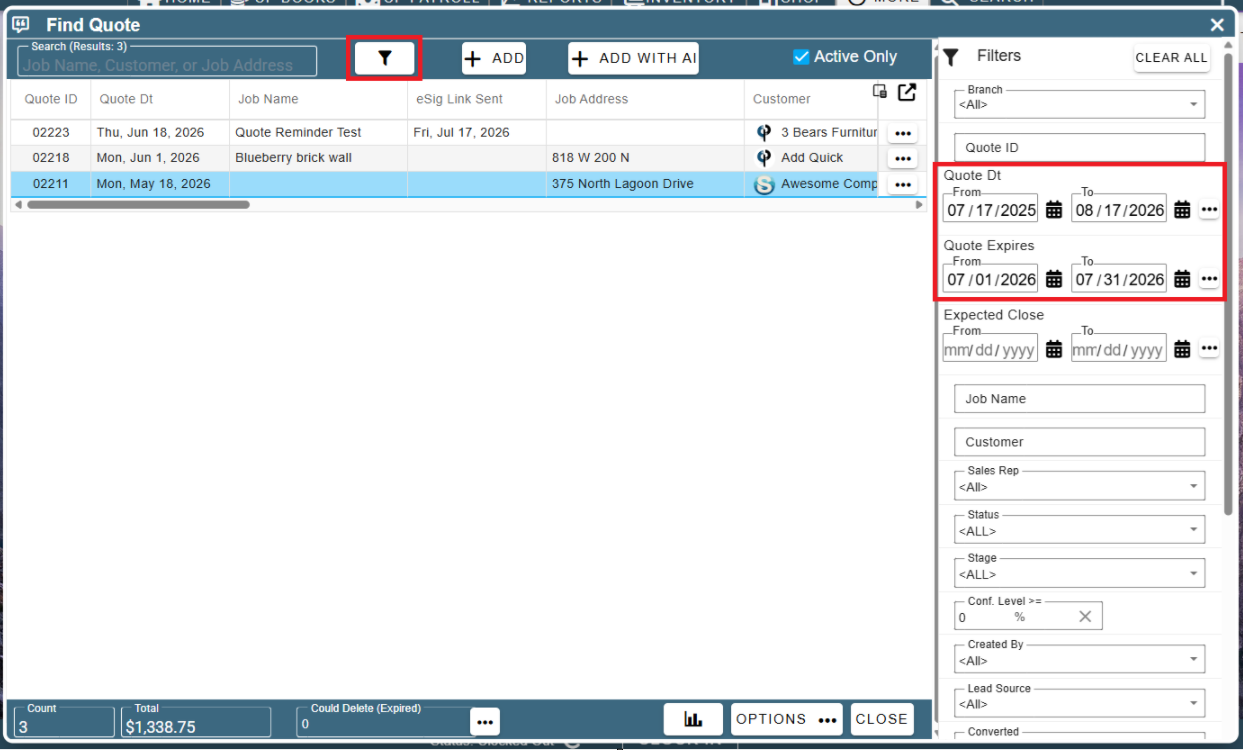
When sending reminder email with a link the eSig Link Sent will populate with the sent date.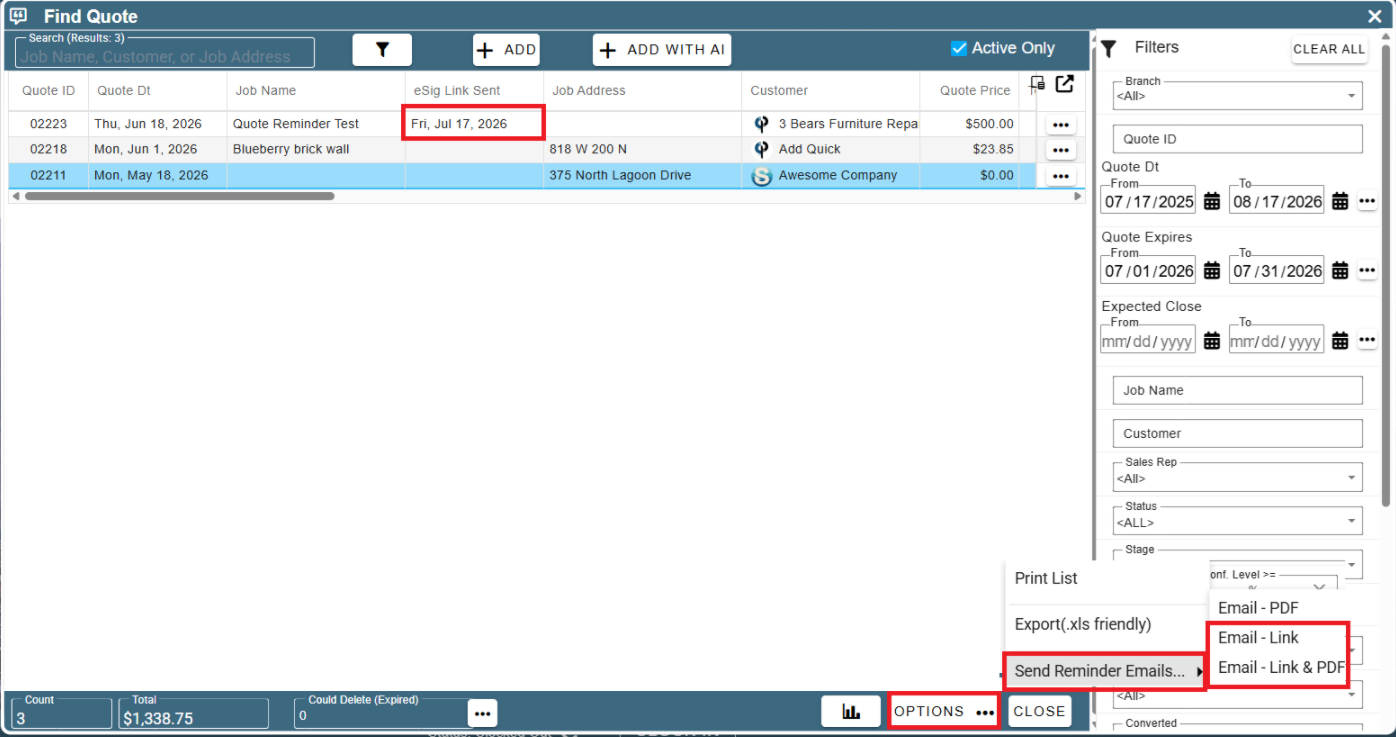
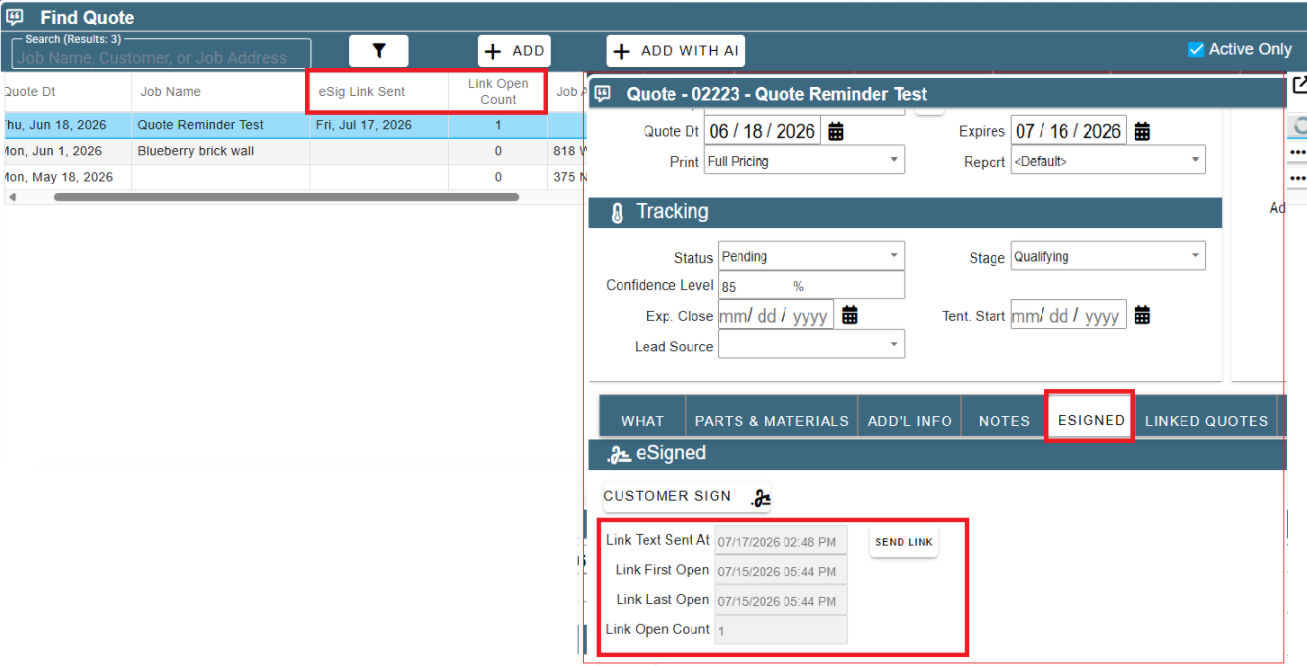
When sending a link, the link can be tracked in the Find Quote grid and also by clicking the ellipsis on the quote->Esigned Tab and you can see the link information.
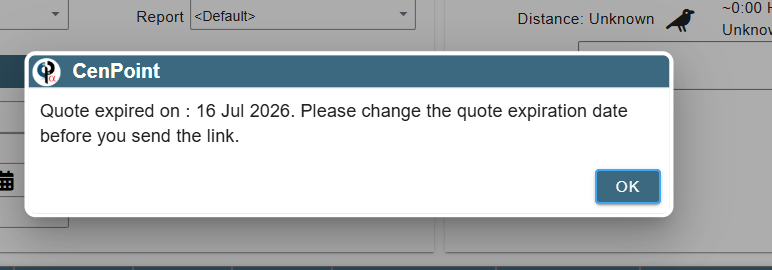
Can you send an expired quote?
No, you will receive a message to update the quote expiration date
Who will these Quote Reminder Emails go to?
Quote Reminder Emails will be sent to the Prepared For on the quote
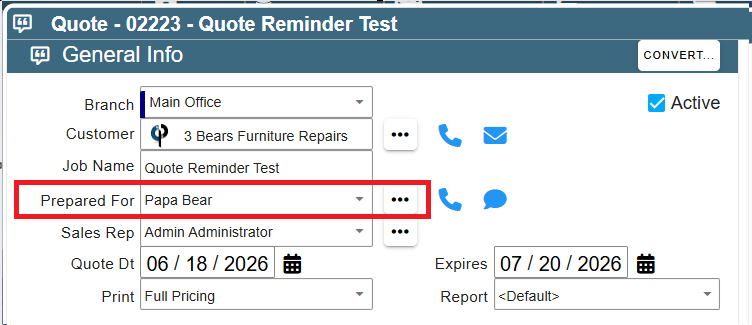
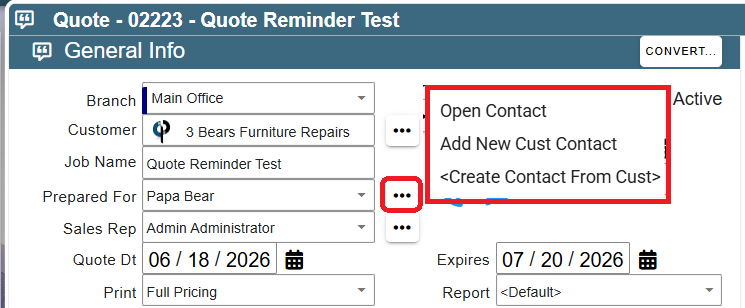
If you do not have any names showing in prepared for you will need to create a customer contact.
You can do this by clicking the ellipsis and creating a contact.
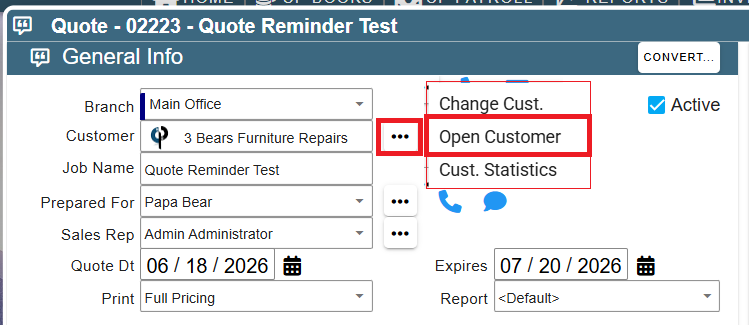
This can also be done by clicking the ellipsis next to the customer and selecting open customer
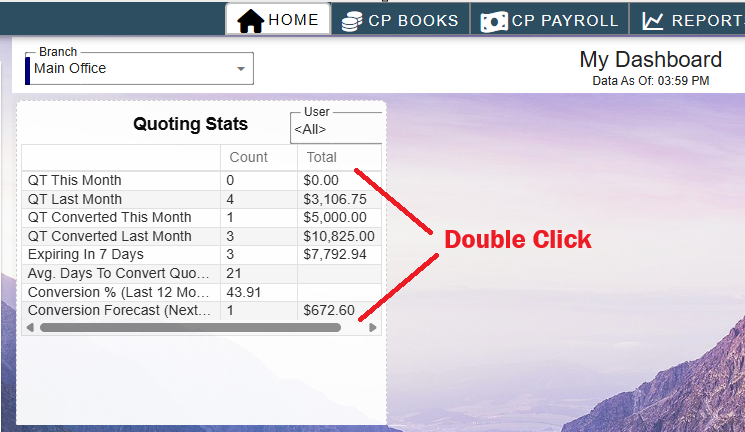
Use the Quoting Stats from the dashboard to send Quote Email Reminders
Wanna save some time?
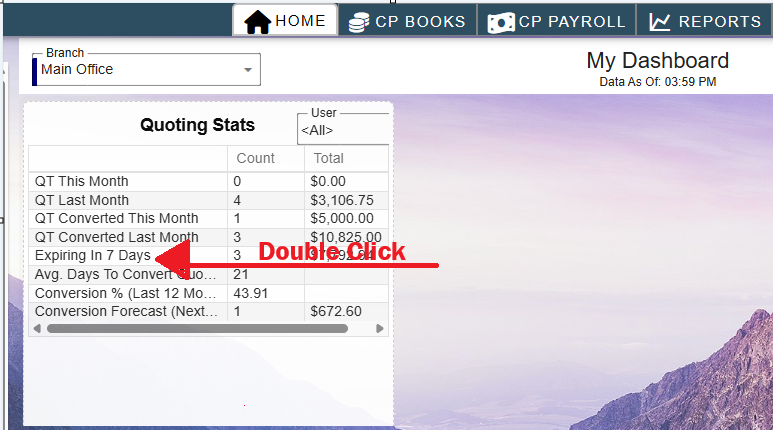
You can quickly get to Quotes Expiring in the next 7 days from the quoting stats dashboard.
Double click on Expiring in 7 days and CenPoint auto filters the results for you.
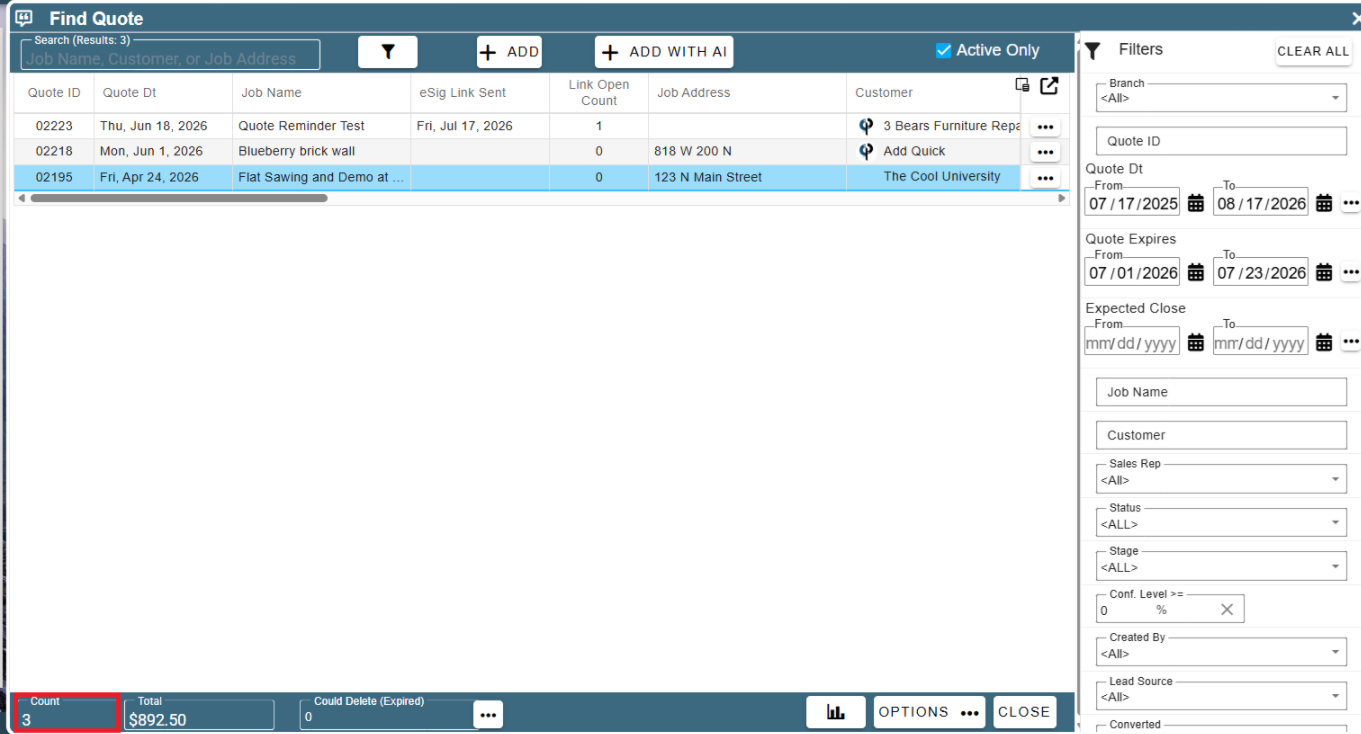
But wait, wanna save even more time? 😮 You can double-click any of those lines to jump straight to pre-filtered stats.
Now with all that time you saved, you can finally take up competitive napping, or embrace the noble pursuit of doing nothing.
Need help setting up your dashboard, use the following link: Set up dashboard