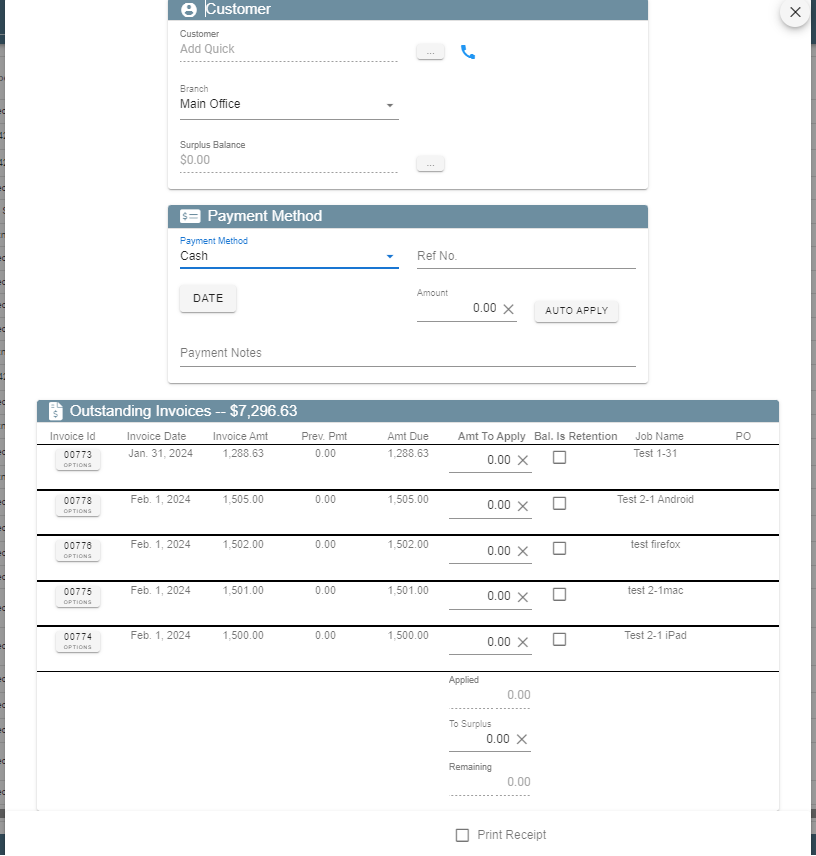
This article will show how to find and use the payment history report.
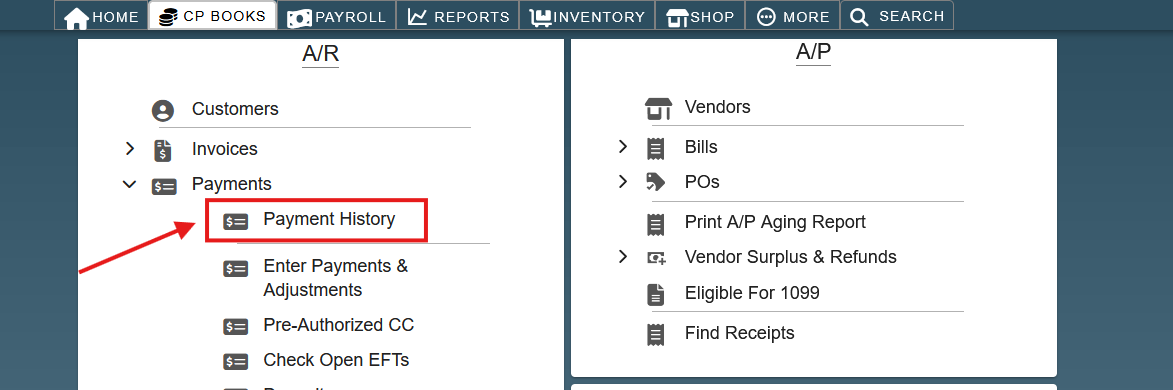
To find the payment history, go to ‘CP Books → A/R → Payments → Payment History’.
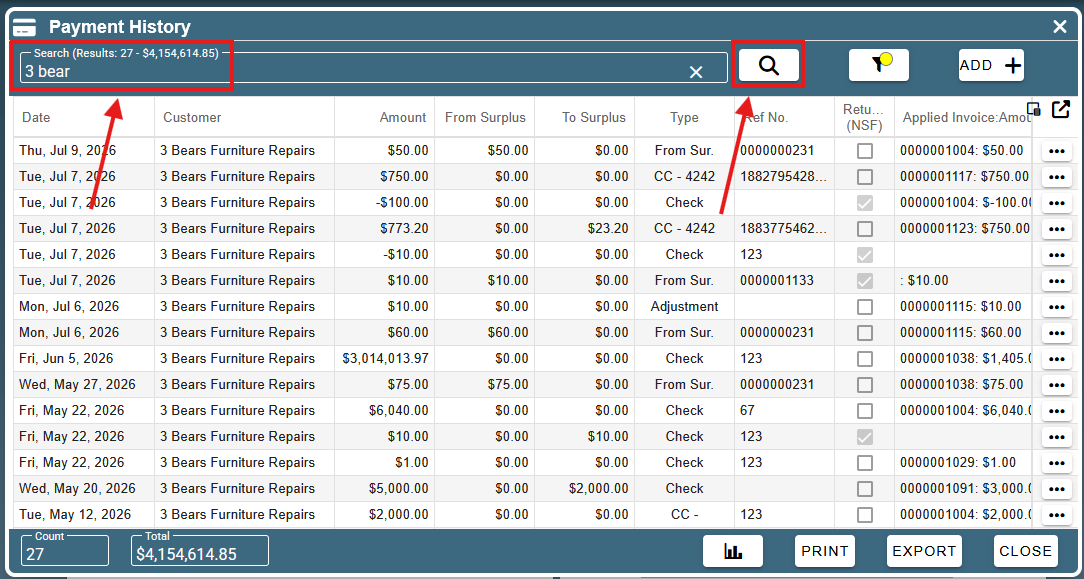
On the payment history screen, there is a search bar at the top that allows you to search for a customer. Type in your search term and click the search button to search for payments. The total value and count of all payment search results is shown at the bottom of this screen.
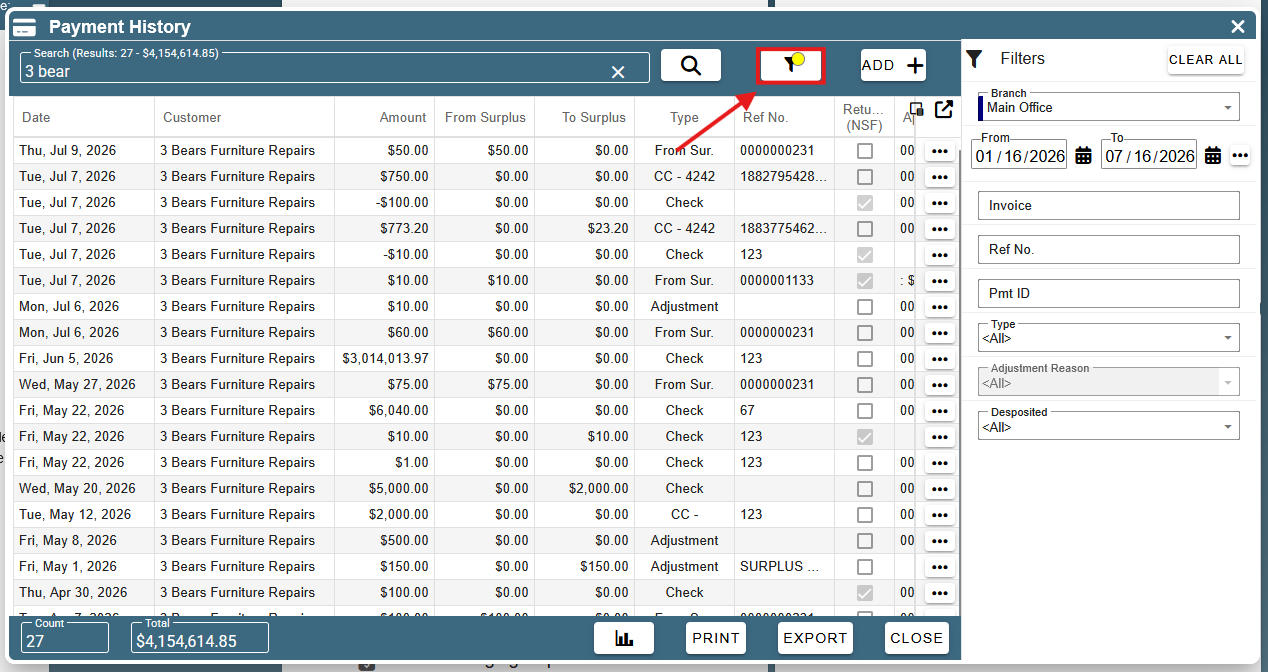
To filter the results on the payment history screen, click the filter icon. This will open up the filter sidebar. Here, you can filter by a date range, invoice ID, payment reference number, payment ID, payment type, or whether or not the payment was deposited.
Options in Payment Ellipsis
By clicking the ellipsis icon on the right side, you have the option to view and email receipt, view journal entry, open customer and delete payment.
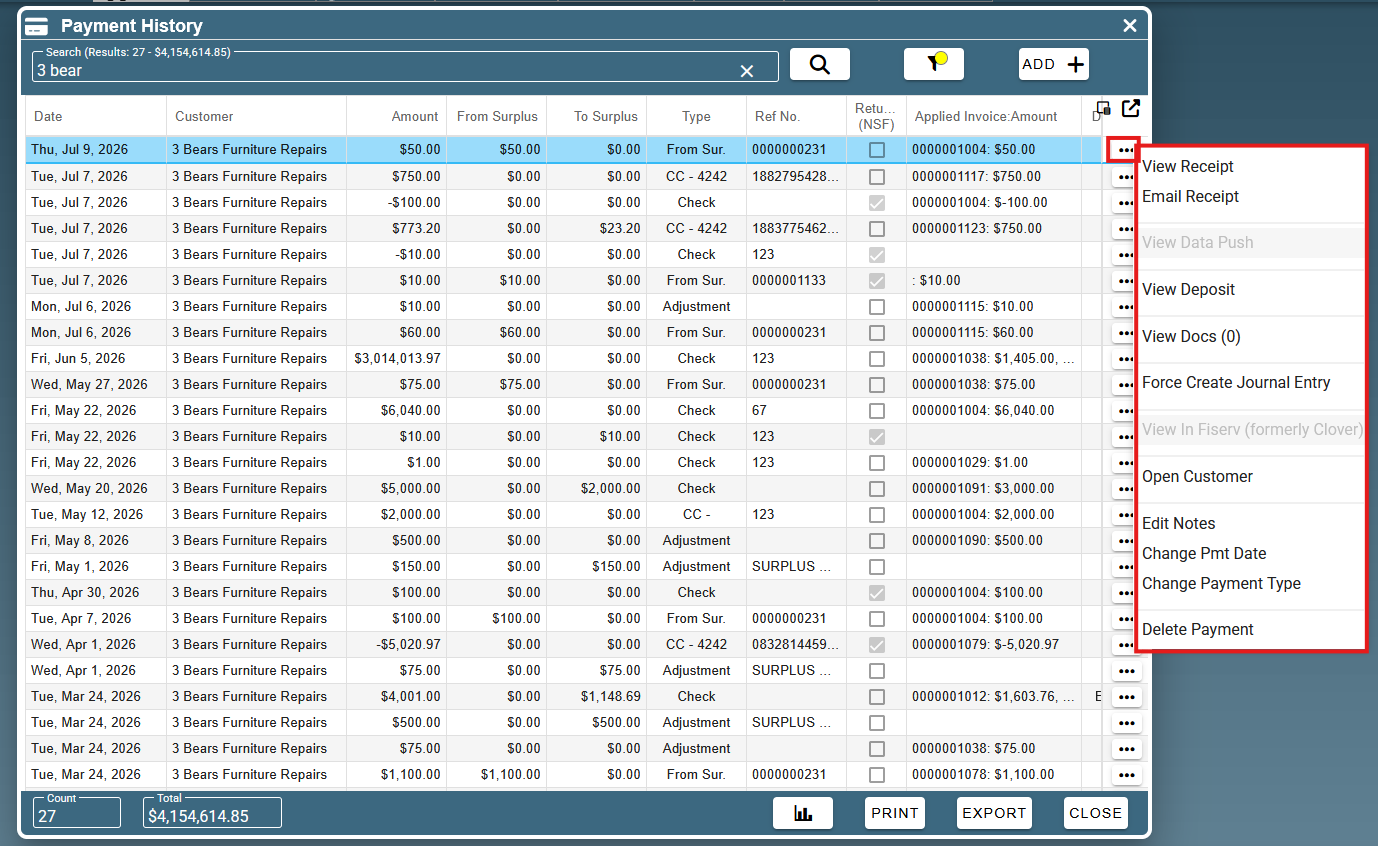
View Receipt: it will take you to the final receipt and you can print, download, email and text at the top right corner.
Email Receipt: you can email it quickly on the website.
View Data Push: Lets you see the data push record (from when it was pushed from QuickBooks) that created the payment.
View Deposit: Lets you see the deposit record that created the payment.
View Docs: View any documents that are attached to the payment.
View Journal Entry: Only visible if there is an attached journal entry. Opens the ‘Journal Entries’ screen, filtered down to the correct journal entry.
Force Create Journal Entry: Only visible if there is no journal entry attached to the payment. Force-create an attached journal entry to balance books.
View in Fiserv (formerly Clover): Redirects to Cardpointe to see the payment.
Open Customer: Open the customer who made the payment.
Edit Notes: Edit the payment notes in a popup.
Change Pmt Date: Change the payment date in a date picker.
Change Payment Type: Must be cash, check, or other. Can only change to cash, check, or other.
Delete Payment: Remove a payment. Once you delete payments, you can't restore them.
Payment Graph
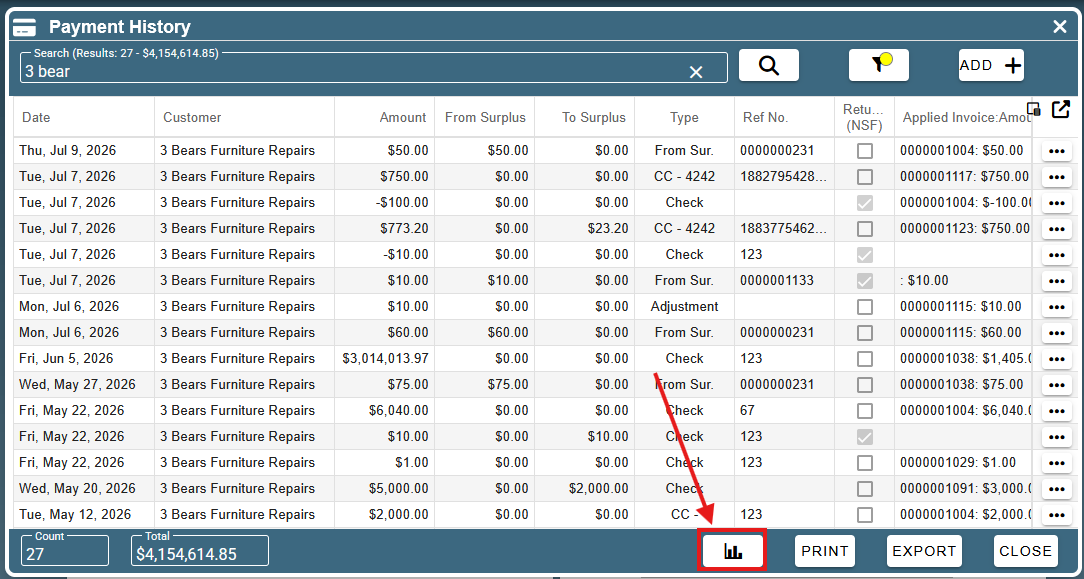
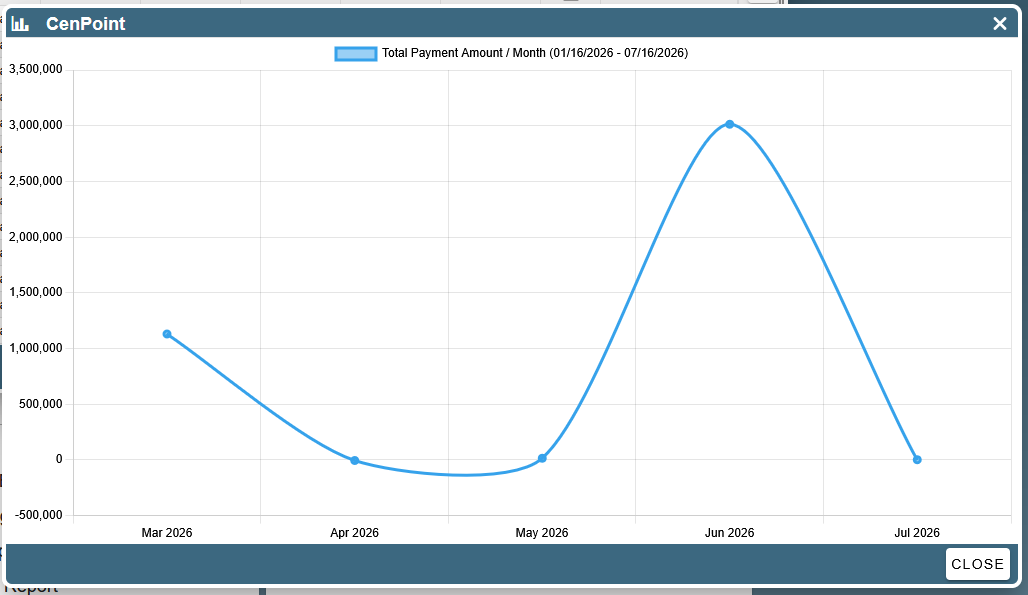
To view a graph of the payments over time from a specific customer, click the graph icon at the bottom of this screen.
This the graph shown here represents all payments from this customer during the date range specified in the filters.
Print Payment History
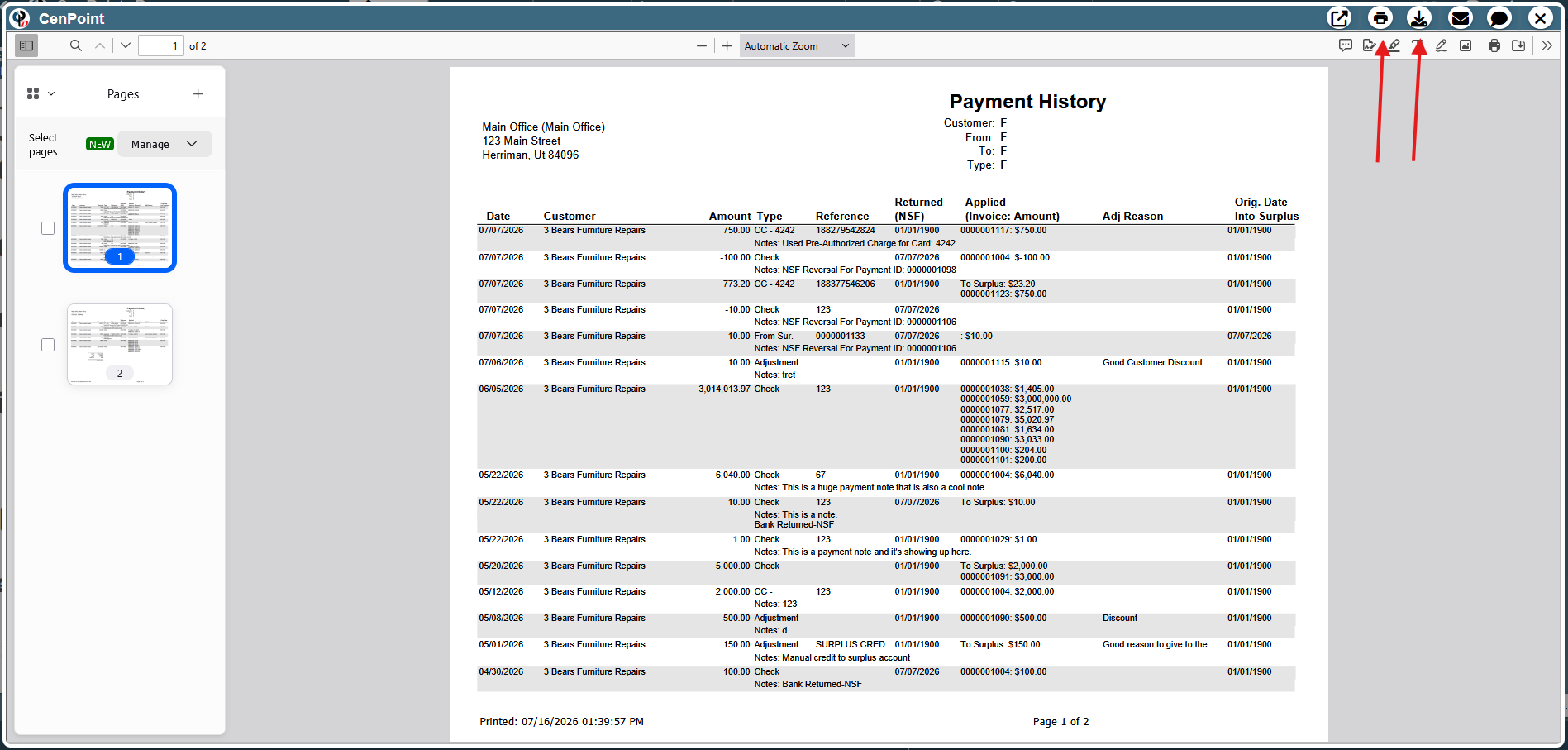
To print a payment history report, click the print button at the bottom of the ‘Payment History’ screen.
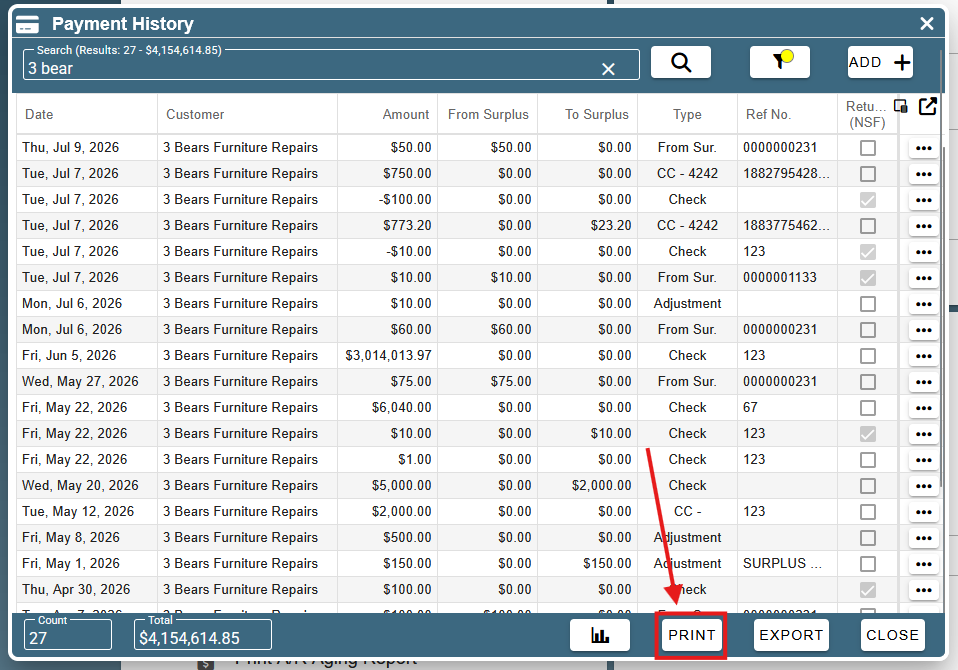
This is the payment history report. To print it or download it, click the corresponding buttons at the top.
Export Payment History
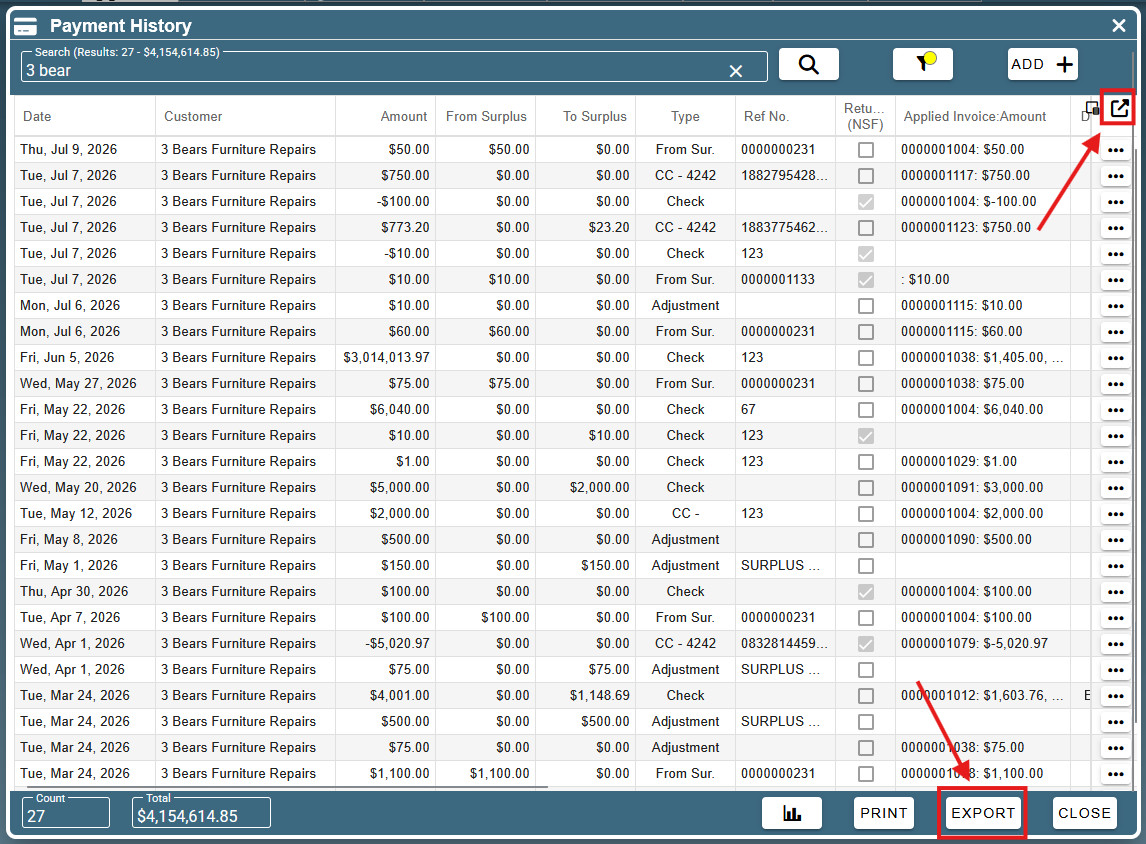
To export an Excel copy of the search results, you can click either the ‘Export grid’ button at the top right of the search results box, or you can click the ‘Export’ button at the bottom right of the ‘Payment History’ screen.
Enter Payment Manually
Click Plus icon -> Select customer -> Fill in the necessary information.