
You can create a repeating transaction for a Bill, NSI Invoice, or a Journal Entry. In this example we will show a NSI Invoice
You will need to create an NSI if you don't already have one. Need more info on creating a NSI click here: https://help.cenpoint.com/docs/nsi-overview-on-portal
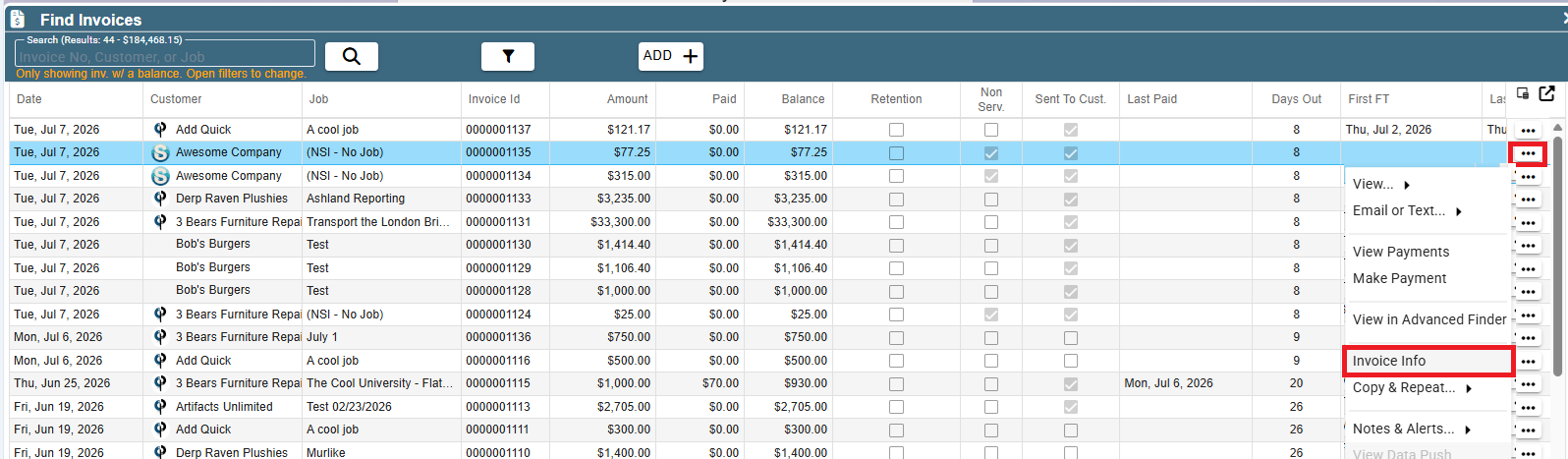
Find the invoice you want to repeat and go into Invoice Info
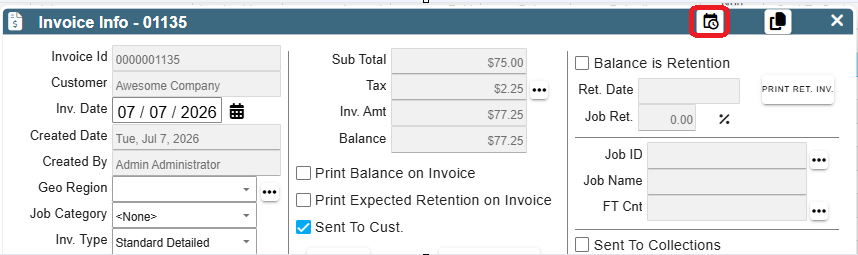
Click the ‘Repeat’ icon on the top of the Invoice
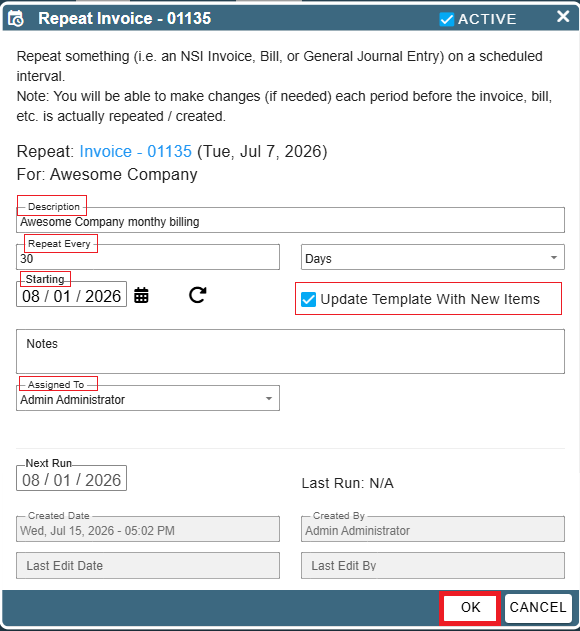
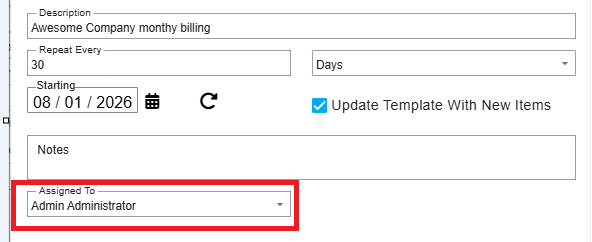
Fill in the information to repeat the Invoice: Description, Repeat Every (frequency), Starting Date, and Assigned To. The starting date will be auto calculated based on the date for the bill you are repeating and how often you specify to repeat it. You can override the starting date the CenPoint calculates.
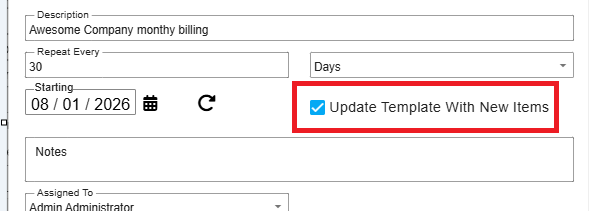
Update Template with New Items
This can be checked or unchecked at any point. If it’s checked, every time this invoice is repeated, it will reflect the most recent changes made. If it’s unchecked, it will always use the original invoice you repeated.
Example: You want to add a line item and change the cost on the invoice since the last time you paid it, and you want the changes to be reflected on invoices in the future.
You would check the ‘Update Template with New Items’ and future repeating invoices will use the updated template information.
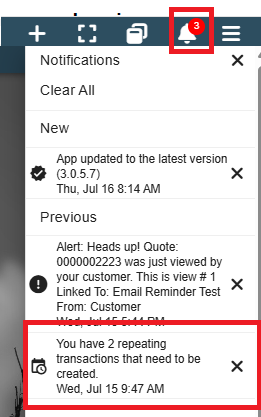
The ‘Assigned To’ person on the bill will receive notifications of repeating invoices (and other transactions) that need to be created on the day they are scheduled for.
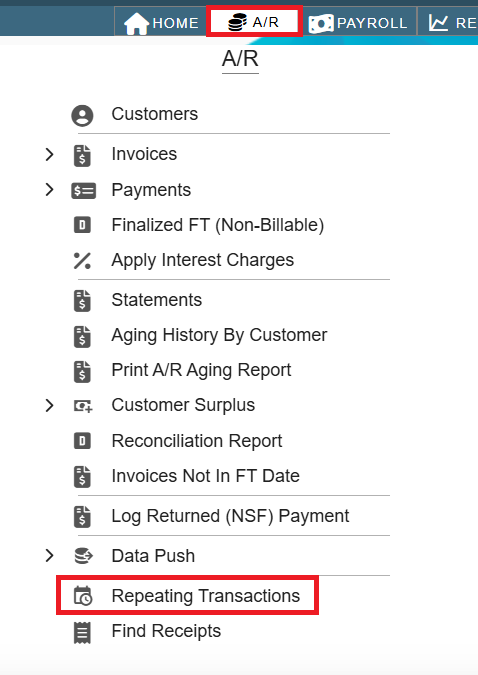
Once a Repeating Transaction has been setup, it can be found under A/R→ Repeating Transactions.
You can see all the information for your repeating transactions.

From the Find Repeating Transactions screen click the ellipsis to Modify the repeating definition (i.e. frequency, etc.), View the Original Invoice, View the Last Run, or Run Now

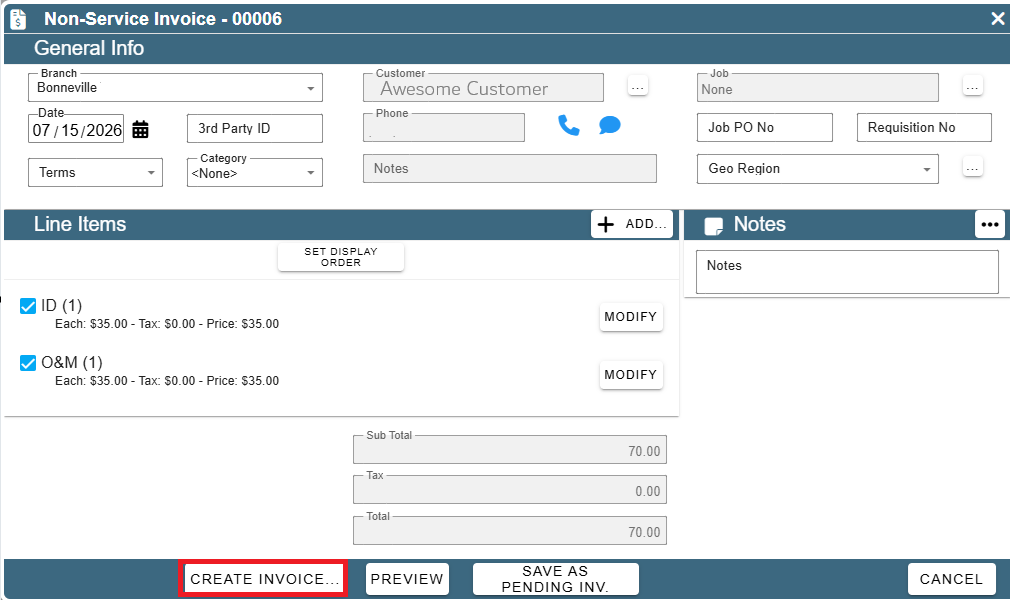
Click ‘Run Now’ and the bill you are repeating will be copied and will open with pre-fill with todays date.

Review the invoice, make any changes if necessary and click ‘Create Invoice’ to save the repeated transaction.
Once you run a repeating transaction the Find Repeating Transactions screen will be updated with the next run date, last run date, and last run Id.
Congrats! Get ready for the thrill of déjà vu every month!