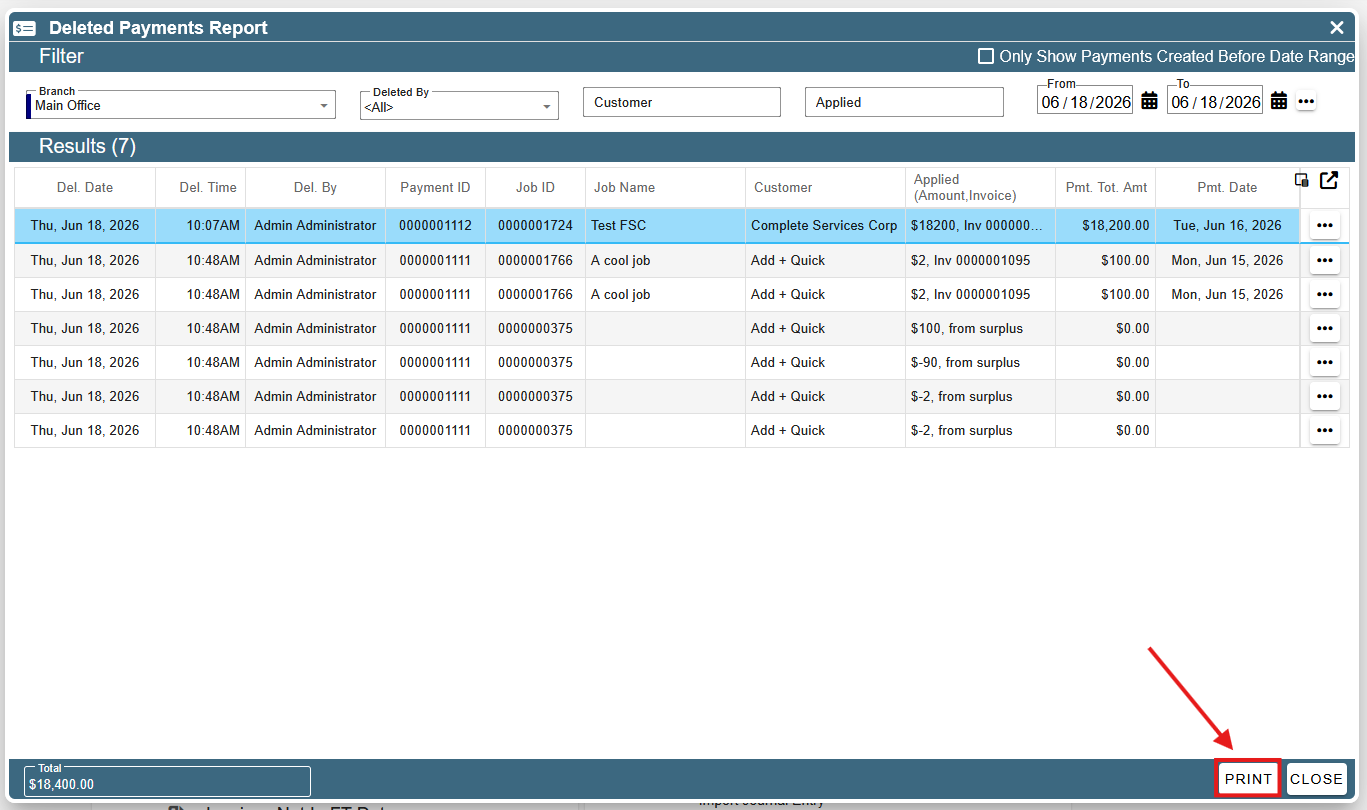
This document will walk you through how to use the ‘Deleted Payments Report’.
Accessing the ‘Deleted Payments Report’
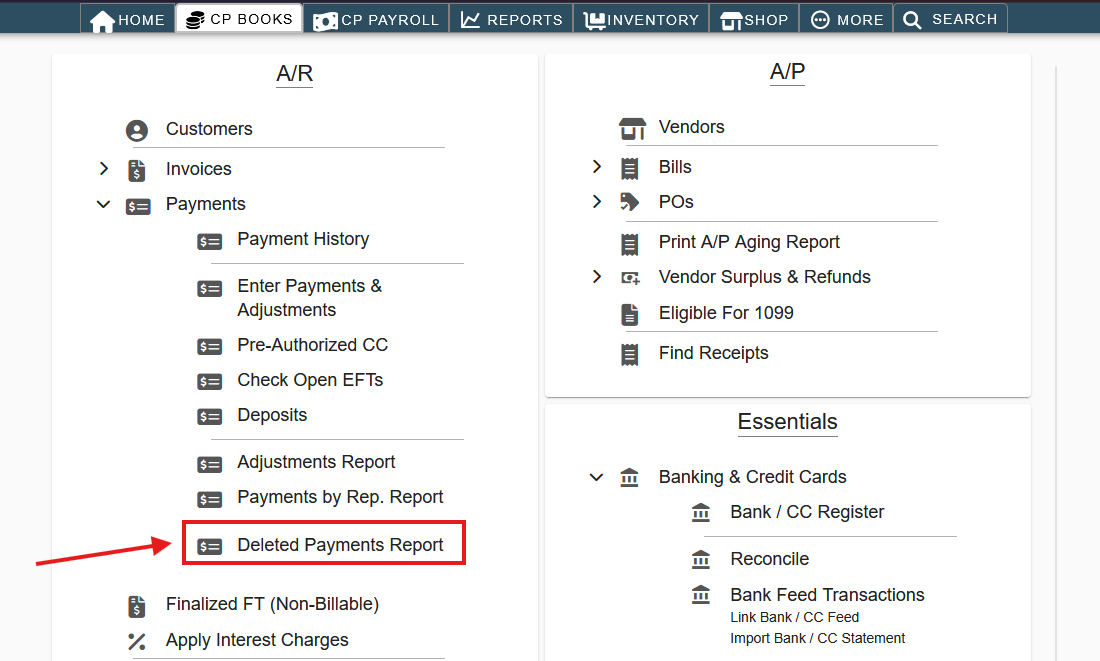
To access the ‘Deleted payments Report’, navigate to ‘CP Books → A/R → Payments → Deleted Payments Report’.
Filtering on the ‘Deleted Payments Report’
The ‘Deleted Payments Screen’ has several near the top of the window.
Using the branch filter, you can select which branch you want to show deleted payments for. 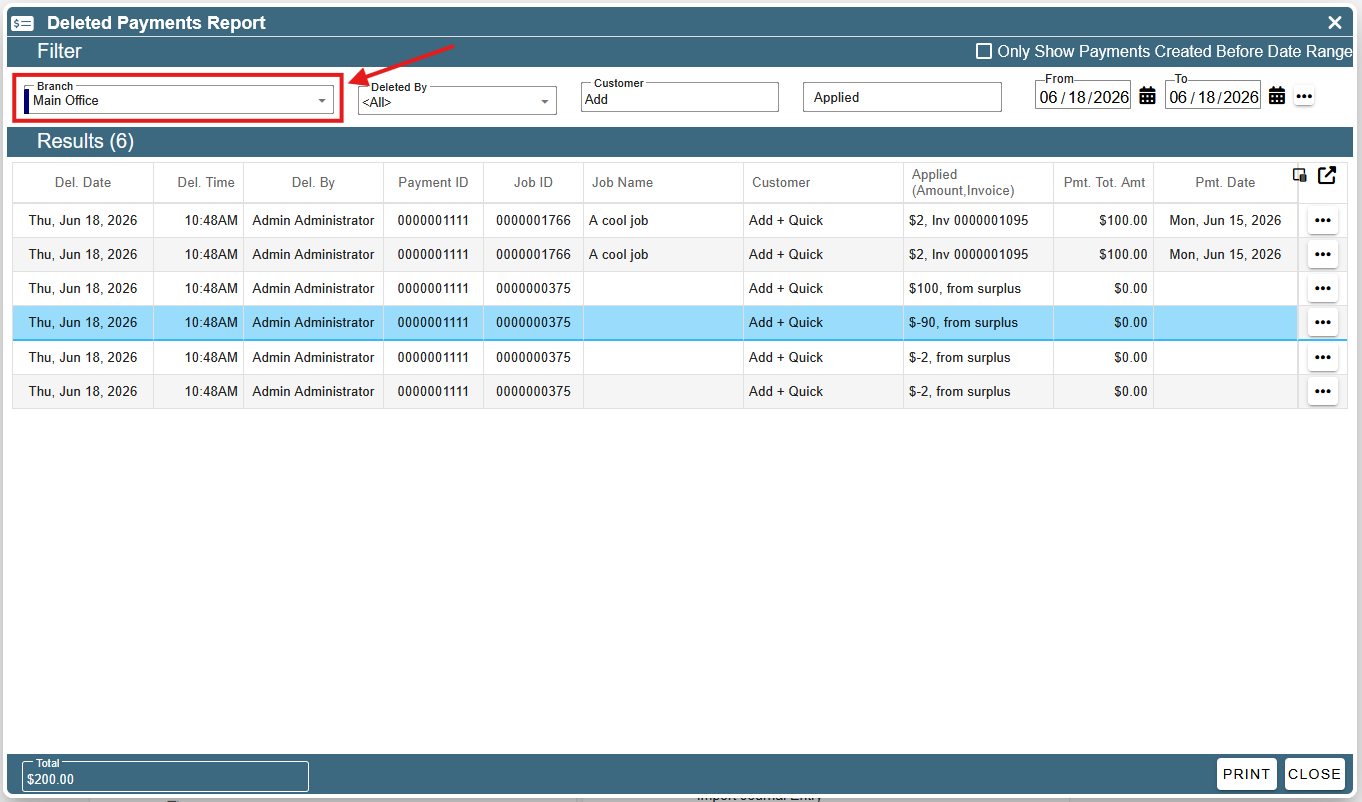
Using the ‘Deleted By’ drop-down filter, you can choose to only show payments that were deleted by a specific user. 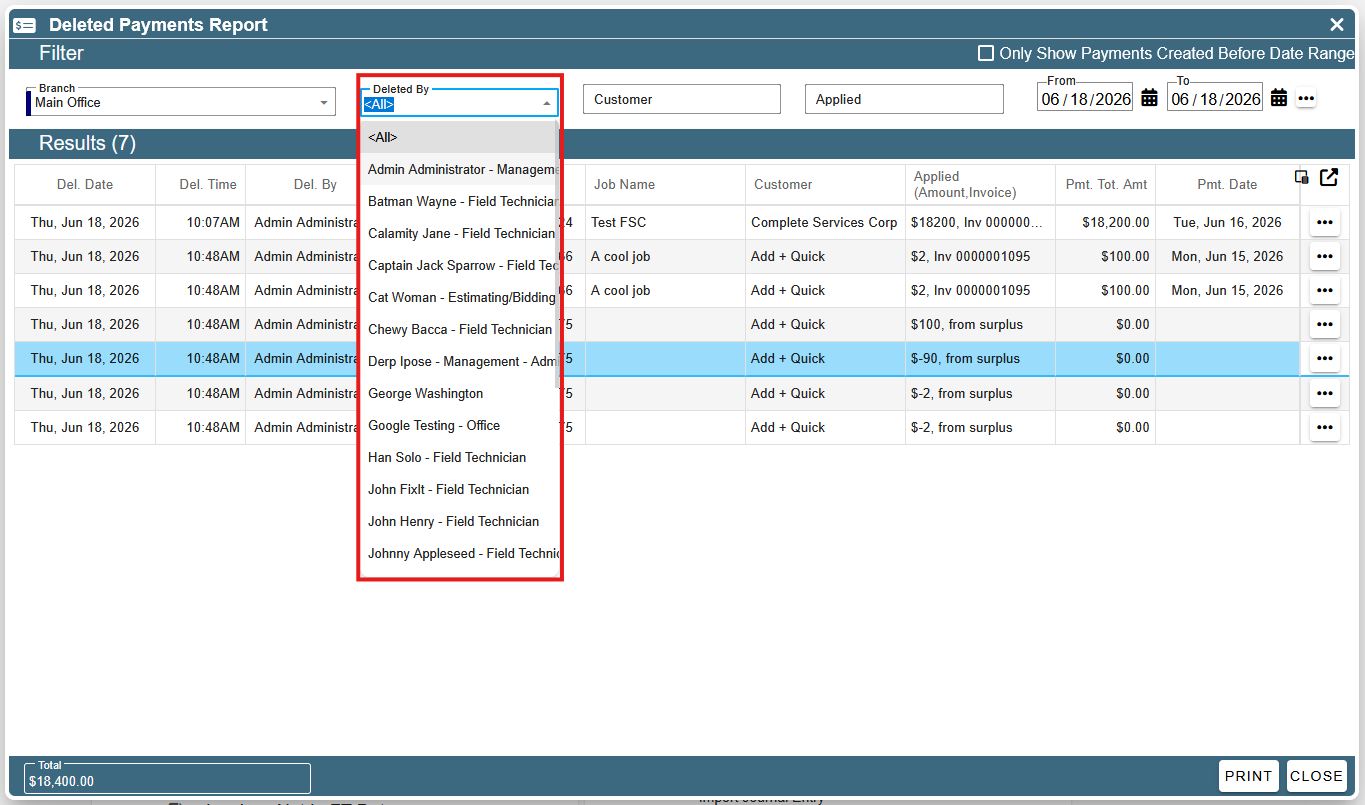
Using the ‘Customer’ filter, you can filter down the customers in the ‘Customer’ column. 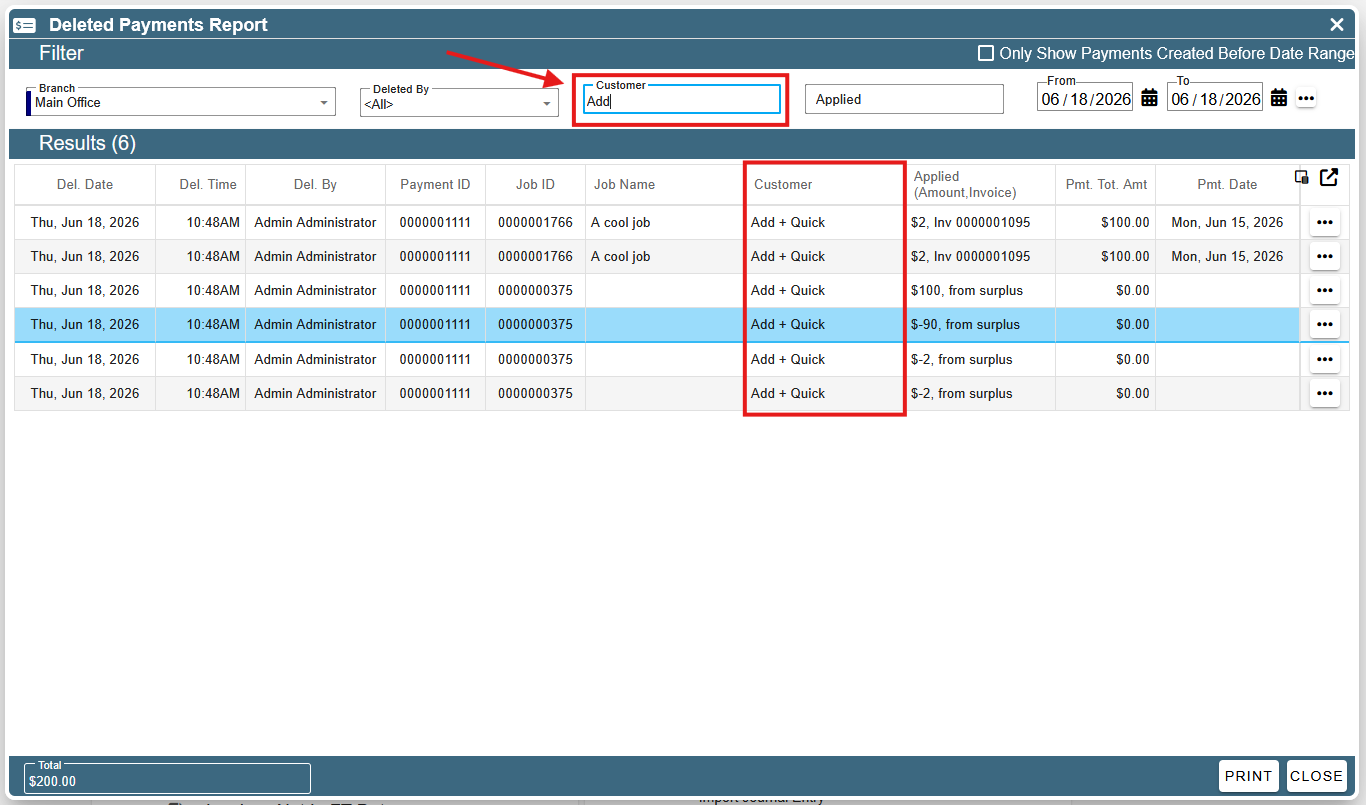
Using the ‘Applied’ filter, you can search for the applied amount, the invoice number, or whether the payment came from surplus. The values in the Applied column are in the format ‘Amount, Invoice’, unless the payment came from surplus, then the format is ‘Amount, from surplus’. 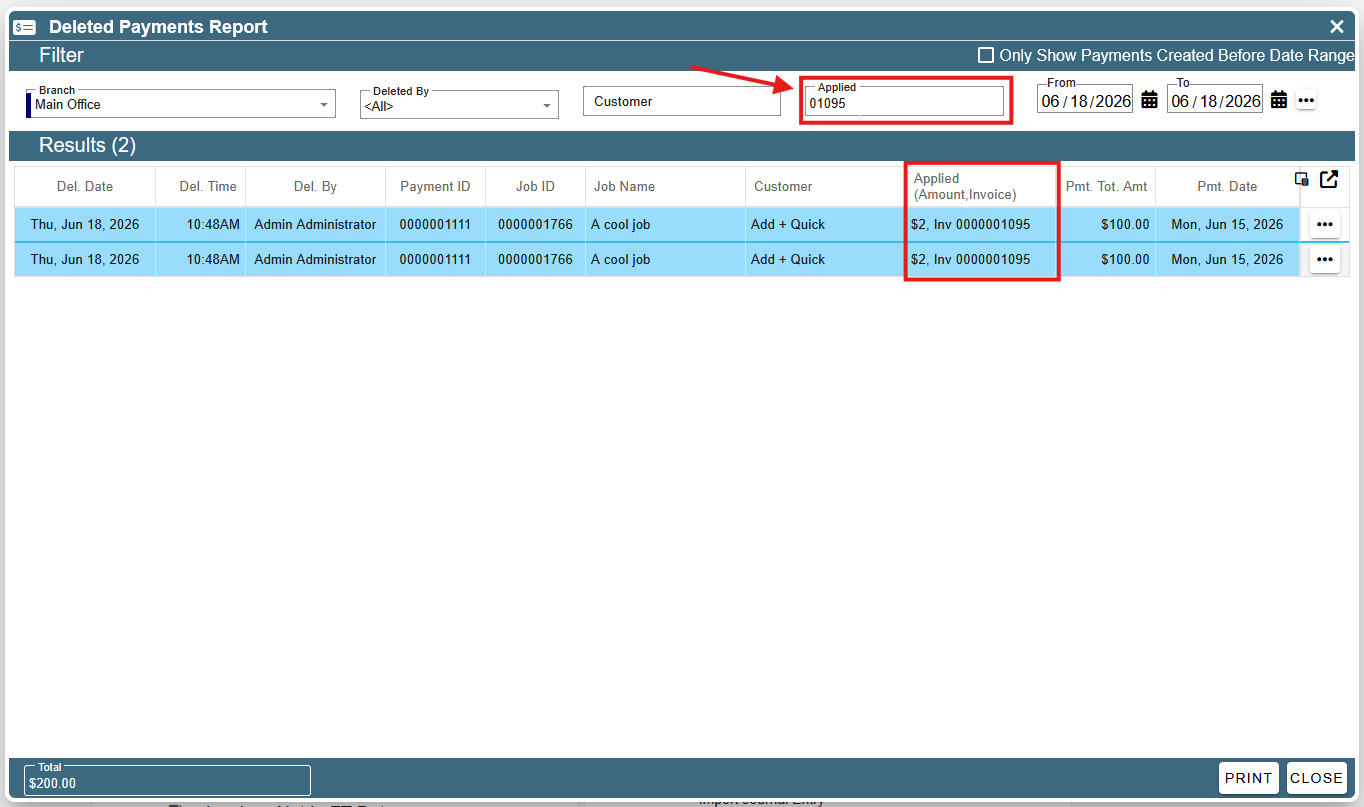
Using the date filter, you can filter the results by their ‘Deleted Date’. 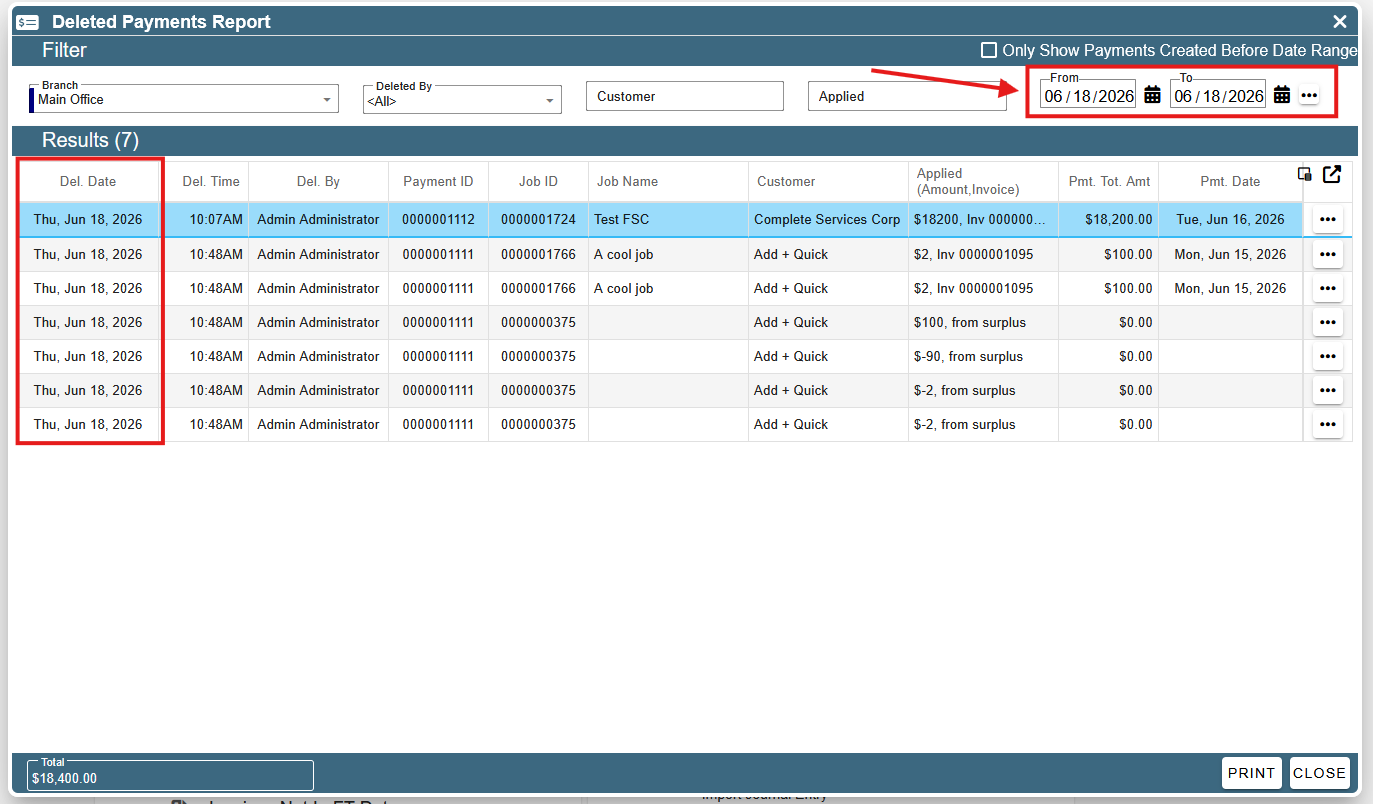
Opening a Job
To open the job associated with a payment, you can click on the ellipses at the end of its row and then click ‘Open Job’. 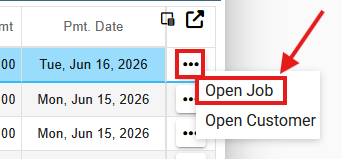
Opening a Customer
To open the job associated with a payment, you can click on the ellipses at the end of its row and then click ‘Open Customer’. 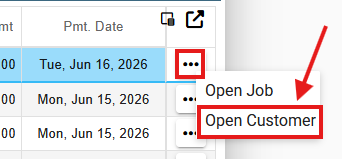
Printing the ‘Deleted Payments Report’
To print the ‘Deleted Payments Report’, click on the ‘Print’ button in the bottom right corner of the screen.