
Signing in with MFA (Multi Factor Authentication)
There are two different places you can set up MFA to be required for a user or set of users.
The two places we can set these are on the branch (for multiple people at once) and on the user (one person at a time).
Do note, that if you set it to be required in one place, it is required, period. You can't have it on for the branch and off for the user. CenPoint checks "Is either one checked?" if either come back with yes, it's yes!
Let's start with some basics first.
What is MFA?
MFA, or Multi-Factor Authentication is a two-step process to sign in. This means that you have some way of getting a code that then gets entered into a program, in this case CenPoint, that will add another layer of security to ensure that you are who you say you are and only you have access to your account.
Setting up requirements on the branch
Go to More -> Company/ Branch Info -> Modify the branch you want to set up MFA on
.png)
.png)
Go to the Misc. Tab and look for Auto Sign Out*
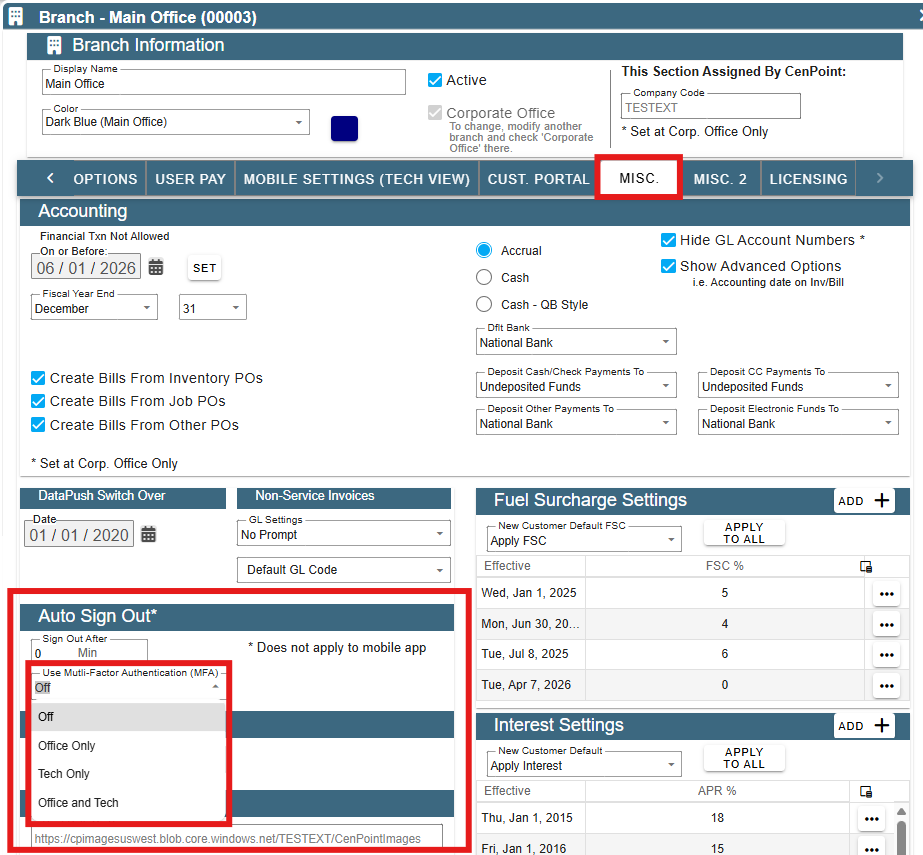
Here you can set the MFA to be required for Office only users, Tech only users or even both Office and Tech users, in other words, everyone!
Setting it here, will make it required for that entire group. No setting it to all techs but also Charlie is the only tech that doesn't need it. It's all or nothing at this stage.
Setting up requirements for the user
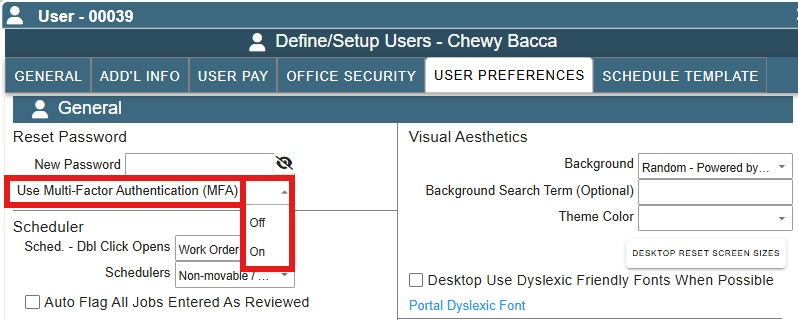
So long as the branch settings are OFF for MFA, then setting it up on the user will force only this user to require MFA.
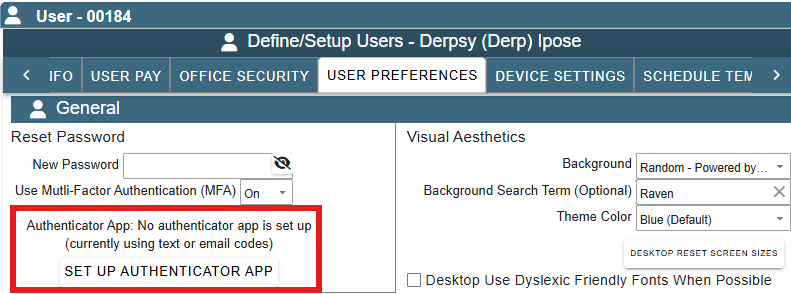
More -> Users -> Find the user you want to enable MFA on -> User Preferences -> Under Reset Password there is Use Multi-Factor Authentication
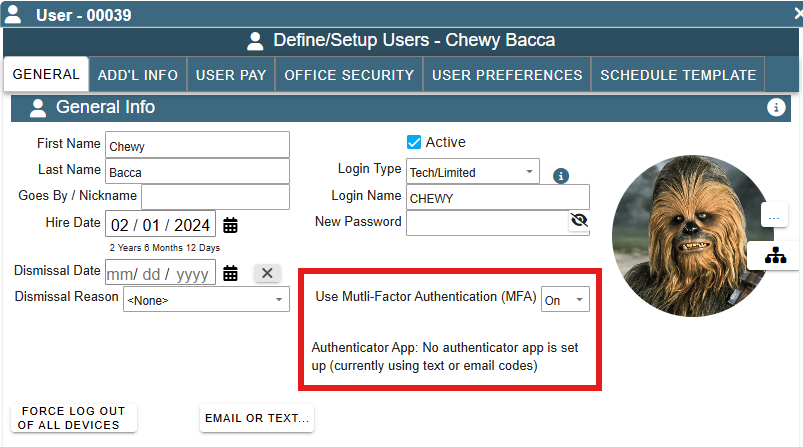
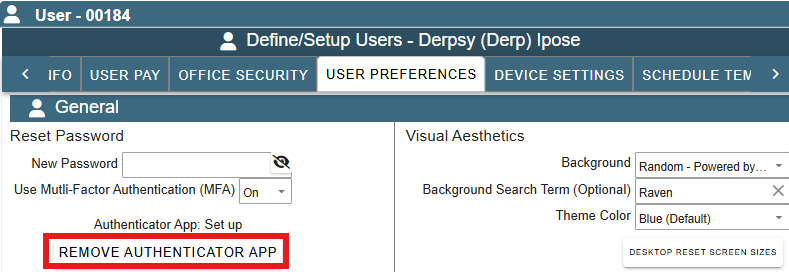
There is also a place in General for the user to have MFA turned on as well. This one shows what MFA Authenticator App is being used by the user.
Signing in with MFA
When MFA is turned on for a user, when they go to sign in, they will see the following message appear:
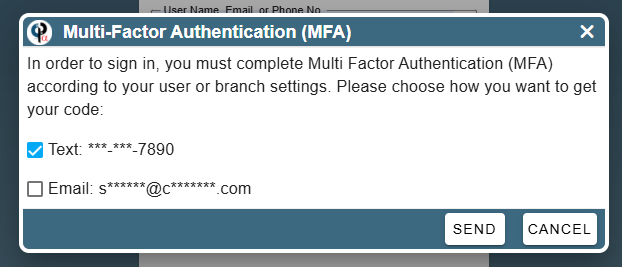
It asks how you wish to accept your code. If you don't have an authenticator app set up, then it will show to receive the code via text or email.
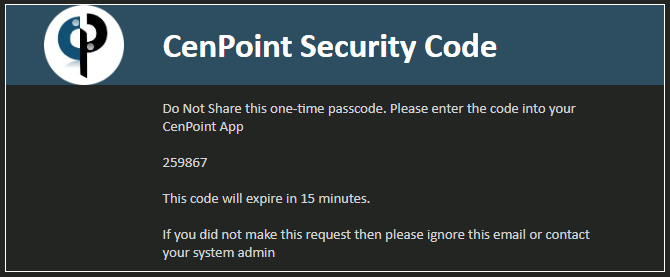
The code will look something like the following if done via email:
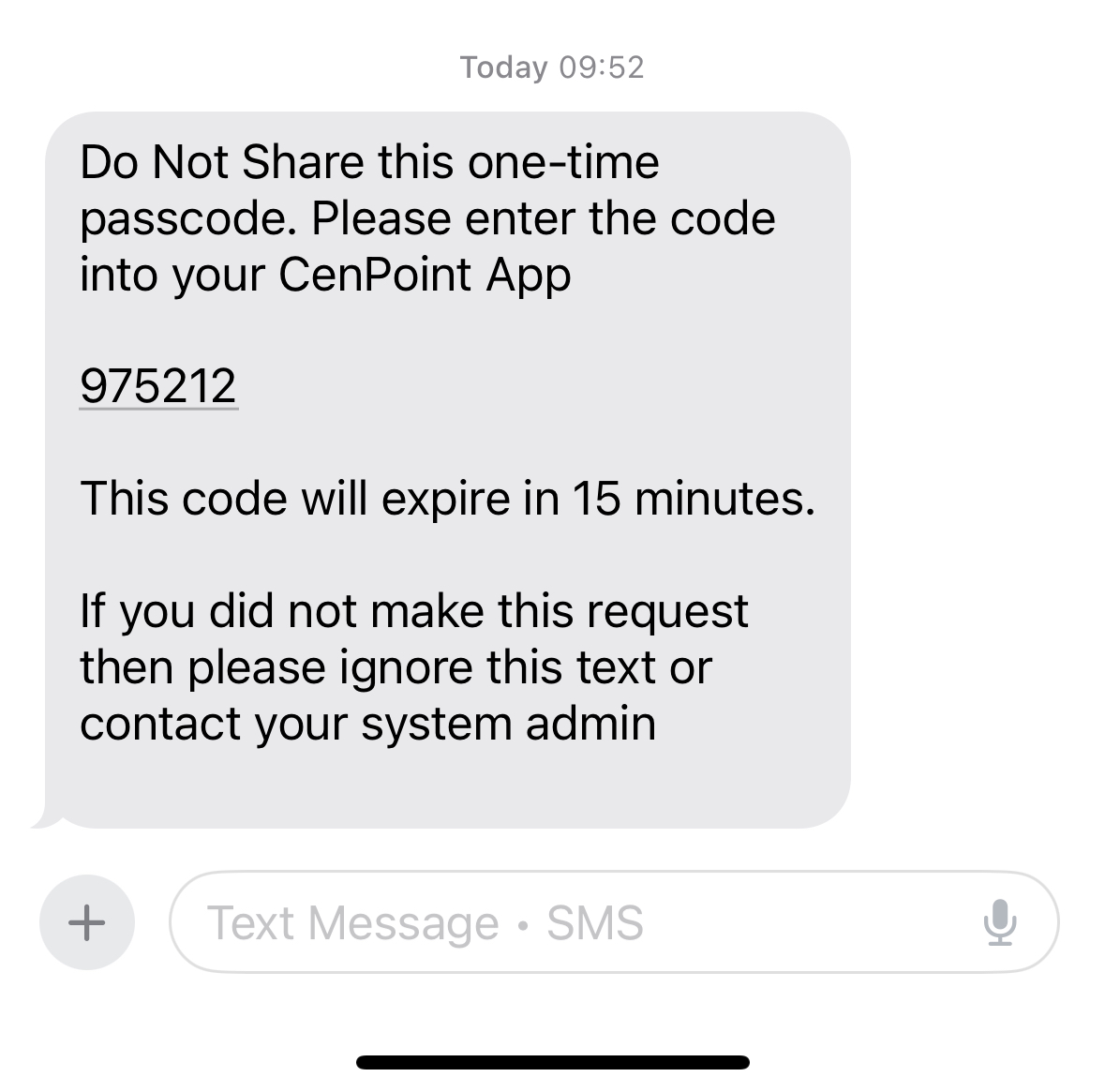
The code will look something like this if done via text:
How to set up MFA with an authenticator app
Note: On the Tech view, this is not available AND This is only available for YOUR user. You cannot set up someone else's auth app.
Signed in as yourself, if you are an office worker, you can set up your own. Go to:
Hamburger menu on the top right of CenPoint -> User Preferences
.png)
.png)
Under the General Reset Password section, you can click the Set Up Authenticator App button.
That pops up a screen like this one that shows a QR code and some numbers and letters that will allow you to set up your MFA. Yours won't have the black marks over some of it, so it will work properly. :)
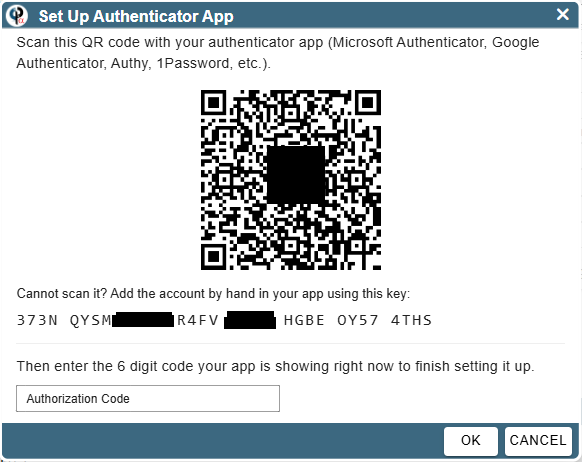
The authenticator app should give you a code in return, put it in, hit ok and you should be good to go.
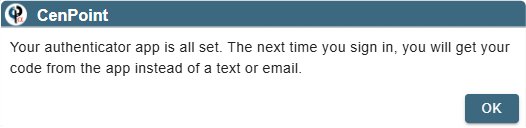
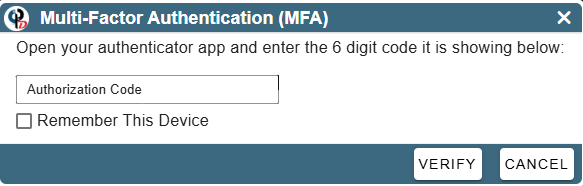
For every sign in that you do after this, it is required for you to sign in using the MFA Auth app of your choosing. Don't lose it ;)
If it ever does get lost, or you want to change what auth app you are using, just remove the auth in the same place you set it up with.
Troubleshooting / MFA FAQ
I lost access to my authenticator app, what do I do?
Don't worry, you aren't permanently signed out of CenPoint. Someone with permissions to change the user's information, password and above, would need to go into the user and disable the authenticator app. From here, it can be readded with your new app. CenPoint support will not do this for you. It must be one of your office users.
I'm not getting a code texted or emailed to me
If you aren't getting a code via text or email, you might not have your contact information set up properly in CenPoint under your user. Talk with an office worker that can manage your user profile and make sure that your information is correct. If it is, have the office worker give us a call and we will look into things from there.
How do I set up an authenticator app?
Setting up an authenticator app is as simple as downloading an Authenticator app from your app store (Google play, Apple App Store). Follow the instructions in the section just above for more details but, CenPoint will give you a code to enter into one of those and in return, the authenticator app will give you a code you can hand back. Once you enter the code into the authenticator app the first time, you don't need to do it again. It will remember your information you gave it and give you new codes you can enter every 30 seconds or so.