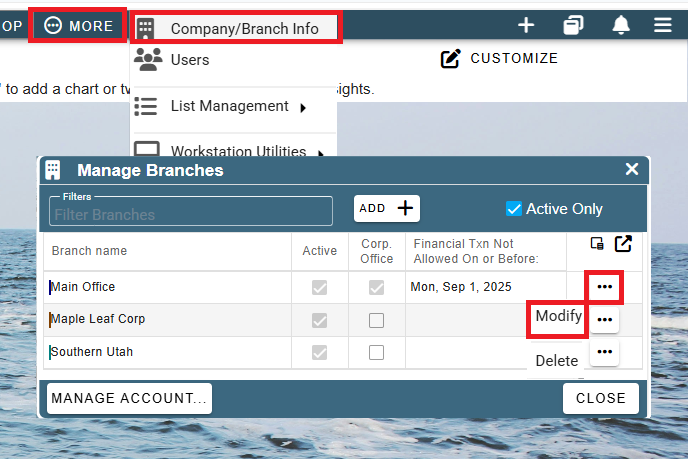
Set up Paid Time Off by going to More->Company Branch Settings->Modify
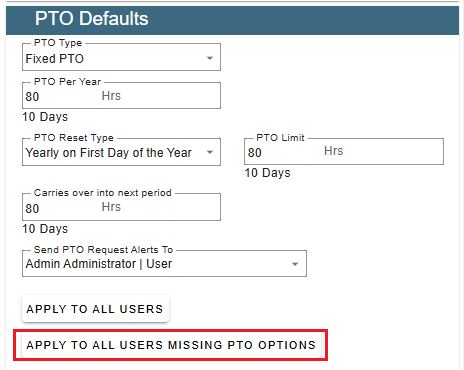
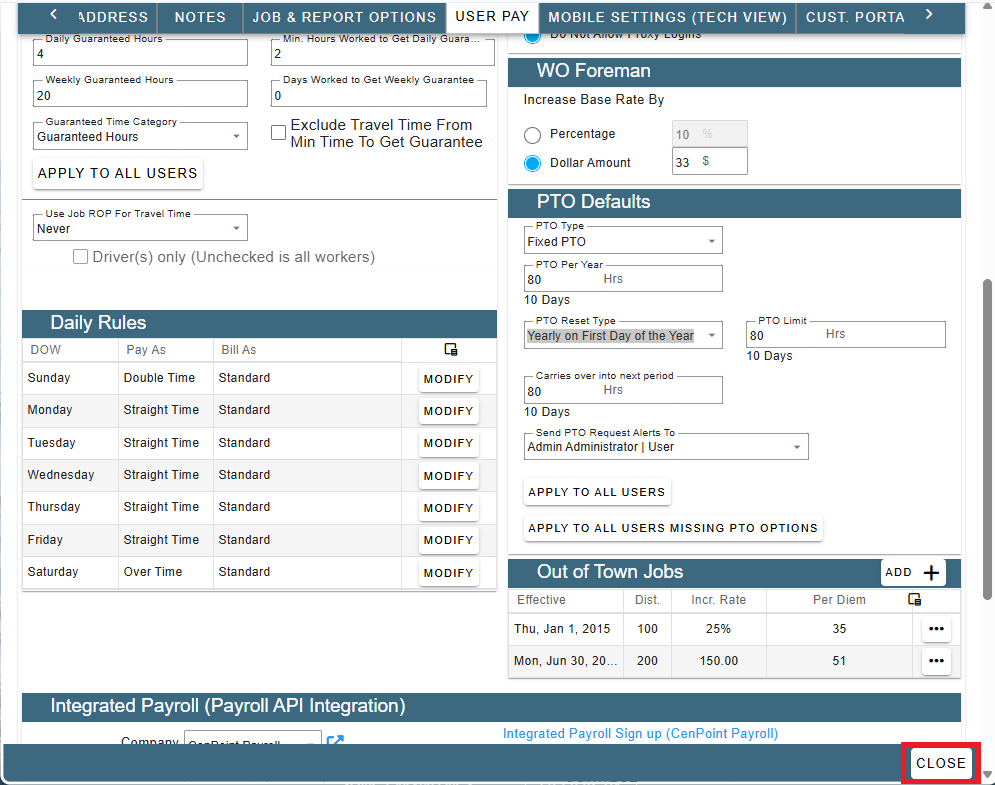
Once in Branch Settings go to the User Pay tab and scroll down to PTO Defaults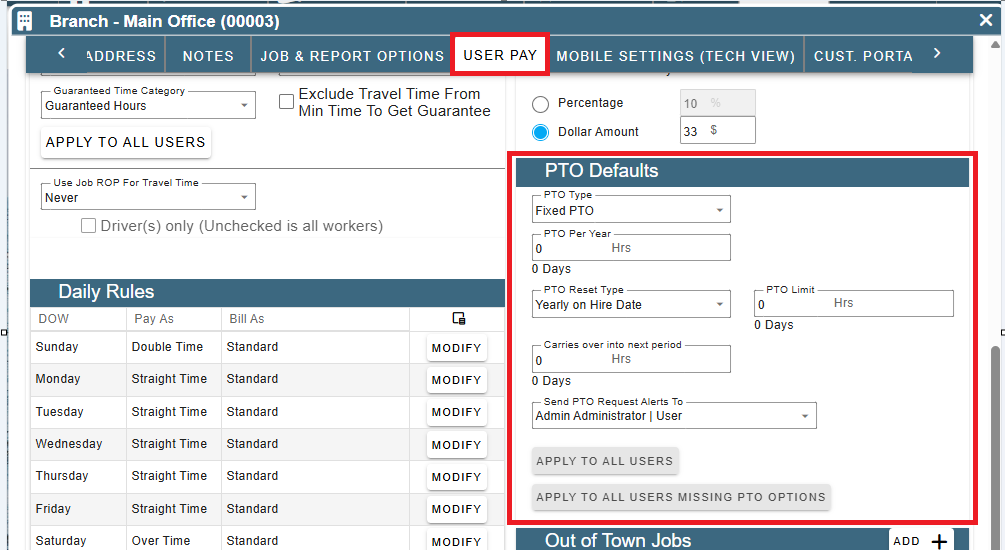
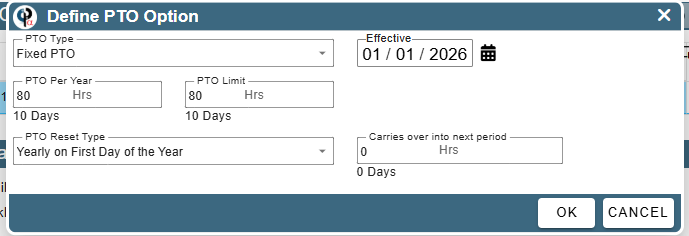
Select if PTO is Fixed or Accrued
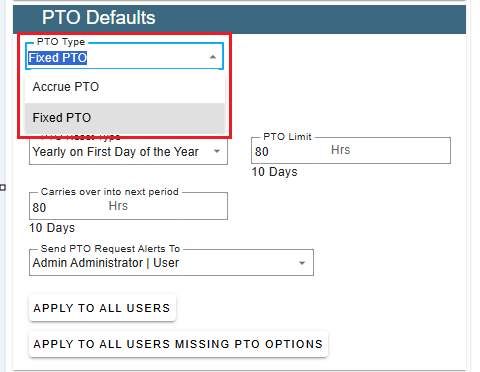
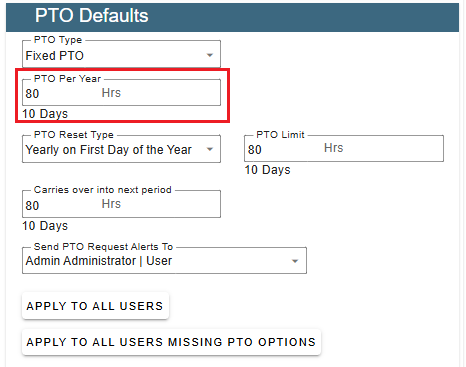
Select the PTO Hours for the year and type in the number of hours
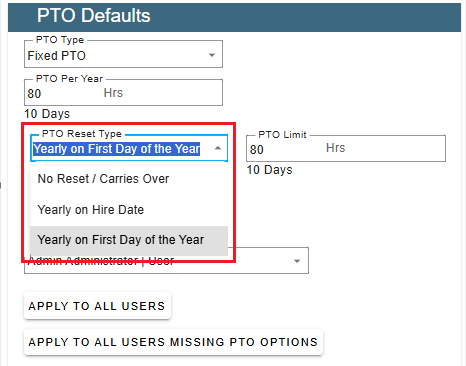
Select how you want the PTO to reset each year
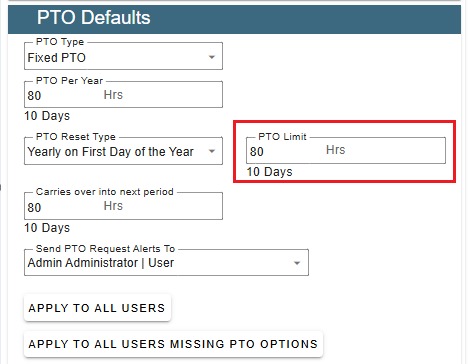
Select the limit of PTO hours
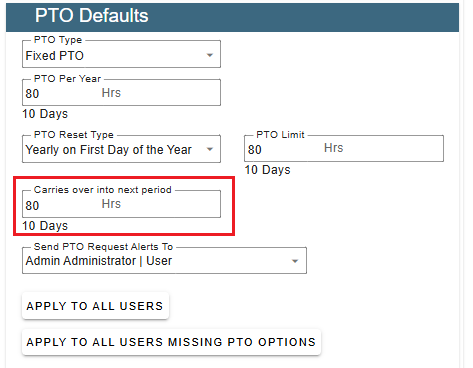
Type in how many hours if any to carry over to the next year
Select a contact for the PTO requests to go to. When someone requests PTO an alert within CenPoint will be sent to this contact.
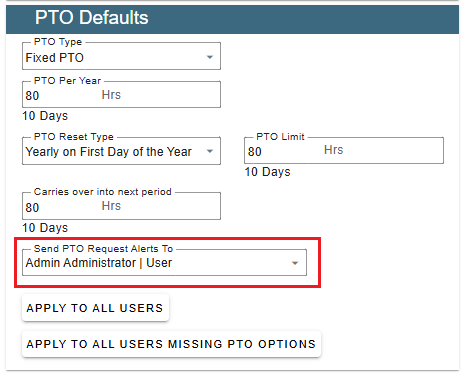
Whomever is selected as the 'Send PTO Request Alerts to' will receive a notification when anyone requests time off.
Then notification will show under the notification bell in the top right corner of CenPoint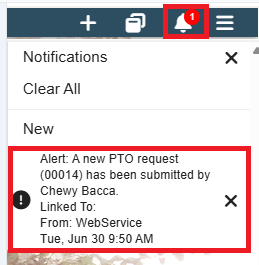
Click Apply to all users to update All users you have in CenPoint- this is most applicable when just staring CenPoint or at the beginning of the year.
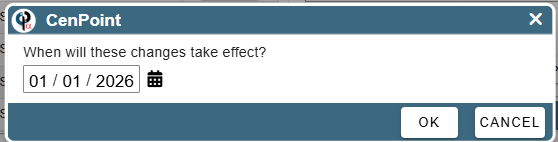
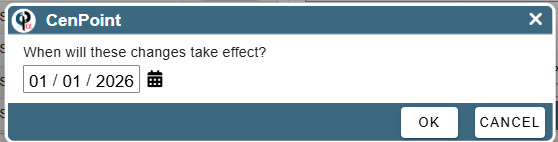
You will also be prompted to choose an effective date for the changes
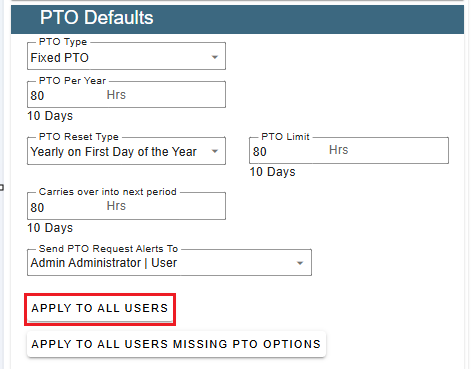
Click Apply to all users missing PTO options- this will only apply to any users missing PTO.
This is most applicable if you have a new user.
You will also be prompted to choose an effective date for the changes
When all your PTO defaults are filled out click Close on the page.
Set up PTO for a User
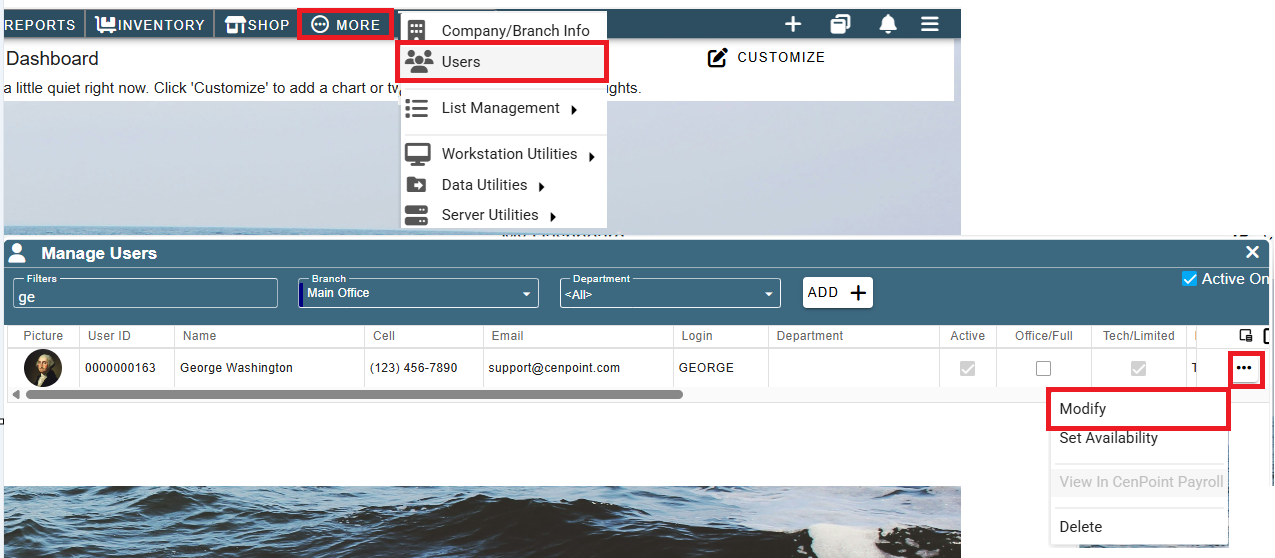
Set up PTO for a user by going to More->User->Click the ellipsis on your user-> click Modify
Go to the User Pay tab and find the PTO Options section
Click on 'Add' to add a PTO Option
On an existing PTO record, click the ellipsis (...) and select Modify to edit the record. You can also select Delete from the same menu to remove it.
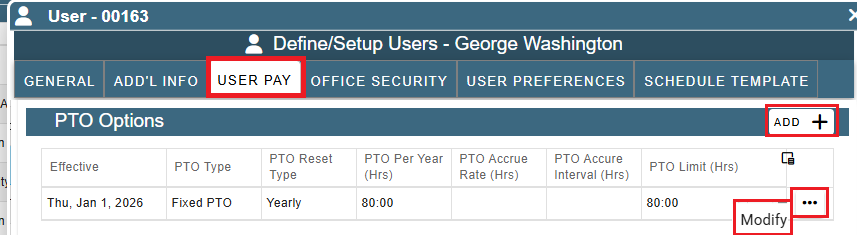
* If you did Apply to All from the branch settings those would have applied to all the users.
If you needed, change the PTO hours per user and effective date.
Additional Info
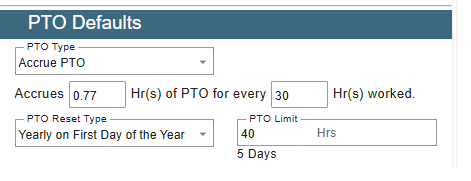
As of right now CenPoint handles accrual time only if the techs work.
To set PTO to not front end load you could set something like this: