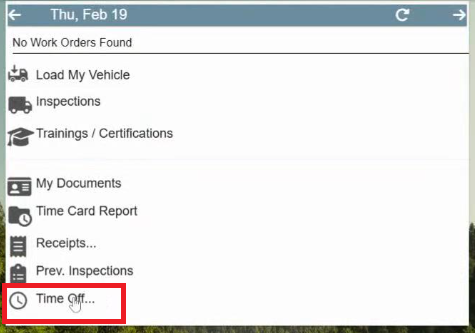
View your 'Time Off Requests' click on 'Time Off...' in the menu.
Locate and click the 'Time Off...' option in the menu to begin the time off request process.
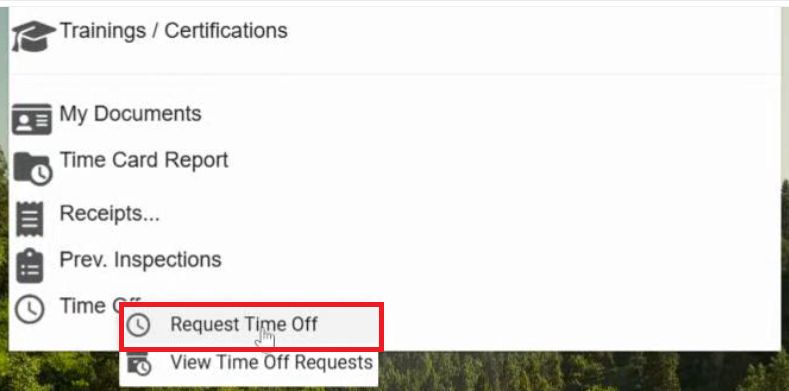
Select 'Request Time Off' from the submenu.
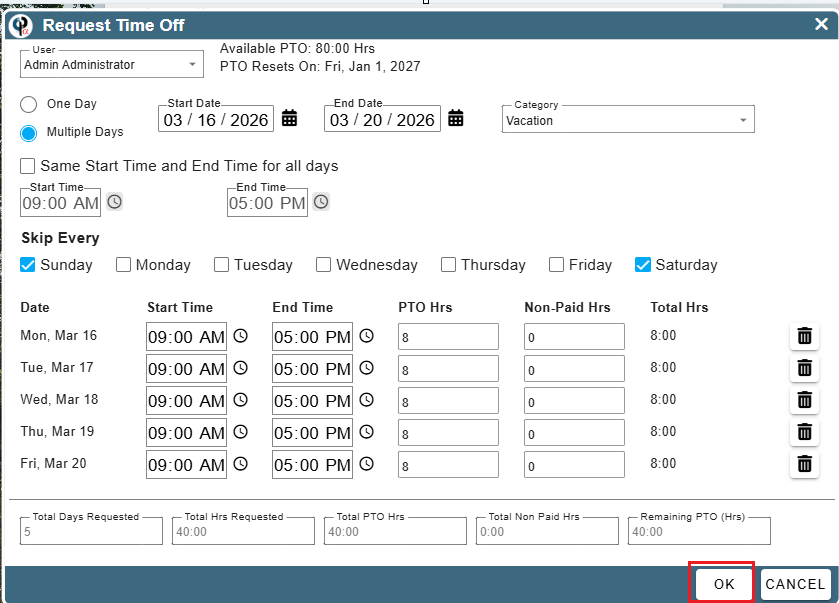
A dialog box 'Request Time Off' will open.
Check the radio button 'Multiple Days' to select more that one day or 'One Day' for just one day or half a day
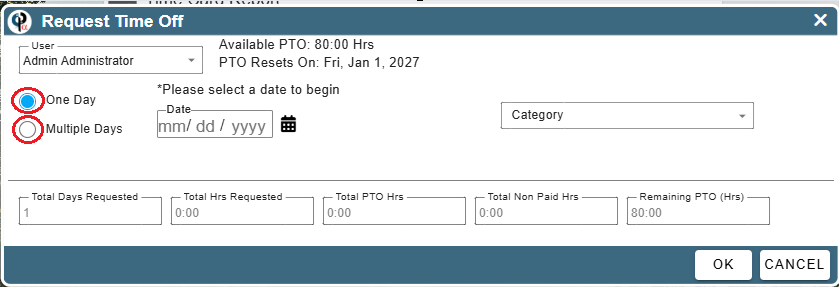
Select a Start Date, End Date and Category
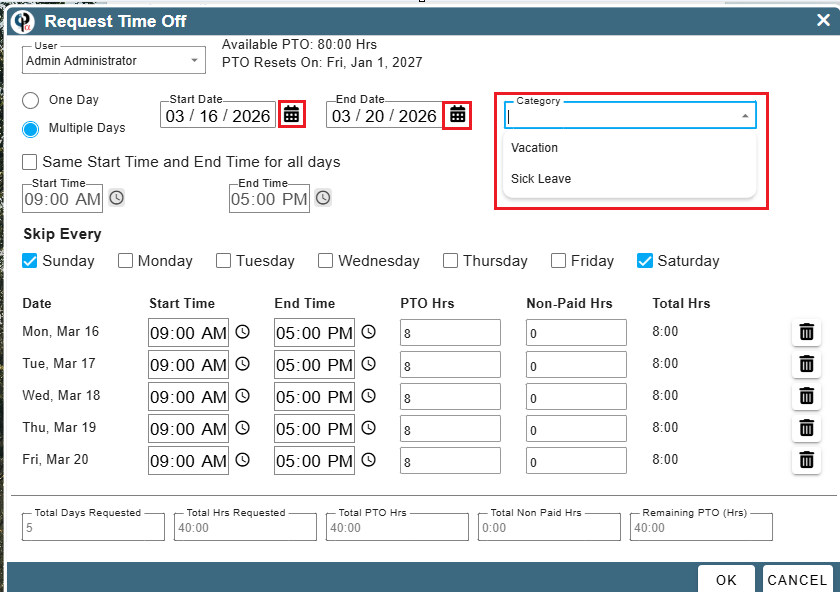
Select the Start time and End Time, if they are all the same check the box for Start Time and End Time for all days.
Otherwise select the times for each day individually.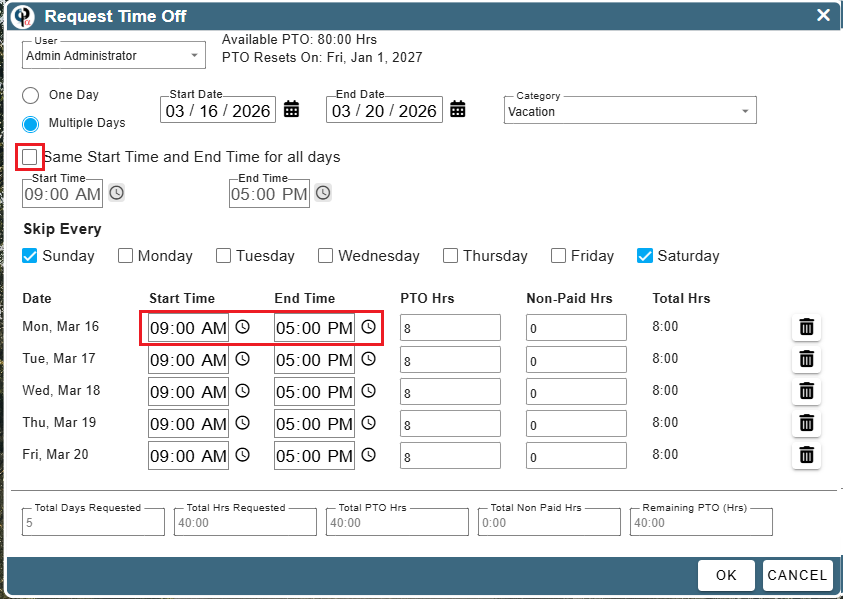
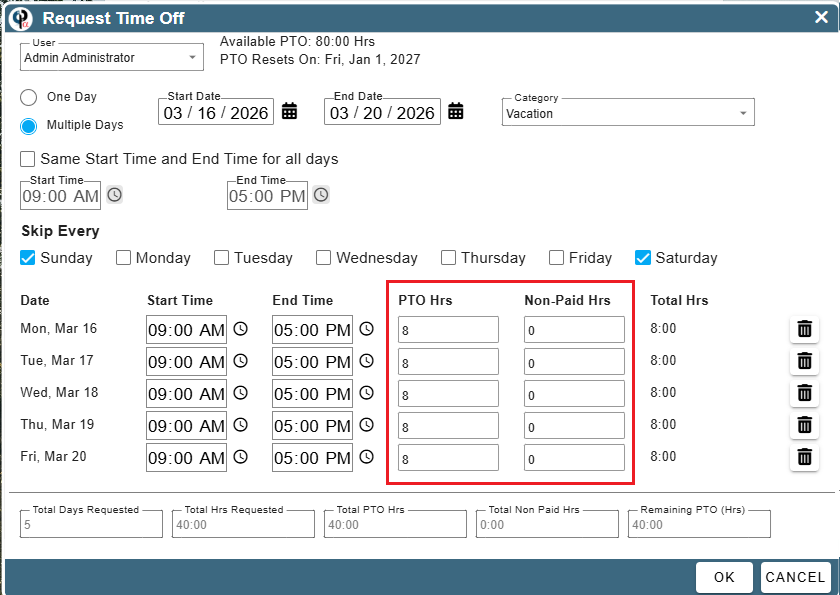
Fill in if the time off will be PTO (paid time off) or Non-Paid Hours
The totals at the bottom show the time off request and your remianing PTO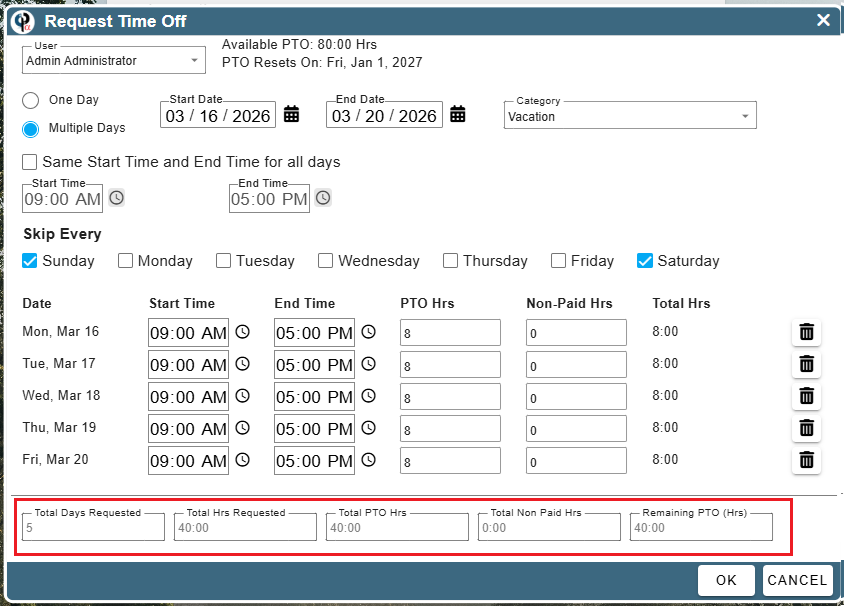
Click OK to submit to the office to approve your time off request
After clicking OK you will get a confirmation that your request was submitted.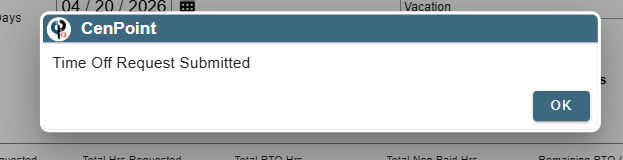
Check to see if your time off has been approved. In the CenPoint app click Time Off...
Then click View Time Off Requests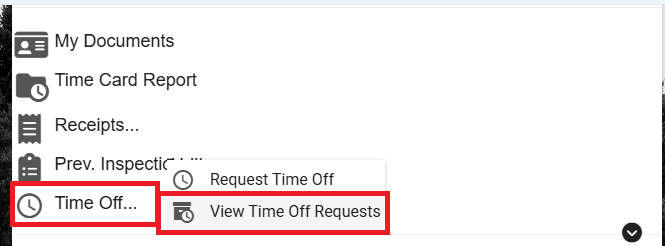
Click on the ellipsis on the request you want to check and then click View
* You can also delete your request by clicking the ellipsis on the request you would like to delete and then select Delete
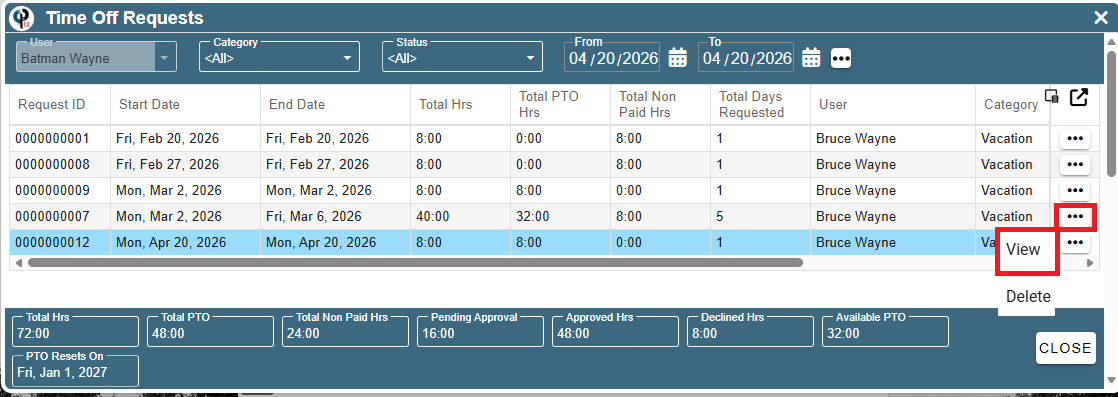
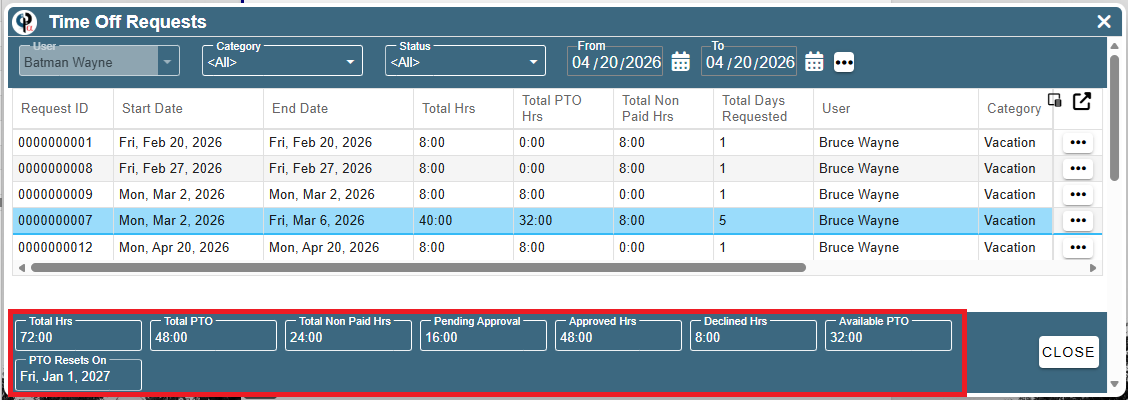
View the status of your request, and if it was approved or declined. In the example below four of the days requested were approved and one day was declined.
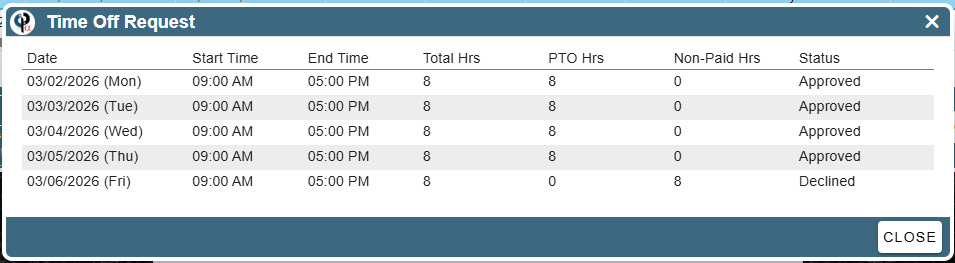
On this same grid you can see all the status of you PTO hours.