This article covers how to print Checks
Bulk Print Checks
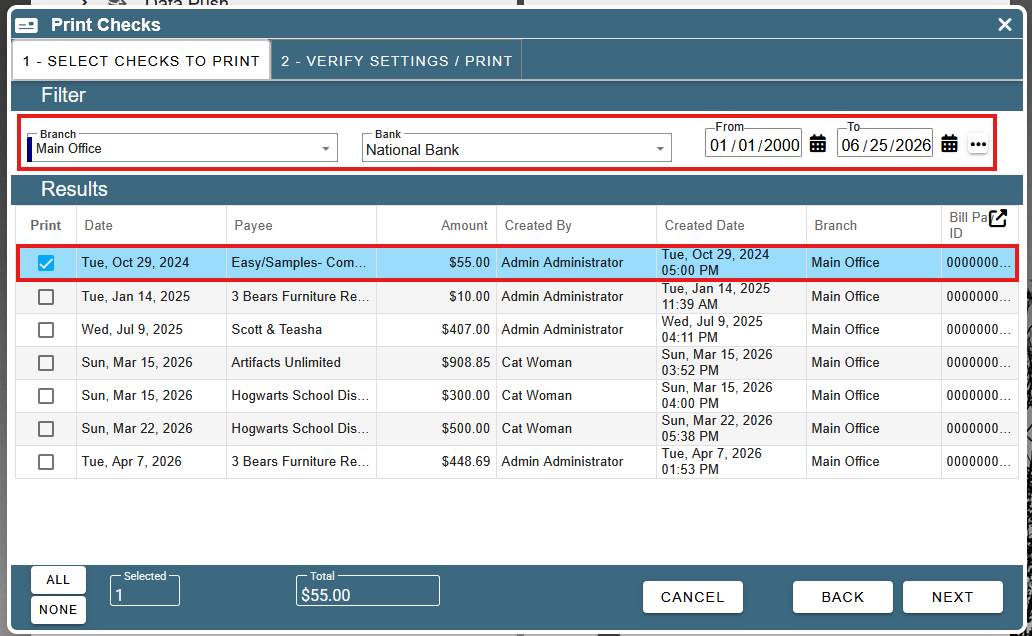
Once you have clicked the check box to print a check when making a payment it will show up in CP Books in the Essentials section, Checks, Bulk Print Checks.
To print checks, you will need to filter the branch, bank, date and select the payment you want to print then click Next
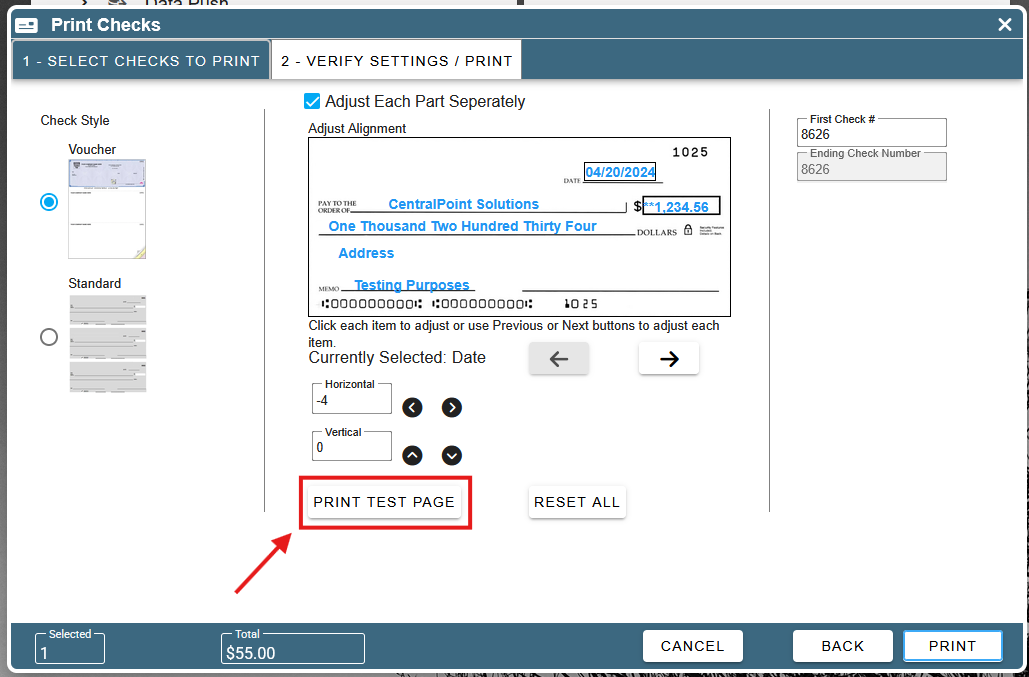
Print a test page to ensure the appearance is satisfactory before selecting the "Print" option.
When the print window opens go to ‘More Settings’
When printing test page and checks select the actual size option.
.jpg "13(5).jpg")
Then select ‘Actual Size’ or it may say ‘Fit to Paper’
.jpg "14(6).jpg")
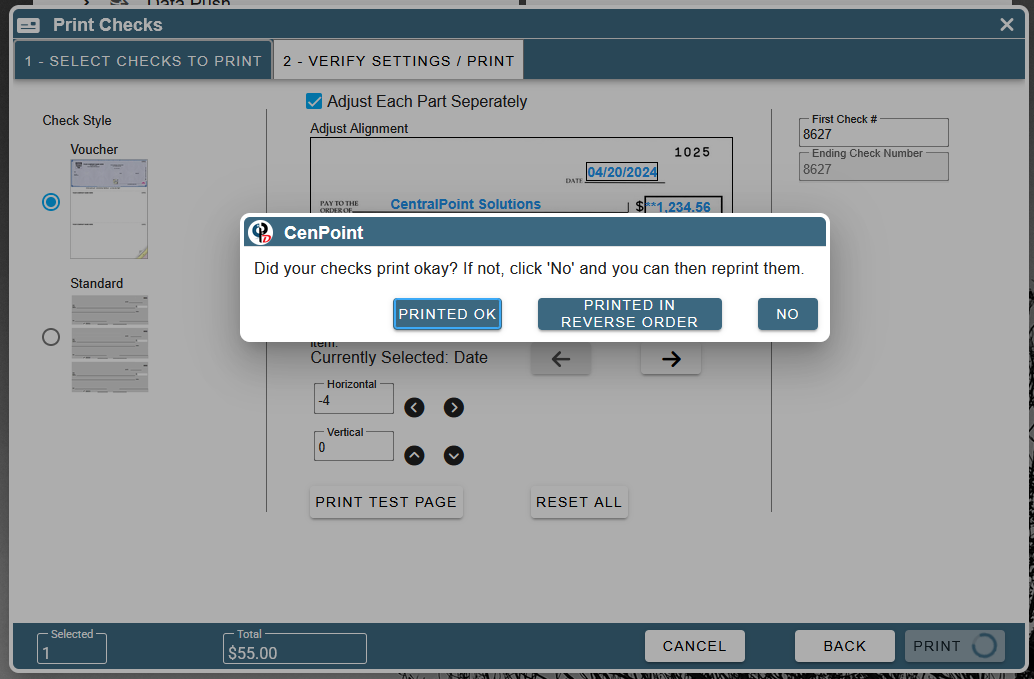
Following the printing process, the system will prompt you to verify the adequacy of the printed checks. You may choose to reprint them or opt for the reverse order printing option.
When entering a bill the Payment Notes section will print in the memo field on the check.
There’s not currently a way to edit those notes so you may need to delete the bill payment and re-enter with the notes you want.
.jpg "2ntitled(1).jpg")
.jpg "3ntitled(1).jpg")
Delete/Void a Check
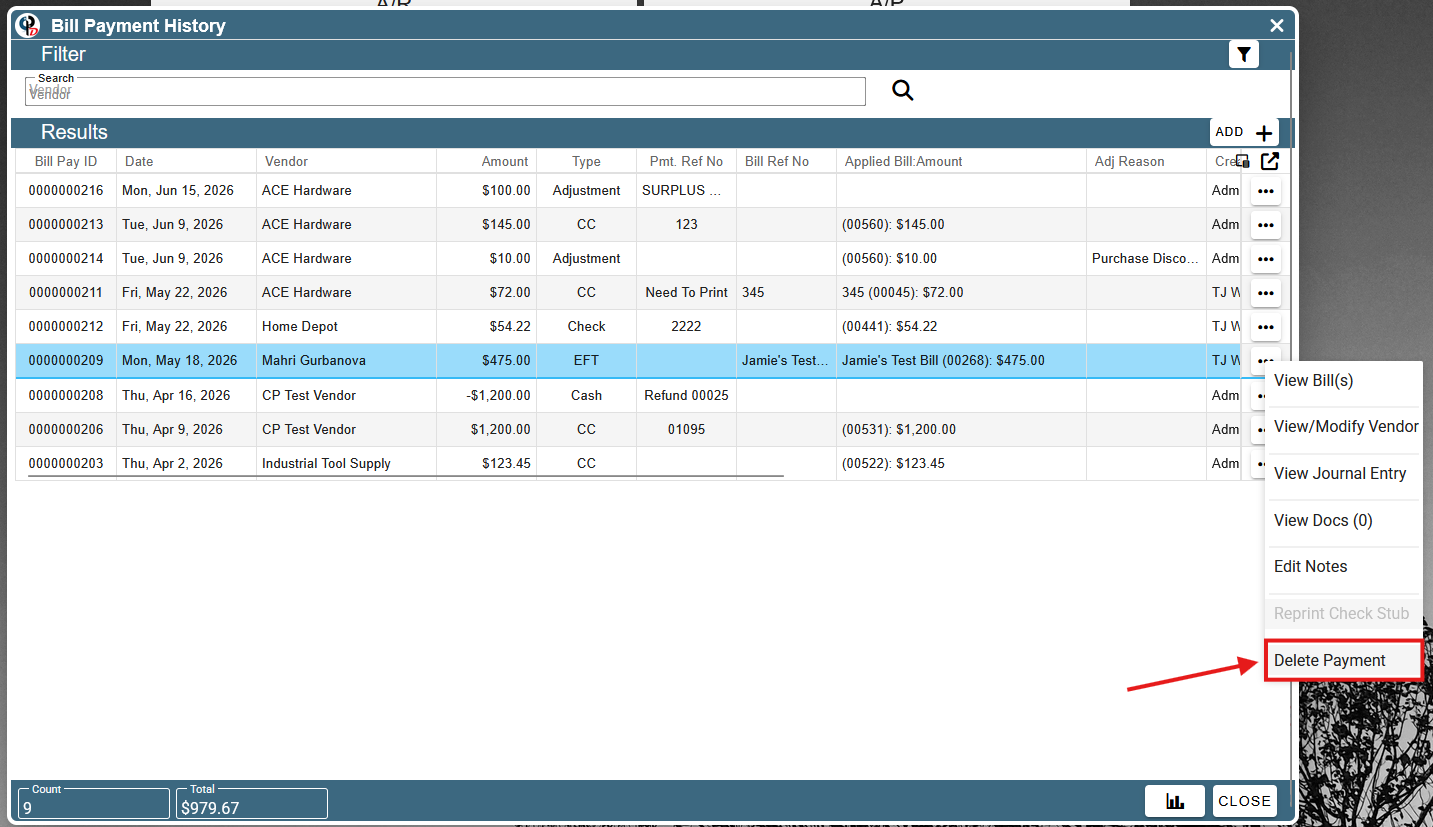
To delete or void a check go to: A/P → Bills → Bill Pay History
Delete the payment that represents the check that you want to void.