
Review Time / Process Payroll
This article will walk you through the steps to Approve & Process payroll using CenPoint Payroll.
If you are not using CenPoint payroll, you can still export the hours / rates, but need to manually transfer that information to your payroll company.
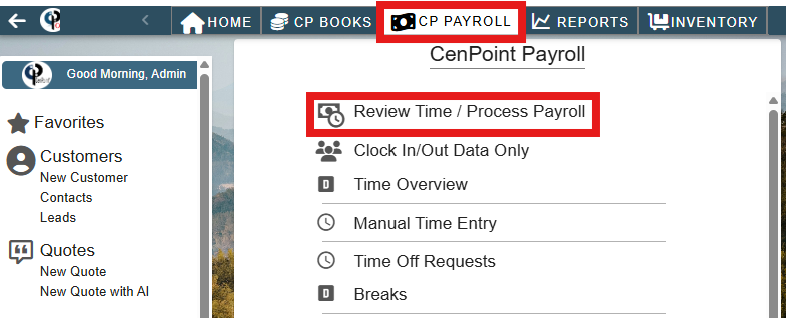
1. Click on the CP Payroll tab and then go to Review Time / Process Payroll.
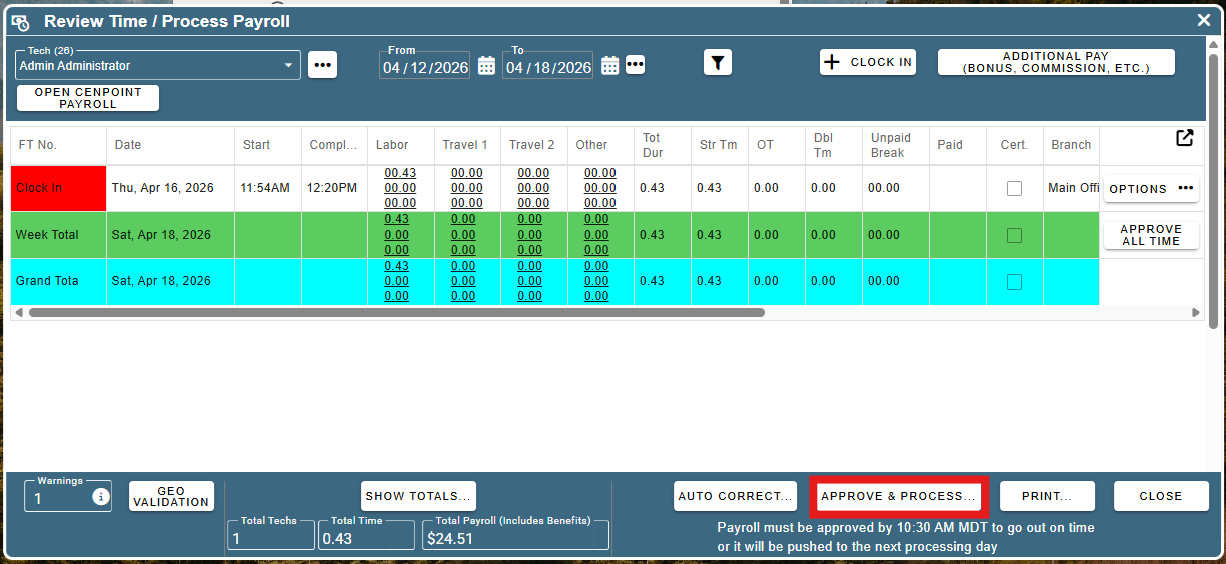
2. Verify all hours and then click on the Approve & Process button at the bottom of the screen.
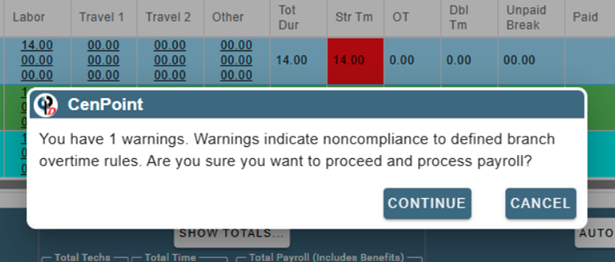
Error Check 1.
If you see this screen, it means you have time that does not meet your branch OT rules (i.e. time is in Straight time that should be in OT). Run the 'Auto Correct...' options to fix this.
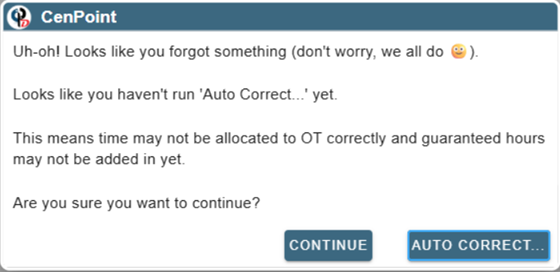
Error Check 2
CenPoint tries to help you out and checks if you haven't run Auto Correct yet. If you see this screen, please run Auto Correct to make sure everything is hunky dory :)
Error Check 3.
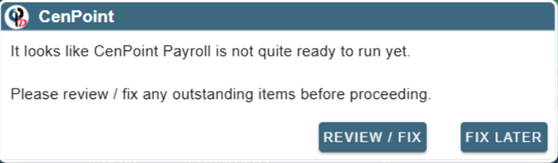
If CenPoint detects that CenPoint Payroll is not fully configured / set up yet, you will be prompted to fix the missing info.
For example, no user is configured to receive payroll alerts, etc. Click the "Review / Fix" button to view the payroll setup steps that have not been completed.
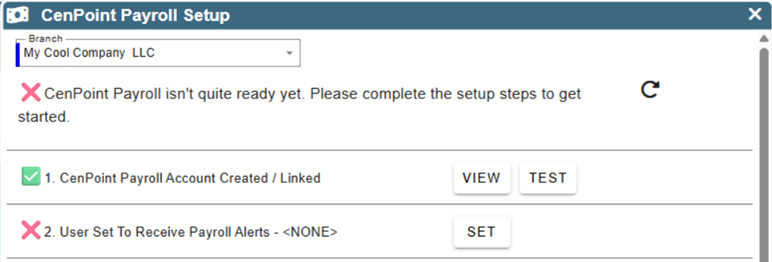
After clicking "Review / Fix" button on the previous screen, you will see this "CenPoint Payroll Setup" screen.
This screen shows which payroll setup steps have not been completed.
After completing these items, there will be green check boxes next to all of them and you can continue processing payroll.
Error Check 4
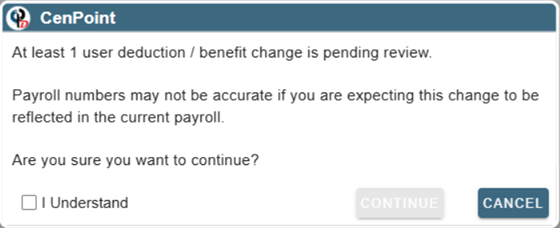
If CenPoint Payroll is ready to go but you have benefits / deductions that are pending review / action by the CenPoint Payroll team, you will be presented with this screen.
Clicking the "I Understand" checkbox lets you continue but may result in incorrect payroll. You have been warned!
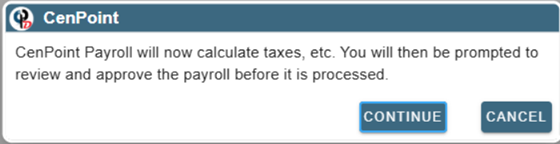
3. Click Continue to have CenPoint Payroll calculate taxes, deductions, etc.
4. Review the payroll summary (and details) & process payroll
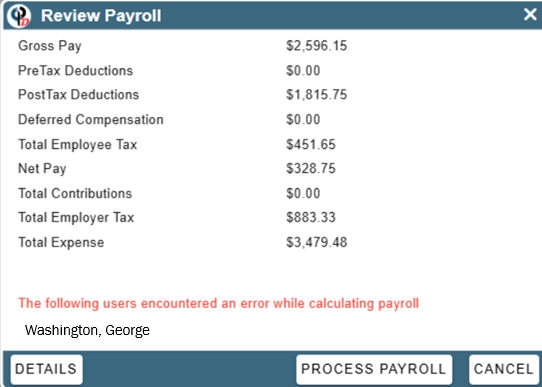
This screen displays the payroll totals and any users that have payroll calculation errors.
Click the "Details" button to view the payroll details, taxes, deductions, etc. for any employees included in the payroll.
Click the "Process Payroll" button to continue the process
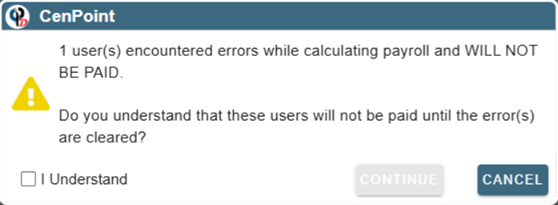
After clicking "Process Payroll" on the Review Payroll screen, if there were any users with errors, you will see this warning.
By clicking "I Understand", you acknowledge that users will not be paid if there were errors while calculating their payroll. The CenPoint Payroll team will try to auto resolve these errors but may contact you if the errors cannot be resolved without more information.
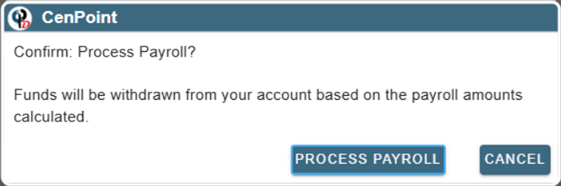
You made it! This is the final confirmation before the payroll is processed.
This action cannot be undone.
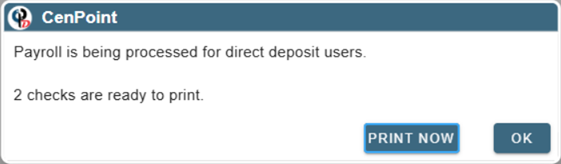
5. Print Checks (if needed)
If one or more of your employees are paid by check instead of direct deposit, you can click on "Print Now" to open the bulk print checks screen and print their checks.
And that's it!