
A word of caution though, Beta Apps may contain unstable code.
Use the following steps to download a Pre-Released Beta App.
Beta App
To opt in to the Beta on CenPoint, go to the hamburger menu in the top right corner.

This brings up a side menu, near the bottom of the menu find Beta Version (early access) toggle the Beta Version (early access) button to on.
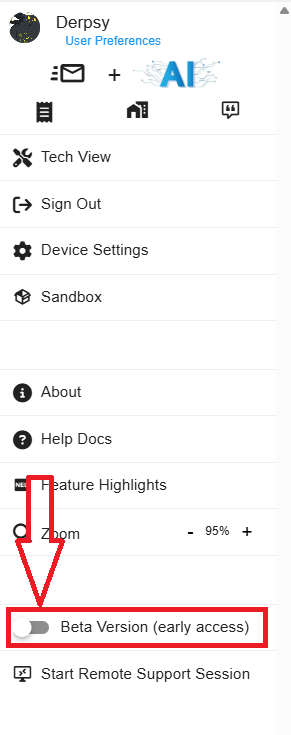
Then just click Switch and you're in!
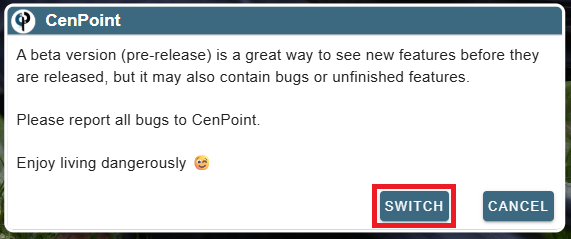 Welcome to the cool kids club!
Beta option in for Legacy View
To download the Pre-Released Beta App go to About-> Download Beta Update
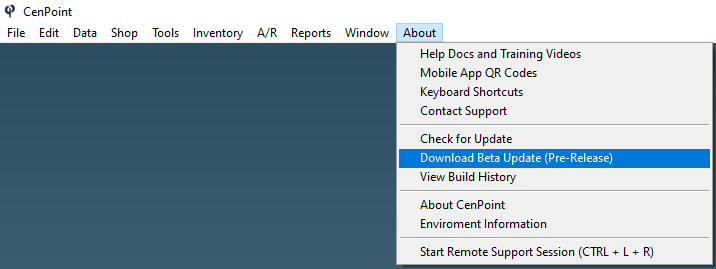
Click-> Download Beta-> Wait for download to finish
.png)
Option 1: Click-> Open Folders and Exit CenPoint (Preferred)
.png)
The session of CenPoint that was open will shut down and, two folders will open,
a 'CenPoint Folder' and a 'Beta App Folder'.
If you have multiple sessions of CenPoint open you will need to close the other sessions.
.png)
Select all the files in the 'Beta App Folder' and copy them to the 'CenPoint Folder'.
When you drag or paste the files to the CenPoint Folder, make sure the files say 'Copy to Cenpoint'.
.png)
Select-> Replace the files in the destination
.png)
Launch CenPoint, an update will begin, when completed you're good to go!
Option 2: Click->Copy Path
Option 2 would be used if there is an Admin password required to update your computer.
.png)
The file path will be copied to your clipboard.
Launch File Explorer and Paste the File Path.
.png)
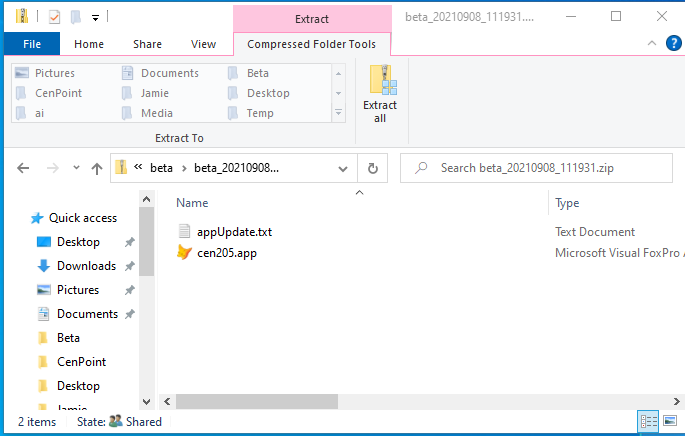
Follow the instructions from Option 1 to copy the files to the 'CenPoint
Folder' and complete the Beta App process.