This would most commonly be used for those who are part of a union or union job that requires guaranteed hours.
Company Branch Settings for Guaranteed Hours
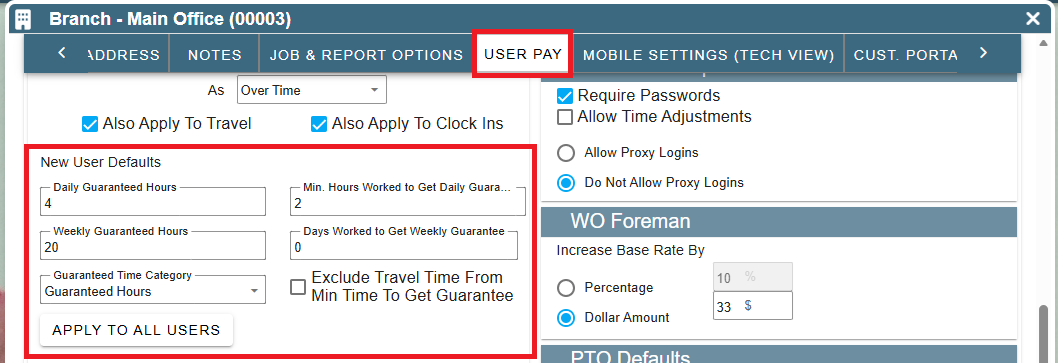
Set the default settings by going to your company branch settings, modify the branch and go to the User Pay tab.
Under the User Pay tab there is a section to add guaranteed hours. Add information to the boxes that are applicable. If a setting does not apply to your company leave the number at Zero
- Daily Guaranteed Hours
- Weekly Guaranteed Hours
- Minimum Hours worked to get daily Guaranteed hours
- Days worked to get weekly Guaranteed hours
- Guaranteed Time Category- this will be the category that will display on the clock ins when they are created for guaranteed time.
*Customize this list if needed by going to List Management->User Groupings-> Clock in/out categories
- Check the box if you are going to Exclude Travel Time minimum to get guarantee
Click “Apply to All Users” to apply this setting to everyone (including office and shop employees). Otherwise, you will need to configure it individually for each user.
User Settings for Guaranteed Hours
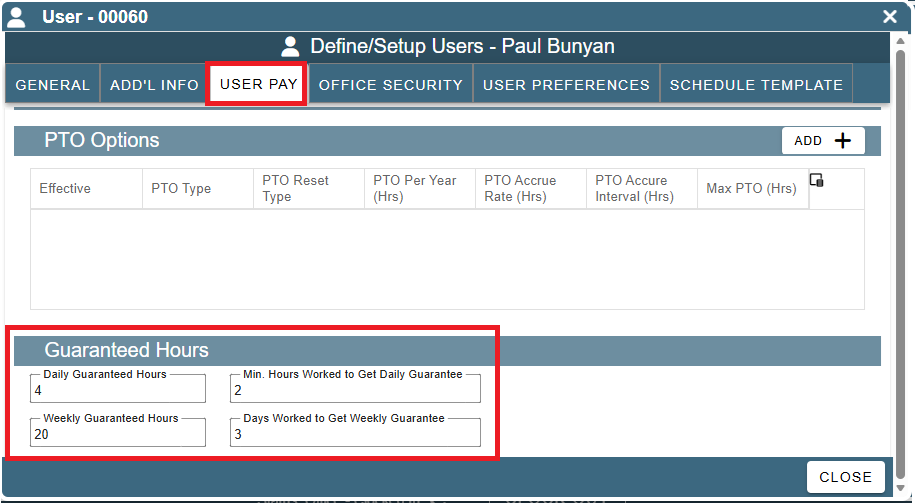
Change per user if needed by going to More -> Users -> Modify User -> User Pay Tab
Fill in the guaranteed hours that are applicable to a particular employee.
If a setting does not apply to a specific user leave the number at Zero
Creating the Guaranteed Hours in Review Tech Time
CenPoint will auto create a clock in record to get to guaranteed hours if needed when you run 'Auto Correct' in the review tech time screen.
Go to Reports->Time Card and Payroll-> Review Tech Time
In our example Paul Bunyon is guaranteed 4 hours but only has 2 hours for the day
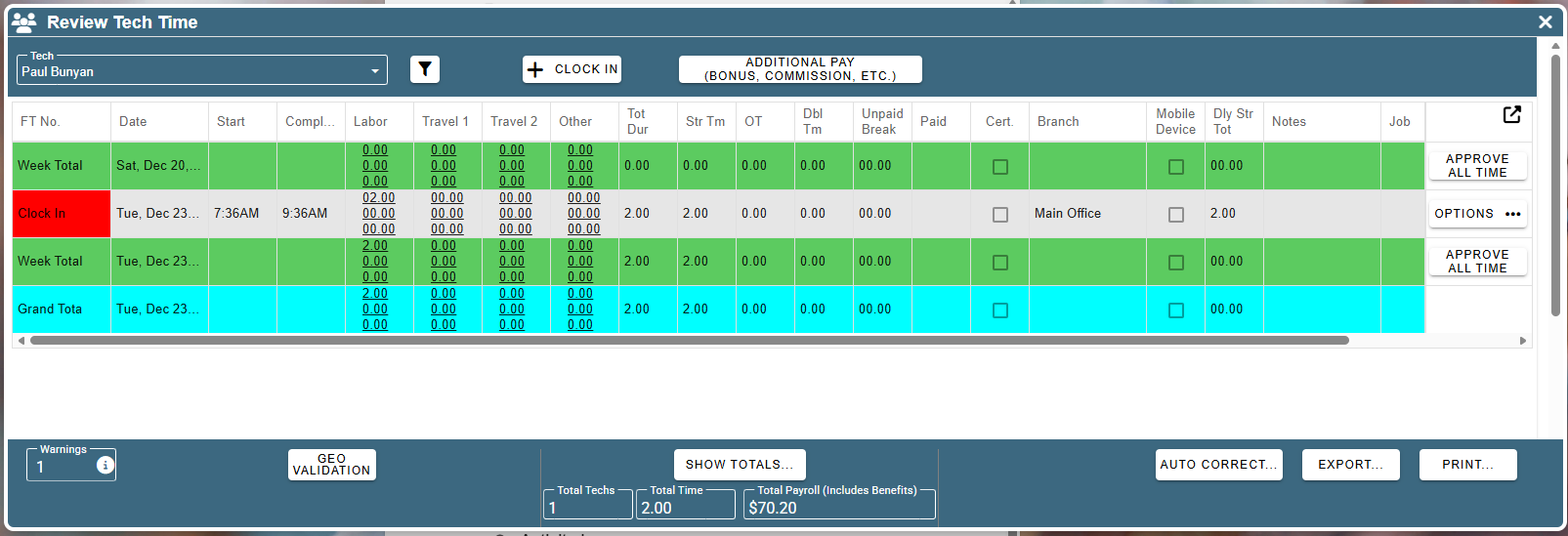
Create the guaranteed remaining 2 hours by clicking Auto Correct on the Review Tech Time screen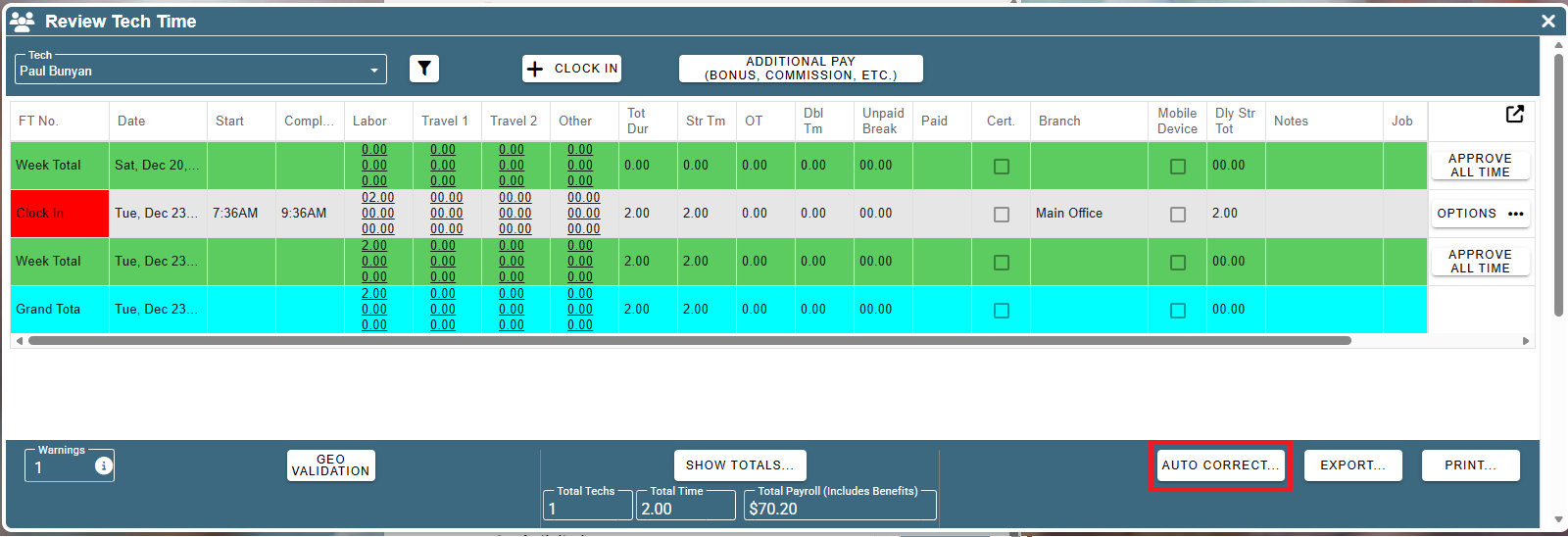
A Clock in record is then created for 2 hours to cover the remaining guaranteed hours.
The new Clock in record will have notes saying it was created for the daily guaranteed hours.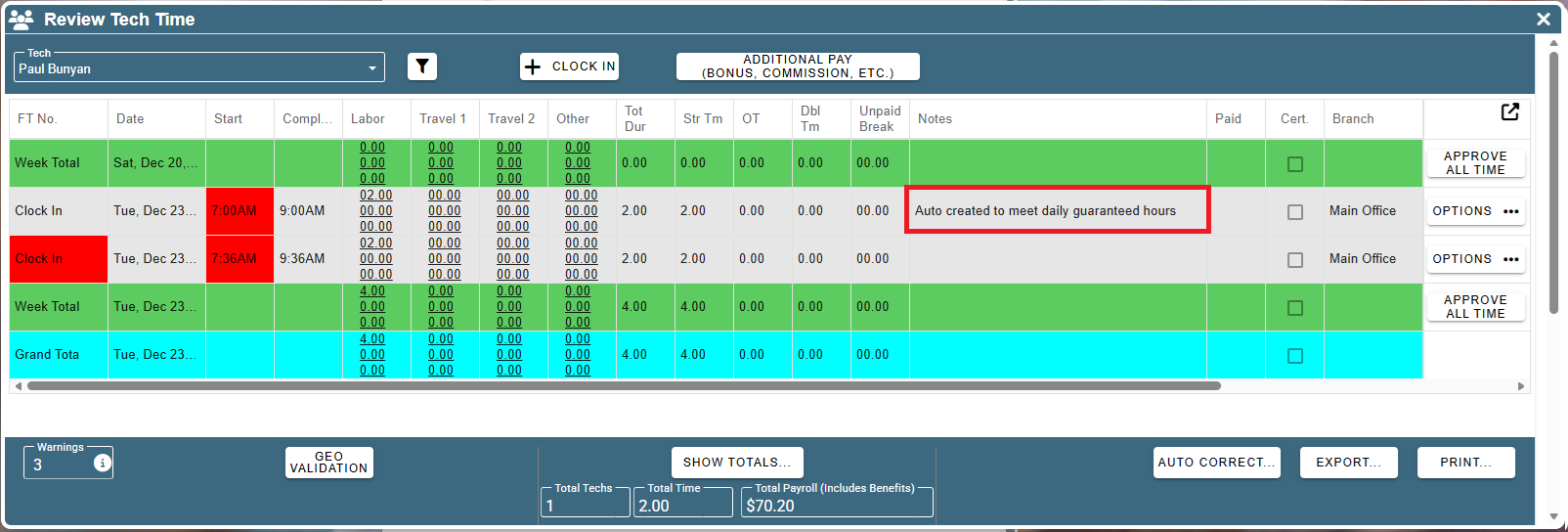
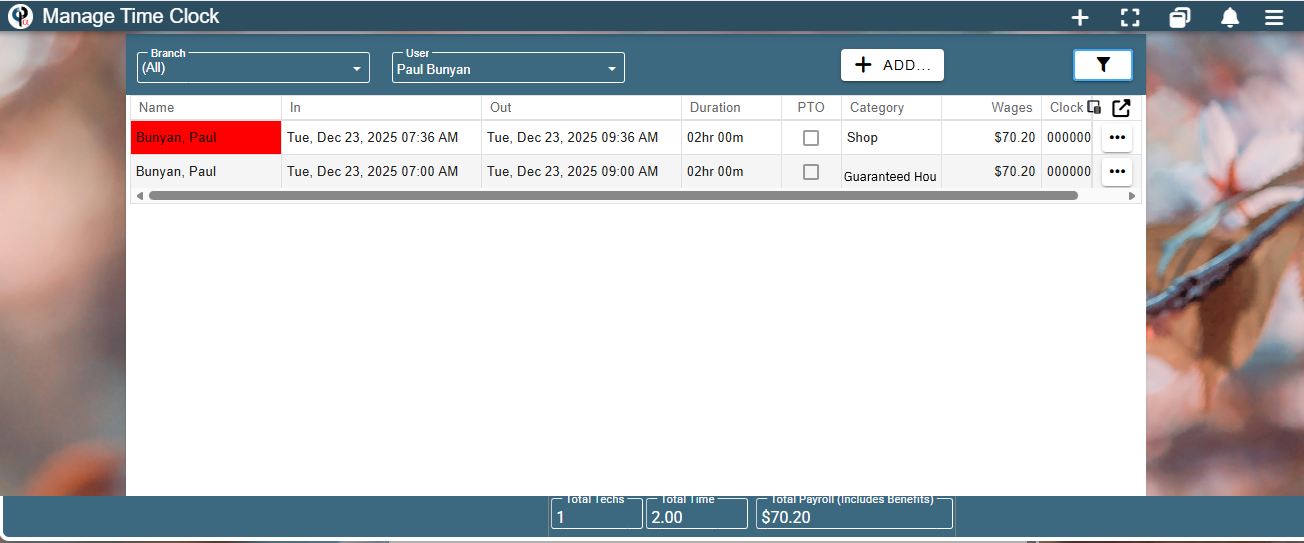
When looking at the Manage Time Clock screen the auto created clock in record will be listed in the category that was selected under Company Branch settings