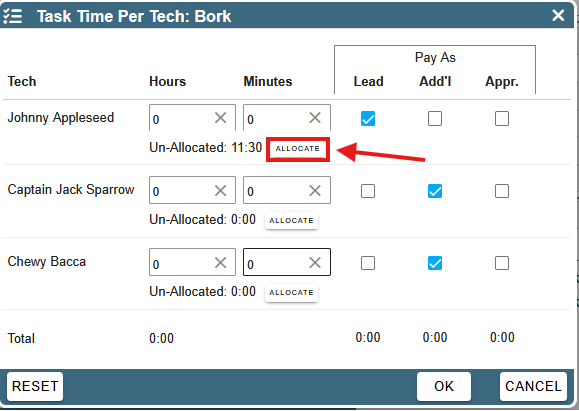
• Previously, all techs were assumed to have worked on the same task for the same amount of time
• Now you can itemize out the tasks per tech if each tech worked on different tasks
• You can even specify if an add'l worker gets the 'lead' pay rate on the job for the hours on that task (Oh-Yea!)
Itemize task using techs regular Rate of Pay does not require any set up and you would continue to 'Itemize task per tech' in this document.
If you need to set a specific Rate of Pay per task a few setup steps are needed to itemize field ticket tasks by technician.
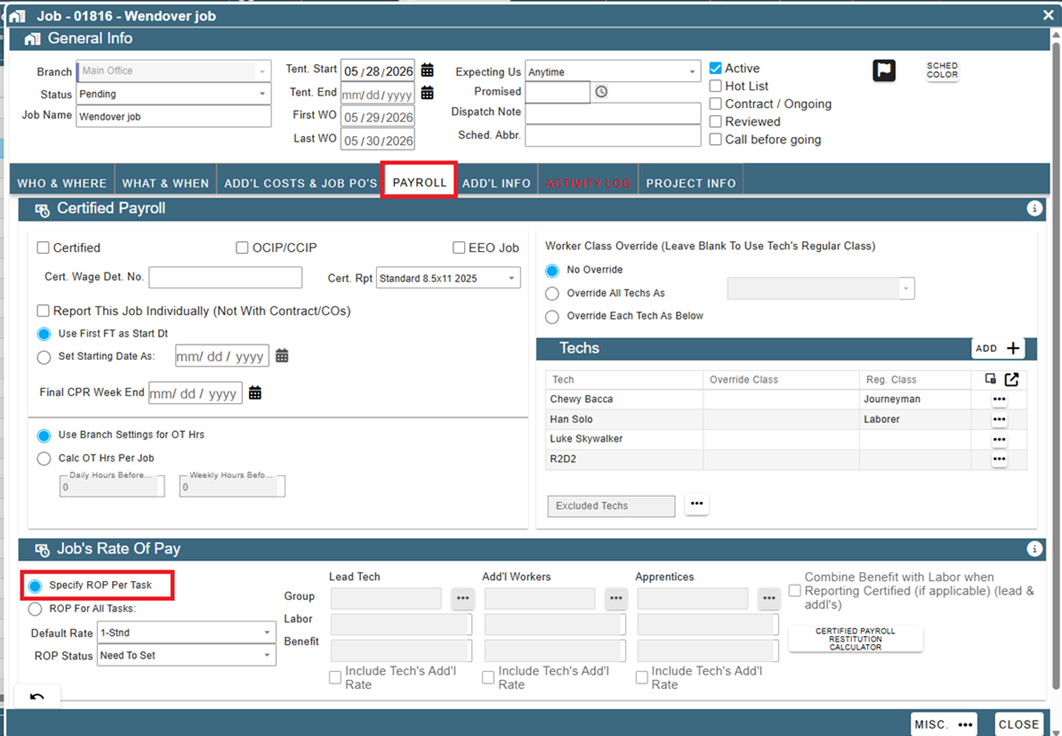
1. On the job go to the Payroll tab and under the section Job's Rate of Pay click the Specify ROP Per Task option.
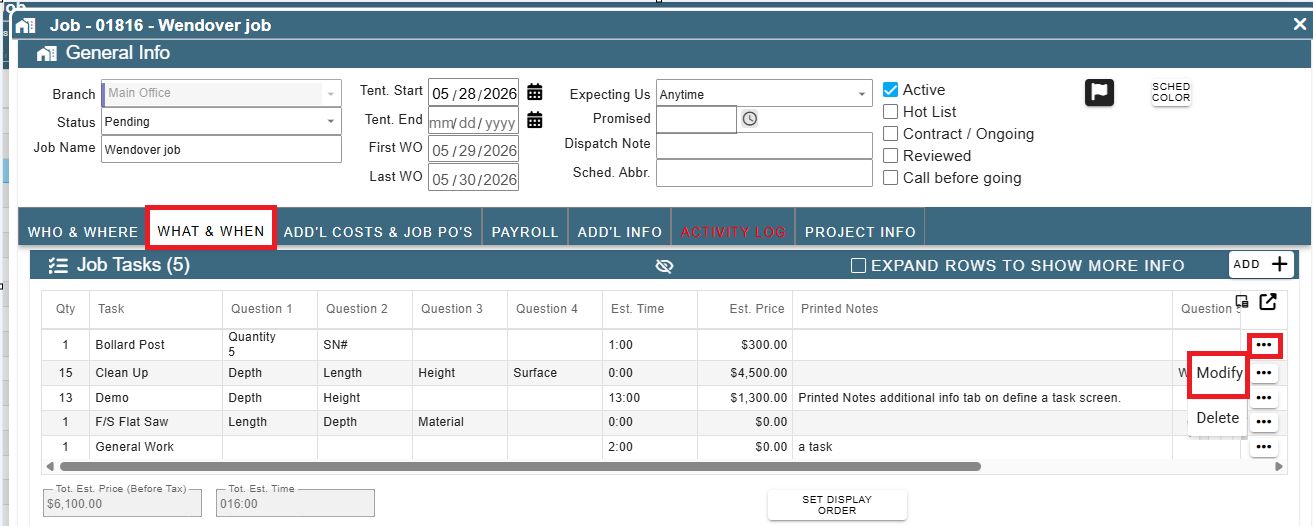
2. For each Job Task that you want to itemize by technician, go to What and When on the Job screen and Modify the task.
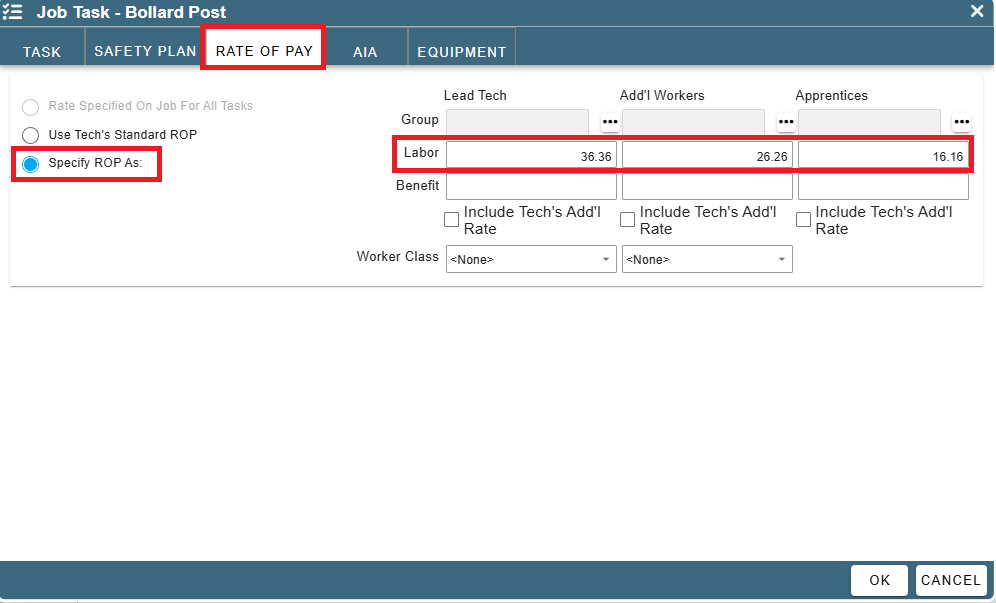
3. Navigate to the 'Rate of Pay' tab. Select the 'Specify ROP' option, then enter the appropriate hourly rate for each labor category, including Lead, Additional Worker, and Apprentice.
Itemize tasks per tech
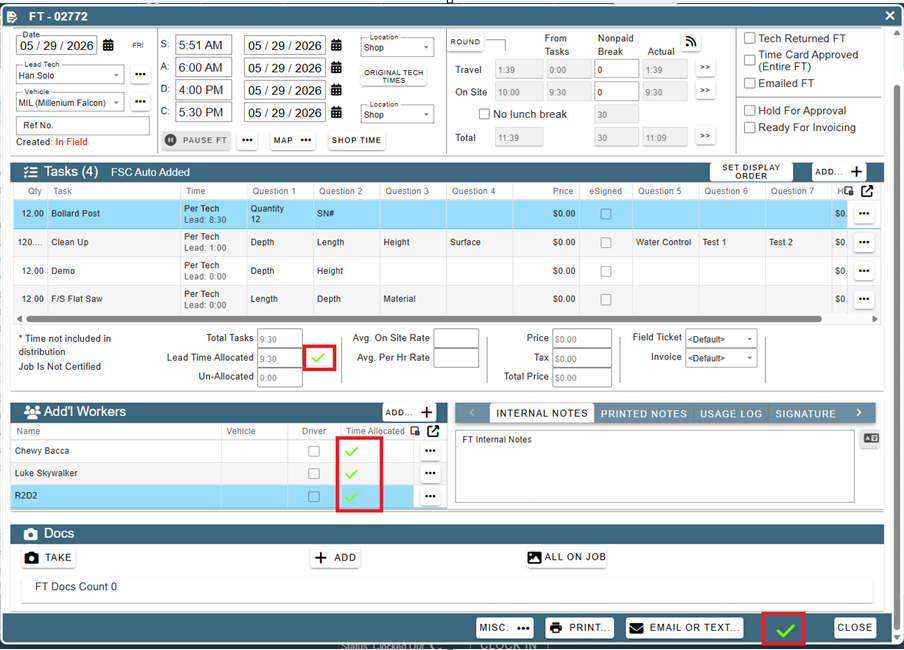
Manage the allocation by opening the Field Ticket. On the Field Ticket you will see red X's if the time is not fully allocated or green check marks if the time is allocated.
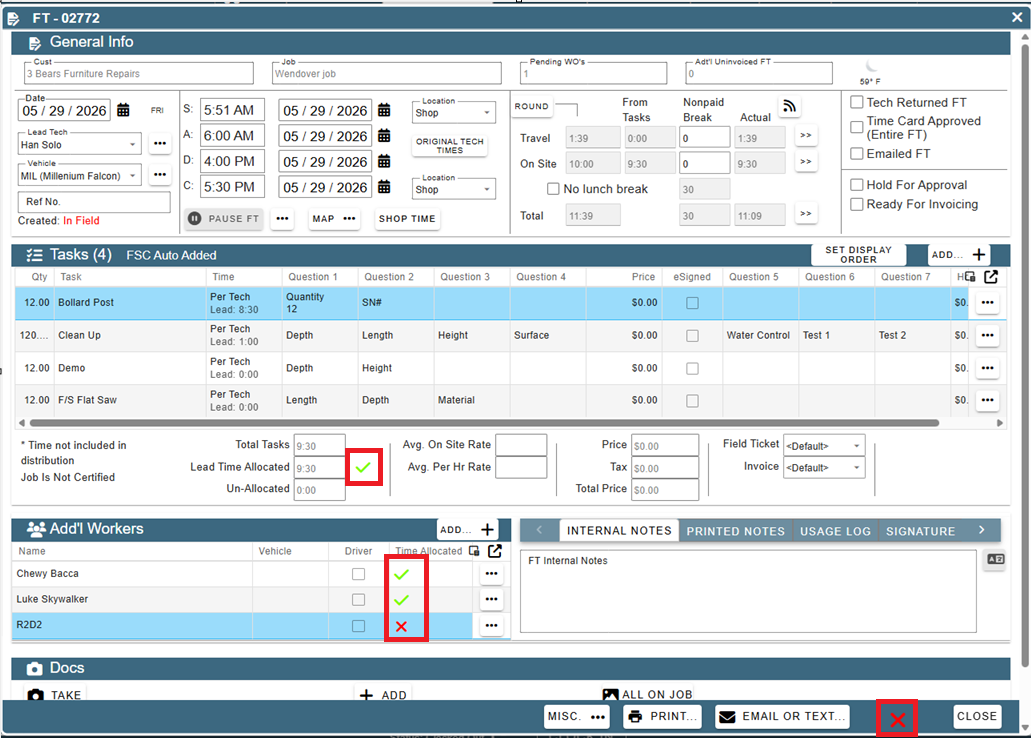
The green check mark is clickable and will launch a screen with an overview of the tasks. Click Modify to open the task.
A check mark or X in this location (see below) on the Field Ticket is for the lead techs time.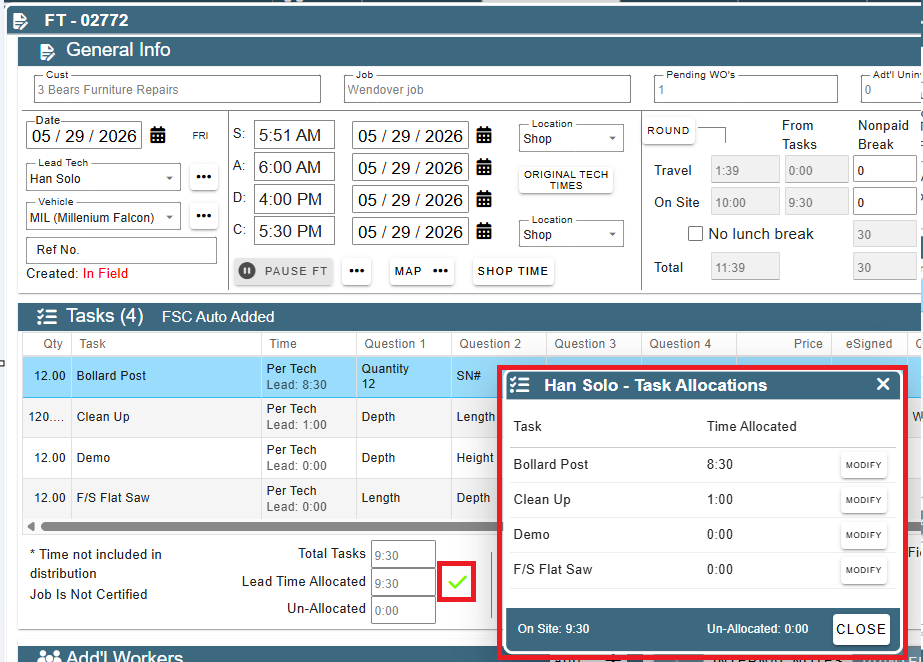
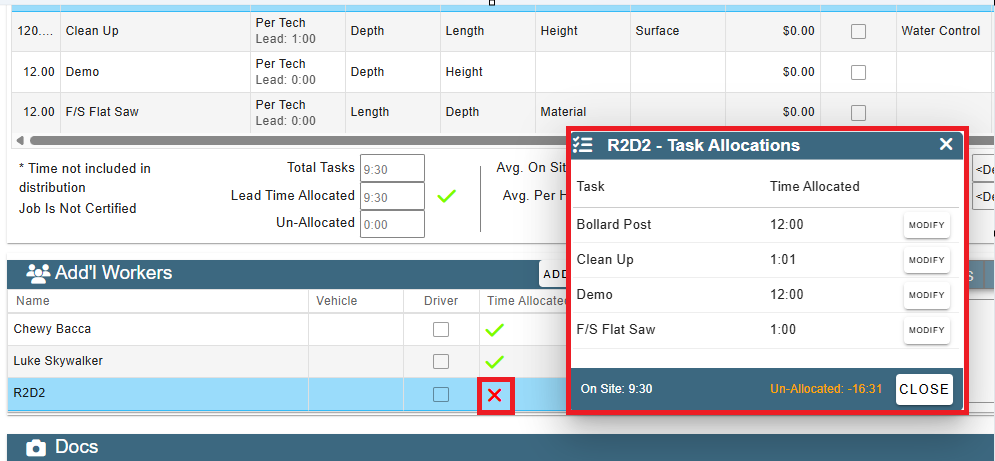
The red X is clickable and will launch a screen with an overview of the tasks. Click Modify to open the task.
Each additional worker will have a check mark or X that you can click to allocate their individual times.
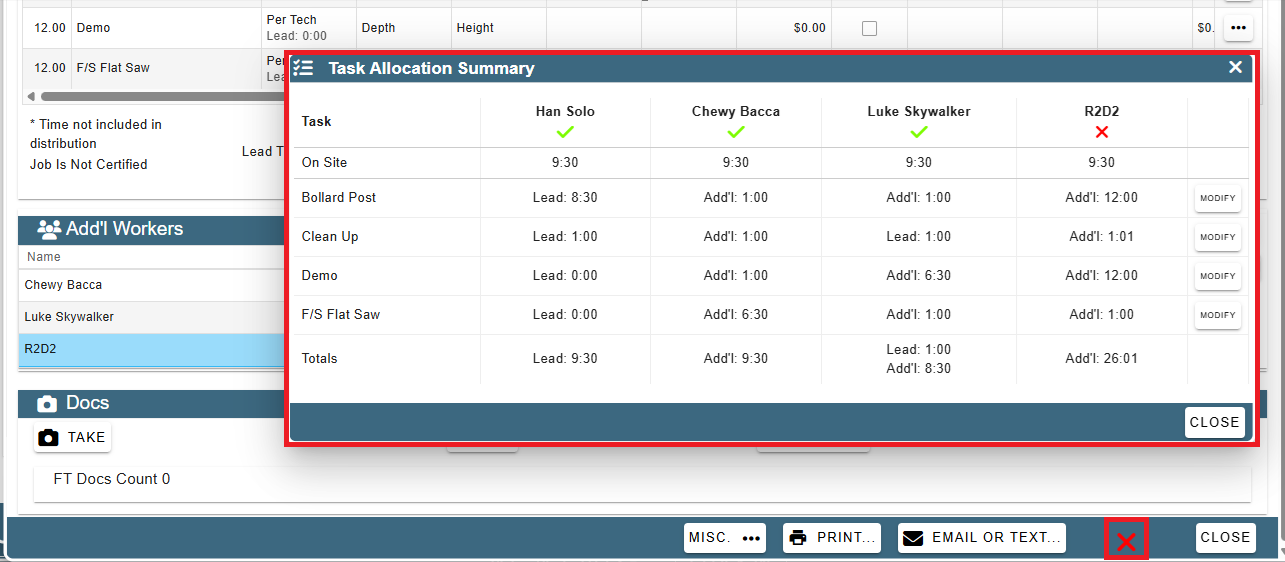
Click the red X on the bottom of the Field Ticket and it will launch a screen with an overview of all the tasks and all the techs. Click Modify to open the task.
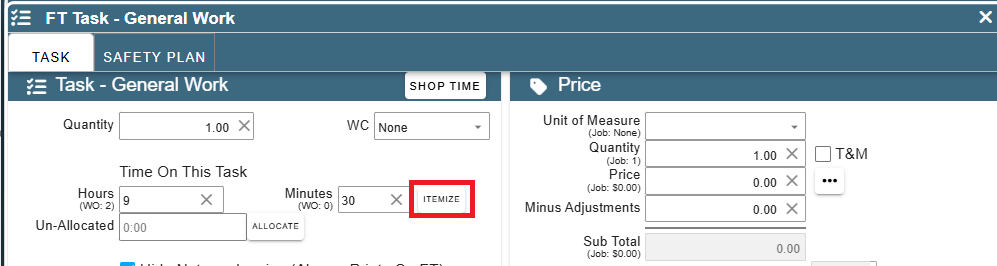
When allocating time on the task click Itemize, and choose the appropriate pay rate for the technician based on whether they are assigned as a Lead, Additional Technician, or Apprentice.
This can vary by task. For example, an Additional Technician may be paid at the Lead Technician rate for one task, but receive a different rate than the Lead Technician for another task.
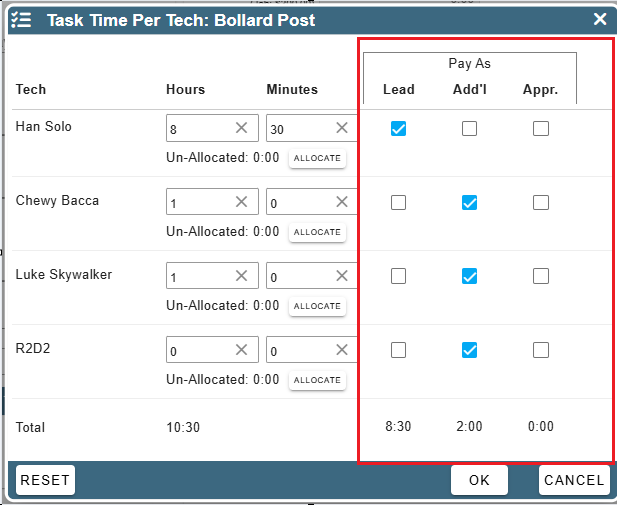
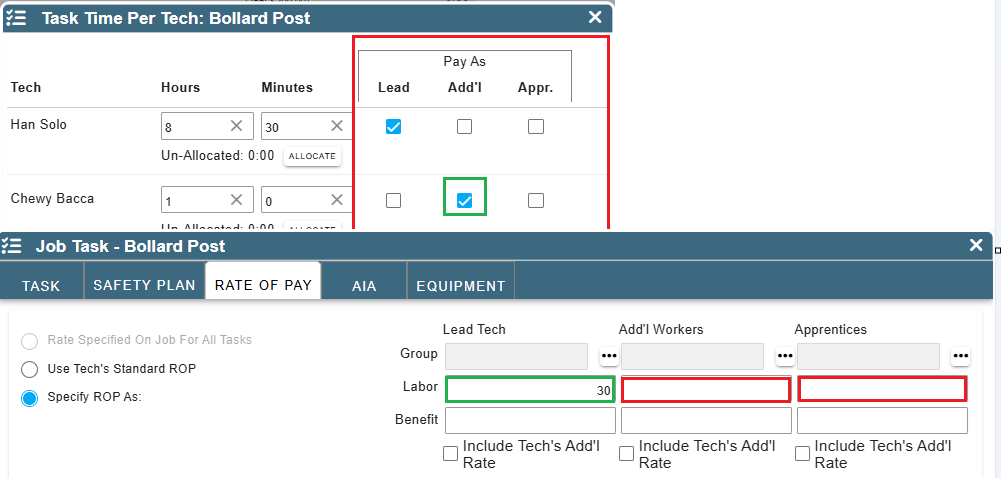
If you select 'Pay as Add'l' for a task and no additional technician rate of pay has been configured for that job task, the CenPoint will automatically use the techs regular rate of pay.
When all required time has been allocated to the tasks, you'll receive green check marks for everything and can proceed to payroll.
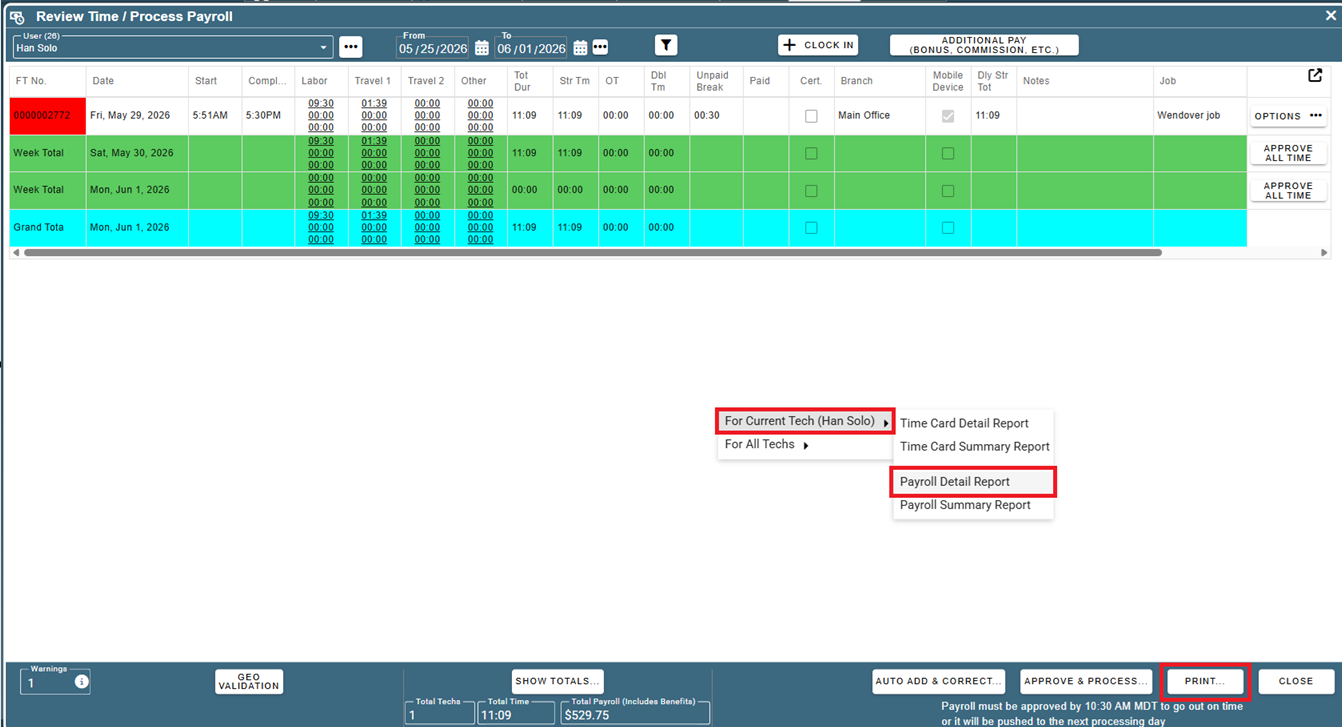
Go to 'Review Time/Process Payroll' in this 1st example we are using the lead tech, and printing the payroll detailed report.
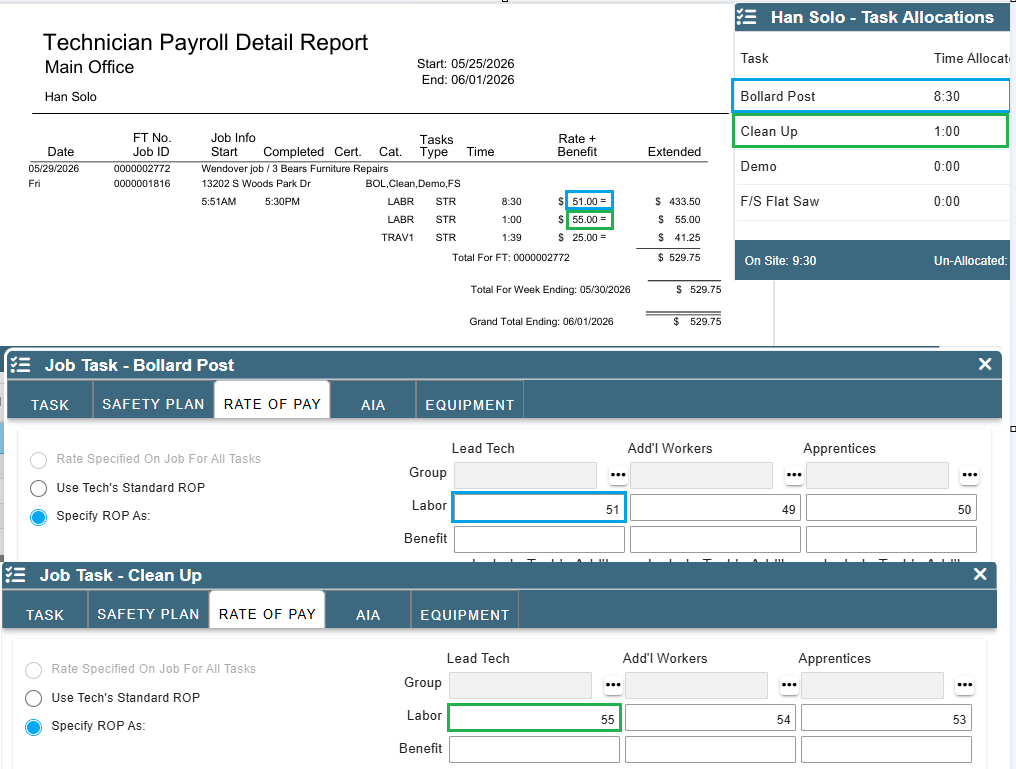
Our lead tech in this case had time allocated to 2 tasks and was paid as a lead on both. The rate of pay set up on the job for those tasks pulls through to payroll.
If you are using the techs regular rate of pay that will be the populate from the user payroll settings.
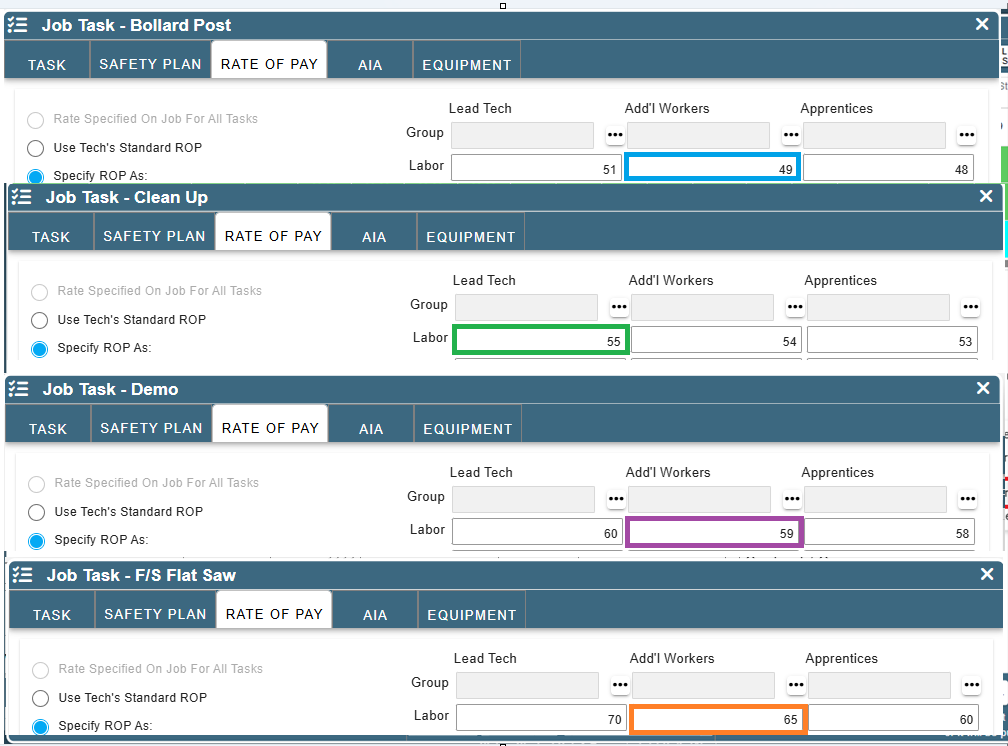
In Example 2, an Additional Technician has time allocated across four different tasks, each with a different pay rate. On the Clean up task, the technician is paid at the Lead Technician rate instead of the Additional Technician rate.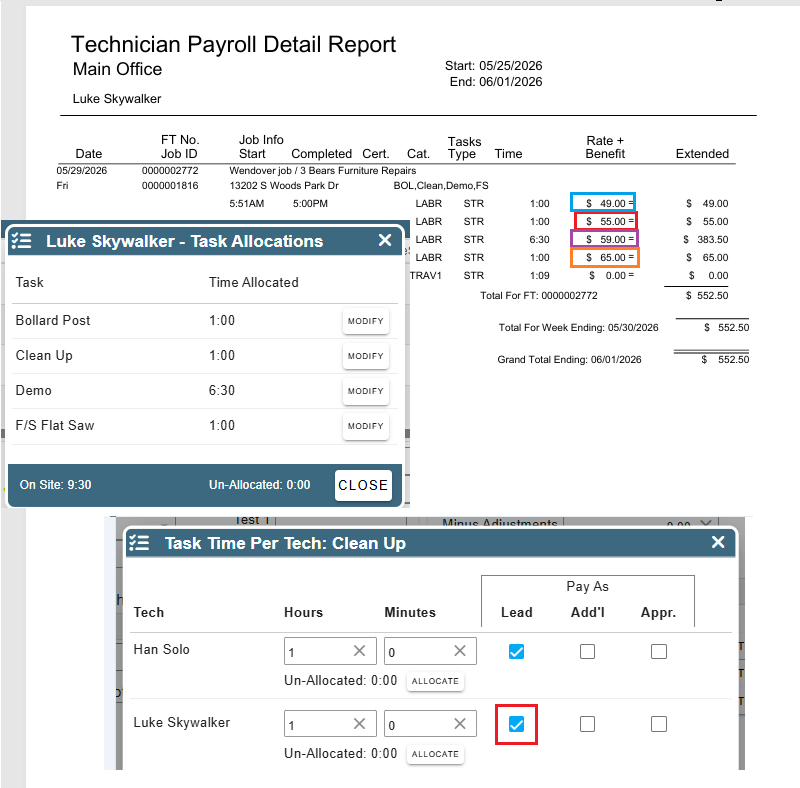
Tech View to Itemize tasks per tech
When the lead tech adds a task to the Field Ticket on the task, they would click the Itemize button
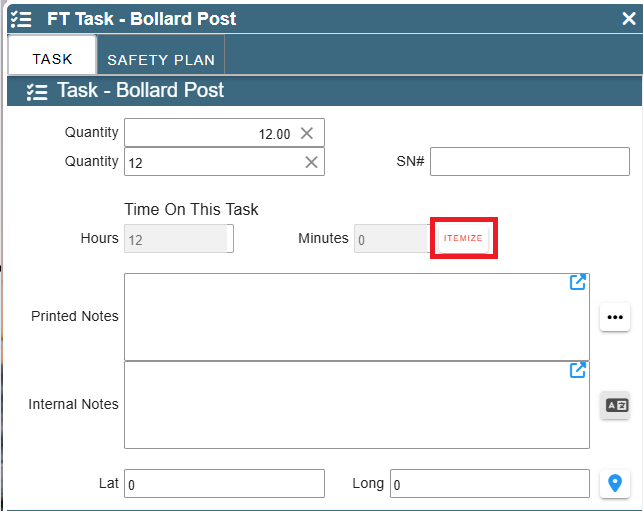
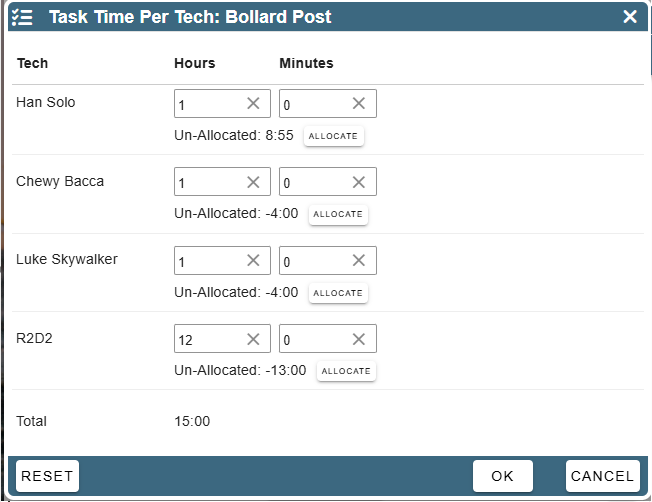
This screen allows the lead tech to itemize time for themself and any additional techs and allocate the time.
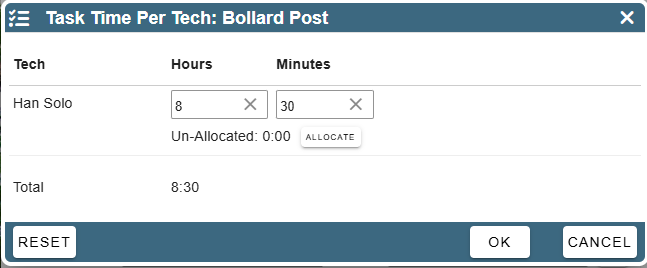
An additional tech will only be able to itemize themself and allocate the time.
FAQ:
Why is time allocation is over the hours worked by the techs? Example: I have 21.34 hours is a 12 hour day
The allocated time is the total time assigned to the tech in the tasks. Task 1 and Task 2 were allocated 10:45 and 10:49, which adds up to 21:34.
Your techs were only scheduled for 11:15. The unallocated time should be showing as -10:53.
You can choose which techs are assigned to which task by itemizing the time on a task. To do this, modify a task, and click on 'Itemize'.
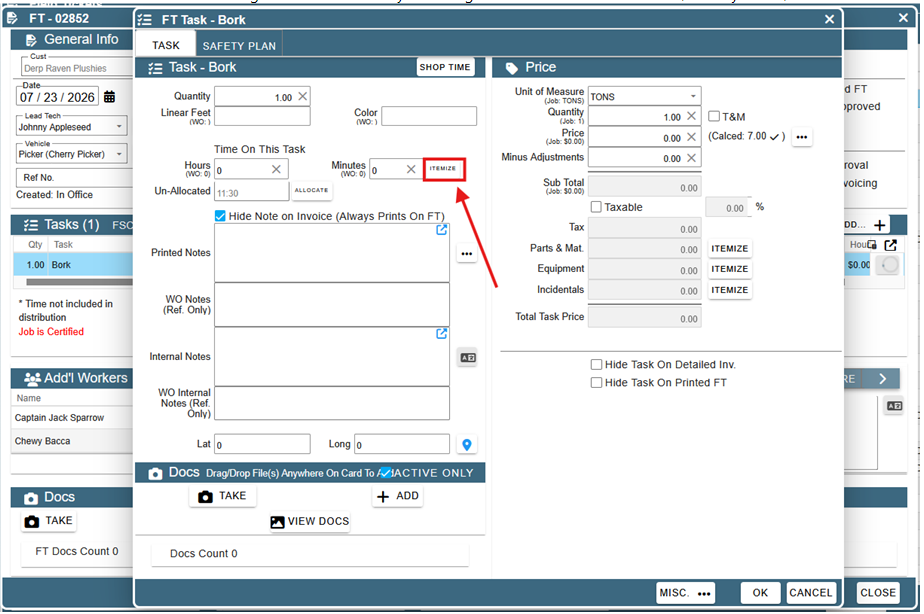
This opens the 'Task Time Per Tech' screen. Here, you can change the time allocations per-task, so that none of your techs are over-allocated.