This article covers the "Job Docs" field on the Job (pictured below).
Job Docs Field
The Job Docs Field displays the documents and photos that are attached to the Job. This is found at the very bottom of the Who & Where tab, so you will need to scroll for it.
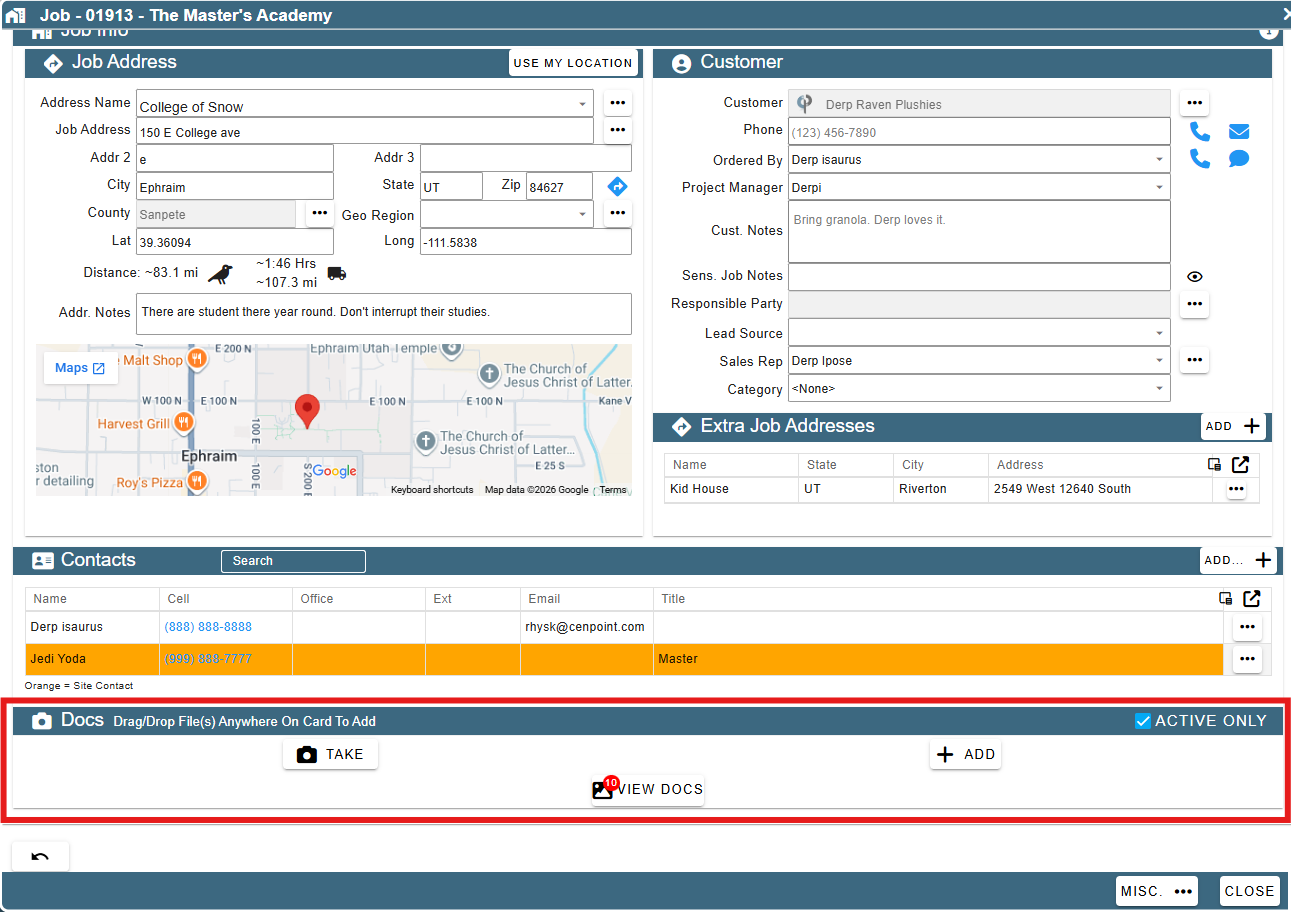
There are three different buttons here, so let's go over each.
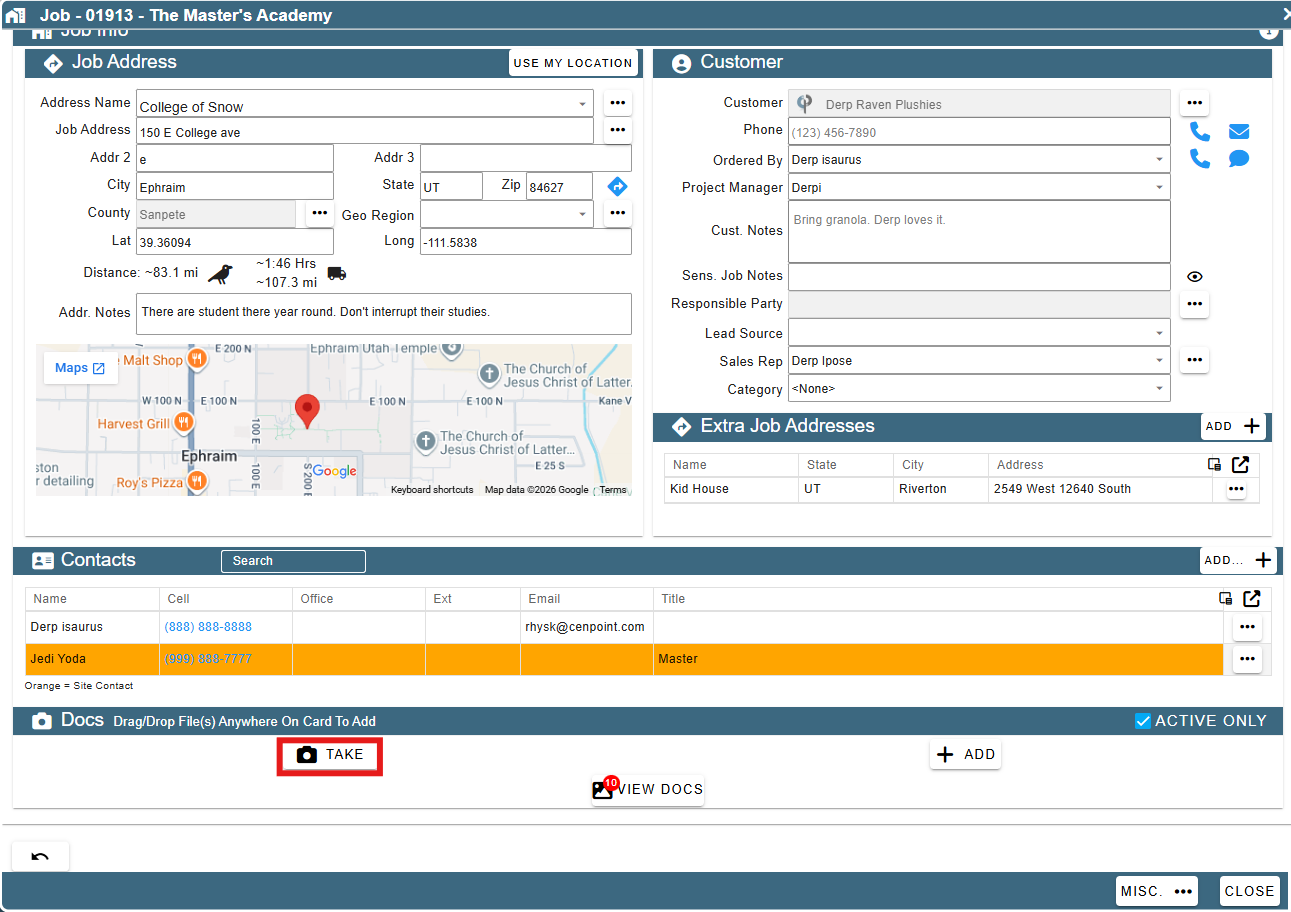
Take
This button allows you to take a photo from your computer/phone with a camera that is hooked up or built in.
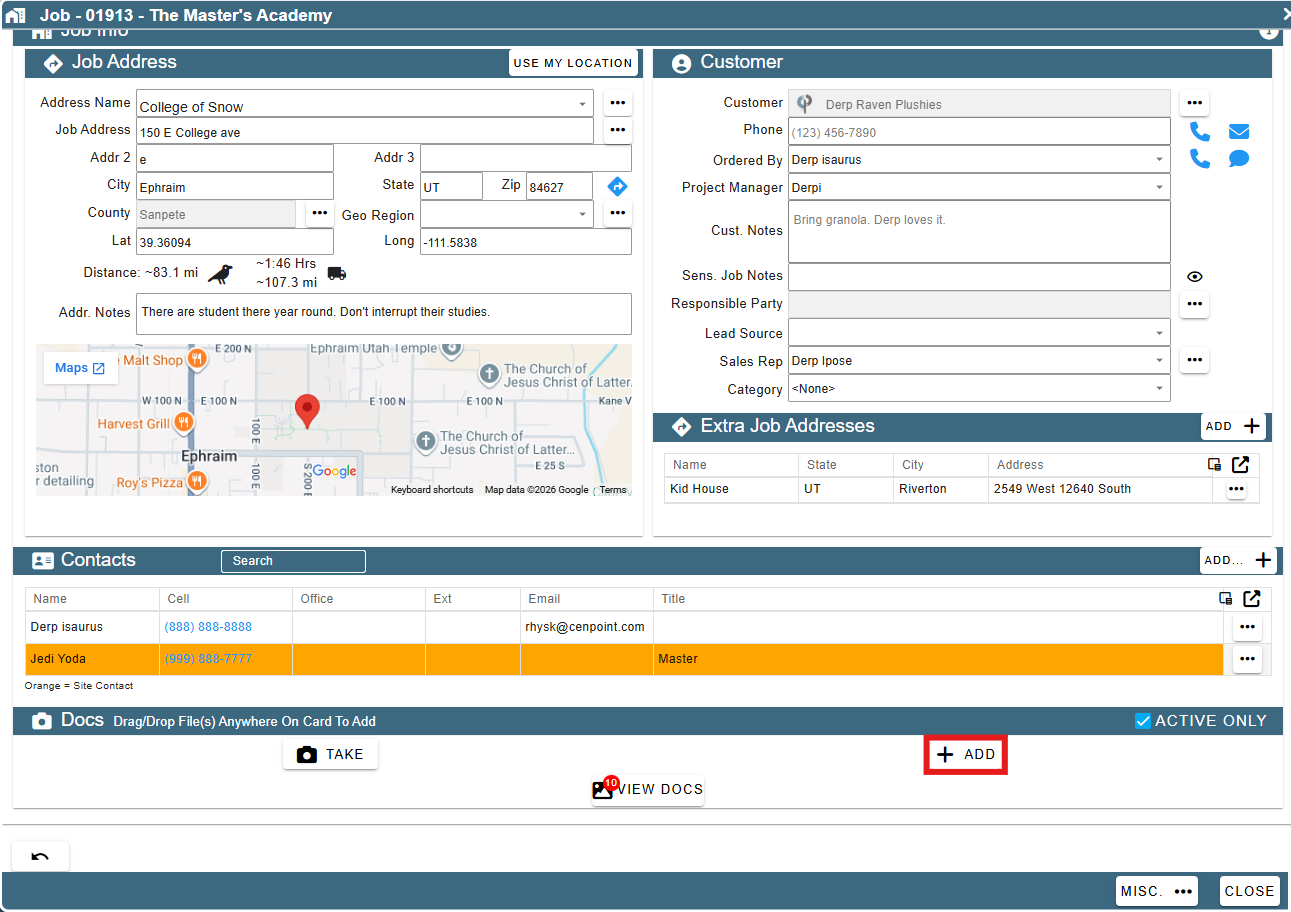
Add
This allows you to add documents from your computer/phone.
View
This allows you to see all the documents with the job
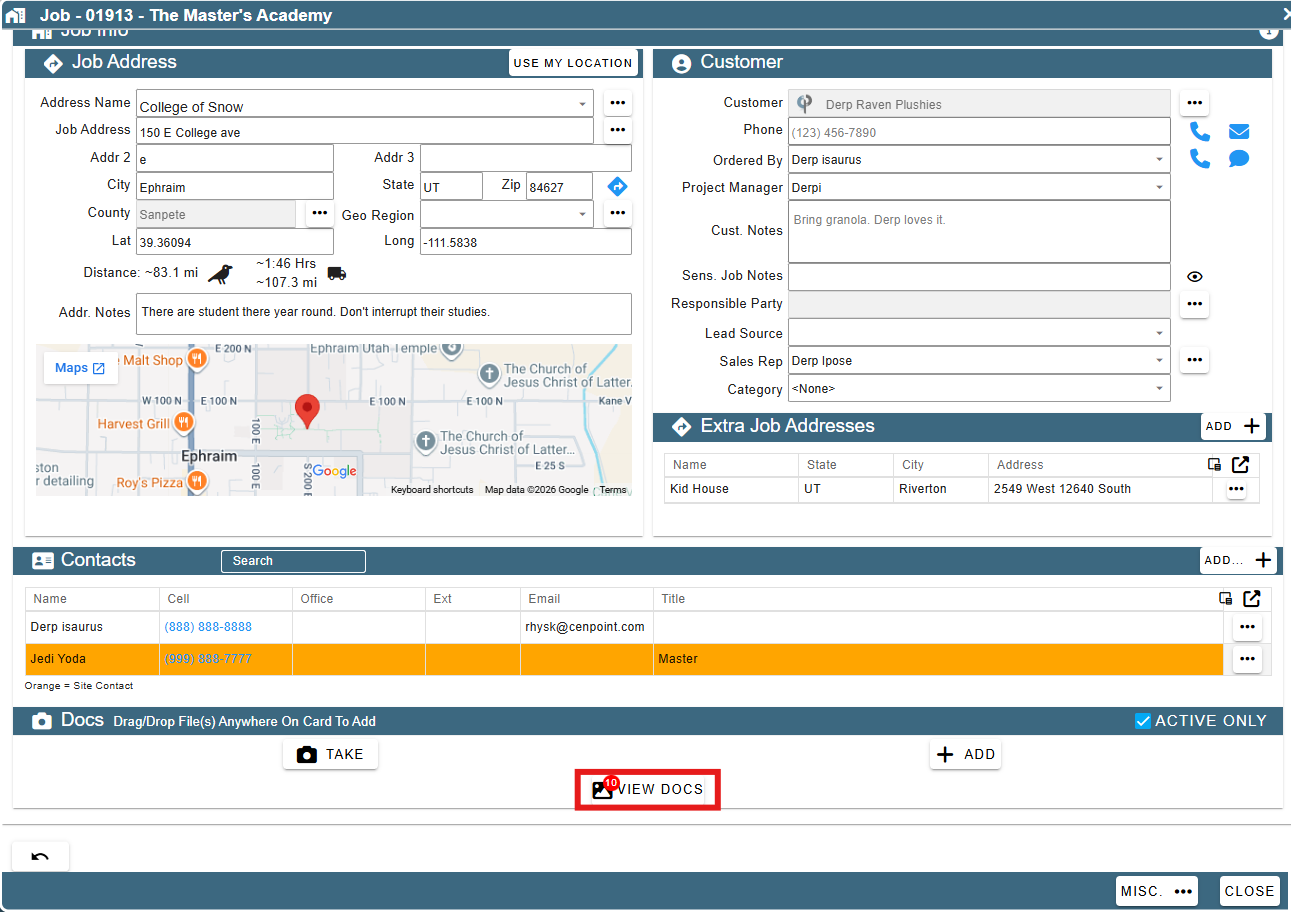
View Docs
The Docs view page has many different sections to it, so let's break these down as well.
Docs Count shows how many images are loaded and how many are associated with the job.
Search allows you to search by description, notes, file name, and who uploaded the documents.
Date range allows you to filter the documents to a specific date range.
Active Only will show only the documents that are marked as active for the job.
Show Job Docs from COs will show you the job documents that are associated with COs for the job.
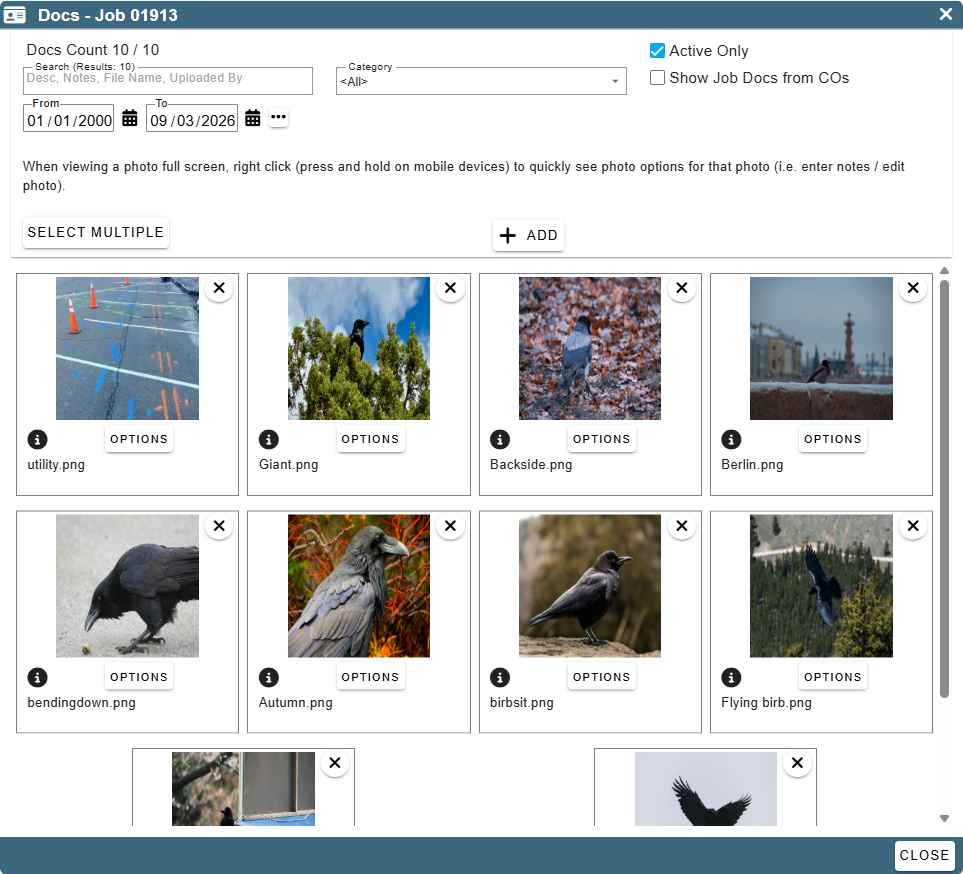
Category allows you to filter the documents by a specific category that documents were uploaded to.
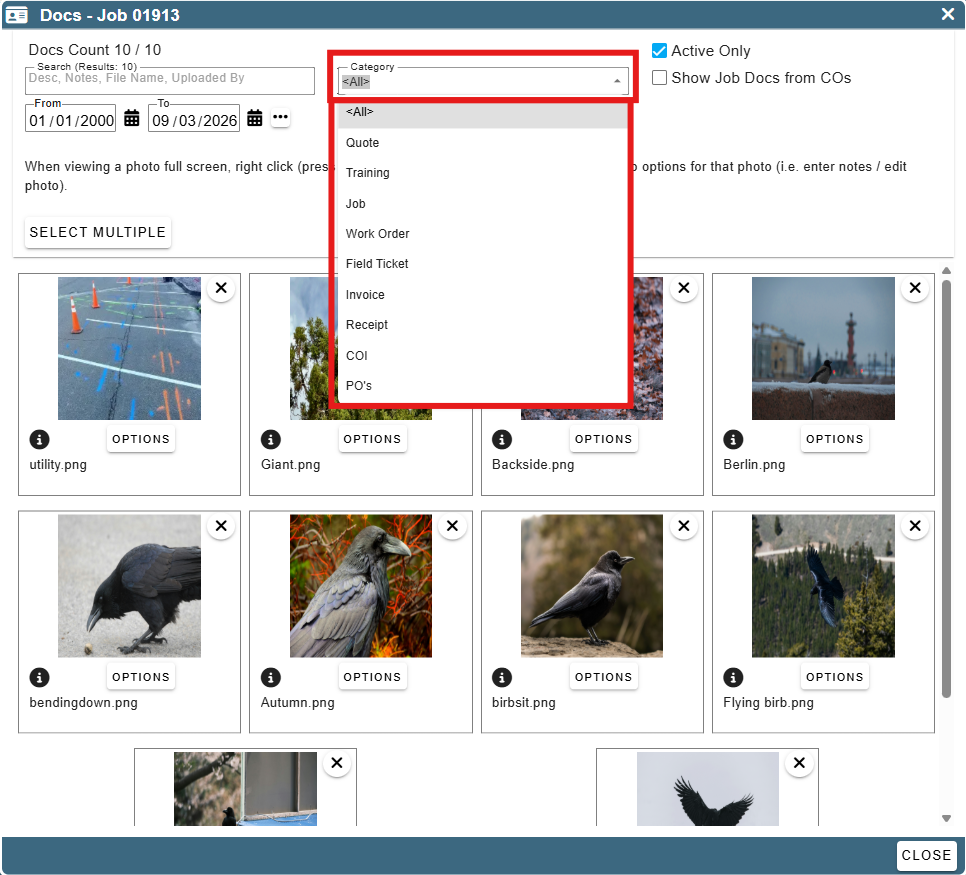
Select multiple allows you to select multiple documents to download or email. Just in case you need to send the job docs to someone.
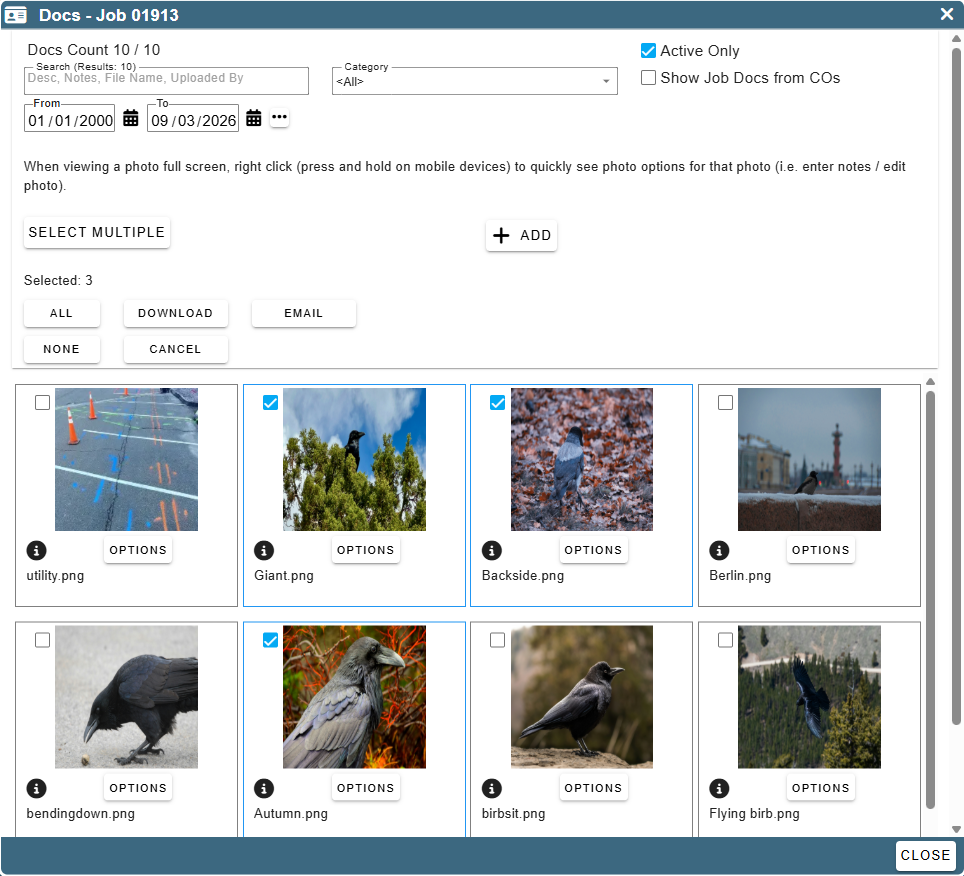
Document Options
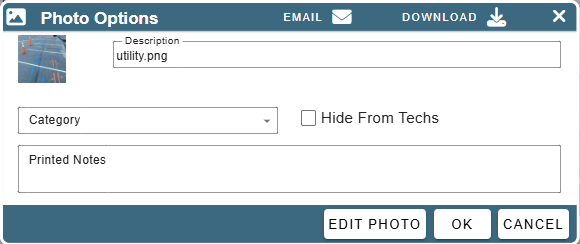
Clicking the options under the preview will open an options page. From here you can change the description, notes and even category of the document.
You can email or download this document individually from the buttons at the top.
Hide From Techs needs to be unselected if you want your techs to see the document.
FAQ
How are the documents sorted?
- They are sorted by type and then by created date. So, you'll have images together and then you'll have PDFs together. Then everything is sorted by the creation date. This does not equate to the upload date. A document created on Friday will show up after a document that was created back on Wednesday. Oldest at the bottom.
Can I see only the images taken on Field Tickets?
- Yes, there's the category drop down for that. Select what you want from that and you'll see the documents/images associated with that category for this job.
I uploaded some documents to the job but none of my techs can see them, why?
- Documents are automatically selected as "Hide From Techs" by default so that you don't upload a contract and then your guys wonder why they are only getting $200 for a job where you are charging nearly $8,000 and thinking that they could get so much more if you weren't so stingy, but you're barely getting $150 as the company. Or maybe the job is losing you money but the techs don't know what goes into the job costs so they get this out of context. Trust us, it's happened before.
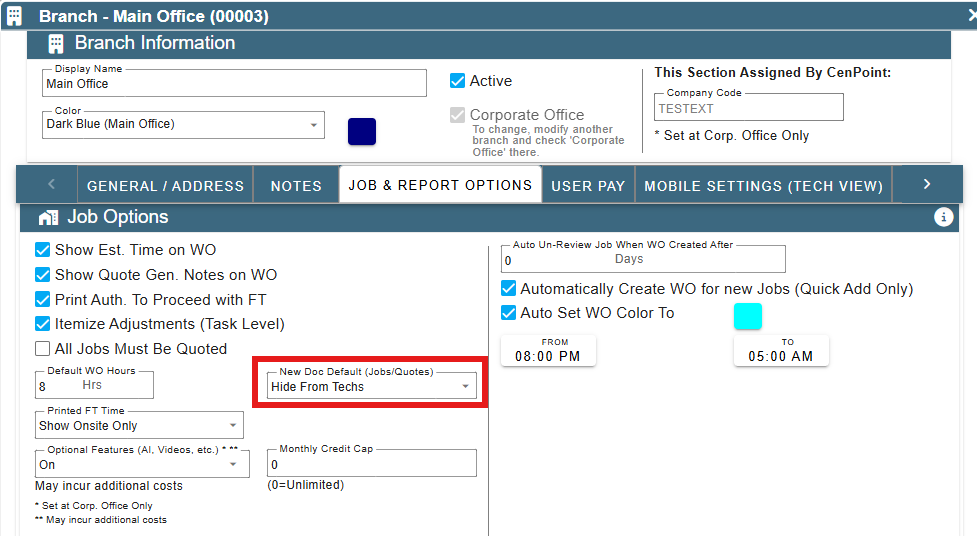
Can I set the default to be to not "Hide From Techs" somewhere?
- Yes, though we really don't recommend you do this. It's now on you to be vigilant and make sure you don't upload something you don't want your techs to see and if you do, you mark it as Hide From Techs. To change it, though, go to the branch settings -> Job & Report Options and find New Doc Default (Jobs/Quotes) and you can set the default there. CenPoint is not responsible if you upload something and don't mark it properly.