For more information on Inspections like JSA, see the following link: Inspections
This video is a little dated, but the information is still relevant. JSA's have been with us since the beginning.
Set up the JSA Branch Settings
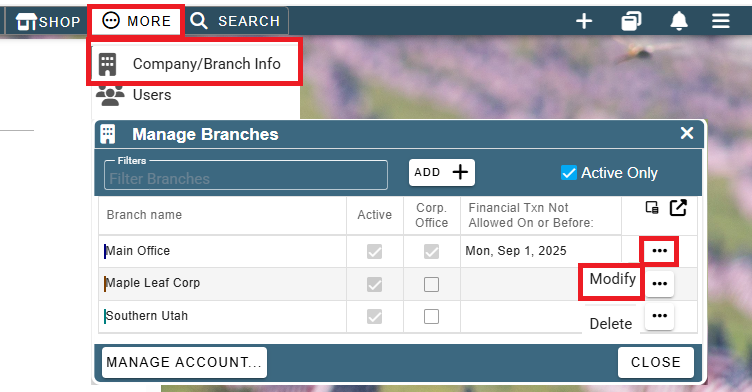
Set up the JSA in your branch settings by going to More-> Company Branch Info->Cilck the ellipsis -> Modify the Branch
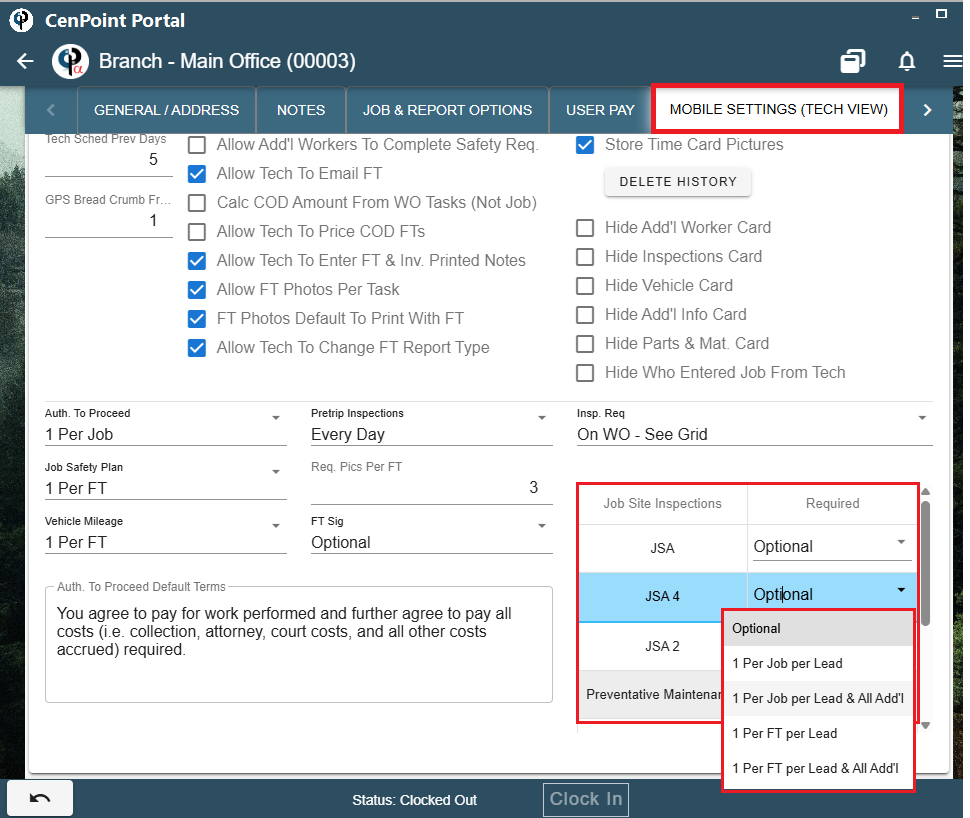
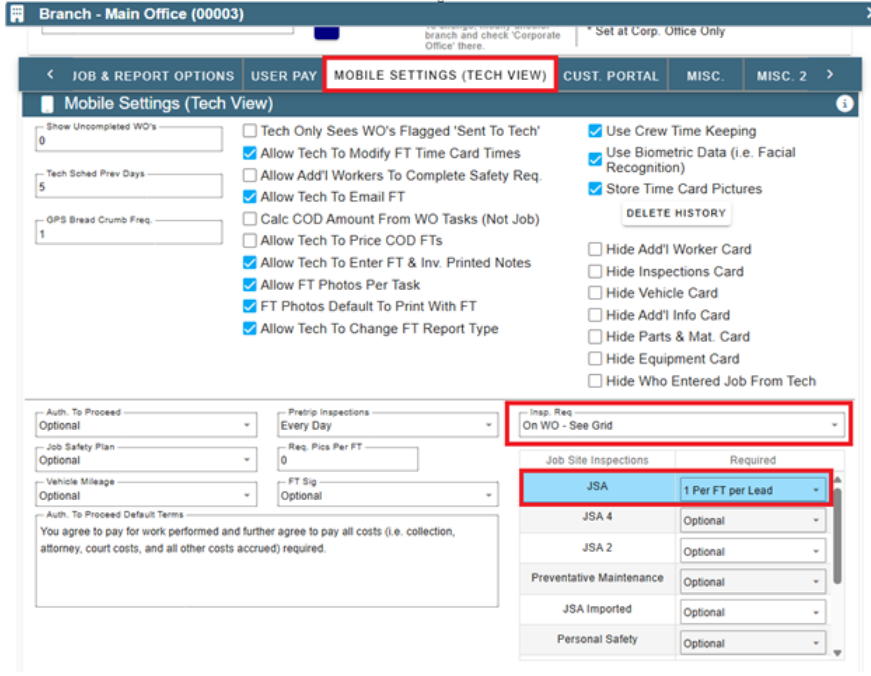
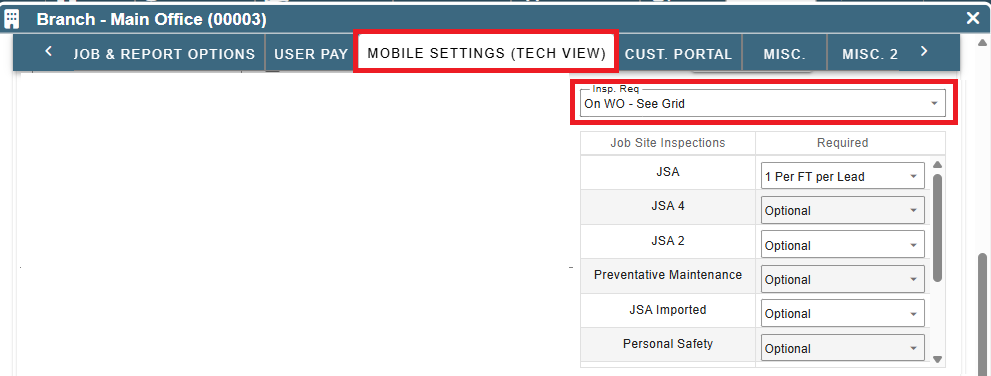
In the Mobile Settings (Tech View) tab select how often you'd like the Job Site Inspections (like JSA) to be done and the requirements.
Inspection Required
There are 3 options when Requiring an Inspection
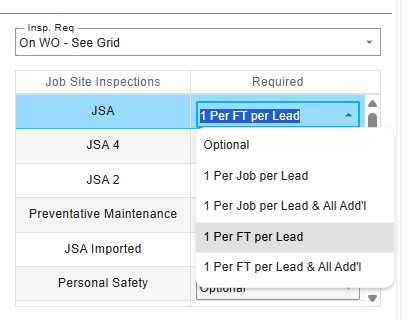
1. On WO -See Grid
- this will use what you have selected in the grid below and prompt for the inspection on the Work Order before starting the Field Ticket
Example:
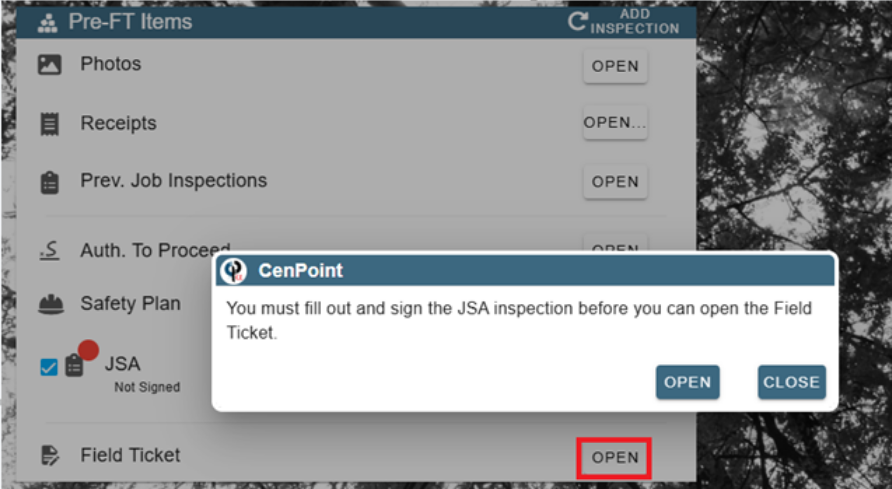
If you have it set to On WO see Grid and then 1 per FT per Lead, the tech will not be able to get into the Field ticket until the inspection is completed.
2. On FT (Req at least 1 per FT)
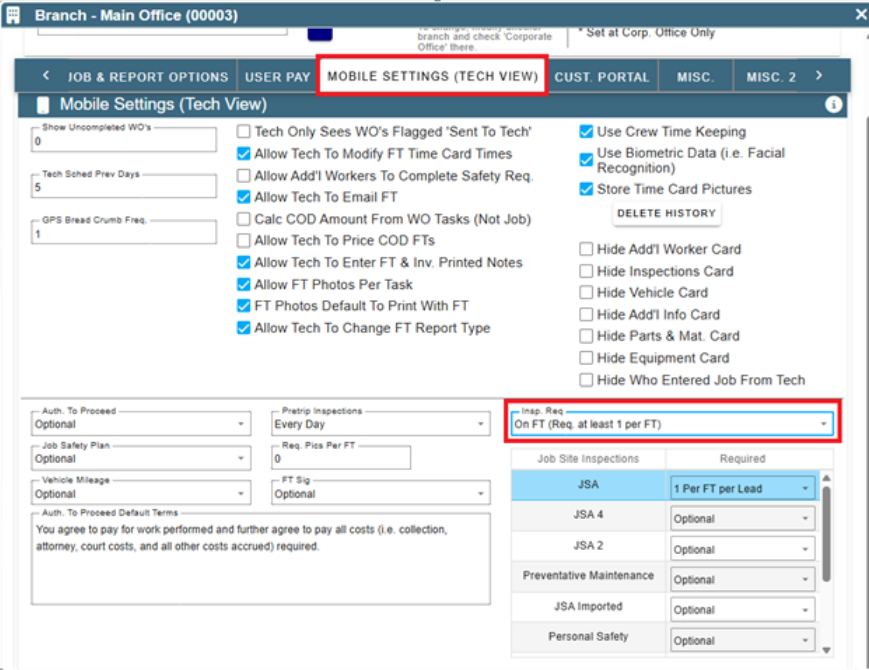
This will override the grid and require one inspection per FT, before submitting the FT.
Example:
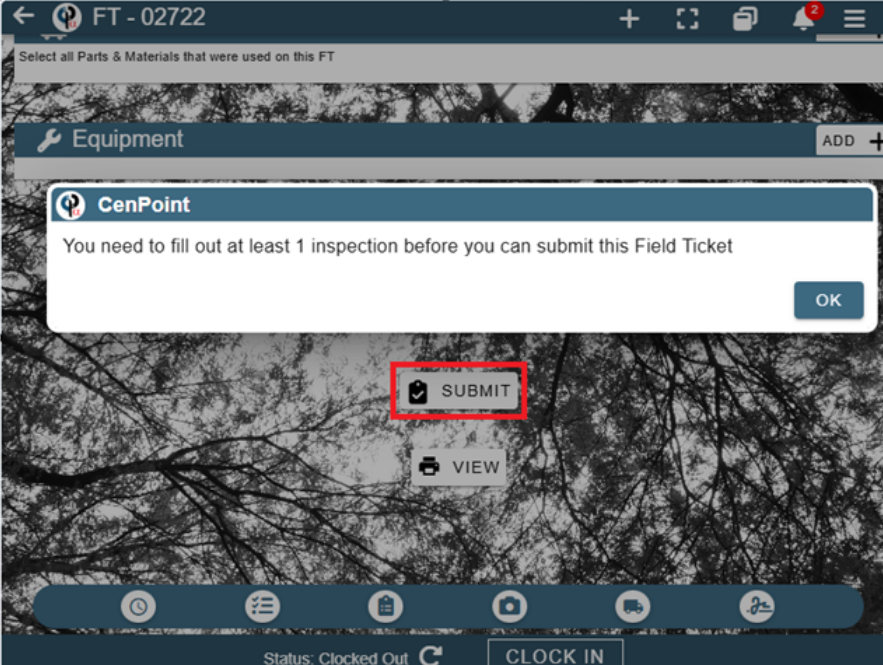
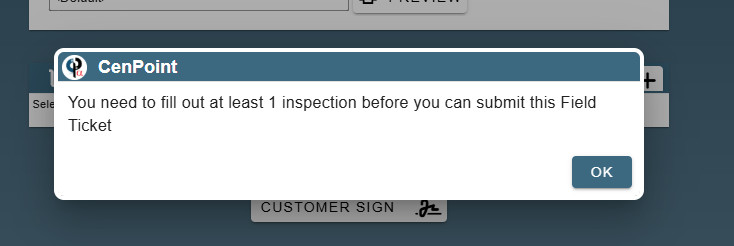
If you have On FT(Req at least 1 per FT) it will let the tech enter the Field Ticket but will not allow them to Submit the FT until the inspection is completed.
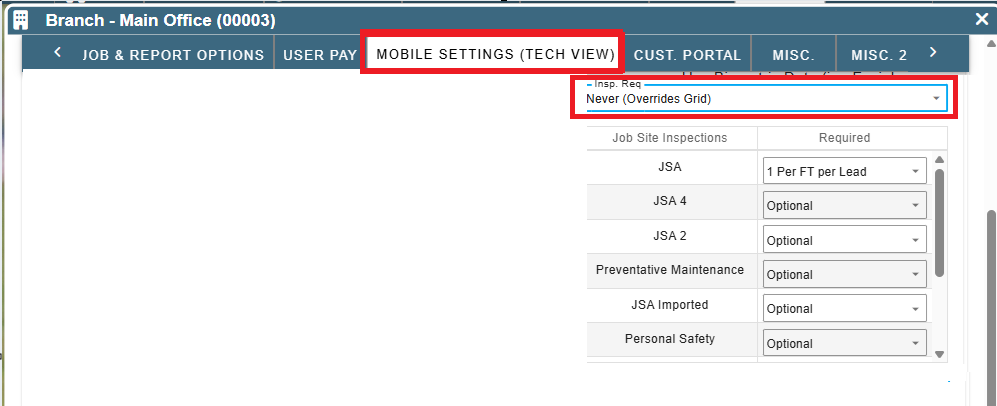
3. Never (Overrides Grid)
This will never prompt for an inspection
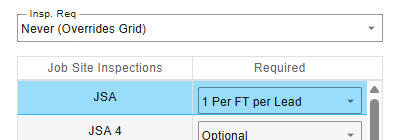
Set up a JSA
Job Site Inspections
Define a Job Site Inspection like JSA by going to File -> List Management -> Quotes, Jobs, & Invoices -> Inspections
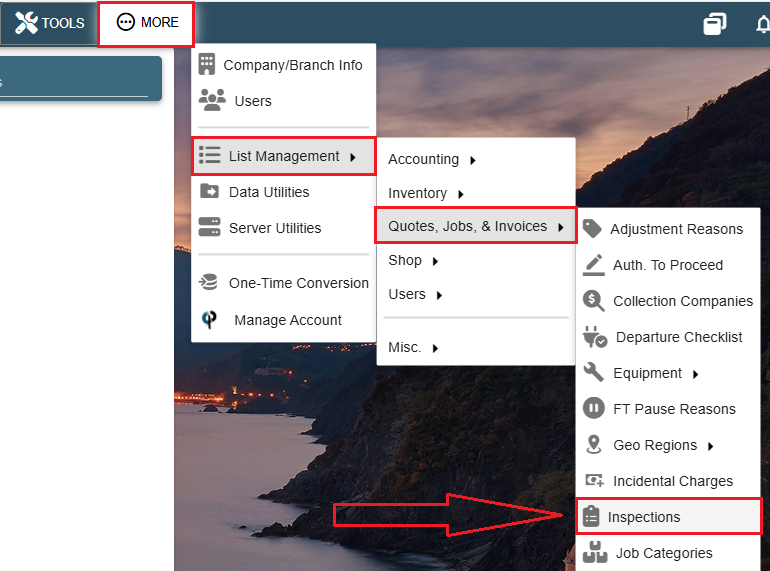
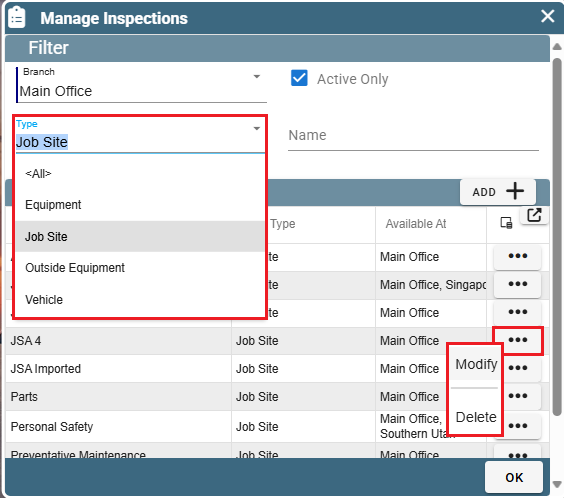
Choose 'Job Site' as the inspection type, click on the Ellipsis -> Modify of your desired inspection to edit it.
In the Categories table click 'Add' to create a new category for questions.
In the Categories table click 'Open' to edit that category.
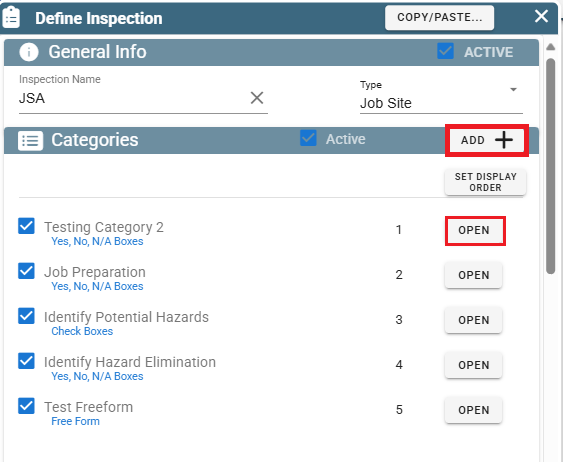
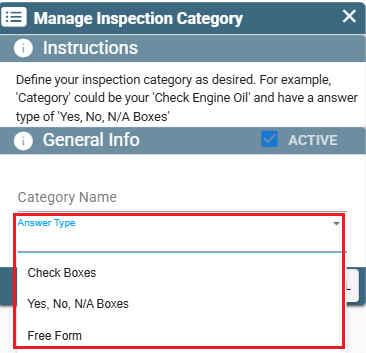
When creating/editing a Category, please select the Answer Type. This adjusts how the technicians can answer the questions in that category.
If the answer type is 'Check Box' it cannot be a required answer. Choose either Free Form, or Yes, No, N/A for required to answer.
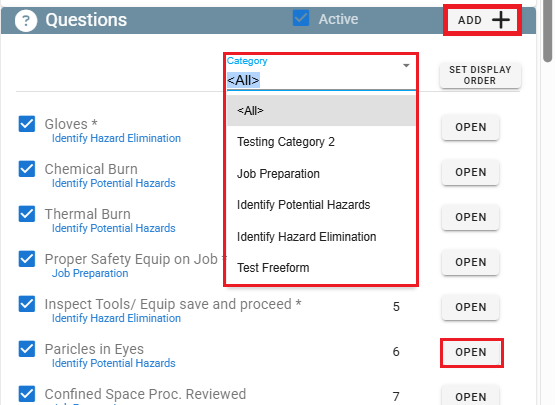
Define your questions by clicking the 'Add' button next to the Questions table.
You can filter which questions you see by selecting a category.
Edit an existing question by clicking 'Open'
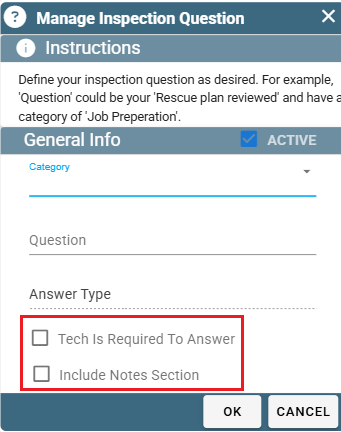
Inside the question select which category it is a part of.
Choose if the Tech is required to answer by checking the 'Tech Required to Answer' box and select if you want a notes section included.
Keep in mind that the 'Free Form' answer type has a limit of around 120 characters.
If you would like your techs to be able to write a longer description, make sure to mark the 'Include Notes Section' checkbox that can hold a much larger message.
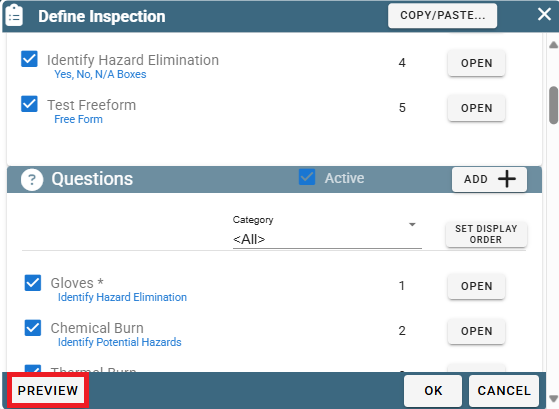
Preview your Inspection by clicking the Preview button, which launches a browser to view the JSA form.
View Completed JSA From Reports
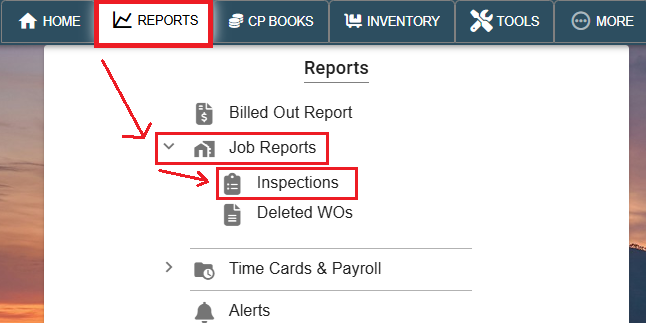
View completed JSAs by toing to Reports -> Job Reports -> Inspections
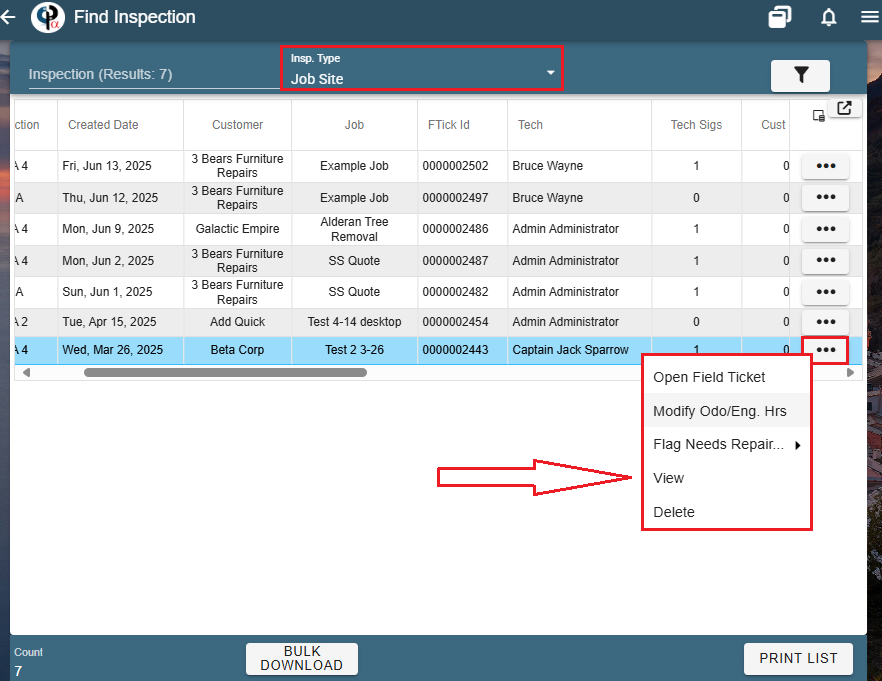
To find JSA inspections be sure to filter the Insp. Type to 'Job Site'
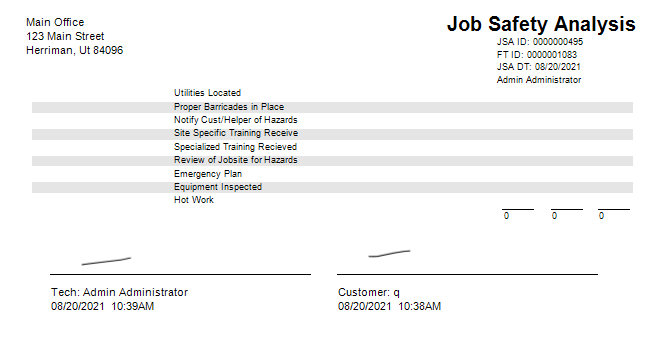
Click the Ellipsis -> View to Print the JSA and see what the technician filled out along with the technician and customer signatures.
View a Completed JSA from the Field Ticket
Open a Field Ticket -> click Print->Inspections-> this FT had 2 JSA's -> Click JSA
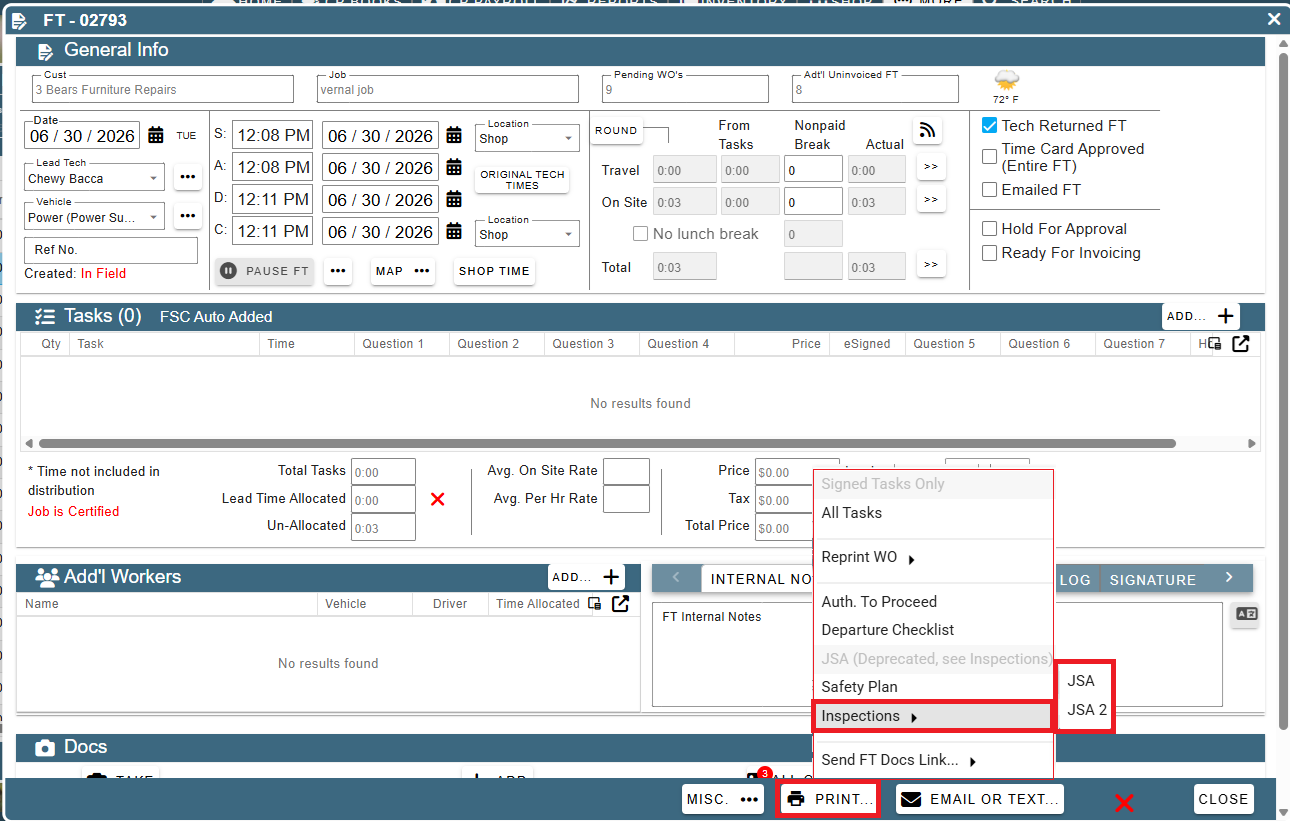
You will be able to view the signed and time stamped JSA from the Field Ticket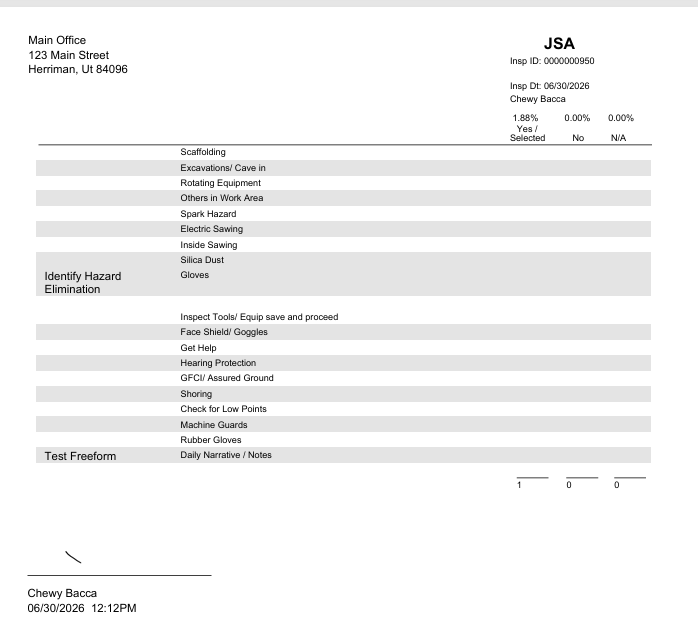
JSA Tech Side
There are 3 settings for the JSA that are set up in the branch setting that can affect how the tech completes the JSA. The first and most common is the tech cannot get into the Field Ticket unit a JSA is completed.
Under the branch settings this would be set to On WO-Meaning the JSA must be completed in the WO phase and the required part is then decided in the grid below ie 1 per FT per Lead
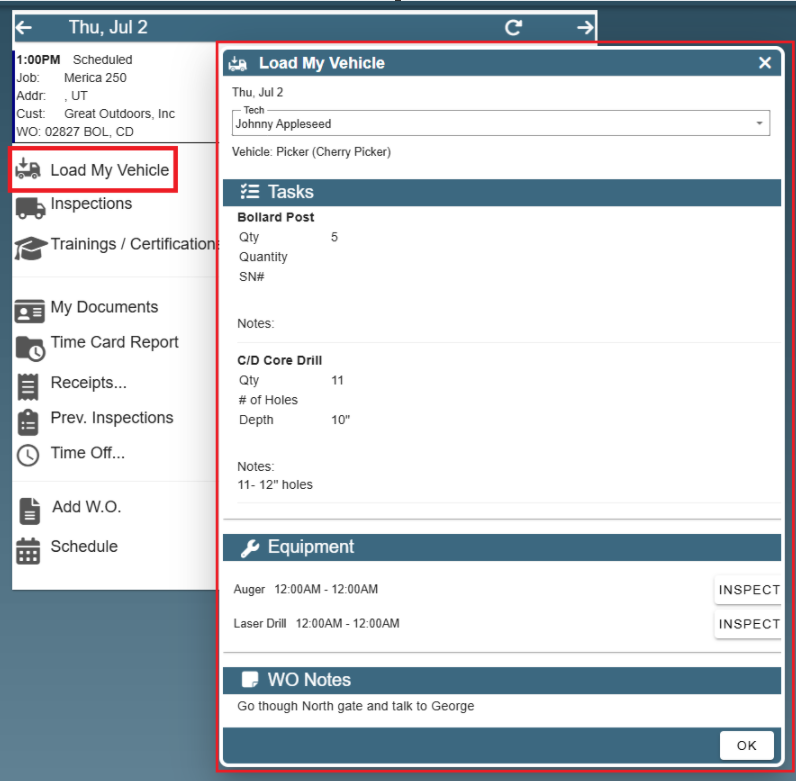
When the tech opens their schedule, they can see what they need for the entire day by going to Load My Vehicle. This is list all the WO notes, tasks , and required equipment they will need for all the assigned jobs for that day.
Additionally, a tech can click on WO to open their Work Order without having to clock in to see their tasks, equipment and notes
.png)
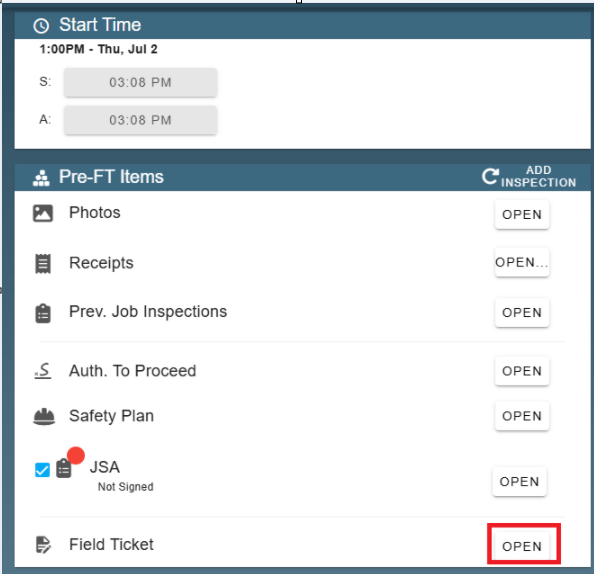
The required JSA and Field Ticket does not show up until the tech has clicked Arrived on their WO.
Example- Started only
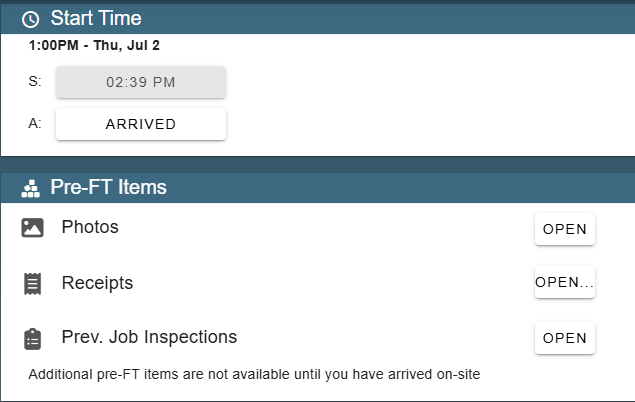
Arrived- JSA and Field Ticket become available
* The JSA has a red dot showing it is required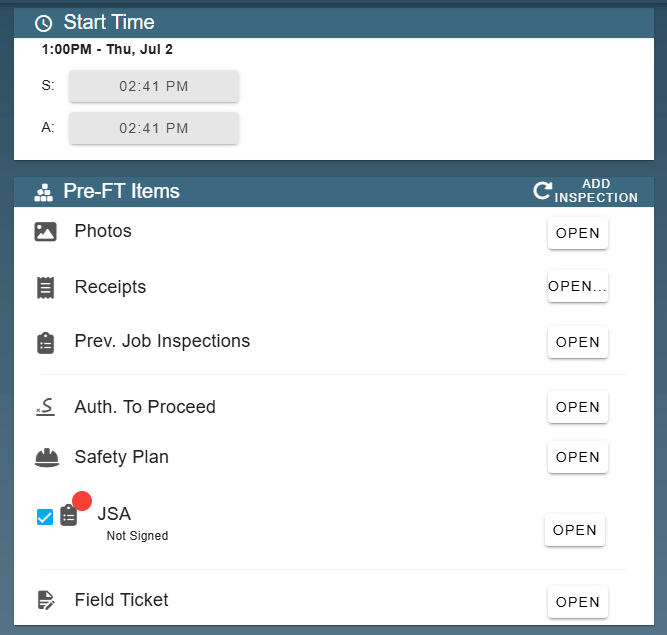
If the tech tries to click Field Ticket before they have filled out and signed the JSA they will get this message
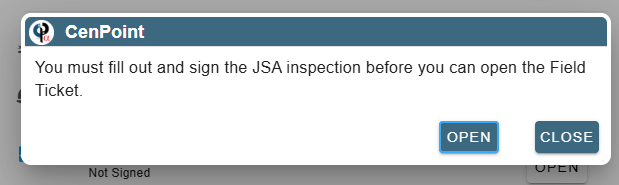
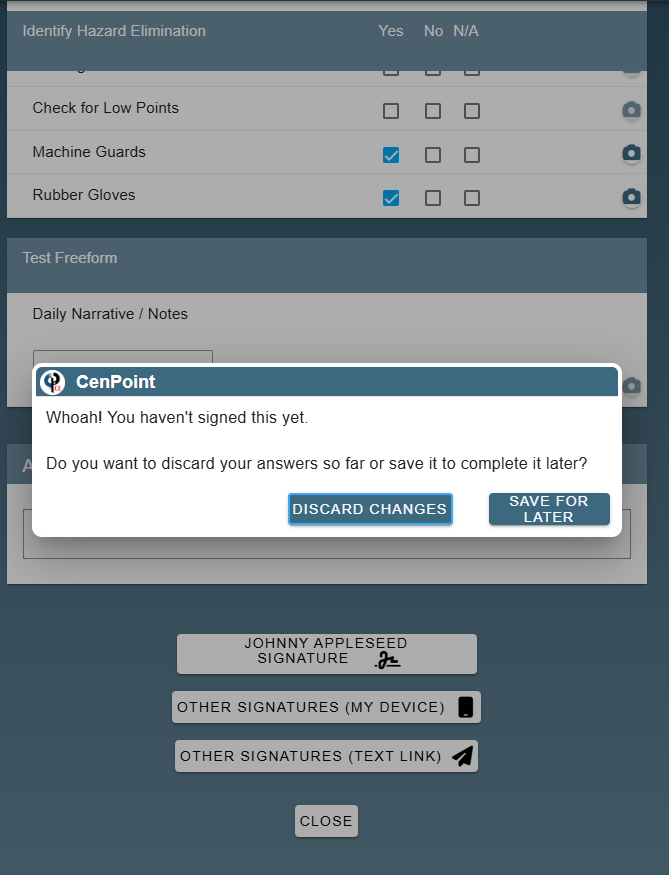
A tech can start a JSA and come back to it, but still cannot get into the Field Ticket until they have signed the JSA.
They can text the JSA or capture a signature on their device without having to sign it. As soon as there is a signature on the JSA it becomes read only.
If they have chosen to save for later, it will reopen the JSA with all the questions saved they answered previously.
Once the JSA is signed it shows it is signed and the tech is able to open the Field Ticket
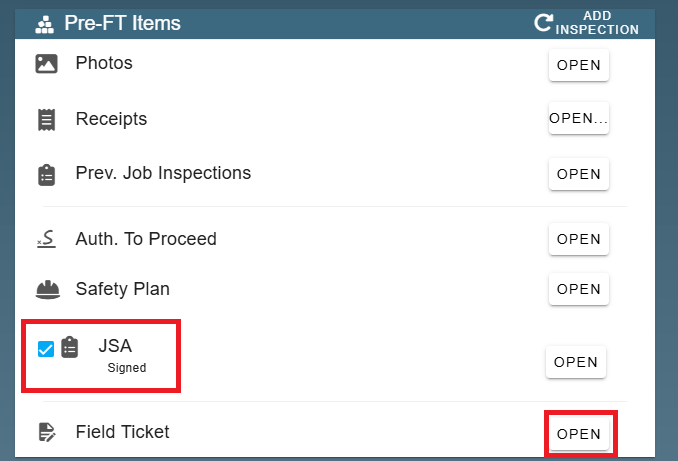
On the Field Ticket the signed JSA will show and who it was signed by
If any additional inspections need to be added click the 'add' button
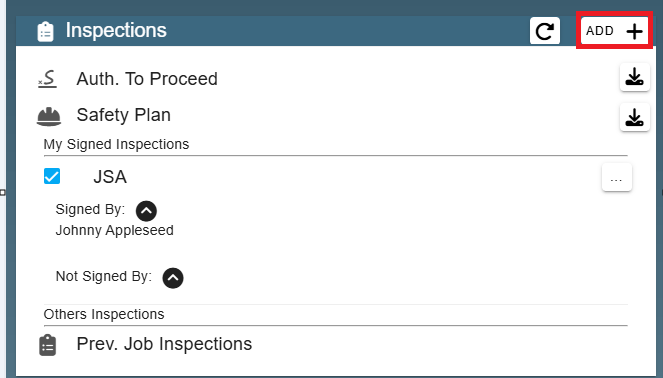
The second setting is the tech needs to submit a JSA before the Field Ticket is submitted.
Under the branch settings this would be set to On FT-Meaning the JSA must be completed in the FT phase and the required part is then decided in the grid below ie 1 per FT per Lead
All the same steps apply above except the tech will be allowed to open the Field Ticket even though it shows a required JSA. When using this setting it is required to submit the Field Ticket.
If the tech tries to submit the Field Ticket without completing and signing a JSA they will recieve this message
The third setting is the tech is never prompted to submit a JSA
Under the branch settings this would be set to Never -Meaning the tech is never required to submit a JSA. They can however add one from add inspection if needed.