This article shows how to move time between straight time, over time, and double time on field tickets and clock-in records.
Moving Time on a Field Ticket
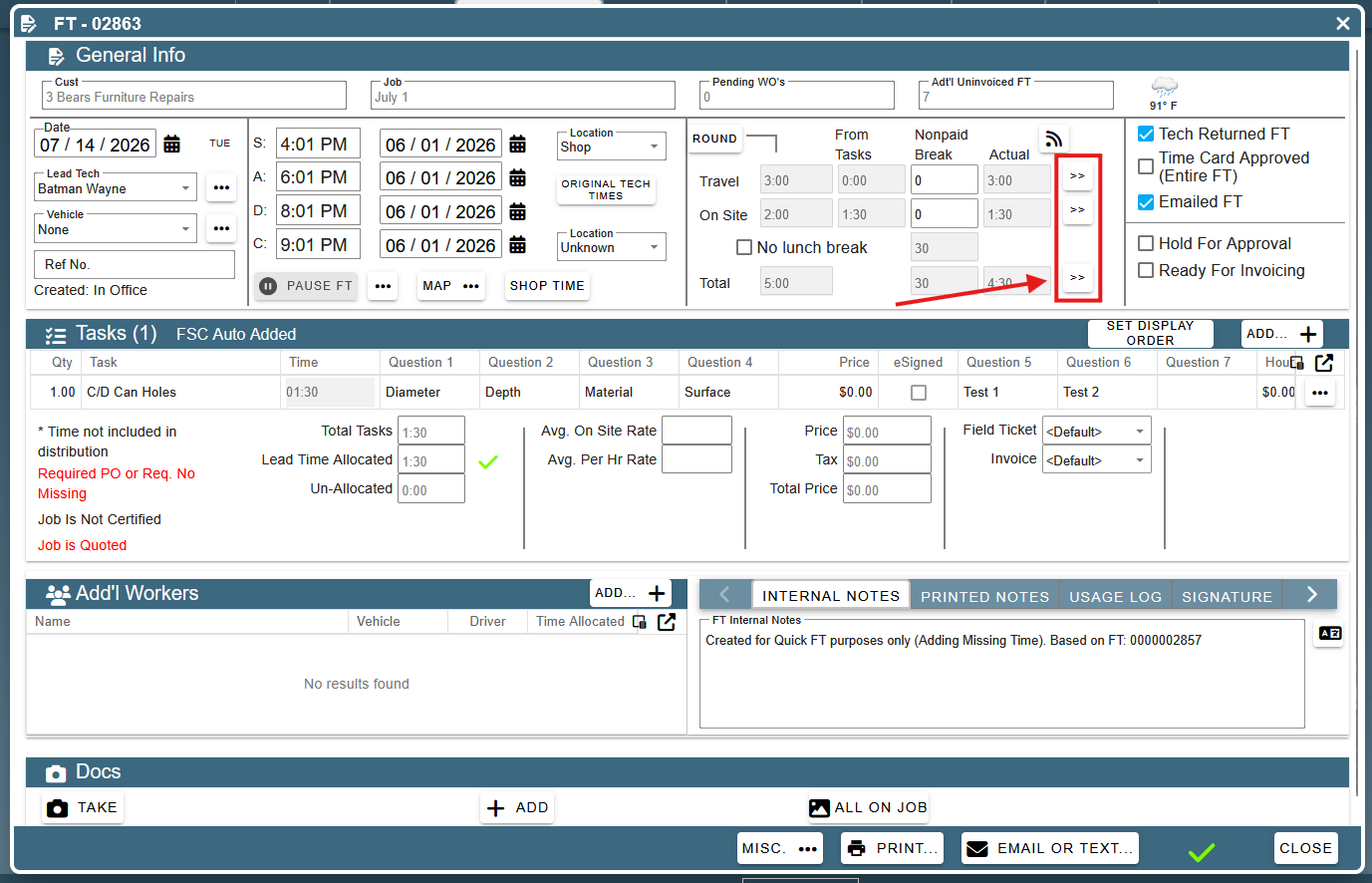
To move time between categories on a field ticket, open the field ticket and click on any of the three chevrons on the right side of the lead tech’s time section on a field ticket.
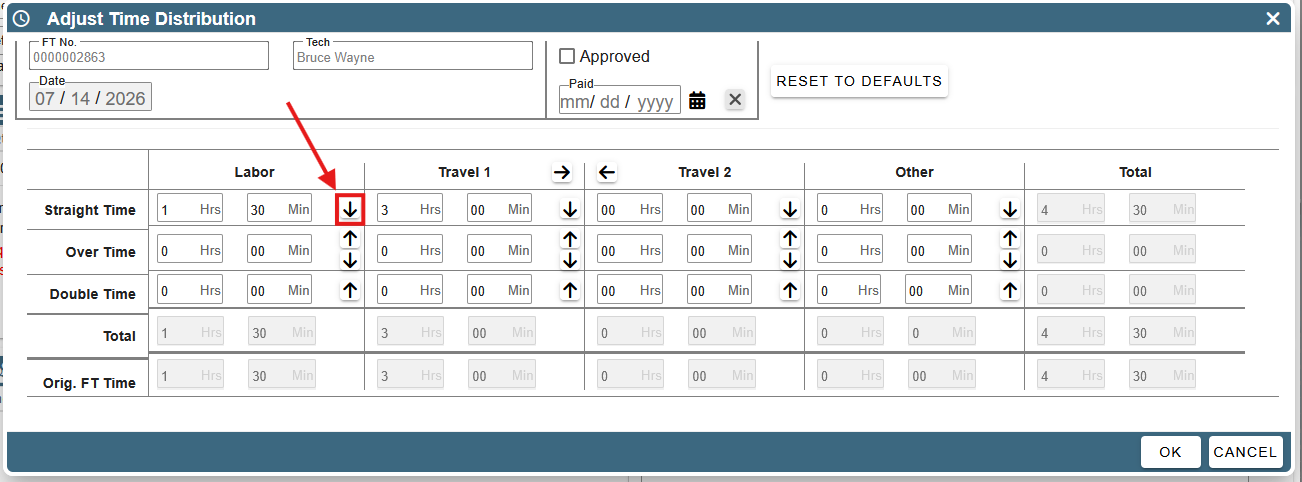
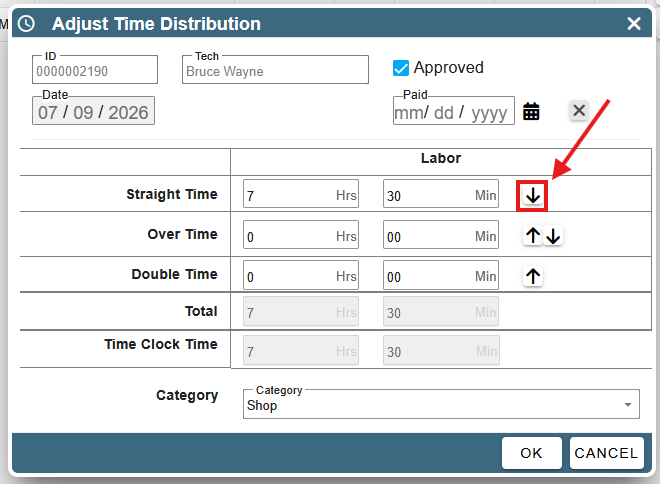
When the ‘Adjust Time Distribution’ screen opens, you can click on the up/down arrows in a cell to move time between the ‘Straight Time’, ‘Over Time’, and ‘Double Time’ rows. You can also click the arrows at the top of the ‘Travel 1’ and ‘Travel 2’ columns to move time between these columns.
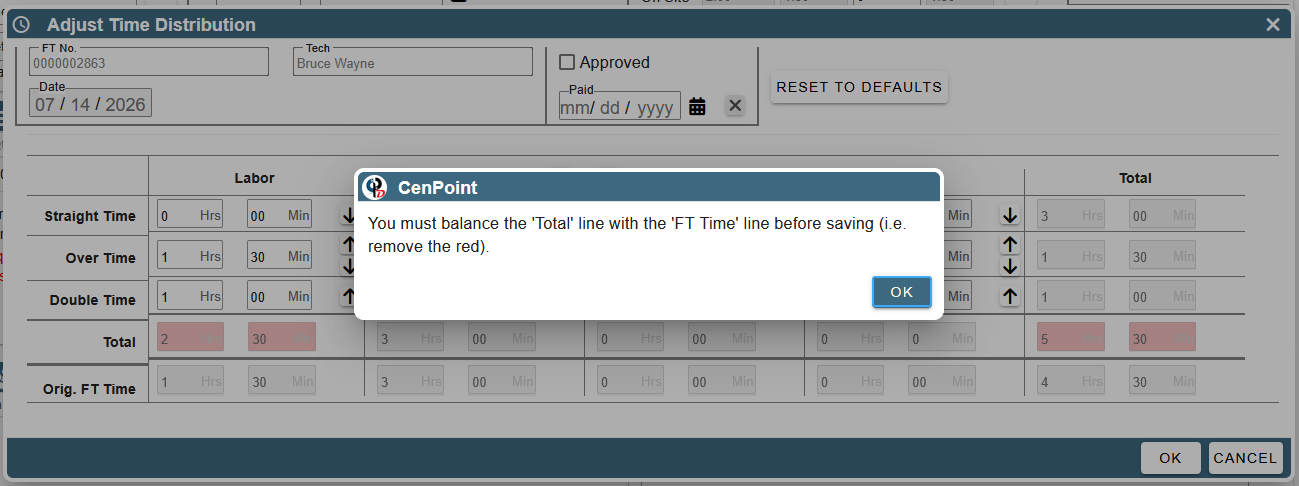
You can also move time manually. The total time just needs to add up to the ‘Orig FT Time’ at the bottom of the column. If the total time does not add up to the original, the affected cells will turn red, and you will not be able to save your changes until you fix it.
Moving Time on a Clock-in Record
To move time on a clock-in record, open the clock-in record.
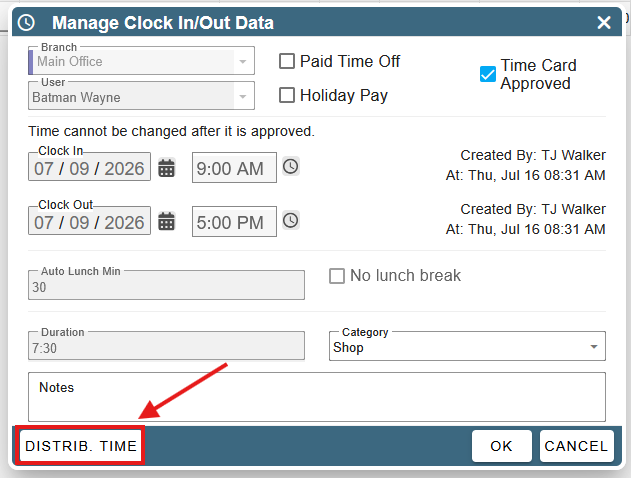
Then, click ‘Distrib Time’ to open the ‘Adjust Time Distribution’ screen.
From the ‘Adjust Time Distribution’ screen the process for modifying time distribution is the same as it is on the field ticket screen, except there is only one column, the ‘Labor’ column. You can click on the up/down arrows in a cell to move time between the ‘Straight Time’, ‘Over Time’, and ‘Double Time’ rows.
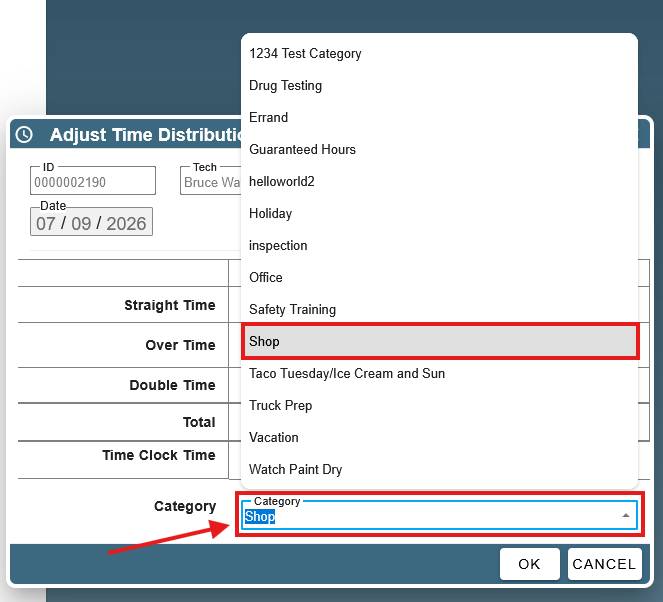
The ‘Adjust Time Distribution’ screen for a clock-in record also allows you to set the time category. To do this, click on the ‘Category’ drop-down and select a category from the list.
Moving Time from the Review/Export Time Screen
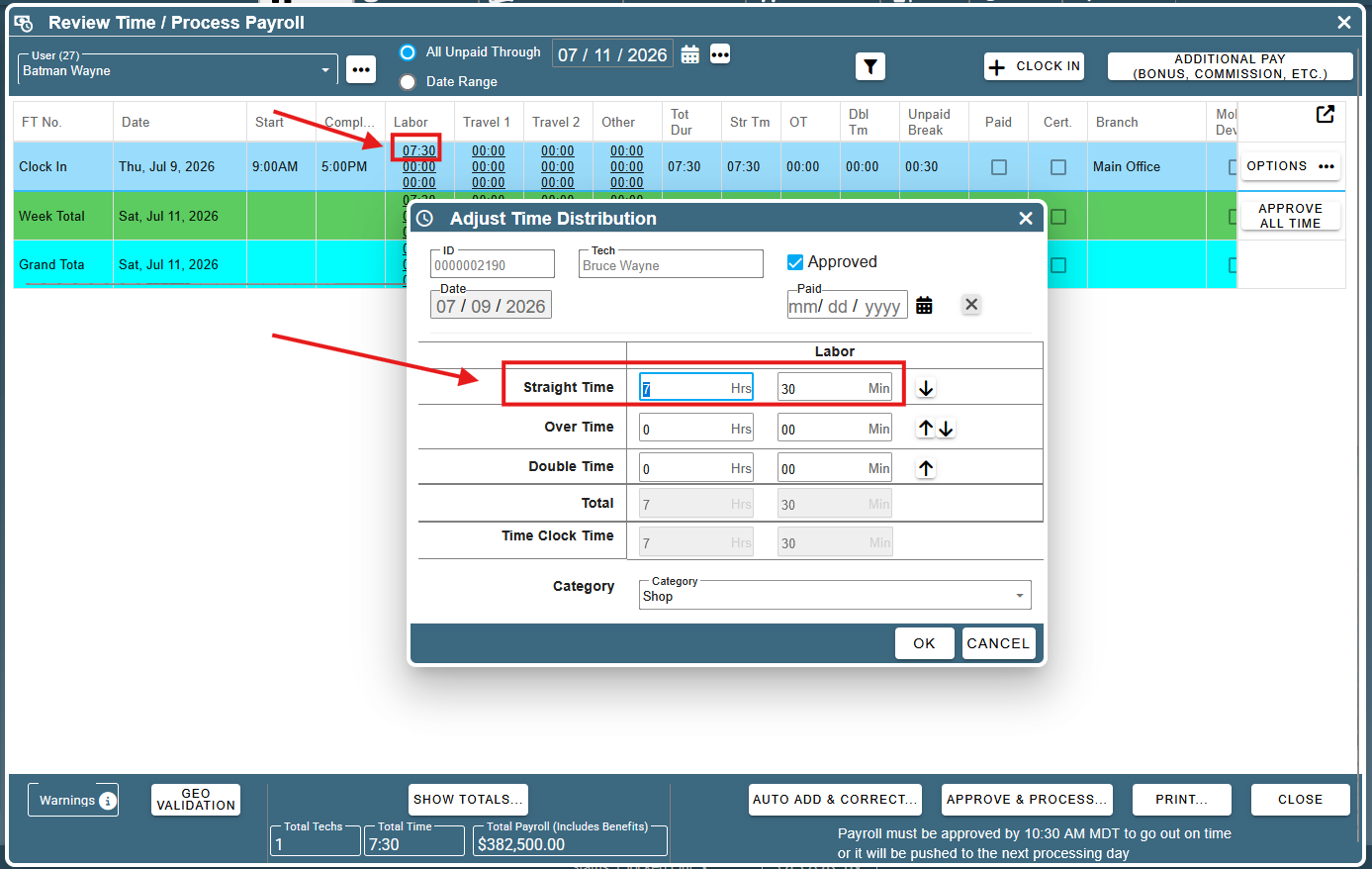
To move time for a field ticket or clock-in record from the ‘Review/Export Time’ screen, just click on any of the times in the ‘Labor’, ‘Travel 1’, ‘Travel 2’, or ‘Other’ columns. The time category that you clicked will be the one that’s highlighted when the ‘Adjust Time Distribution’ screen opens up.
Here, I clicked on the 07:30 entry on the clock-in record, and the ‘Adjust Time Distribution’ screen opened up with the corresponding straight time hours highlighted.