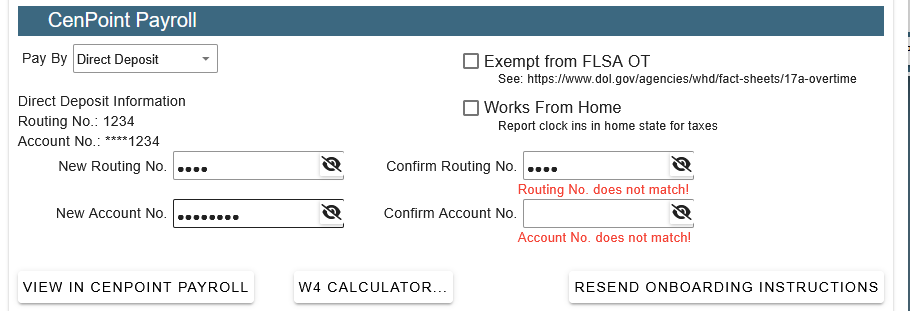
This article shows how to update the direct deposit info for a user.
You must have Cenpoint Payroll in order to access this feature.
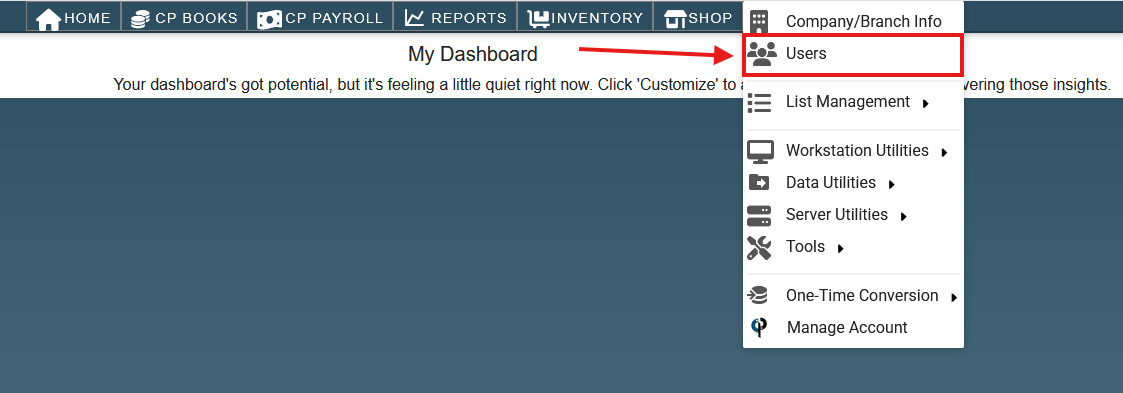
To update a user’s direct deposit info, go to ‘More → Users’.
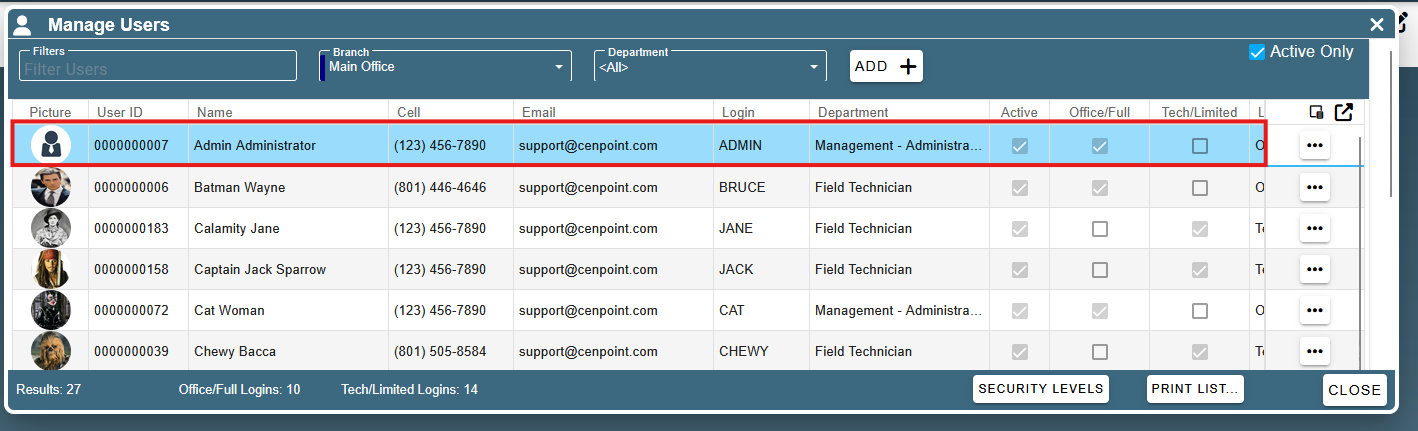
From the ‘Manage Users’ screen, double-click on the user who needs their direct deposit info updated.
Next, go to the ‘User Pay’ tab.
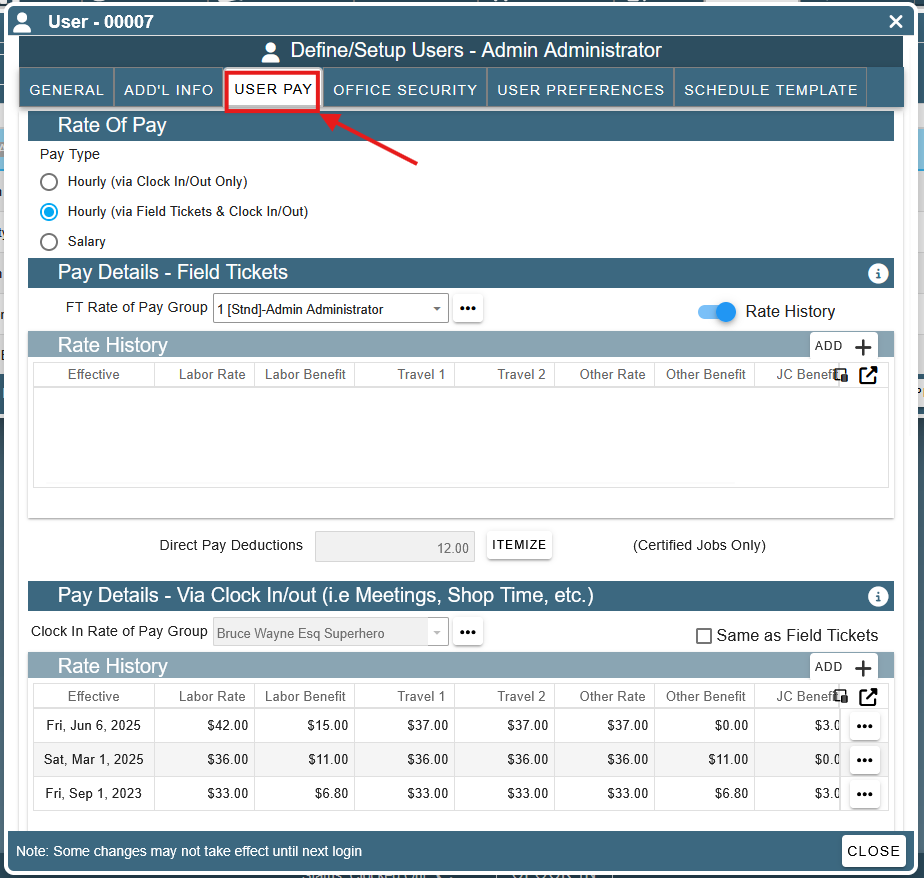
Once you are on the ‘User Pay’ tab, scroll to the bottom. In the ‘Cenpoint Payroll’ section, click on the ‘Update’ button next to ‘Direct Deposit Information’.
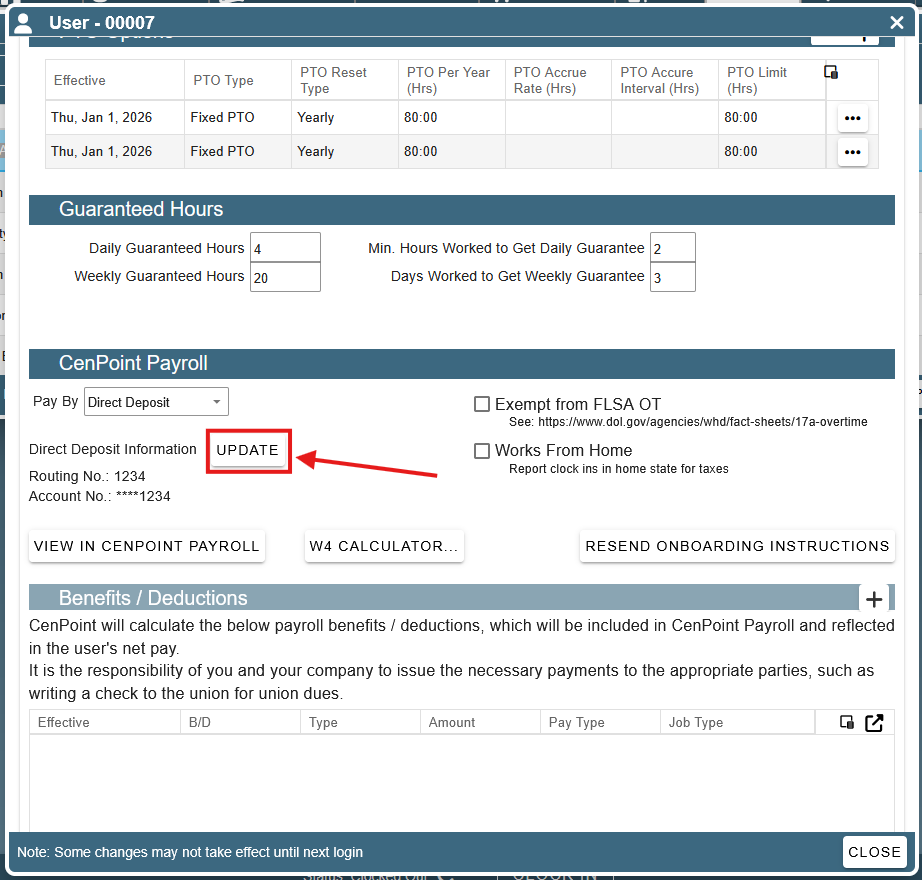
Clicking the update button opens up two text fields. Here, you will type your ‘New Routing No.’ and ‘New Account No.’.
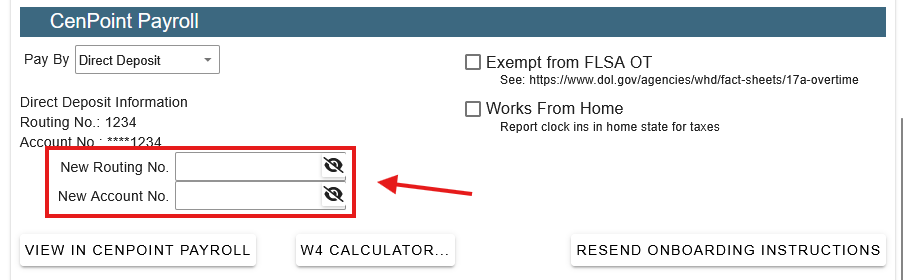
Once you have typed them in, you will have to type them in again in two new fields that appear to the right of the initial fields.
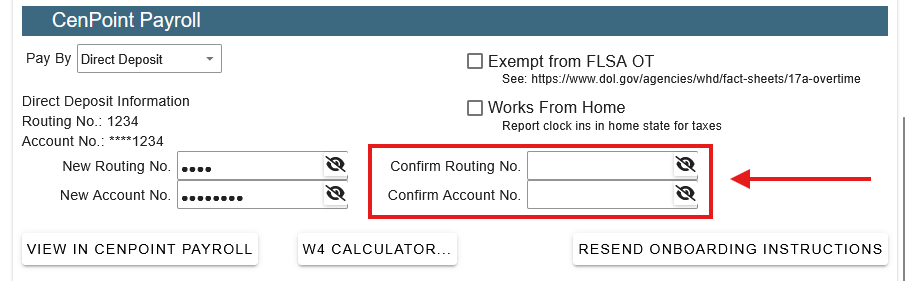
After you type your routing number and account number into the confirmation fields, click outside of those fields to save. If both confirmation fields have disappeared, the save was successful and you can close this user’s page.
If red text shows saying that the routing or account number does not match, you mistyped one of them and it needs to be corrected to continue.