
To create a quote with CenPoint AI, go to the left-hand side of CenPoint and click the "New Quote with AI" button.
.png)
This pulls up a new view that you can enter in the quote information.
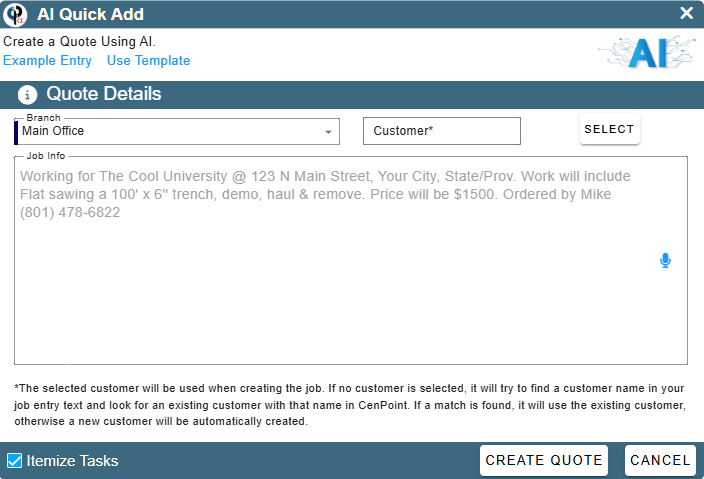
Ideally you should use the template in the upper left-hand corner until you get used to what is being asked. Clicking that will pull up a template that our AI is trained off of. We recommend using this for the best results.
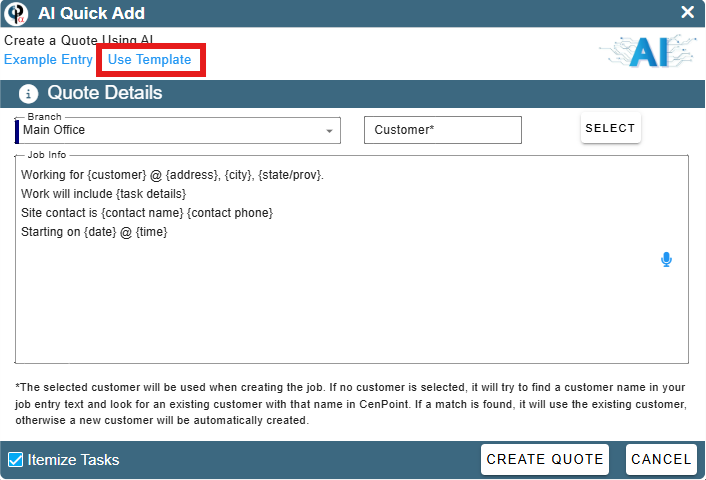
Alternatively, you can look at the Example Entry. Clicking this pulls up the quote example for you to reference.
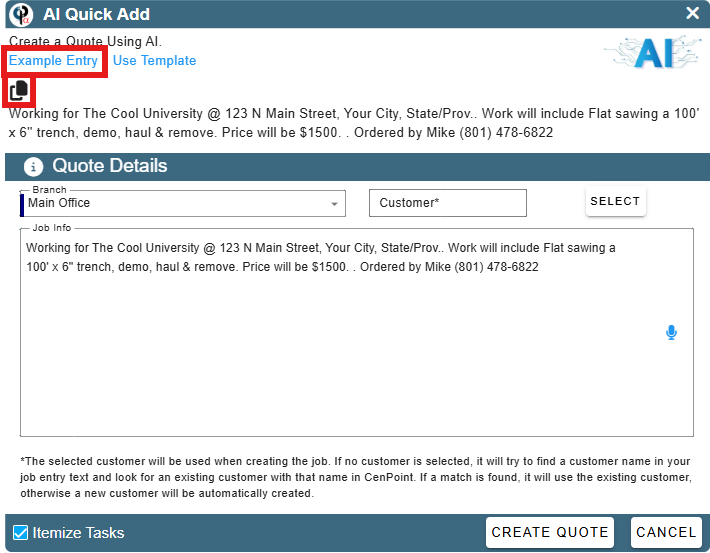
One nice feature that CenPoint has is that blue microphone on the right-hand side, clicking that will enable a microphone to be used so you can speak and CenPoint will dictate what you say. Please review what is typed out as you finish.
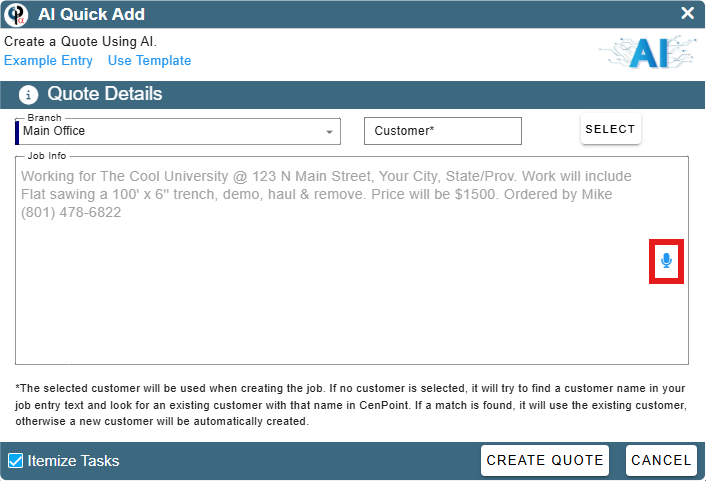
You can choose a customer for the quote by clicking Select next to customer, or you can leave it blank, and the AI will try its best to get the customer right.
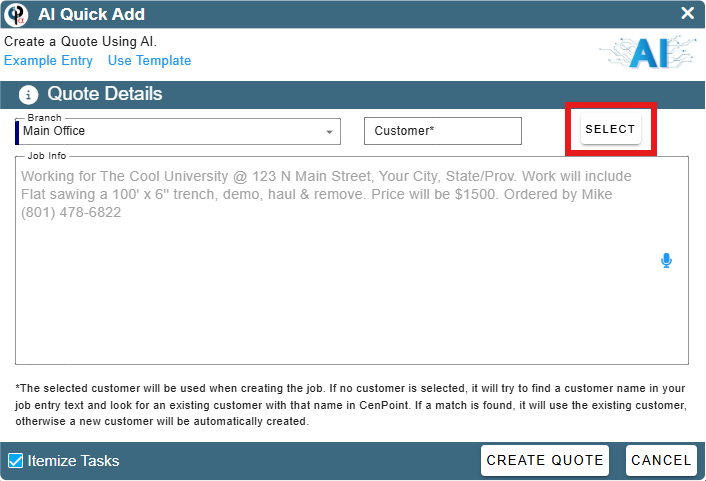
Once it is filled out, you can click Create Quote.
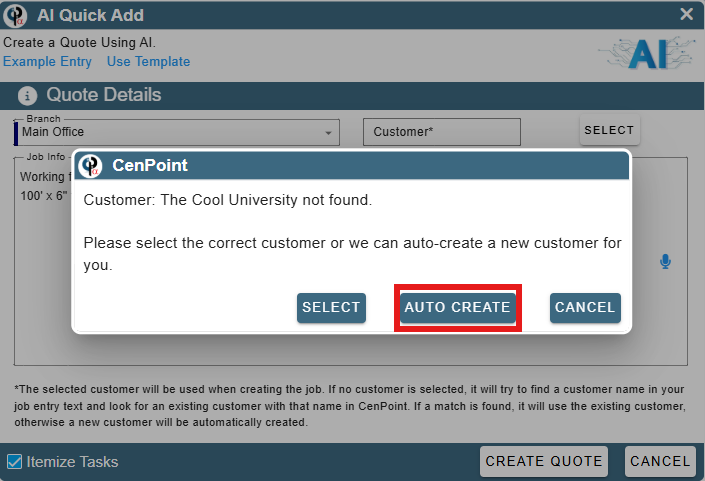
If you did not fill out the customer, either because they don't exist yet or the AI wasn't able to pattern match well enough, you will be met with the following screen:
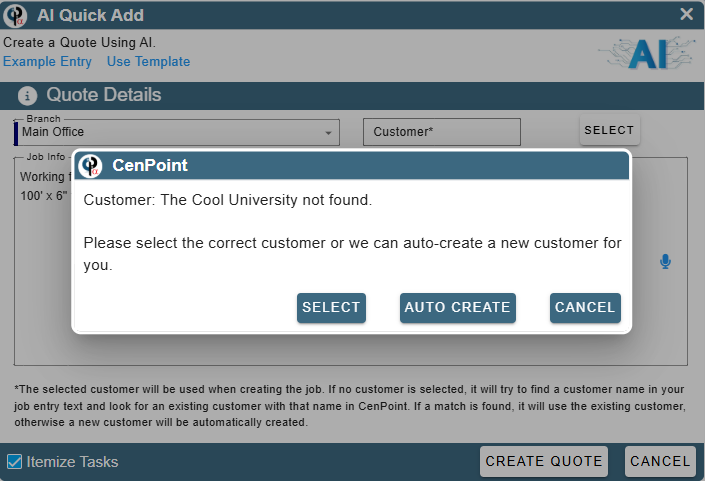
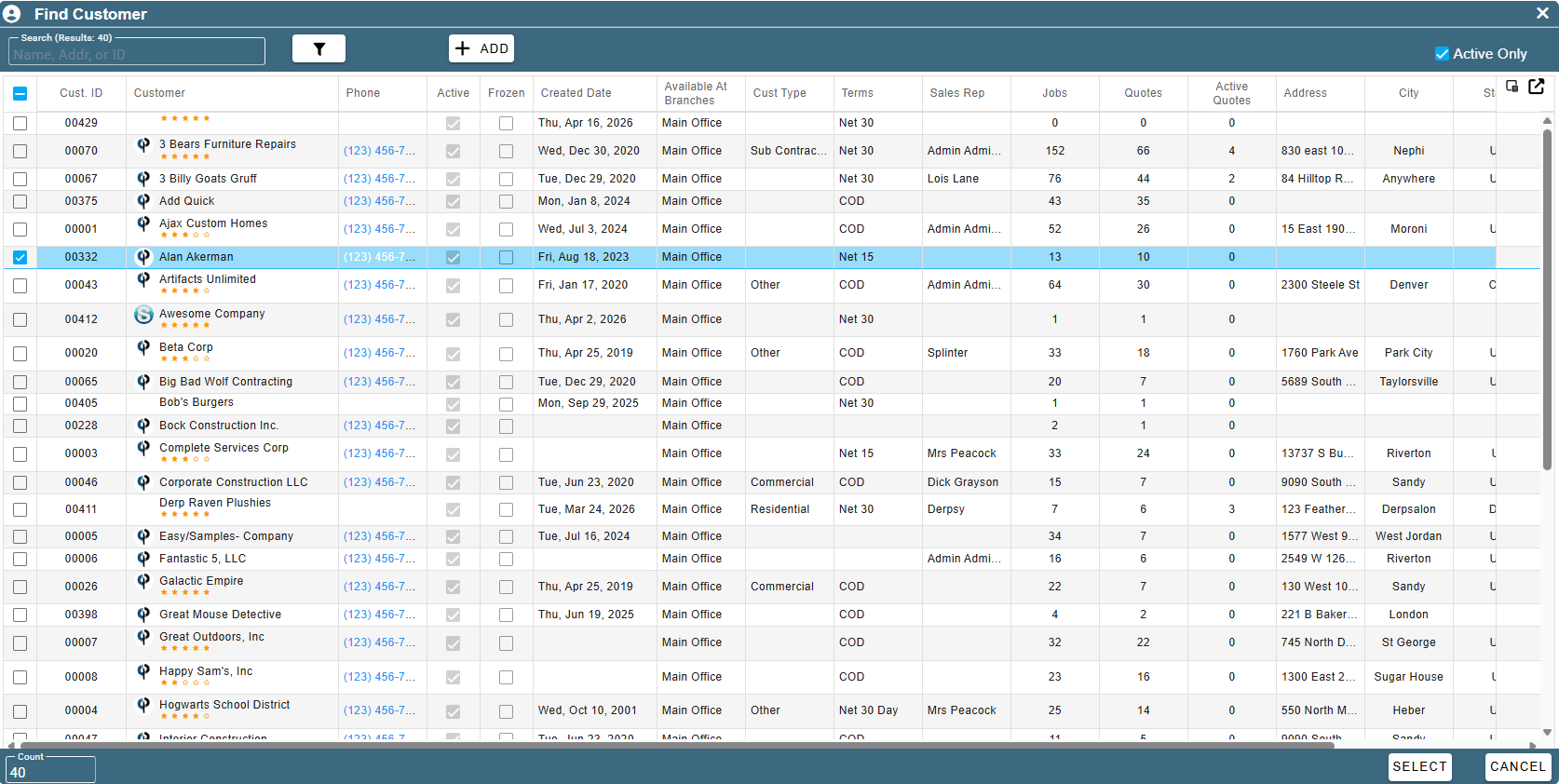
The AI tells you that the customer wasn't found. Now you have two options. If you know the customer exists or should be found, you can do a select to manually find the customer.
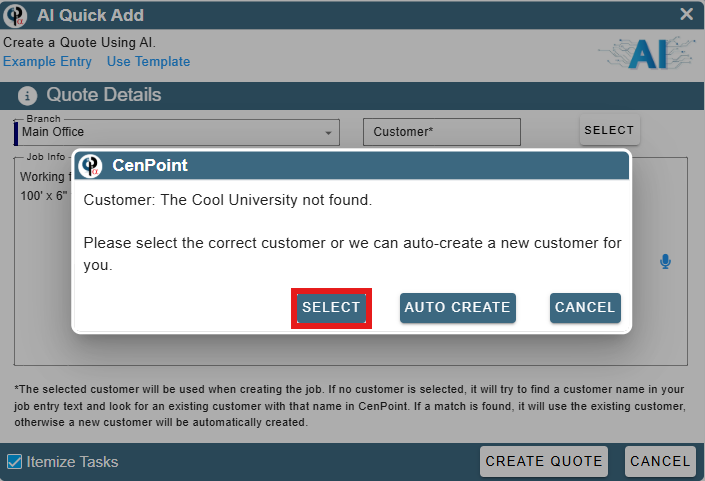
Ok, but what happens if we have a new customer, they aren't in the system and hitting ADD is a bit too much work right now? Well, you can hit AUTO CREATE and the AI will think for a while, creating the customer as best it can and then creating the job. The customer won't be very fleshed out, so you may want to go to the customer and fill out more information if you are going to be working with this customer again in the future.
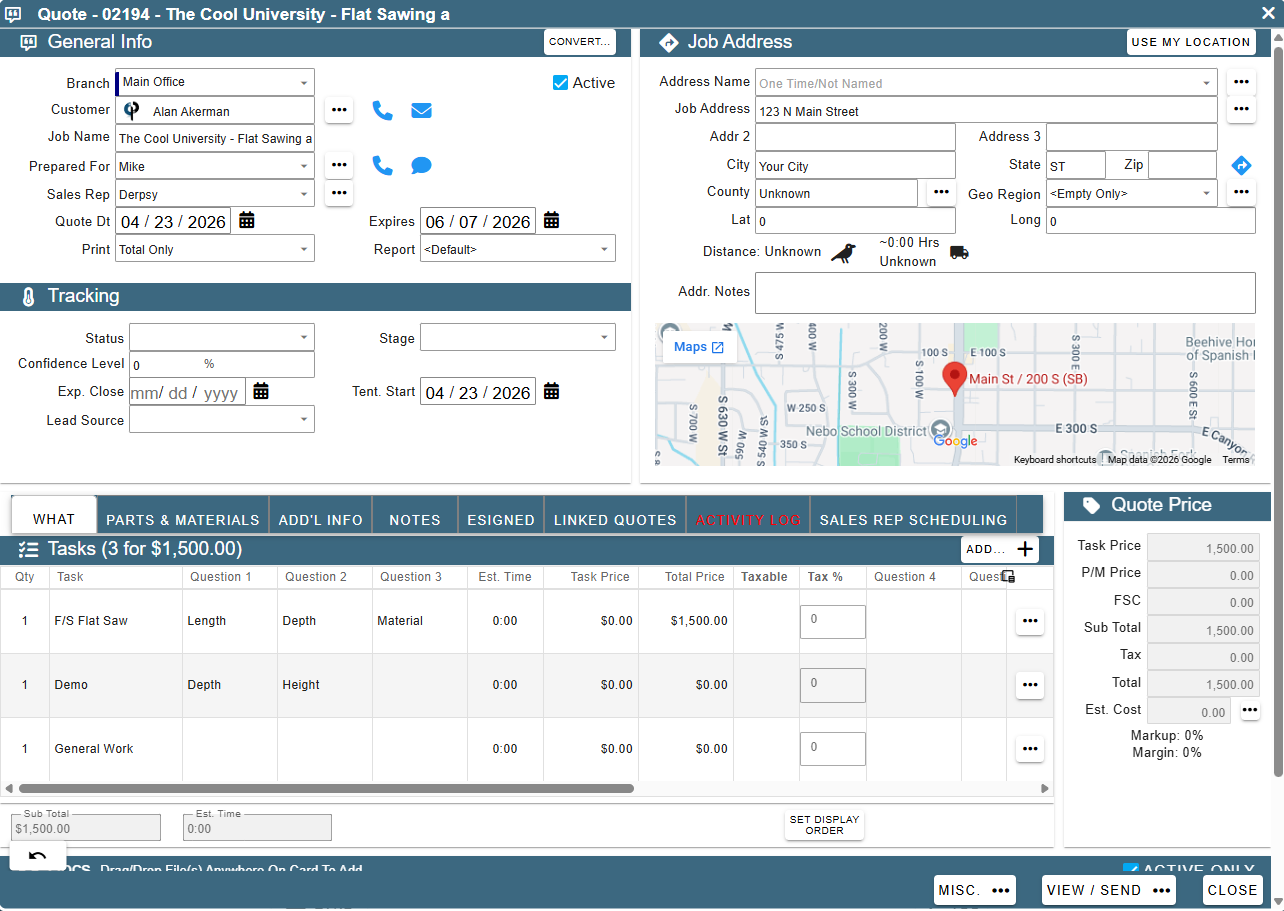
Once the AI has enough time, should be less than a minute, the job will be created, and the screen will show the new job that the AI created.
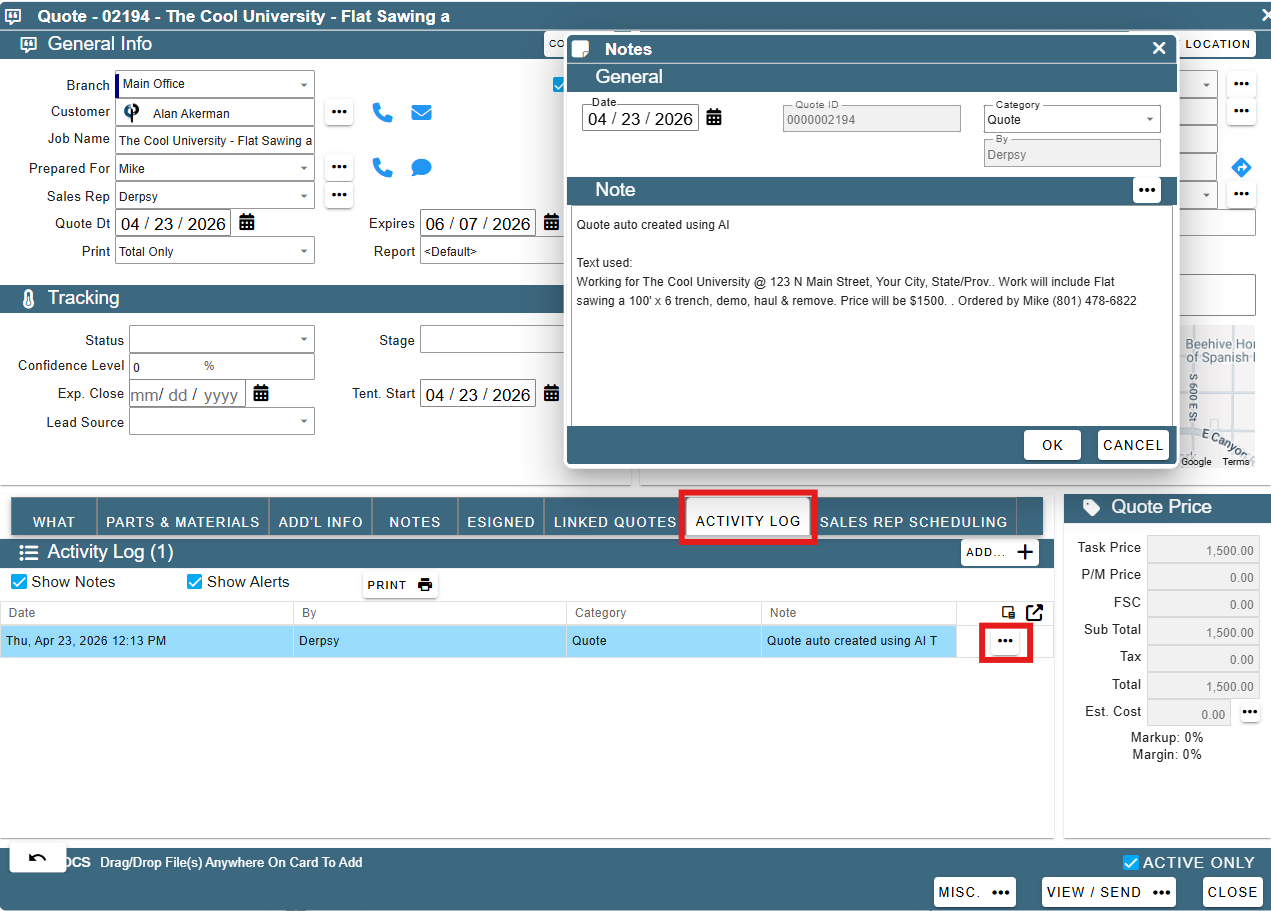
Something to note with the quote creation with AI is that it creates a note with the quote that says that it was created with AI. We can see that if we navigate to the ACTIVITY LOG tab there is a note that was auto created stating that the quote was created with AI. You can see the original prompt you used to create the quote and reference it to ensure that the AI did actually do what you wanted.
Your company is responsible to make sure that the quote is correct before sending anything to the customer.
Additional Resources: Quote Documentation