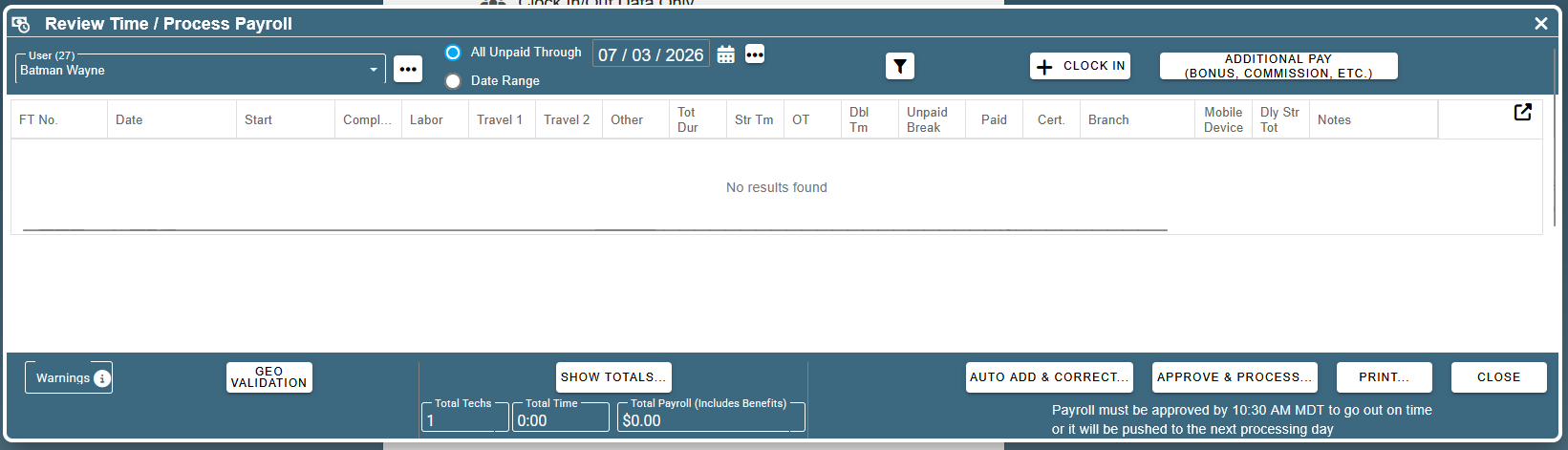
This article covers paying an employee for hours in a previous pay period immediately. These payments are processed immediately, not with the rest of your payroll. To do this, you must have permission 93 (view the payroll tab) and 94 (approve and process payroll).
For Customers Using CenPoint Payroll:
This is considered an out-of-cycle payment and will be taxed at a higher rate.
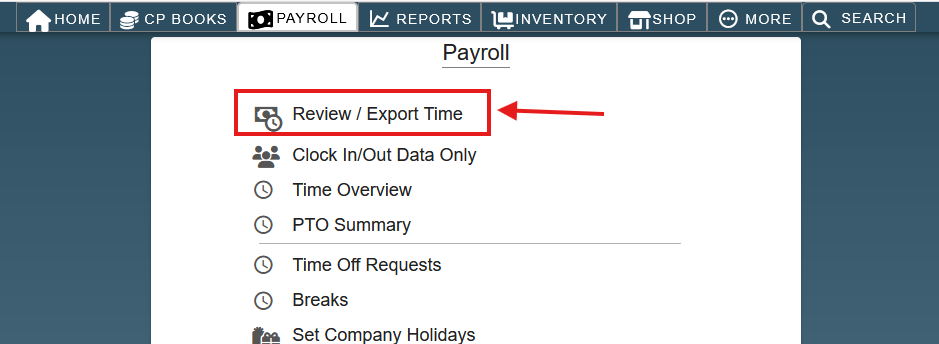
If you are not using CenPoint Payroll, go to ‘CP Payroll → Review / Export Time’
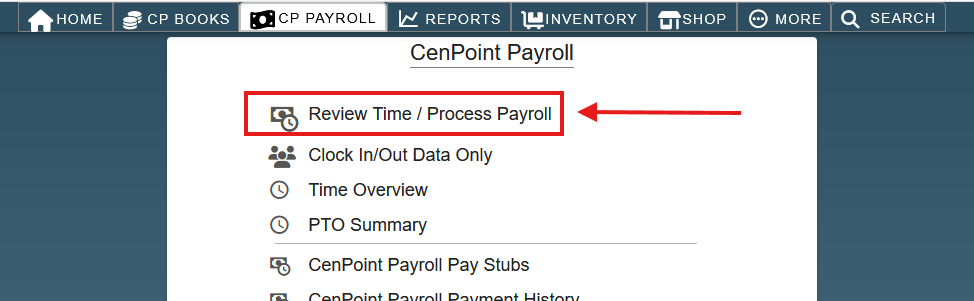
If you are using CenPoint Payroll, go to ‘CP Payroll → Review Time / Process Payroll’.
Select the correct employee from the ‘User’ drop-down.
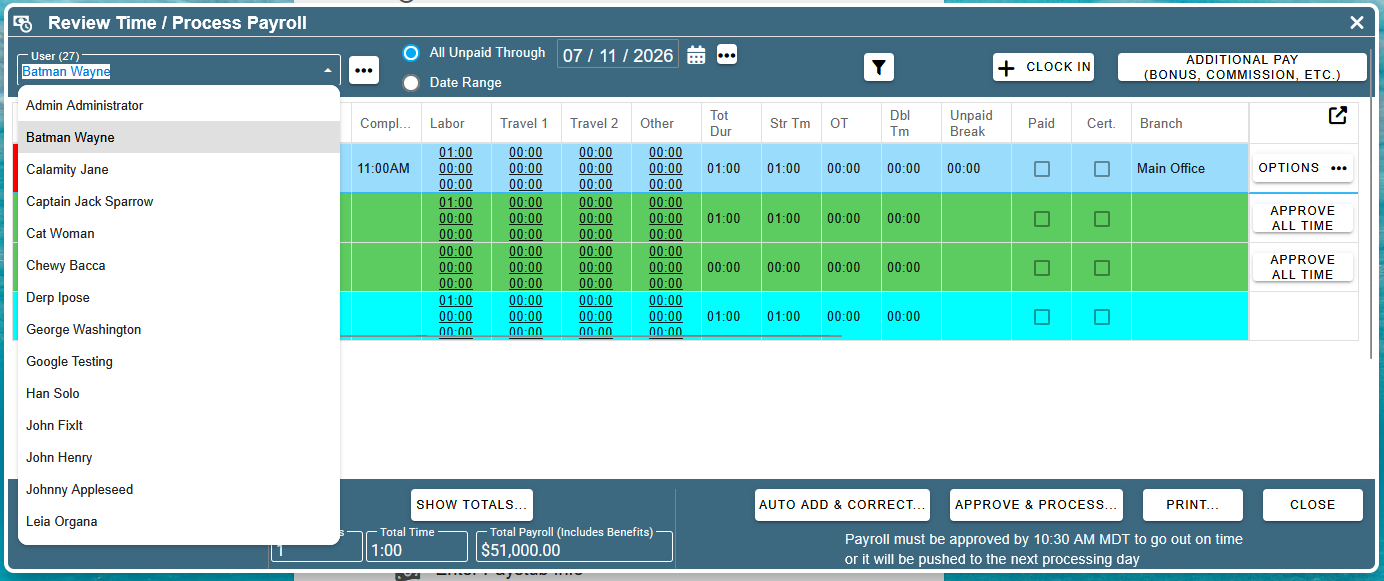
Set the ‘All Unpaid Through’ date to be the most recent week ending date of the unpaid record(s).
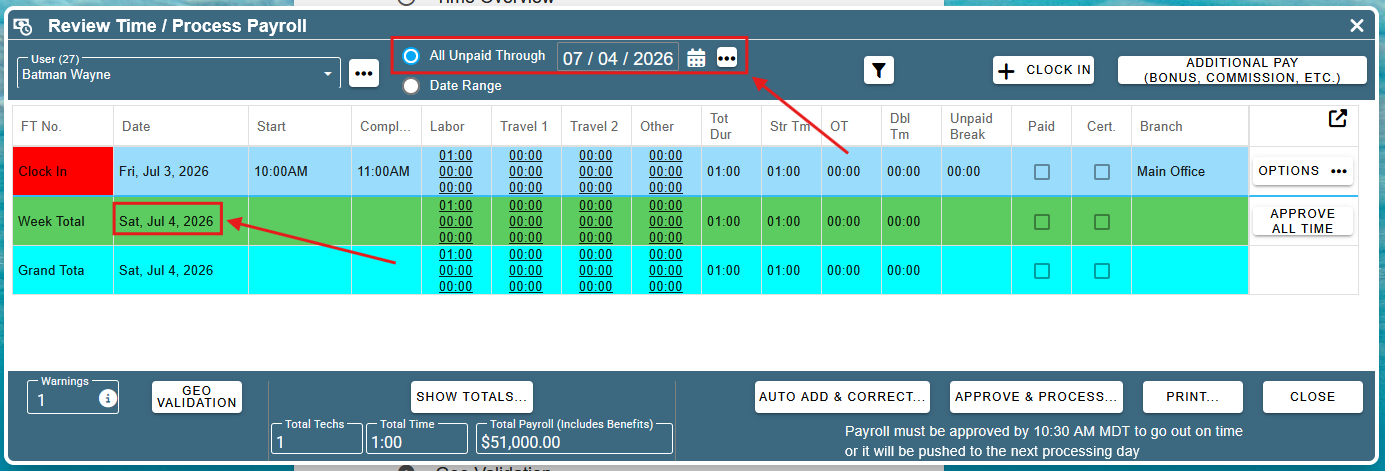
All of the unpaid time for that employee before that week ending date is now shown. To pay the employee, you first need to approve their time and correct any overtime rule violations. To approve their time, you can click the ‘Approve All Time’ button, or you can approve time on the field tickets or clock-in records individually. To correct overtime rule violations, you can click ‘Auto Add & Correct’, and then click ‘Current Tech’ under ‘Fix OT / Guaranteed Hours / Holidays, etc.’.
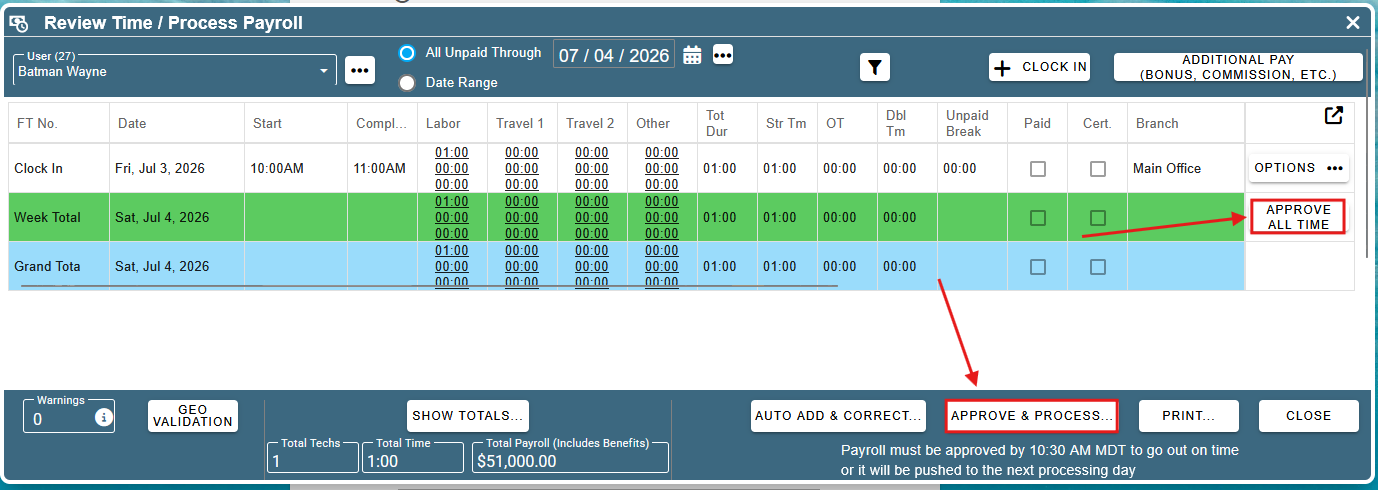
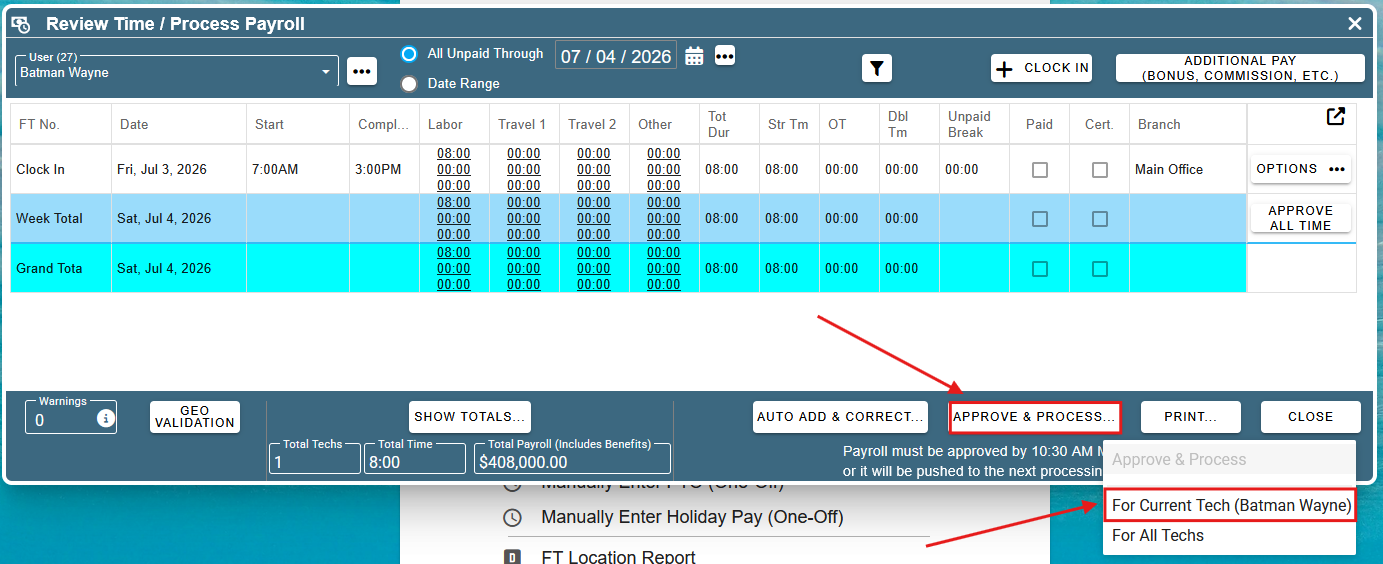
If you are using CenPoint Payroll, you can now click ‘Approve & Process → For Current Tech’.
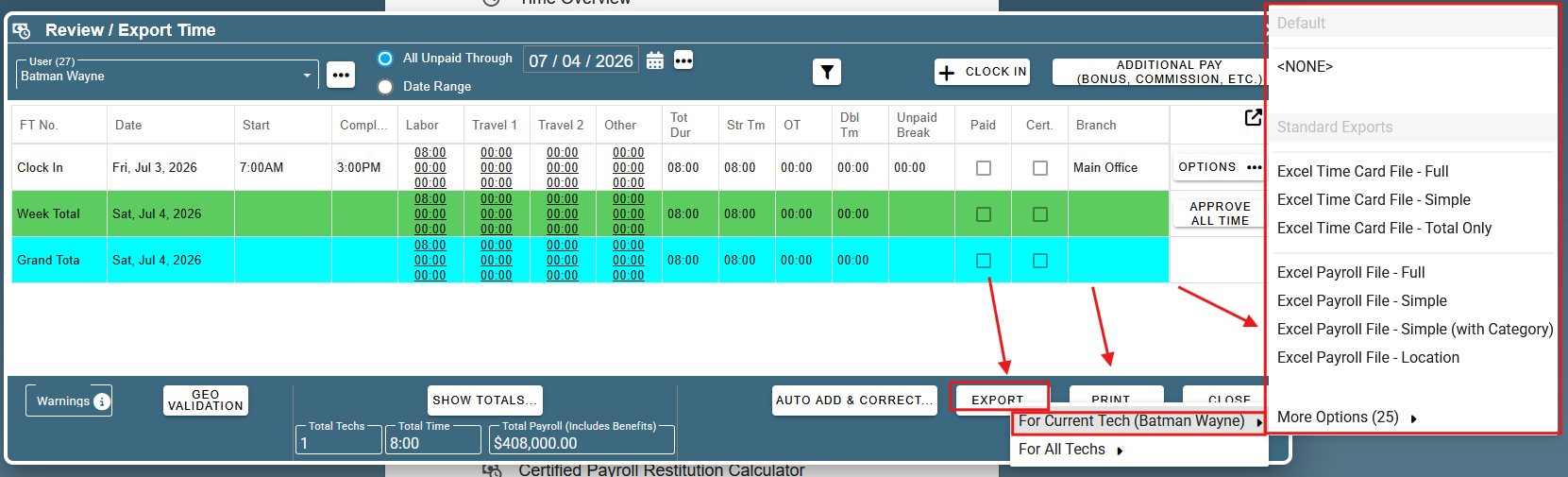
If you are not using CenPoint Payroll, you can now click ‘Export → For Current Tech’, and pick the appropriate export type. After this, you’re done.
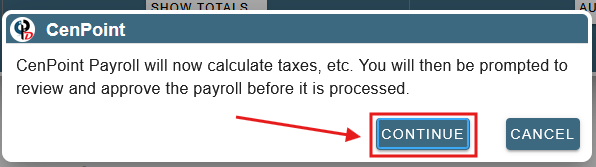
If you are using Cenpoint Payroll, you will see a popop saying that CenPoint Payroll will now calculate taxes. Click continue.
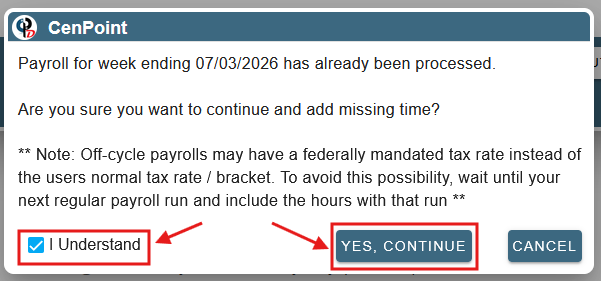
This will open up a secondary confirmation popup asking you to confirm that you want to continue processing payroll, even though this pay week has already been processed. Check the box that says ‘I Understand’ and click ‘Yes, Continue’.
If everything ran successfully, the time records are now marked as paid, and have disappeared .