Adjustment Reasons Overview
An Adjustment Reason is a way to enter a payment to adjust a customer's outstanding balance.
This allows you to rectify Invoicing Errors, record discounts offered to a specific customer, and other similar things.
Adjustment Reasons
Payment Received Window with Adjustment Reasons
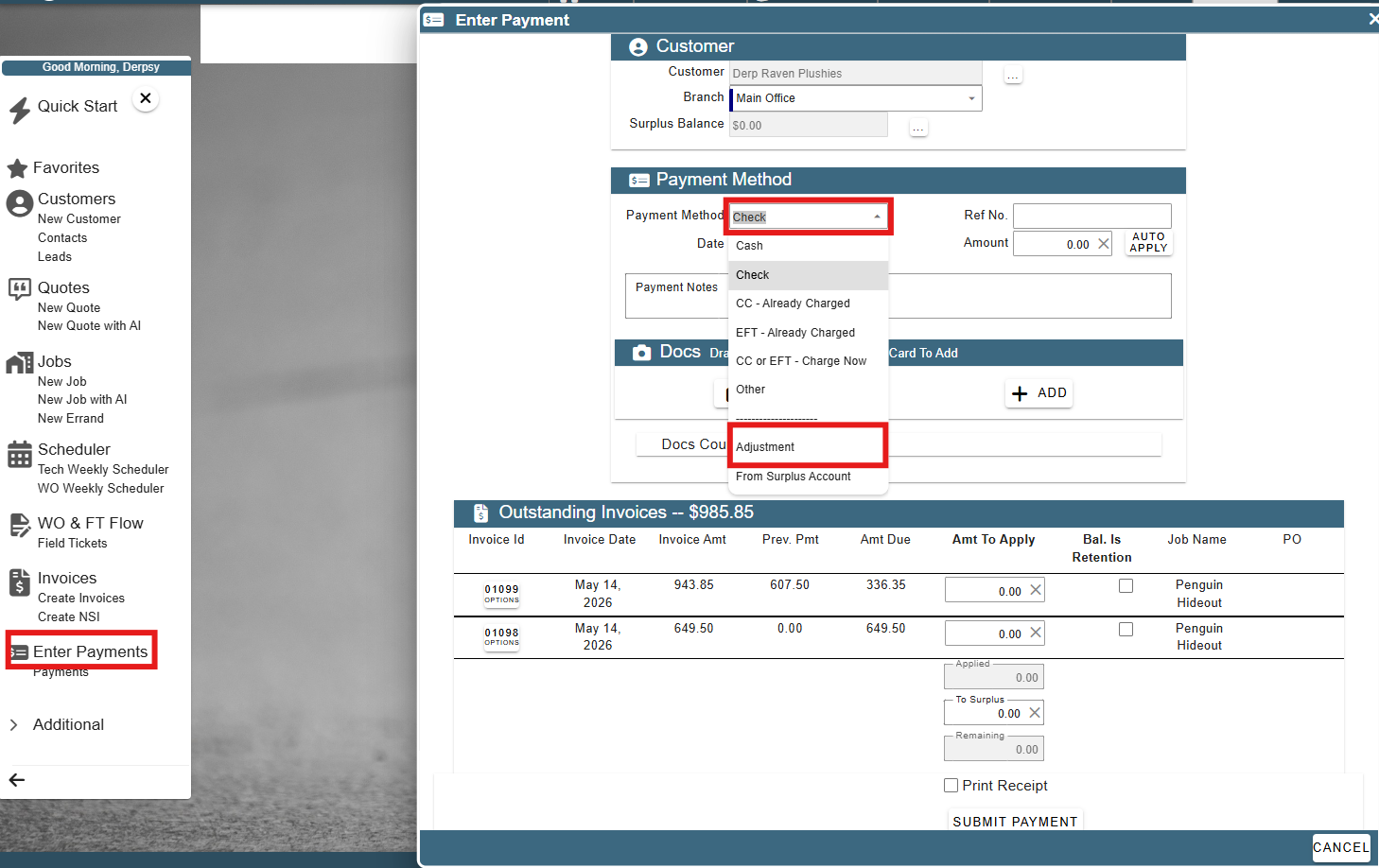
To record an Adjustment Reason, go to enter a new Payment. In the Payment Method dropdown select "Adjustment".
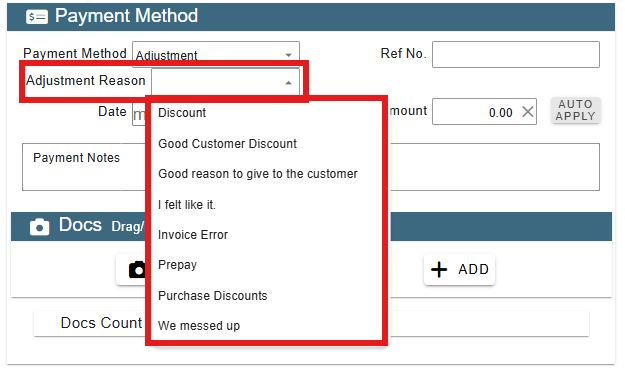
A new dropdown will appear allowing you to select the type of Payment Adjustment you are doing.
TWO VERY IMPORTANT NOTES:
1. Please input a POSITIVE amount. CenPoint treats this as you making a payment towards the customer's balance, so a positive amount will decrease the customer's remaining balance.
2. Adjustment Reasons DO NOT allow you to increase the price of an invoice. If there was a pricing error where the invoice the customer received is too low, please delete the invoice and make a new one with the adjusted pricing.
Add or Modify Adjustment Reasons
Go to:
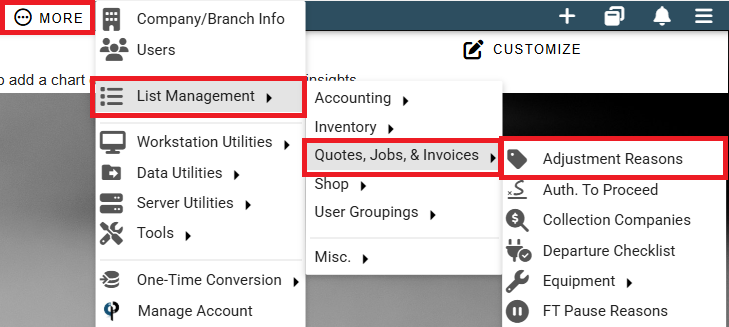
1. More -> List Management -> Quotes, Jobs, & Invoices -> Adjustment Reasons
2. Simply use the Add button, or the ellipsis to get to the modify, and delete buttons to customize your drop-down list.
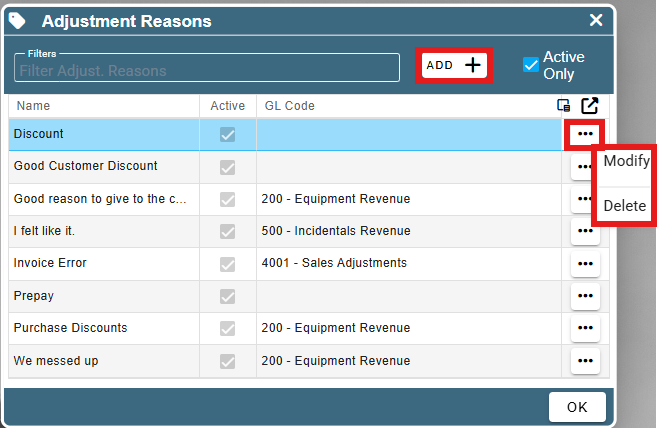
3. Each entry has a description, and can be associated with a GL code, if you use GL codes in your accounting software.
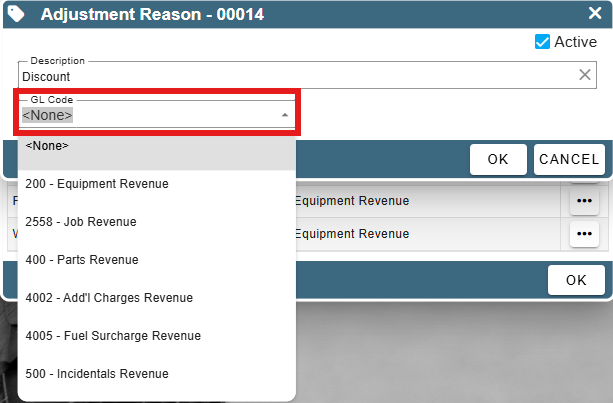
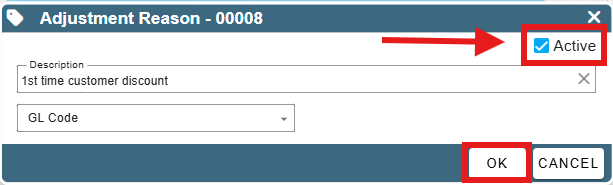
4. If you want to bring back an inactive one, uncheck the "Active Only" box, click on the Ellipsis -> modify to alter your entry, and check the active box. .png)
After checking the Active box click OK to save your changes and close the popup.
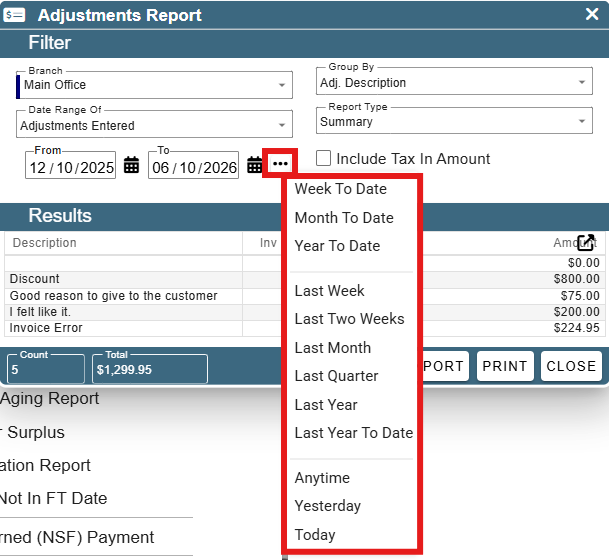
Adjustments Report on Portal
To see a report of Payment Adjustments, go to CP Books -> A/R -> Payments -> Adjustments Report
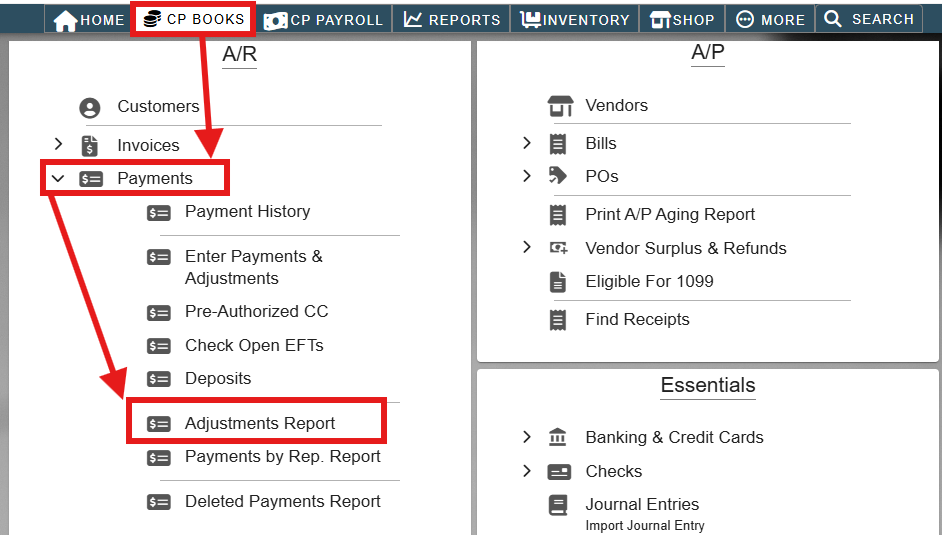
This opens a window with a report.
You can filter the results for a date range or use the ellipsis next to the dates to select a convenient range of time like last Week, Quarter, Year, etc...