This article covers how to apply an Early Pay Discount while entering a bill.
Create a Bill
For help creating a bill, see the Find/Enter Bills help document.
Pay a Bill With an Early Pay Discount
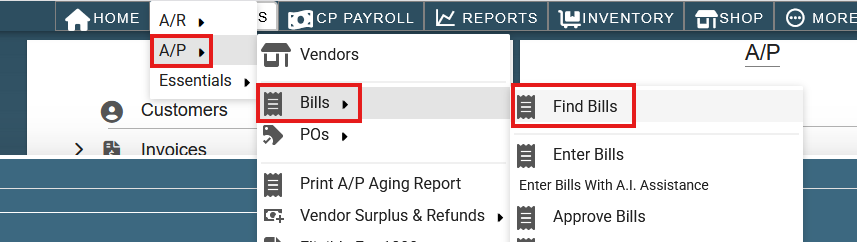
Click CP Books → A/P → Bills → Find Bills
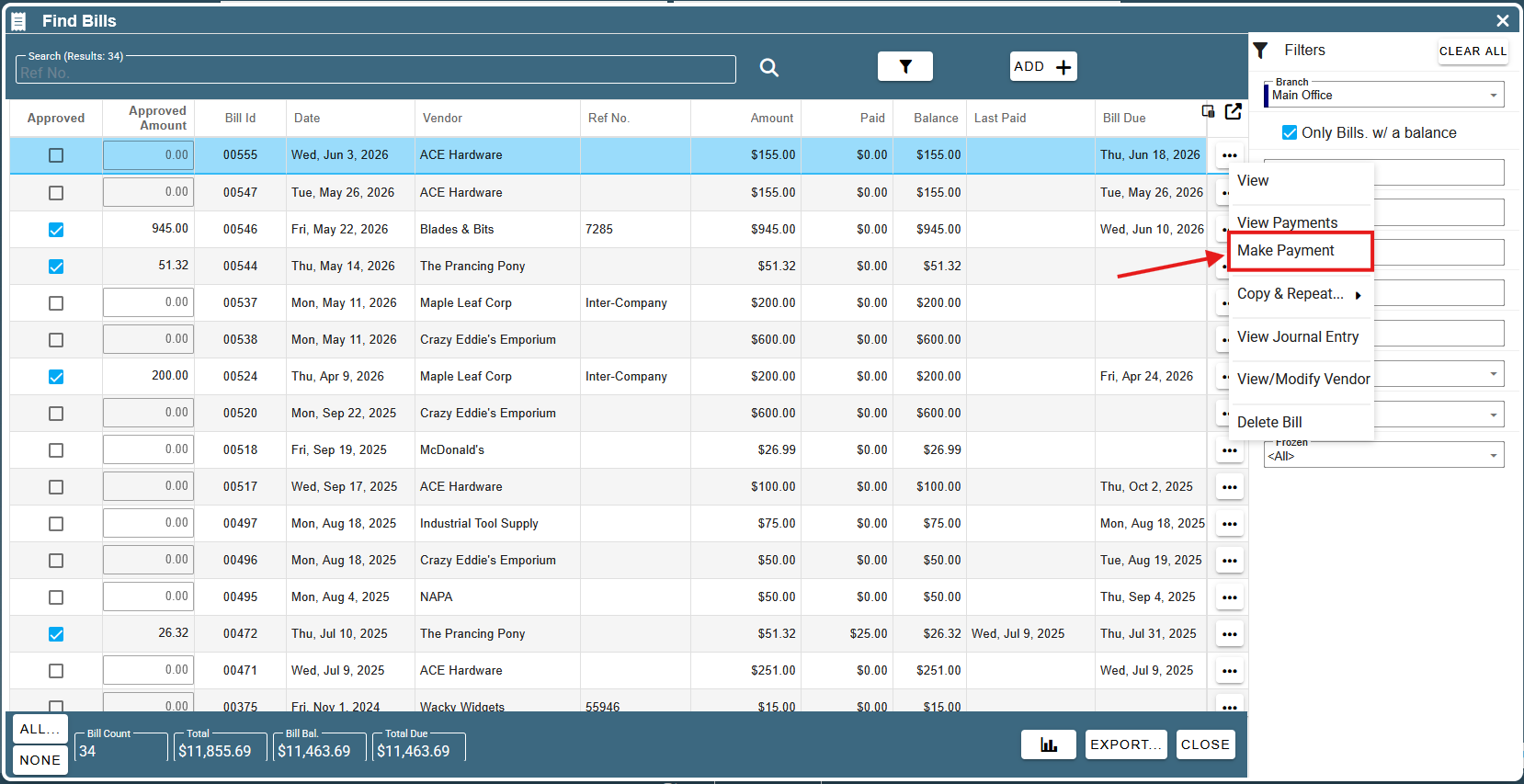
Find the bill you want to apply the early pay discount to, click the ellipses at the end of its row, and click “Make Payment”.
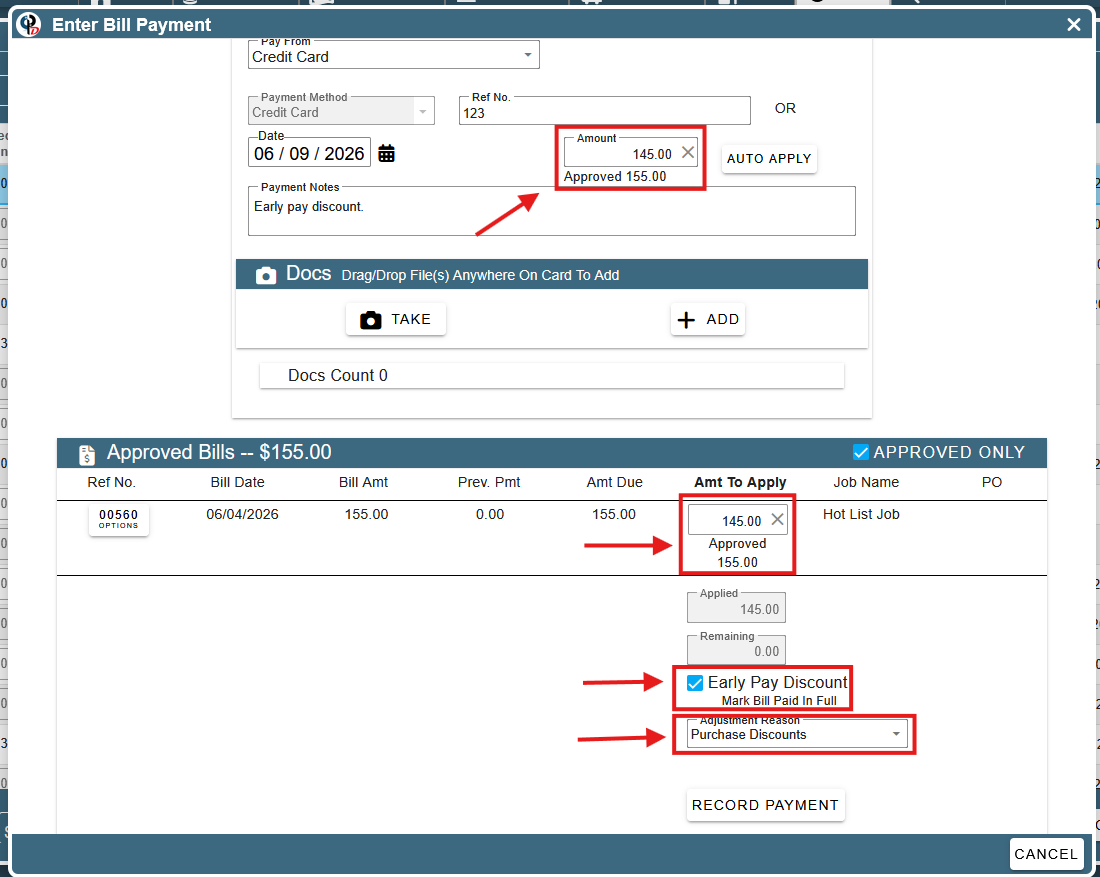
After setting the payment method and payment date, apply the Early Pay Discount by setting the “Amount” and the “Amount to Apply” fields to be the amount after the early pay discount. Then, check the “Early Pay Discount” box and select the adjustment reason from the drop-down at the bottom.
Note: Clicking the “Early Pay Discount” check-box makes any remaining balance on the current bill a discount. Discounts are created as an adjustment against the original bill amount.
Add an Adjustment Reason
If you would like to add a “Discount” option to the Adjustment Reason drop-down, refer to the Adjustment Reasons help document.
Finding Your Paid Bill
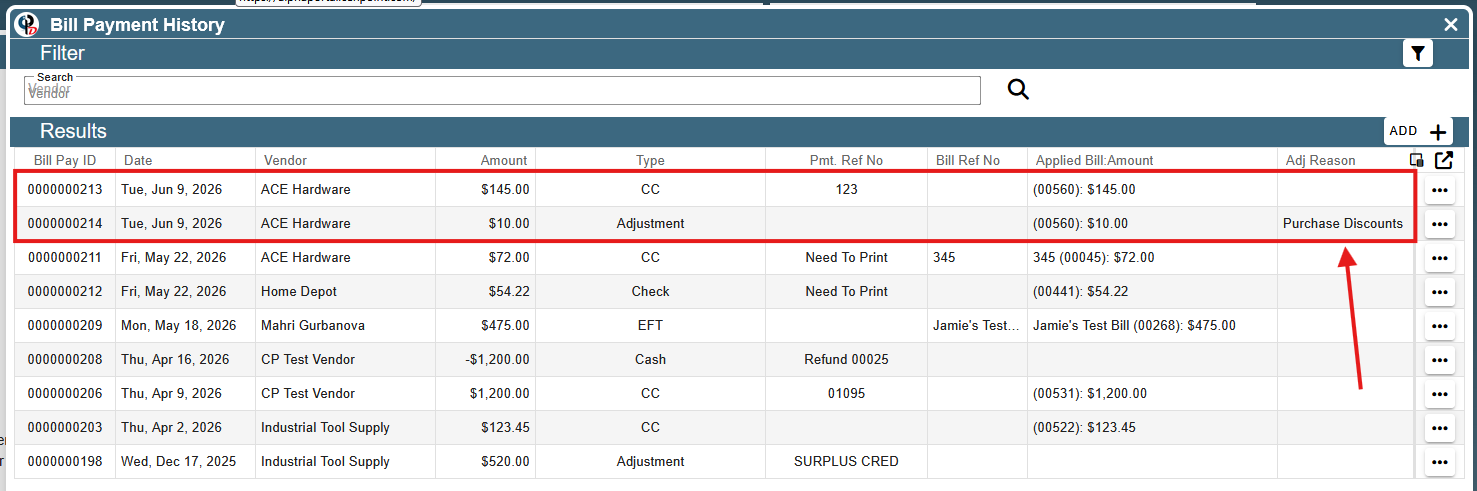
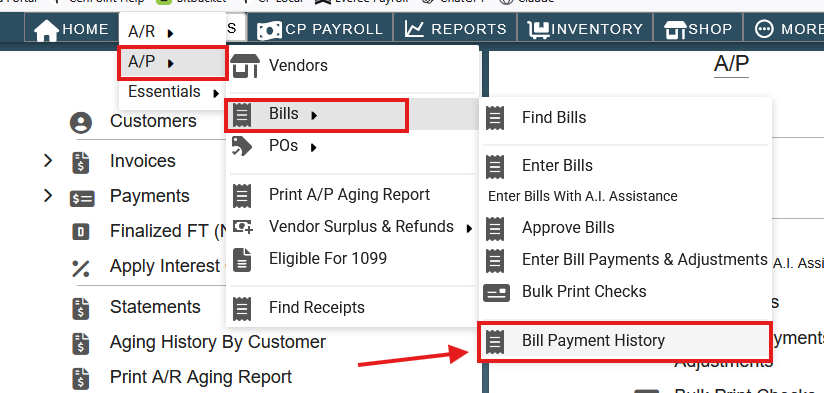
To find a paid bill, click CP Books → A/P → Bills → Bill Payment History
Here, you can see the bill payment (#213) and the discount adjustment (#214). Notice how Bill ID 00560 is in the “Applied Bill Amount” column for both rows, showing that they both came from a payment against the same bill.