WO ADDR
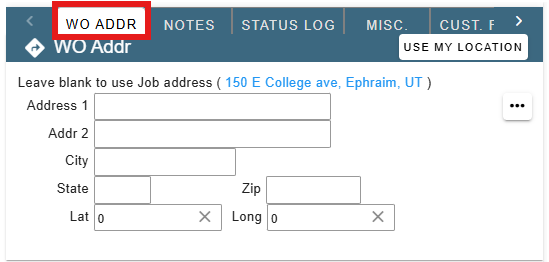
The WO Addr field is for the Work Order address. This is where the guys are going for this WO.
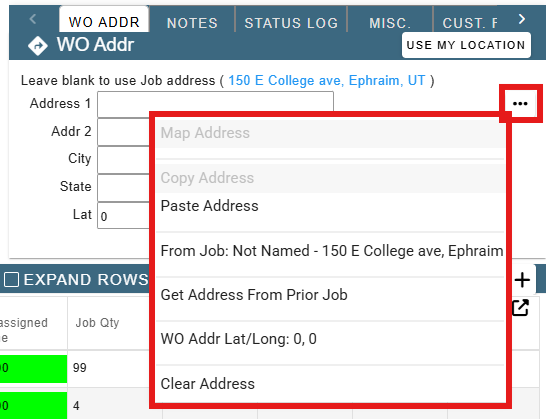
Clicking the ellipsis, you can do several different things including:
Map Address- Map from the office to the address in a new window.
Copy Address- If the address is filled out, copy it for use later.
Paste Address- If you copied the address from somewhere else, paste it in.
From Job: - This will pull the address from the job.
Get Address From Prior Job- If you've done another job for this customer, you can pull from the previous job site.
WO Addr Lat/Long: - This is the Lat/Long for the wo, click this to copy it to use on a different job.
Clear Address- Clear the address quickly for another address to be entered in.
NOTES
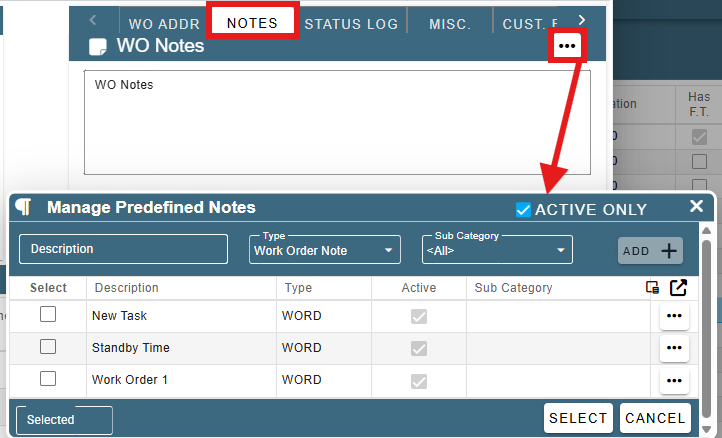
This is a section for your notes for the WO. If you want to include any notes about the work order, you would do so here. Your techs may not be able to see this, so be warned.
Clicking the ellipsis allows you to add in a predefined note, should you desire. Learn more about Predefined Notes Here.
STATUS LOG
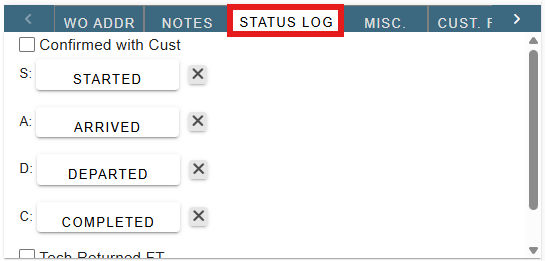
This is a section that allows you to see the status of the WO. It also has other statuses that are useful to keep track of too, such as:
Confirmed with customer- The customer has been aware of the job/WO and confirmed with the company about the work.
Tech Returned FT- The tech has returned the FT and the times are ready for review/revision.
*IMPORTANT NOTE FOR THE STATUS LOG* The Status Log should normally be filled out from the tech view and only viewed here in the office view.
Note: If you are deleting the WO, must be cleared out.
MISC.
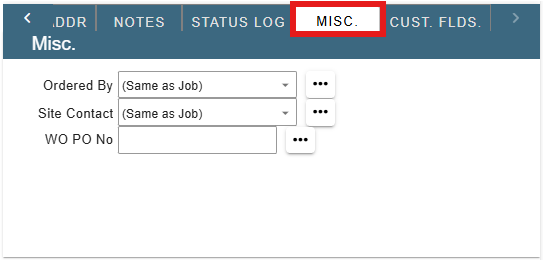
This is where you can see who ordered the WO, Who the site contact is, as well as what the WO PO No is, if it happens to have one.
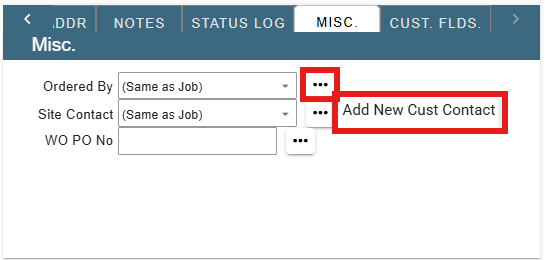
 Ordered by Ellipsis- This gives you the option to add a new customer contact if the one you want isn't in the Ordered By Contact drop down list.
Site Contact Ellipsis- This gives you the option to add a new customer or job contact if the one you want isn't in the Site Contact drop down list.
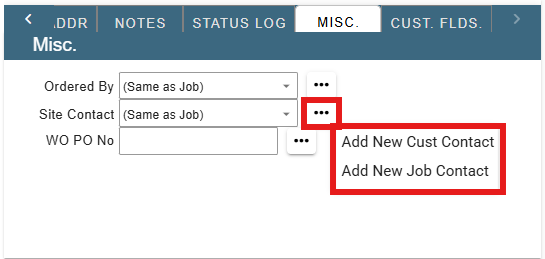
WO PO No Ellipsis- This allows you to link the WO PO No.
.png)
CUST. FLDS.
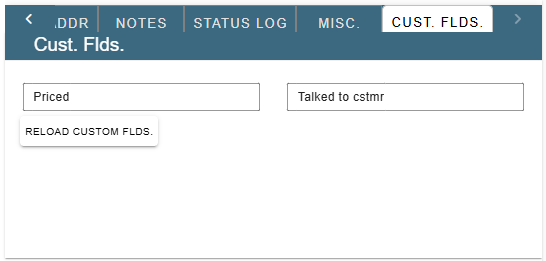
This is a place where you can load your custom fields from the branch settings. Follow this link to learn more about Custom Fields
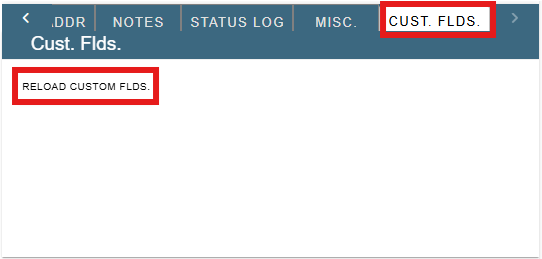
To load the custom fields:
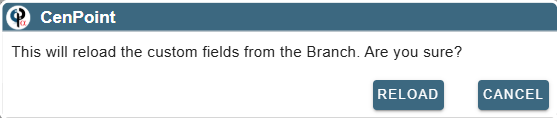
Click the Reload Custom Flds. button and click reload on the prompt. Now you should see your custom fields from the branch settings.