
Because a change order will have its own PO, and be billed separately, we will create a second Quote, convert that into a second Job, and then link the original and new Jobs together. This way the work is organized and billed separately.
There are a few ways to do this, so we will go over some of them here.
You can create a change order by:
- Quote to change order
- Adding a direct change order from the job
Creating a Change Order From a Quote
1. Create a new Quote (see New Quote)
2. Convert the Quote into a Job (see Converting a Quote to a Job)
3. Link the old and new Jobs together.
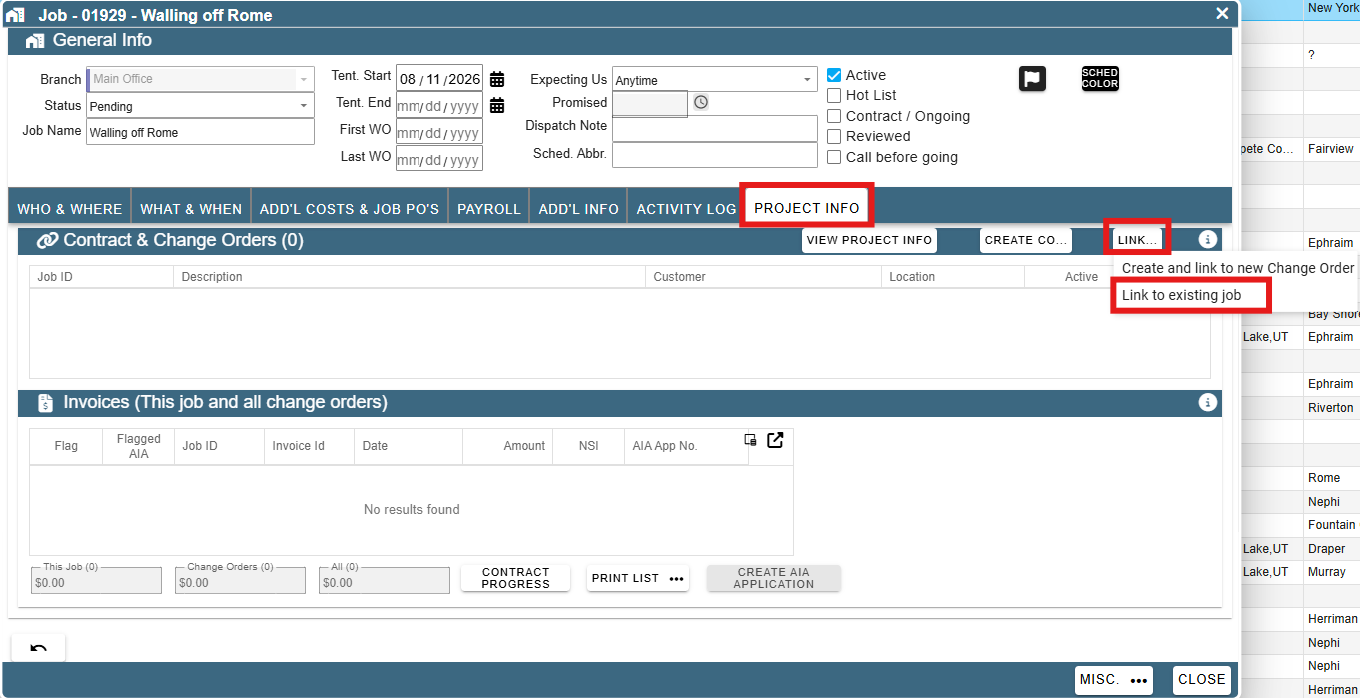
a. Open either Job (original or the change order), and go to "Project Info" tab.
b. Click "Link . . ." → "Link to existing Job"
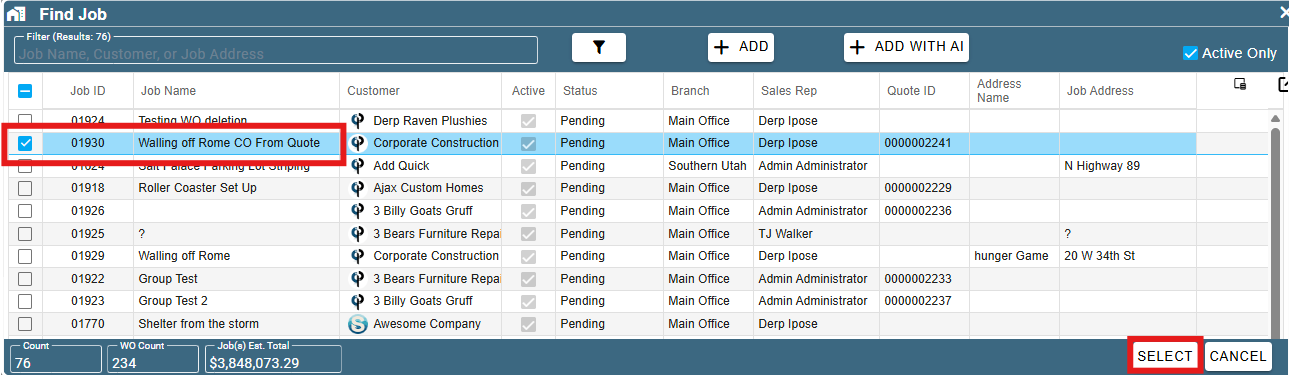
c. Find the other Job you want to link, and press "Select"
Now under the Job’s ‘Project Info’ tab you can see the other job listed as a Change Order
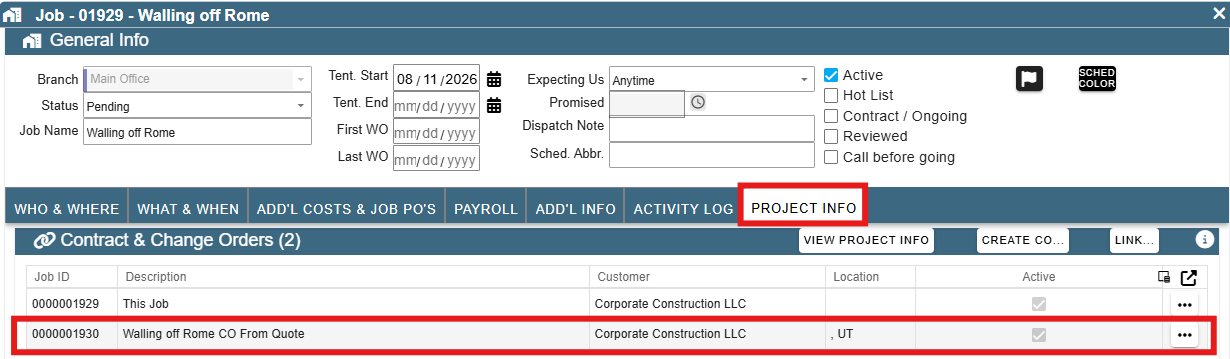
Congratulations, you have now created a Change Order in CenPoint!
Create A Change Order Directly
Go to the job you want to create a CO for. Go to the Project Info tab and click Create CO and select the option you want, with or without tasks.
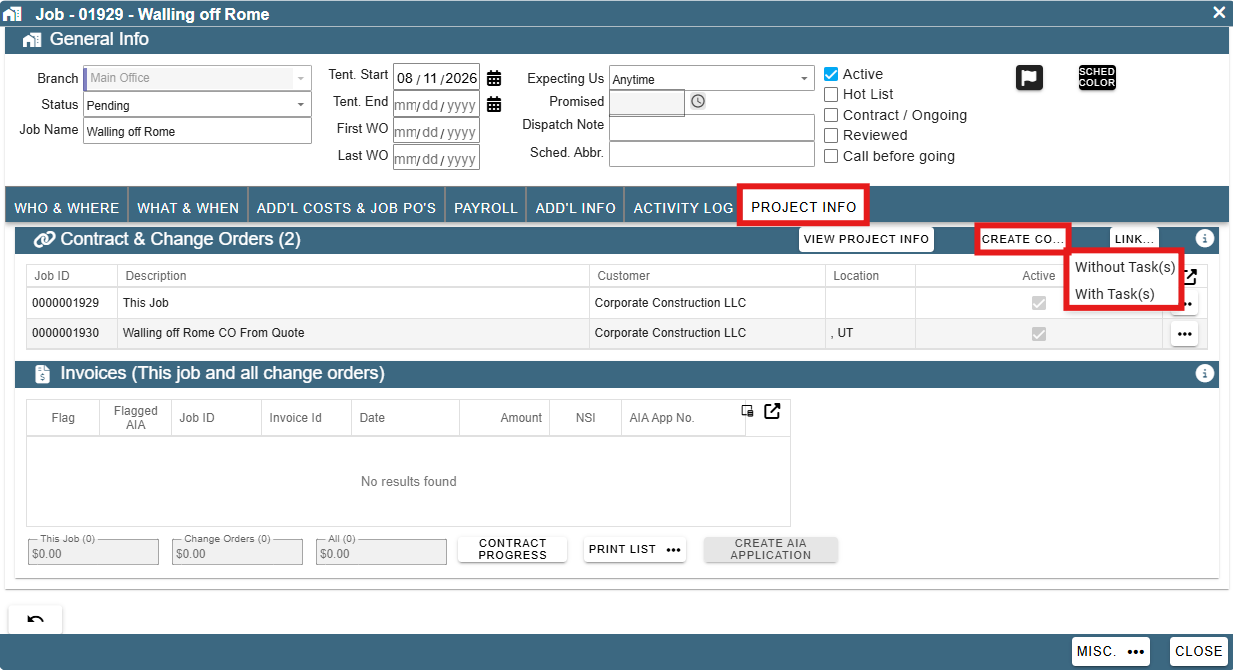
This will bring up a new job that is named after the job you are creating a CO with “- CO1” at the end of it, or the number is whatever of COs that you have made for the job.
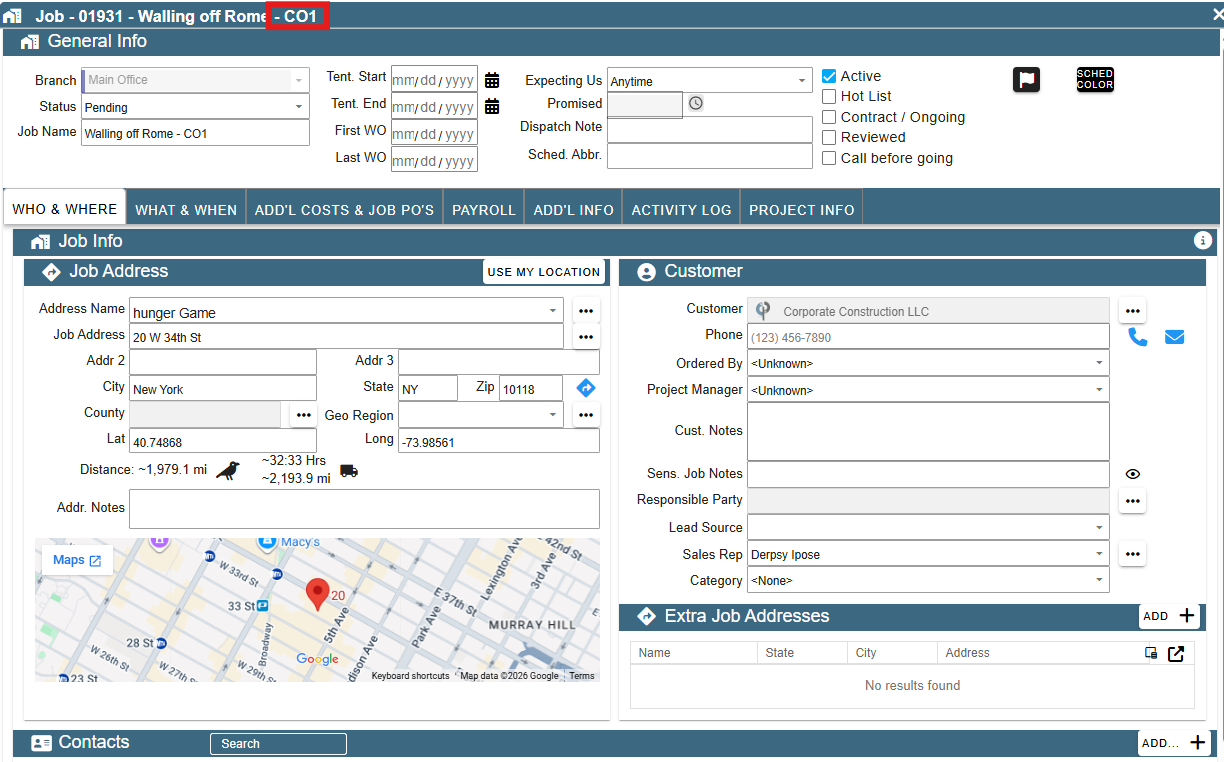
Add whatever you need to the job for the CO and close it.
Go back to the job and see that your CO is there now
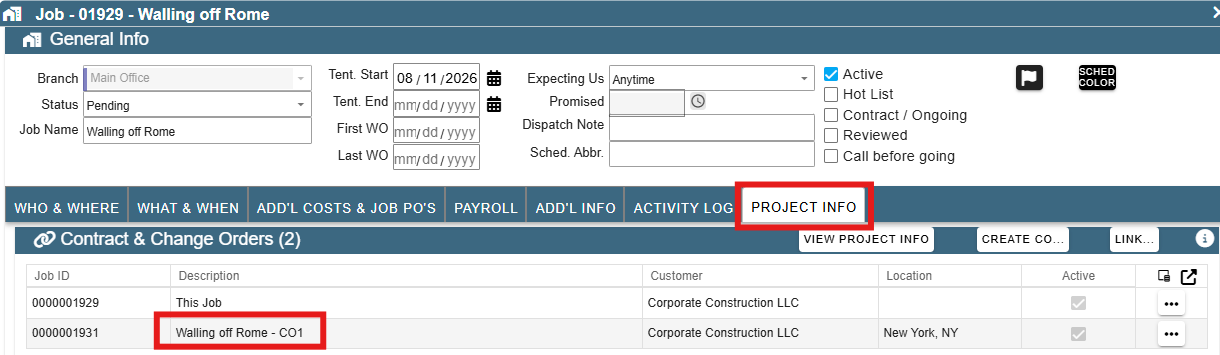
Congratulations, you added a CO to your job.